

Agilicus AnyX Frequently Asked Questions
Resource – Launchers
Diagnosing a Single PC Issue
If you’re experiencing a problem with your Agilicus Agent on a single PC, these are the primary diagnostic steps you can take:
- Review Log Files:
First, check the contents of the log files located in your agent’s logs directory. These files often contain valuable information about recent activities and errors.- Path:
%LOCALAPPDATA%\Agilicus\Agent\logs - What to look for: Examine the most recent log files for any error messages, warnings, or unexpected behavior.
- Path:
- Run a Debug Refresh:
If the log files don’t reveal the issue, you can force a client refresh with debug logging enabled. This can provide more detailed output about the agent’s operation.- Steps:
- Open a
cmd(Command Prompt) window. - Run the following command:
%LOCALAPPDATA%\Agilicus\Agent\agilicus-agent.exe client --cfg-file %LOCALAPPDATA%\Agilicus\Agent\agent.conf.enc.yaml --client-refresh true --debug
- Open a
- Sharing Results (Optional): If you need to share the results of this debug refresh with Agilicus support, you can append the following to the command to save the output to a file:
%LOCALAPAPPDATA%\Agilicus\Agent\agilicus-agent.exe client --cfg-file %LOCALAPPDATA%\Agilicus\Agent\agent.conf.enc.yaml --client-refresh true --debug > "%USERPROFILE%\Desktop\debug.log" 2>&1
After running this, a file nameddebug.logwill be created on your desktop, which you can then share.
- Steps:
- Debug a Specific Launcher:
If the previous steps don’t identify the problem, you can debug the specific launcher directly. This allows you to see any issues related to its specific command execution.- Steps:
- Locate the shortcut icon for the specific launcher you are having trouble with (e.g., on your desktop or Start Menu).
- Right-click the shortcut and select “Properties.”
- In the “Shortcut” tab, find the “Target” field. This field contains the full command line used to launch the application.
- Copy the entire command line from the “Target” field.
- Open a
cmd(Command Prompt) window as your regular user (not as an administrator). - Paste the copied command line into the
cmdwindow. - Append
--debugto the end of the command line. - Press Enter to run the command.
- This will execute the launcher with debug logging, and any remaining issues or output will be displayed directly in the command prompt window.
- Steps:
You may find there is an issue with the launcher. Examples include:
- application starting but exiting right away
- application starts and gives an error dialog
- application does not start
The first step to diagnose this is to find the debugging output. The simplest way is:
- on Start menu, find the application. ‘Open File Location’
- Right-click on the icon, select ‘Properties’
- Open a ‘cmd’ window (start menu, ‘cmd’)
- run cd “DIR” where dir is the ‘Start In” field. Use double-quotes.
- Run the program, appending –debug to the end of the string
These steps are shown below.
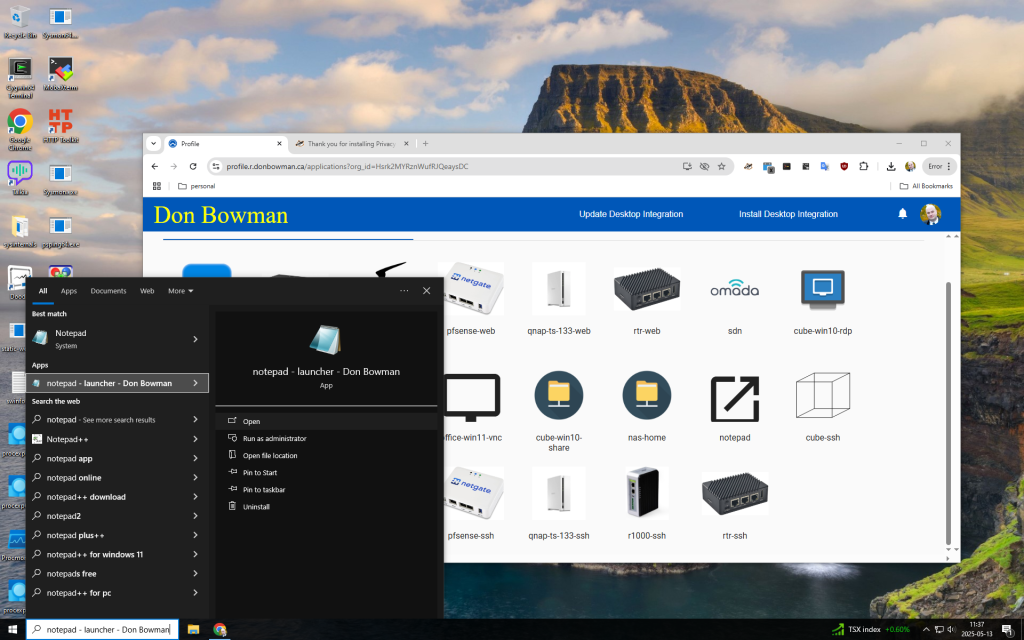
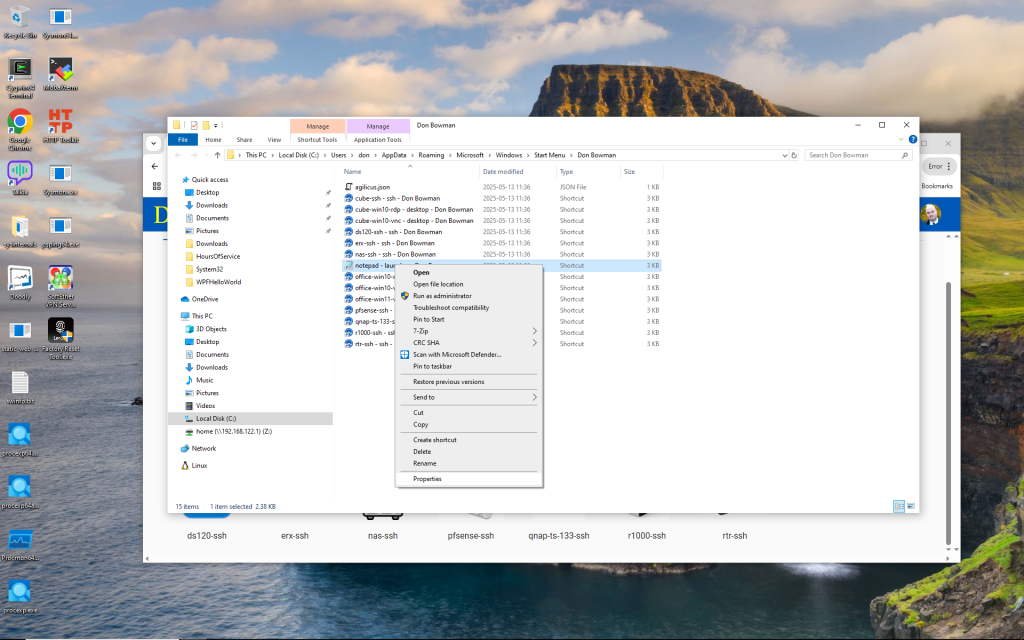
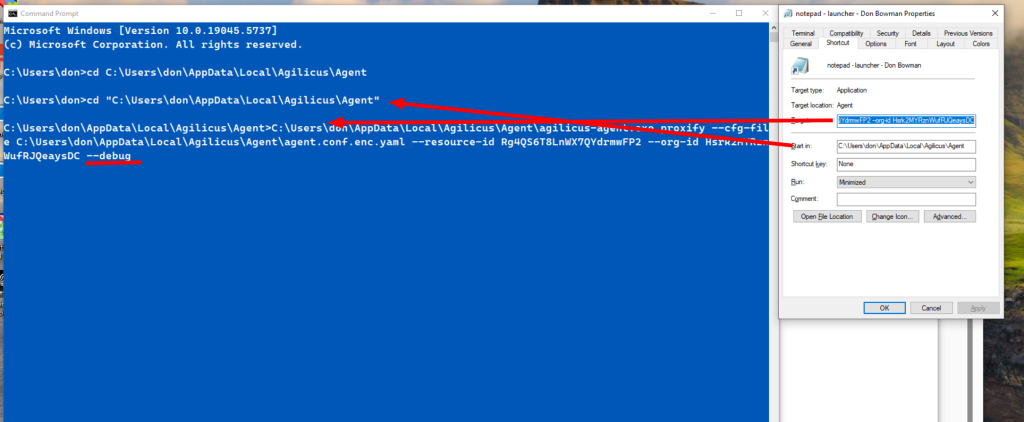
The output will look similar to below.
C:\Users\don\AppData\Local\Agilicus\Agent>C:\Users\don\AppData\Local\Agilicus\Agent\agilicus-agent.exe proxify --cfg-file C:\Users\don\AppData\Local\Agilicus\Agent\agent.conf.enc.yaml --resource-id Rg4QS6T8LnWX7QYdrmwFP2 --org-id Hsrk2MYRznWufRJQeaysDC --debug
time="2025-05-13T11:45:15-04:00" level=info msg="Starting proxify - version v0.298.2"
time="2025-05-13T11:45:15-04:00" level=debug msg="checking if should migrate install path"
time="2025-05-13T11:45:18-04:00" level=debug msg="checking stat file C:\Users\don\AppData\Local\Agilicus\Agent\agilicusLastUpdate"
time="2025-05-13T11:45:18-04:00" level=debug msg="file C:\Users\don\AppData\Local\Agilicus\Agent\agilicusLastUpdate updated"
time="2025-05-13T11:45:18-04:00" level=debug msg="checking C:\Users\don\AppData\Local\Agilicus\Agent\agilicusUpgradeLastRun"
time="2025-05-13T11:45:19-04:00" level=debug msg="upgrade threshold time not met"
time="2025-05-13T11:45:19-04:00" level=debug msg="Launching resource Rg4QS6T8LnWX7QYdrmwFP2 for orgID Hsrk2MYRznWufRJQeaysDC"
time="2025-05-13T11:45:19-04:00" level=debug msg="checking stat file C:\Users\don\AppData\Local\Agilicus\Agent\agilicusLastRefresh"
time="2025-05-13T11:45:19-04:00" level=debug msg="the cache file is: C:\Users\don\AppData\Local\cache\agilicus\resource_info.json"
time="2025-05-13T11:45:19-04:00" level=debug msg="using user resource access info from cache for Rg4QS6T8LnWX7QYdrmwFP2"
time="2025-05-13T11:45:19-04:00" level=debug msg="storing cache in directory: C:\Users\don\AppData\Local\cache\agilicus\tunnel-info"
time="2025-05-13T11:45:19-04:00" level=debug msg="Setting SSL_CERT_FILE=C:\Users\don\AppData\Local\Agilicus\Agent\4274-proxify.crt"
time="2025-05-13T11:45:19-04:00" level=info msg="Adding C:\Users\don\AppData\Local\Agilicus\Agent\4274-proxify.crt to default cert pool"
time="2025-05-13T11:45:19-04:00" level=debug msg="Listen on port 55031"
time="2025-05-13T11:45:19-04:00" level=debug msg="Setting proxy env vars to: http://localhost:55031"
time="2025-05-13T11:45:19-04:00" level=debug msg="Setting _JAVA_OPTIONS var to: -Dhttp.proxyHost=localhost -Dhttp.proxyPort=55031 -Dhttps.proxyHost=localhost -Dhttps.proxyPort=55031"
time="2025-05-13T11:45:19-04:00" level=debug msg="storing cache in directory: C:\Users\don\AppData\Local\cache\agilicus\tunnel-info"
time="2025-05-13T11:45:19-04:00" level=debug msg="exec (waitDescendants: true, workingDir: ): c:\windows\system32\notepad.exe"
d
If you are using an Agilicus Launcher with Rockwell Studio rslinx to reach one or more PLCs, you may see an error “listen tcp 127.74.52.3:44818: bind: An attempt was made to access a socket in a way forbidden by its access permissions.”
This indicates you have another process running which has globally opened this port. You may find this process via:
netstat -an |findstr 44818If you see a result like:
TCP 0.0.0.0:44818 0.0.0.0:0 LISTENINGThis means that there is a process running with this port globally, exclusively, open. You can find the process:
netstat -anband you will see the named process. Stop this process which has the port open exclusively, and, the Agilicus Launcher should now work.
To avoid this, you can either use a different port, reconfigure the exclusive process to use a specific IP (instead of 0.0.0.0), or, run the Agilicus Launcher first.