Send Events to Microsoft Sentinel SIEM
Configure Agilicus AnyX to send events to Microsoft Sentinel.
Example: Send Events to Microsoft Sentinel
Agilicus AnyX supports sending auditing information to external systems. Configuring Microsoft Sentinel as one of those destinations is fairly straightforward. AnyX integrates with Sentinel using a Microsoft Codeless Connector Framework Push connector, which sets up an endpoint capable of ingesting events in your Sentinel workspace.
In this example, we will show how to deploy one of these connectors in Sentinel, and how to configure AnyX to send to it. You will deploy a template in Azure, and configure a destination in your admin portal. AnyX will authenticate with Azure using a Certificate credential-based App Registration.
Deploying in Azure
Log in to Azure, then open the template by clicking this link. Azure will fetch the deployment template from Agilicus. Follow these instructions to fill it in to create the connector in your workspace.
The deployment link will send you to the “Custom deployment” page in Azure. Choose the resource group in which you have your Sentinel workspace. Fill in the location you want the Push connector to run — ideally somewhere central to your AnyX connectors, and set the workspace to the name of the Sentinel workspace.
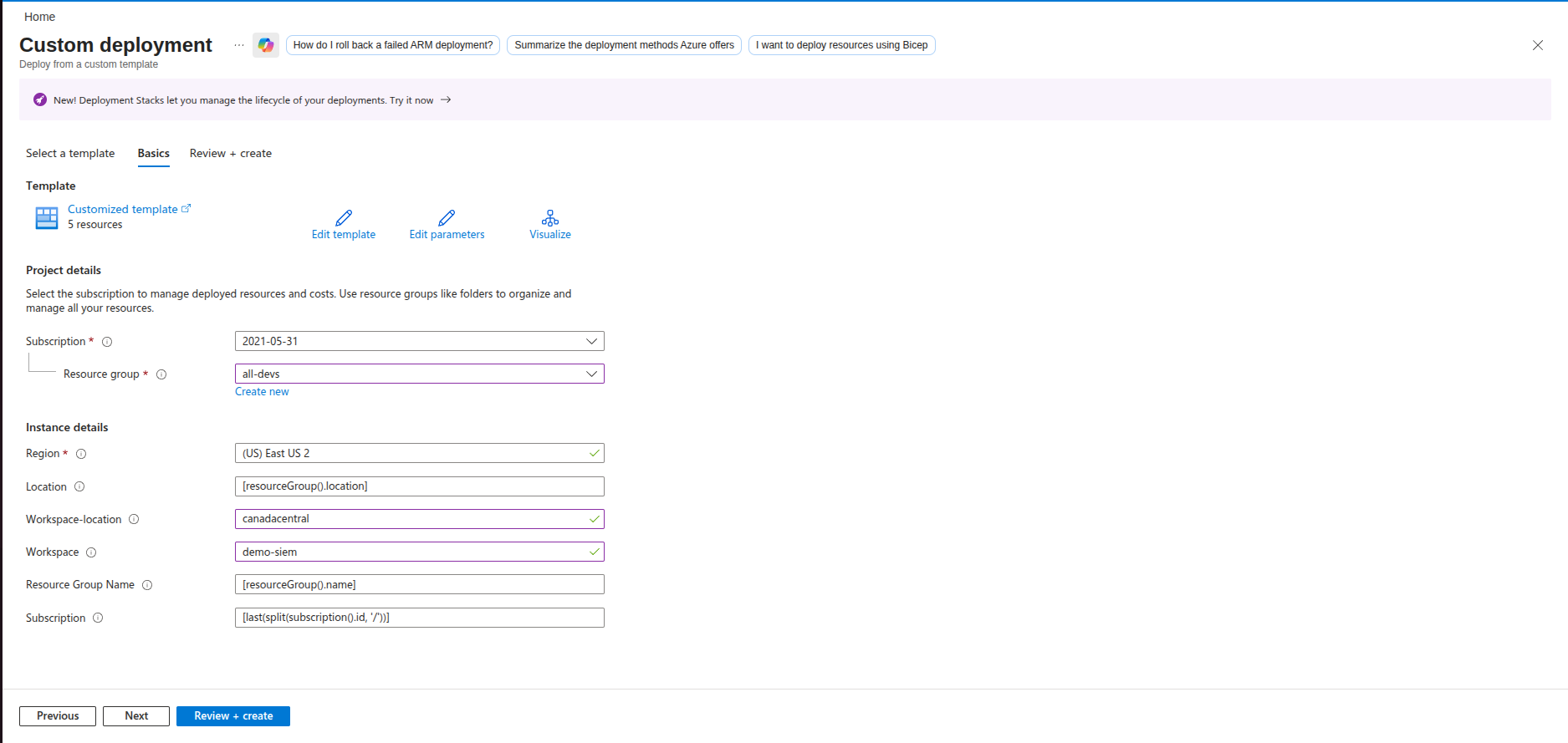
Click Review + Create to review the deployment, then create it. You will be moved to this page, which summarises the deployment.
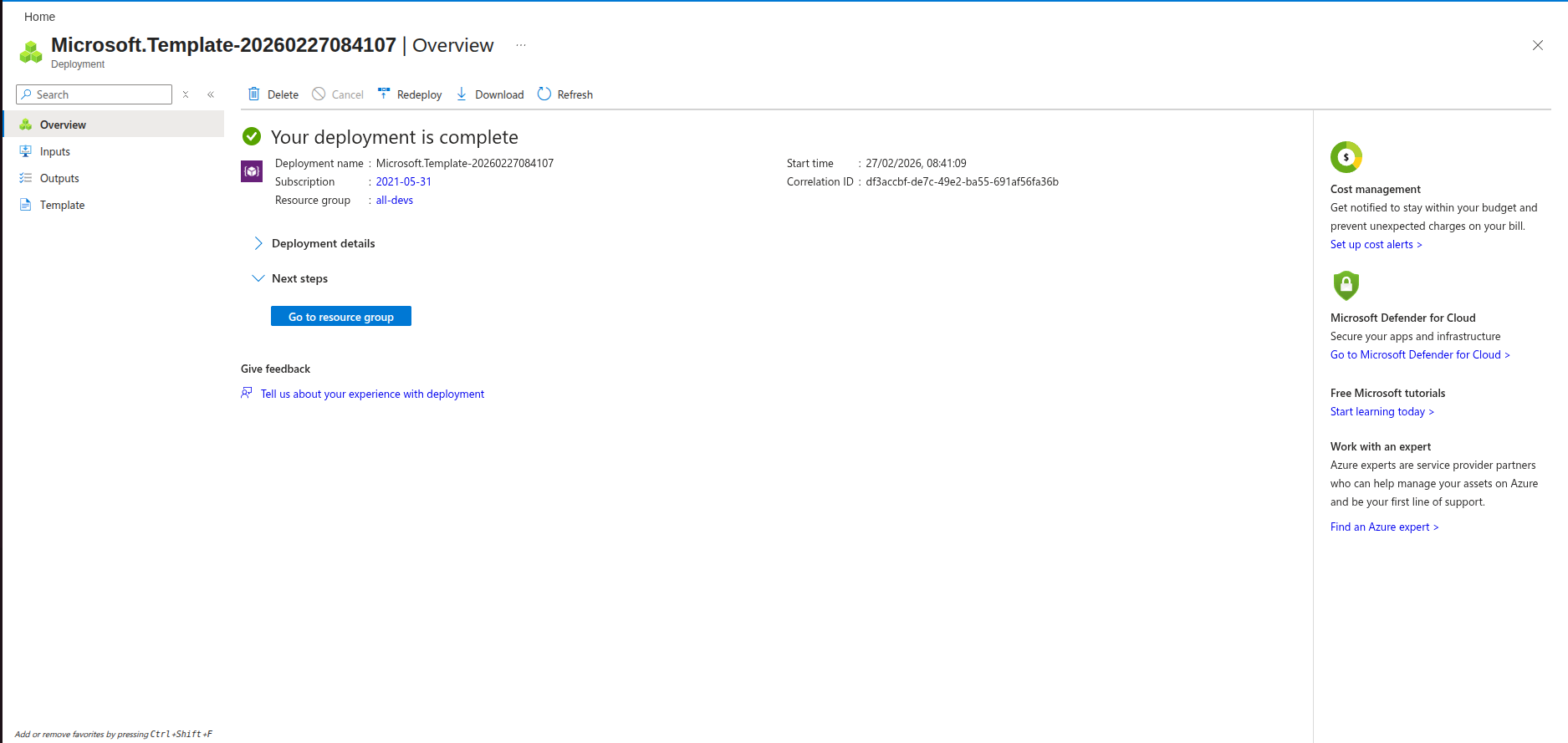
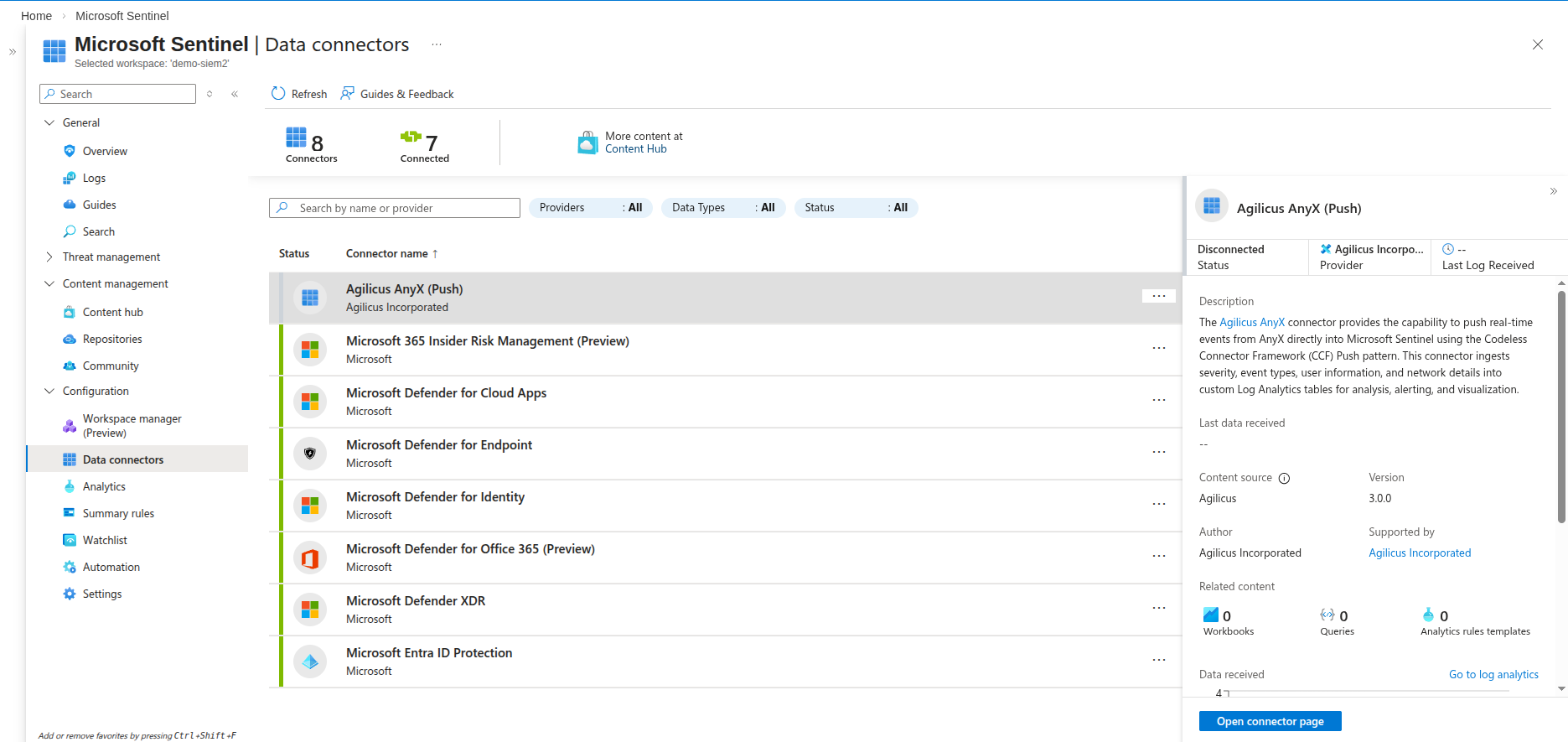
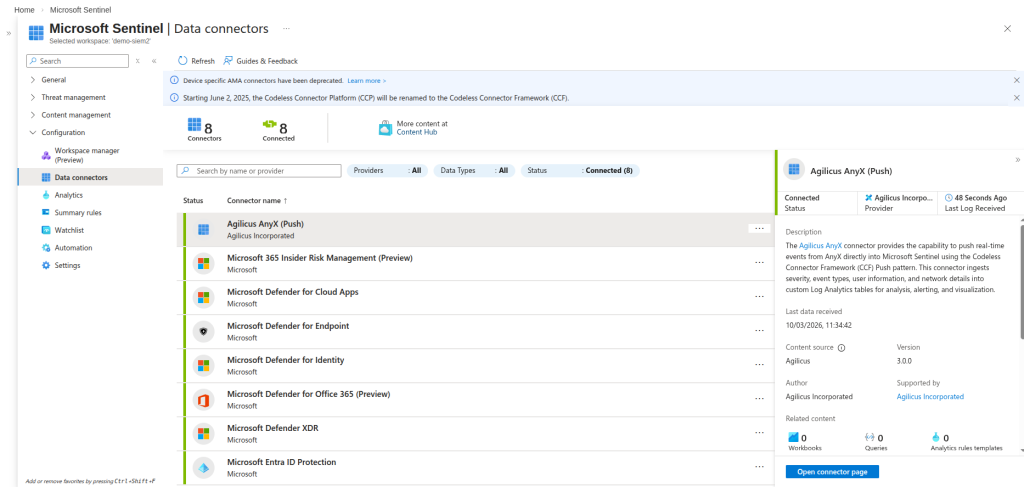
Now navigate to your Sentinel instance, then to Configuration-> Data connectors. Hit Refresh if the Agilicus Anyx (Push) is not yet there. Click on it, then click “Open connector page”.
From there, click “Deploy AnyX Push connector resources”. Click OK if it prompts about creating non-existent resources.
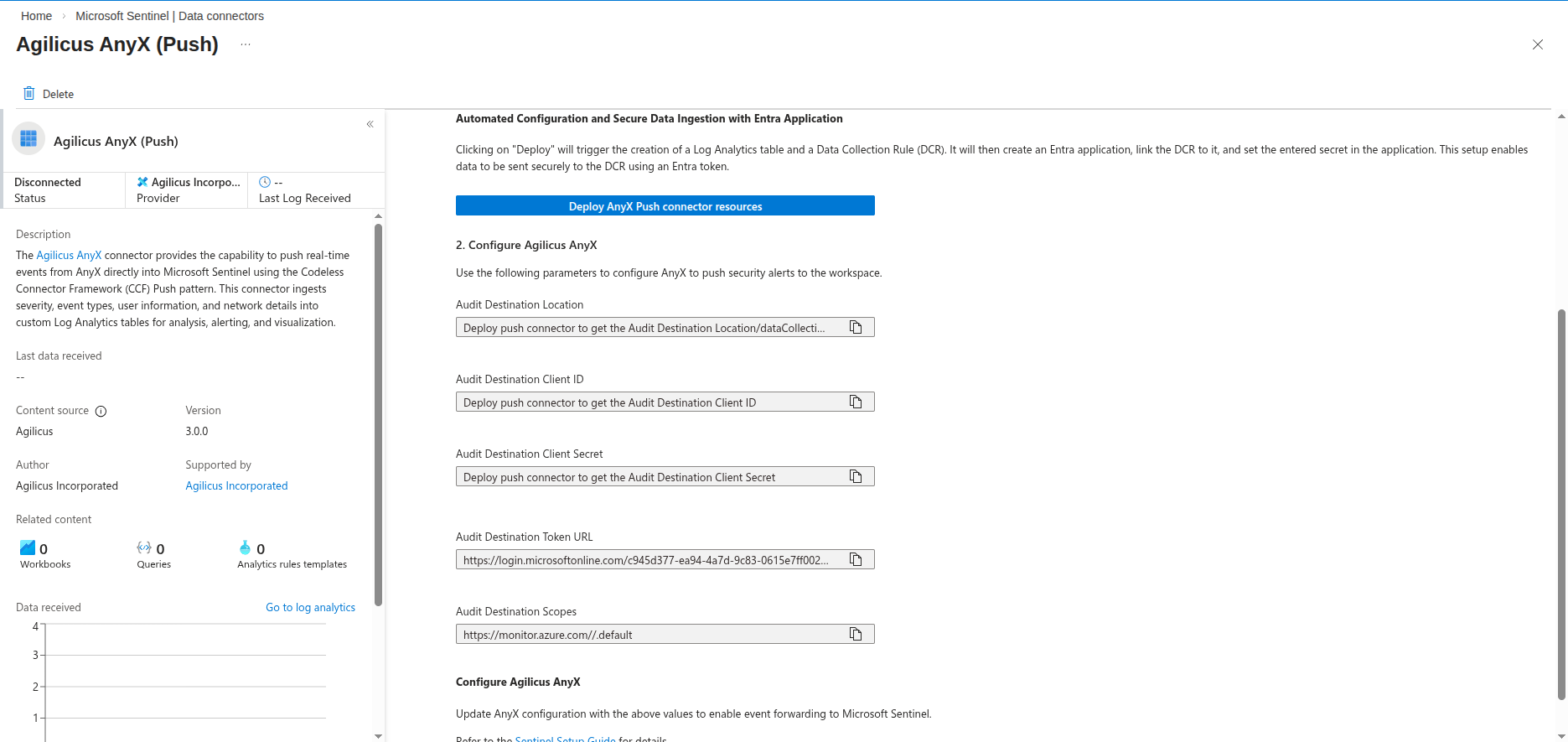
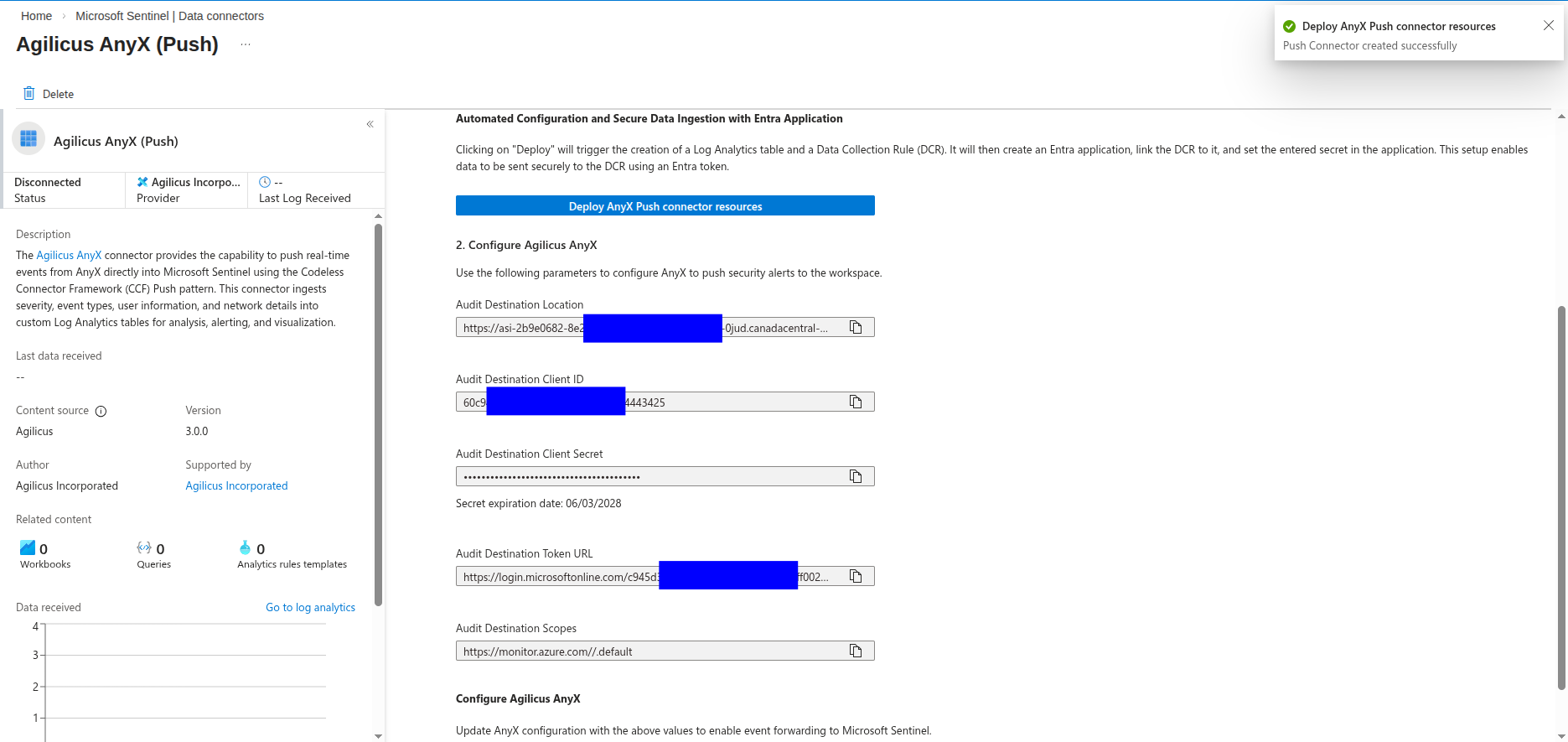
Once the deploy has finished, you will be provided with some information you will need to use to configure AnyX. Be sure to copy down the fields it provides.
Next we need to create the certificate and private key used to authenticate, then upload the certificate to azure. First, create the certificate. Make sure to fill in the details in the -subj command.
openssl req -new -x509 -nodes -newkey ec:<(openssl ecparam -name prime256v1 -genkey) -keyout ms-sentinel.ec.key.pem -out ms-sentinel.ec.crt -days 36500 -subj "/C=<COUNTRY>/ST=<STATE>/L=<CITY>/O=<ORG>/CN=ms-sentinel-push-connector.<YOUR_SUBDOMAIN>"This will create a private key in ms-sentinel.ec.key.pem and a certificate in ms-sentinel.ec.crt.
Then generate the fingerprint for the certificate. AnyX will use this to tell Sentinel which certificate to validate against. Copy down the fingerprint. You will paste it into the AnyX configuration later. It will look something like 2fYsVtd9aIioYlfa3_IgqN72M3O0opRdT2Ypk0AXnDY=
openssl x509 -in /tmp/ms-sentinel/ms-sentinel.ec.crt -outform DER | openssl dgst -sha256 -binary | basenc --base64url -w 0Next, upload the certificate to Azure. Navigate to App Registrations, select All applications, then paste the Audit Destination Client ID you copied down earlier into filter bar.
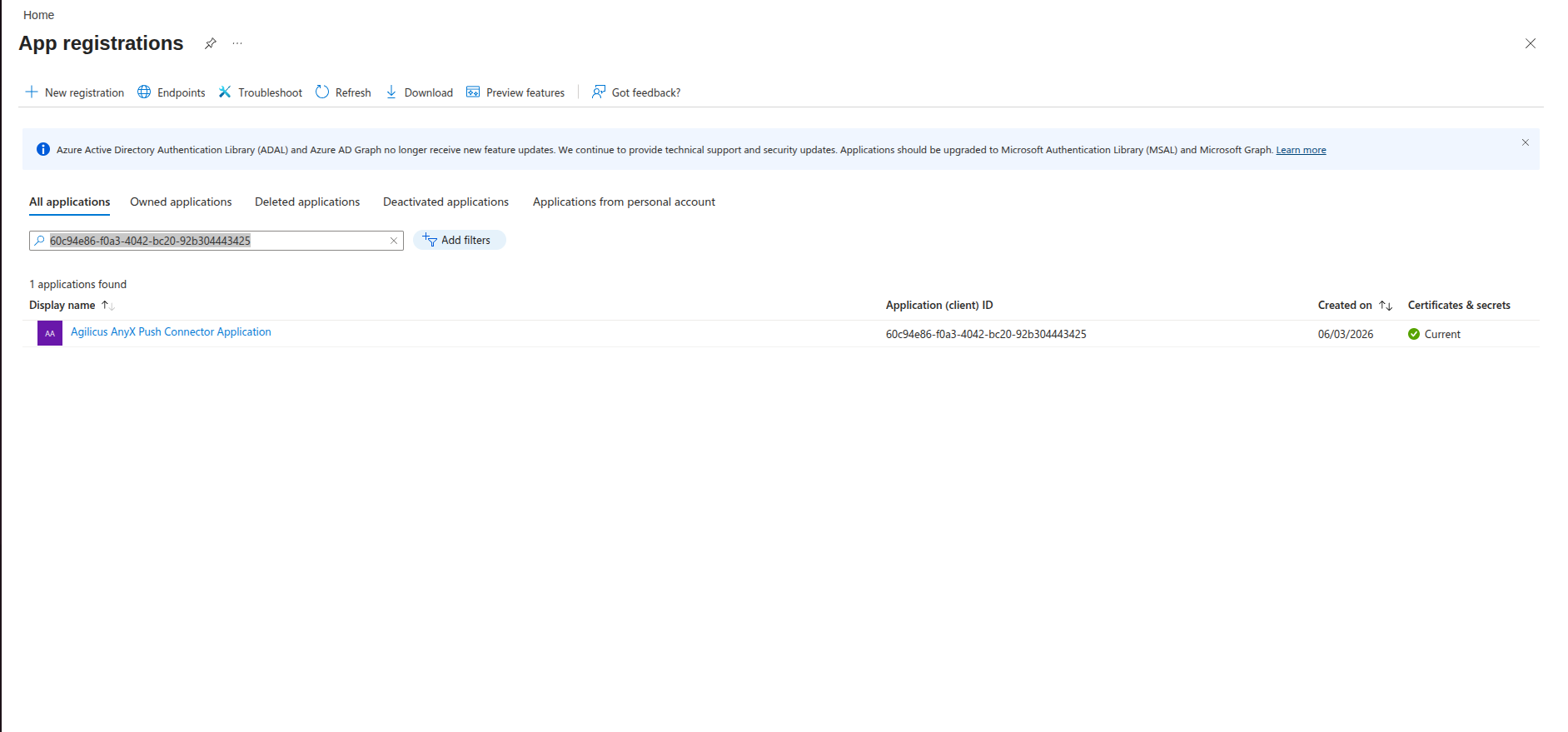
Select the Application, then select Certificates & secrets from the menu. Select the Certificates tab, then click “Upload
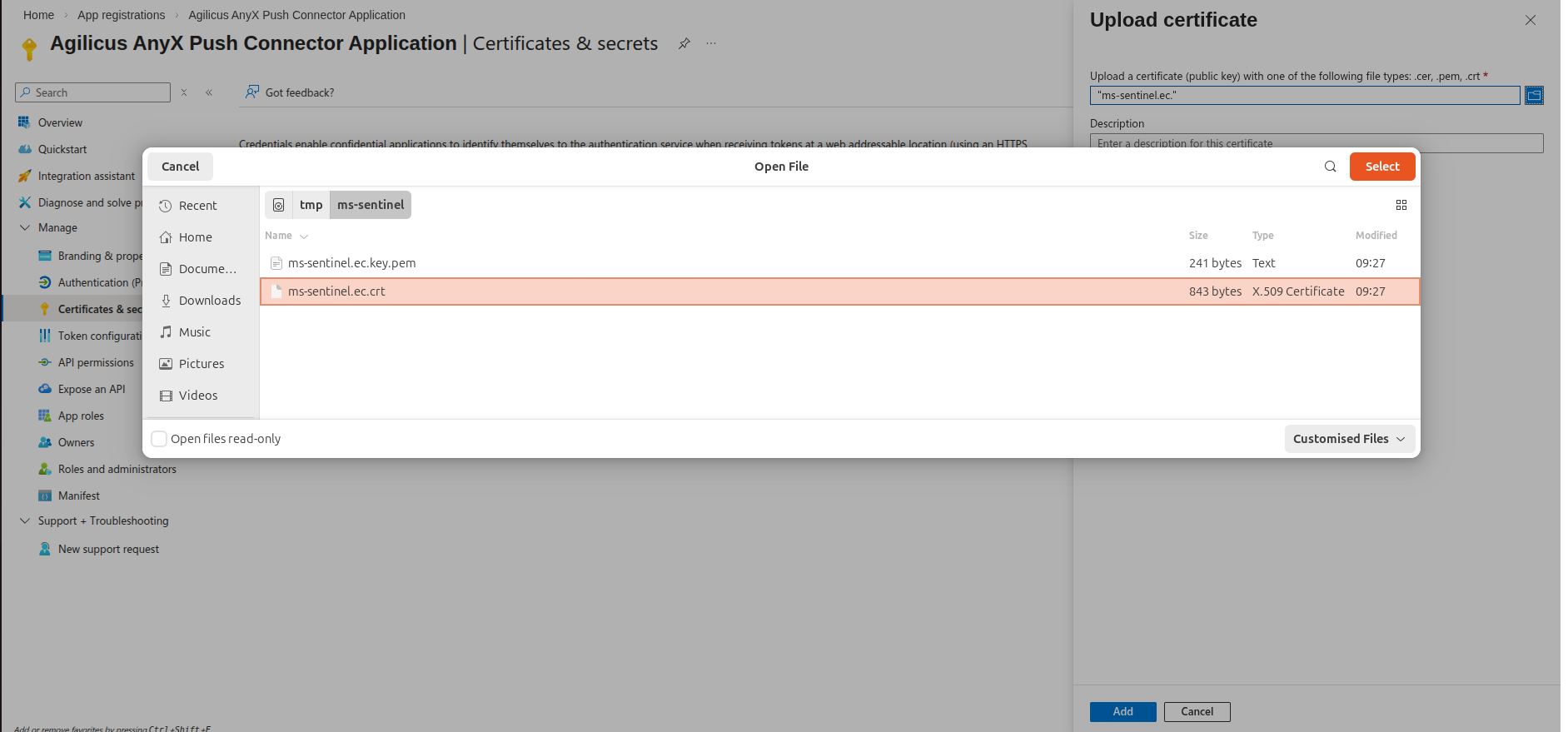
Choose the certificate you created earlier. E.g. ms-sentinel.ec.crt. It will appear in the list of certificates.
Next we need to configure a Destination in AnyX. Navigate to your AnyX admin portal, then to Organisation -> Audit Destinations.
Click “Add Destination”
Set the following parameters:
- name: ms-sentinel
- type: webhook
- Location: <Audit Destination Location from Azure>
- Authentication Type: OAuth2
Check off the types of logs you want to send.
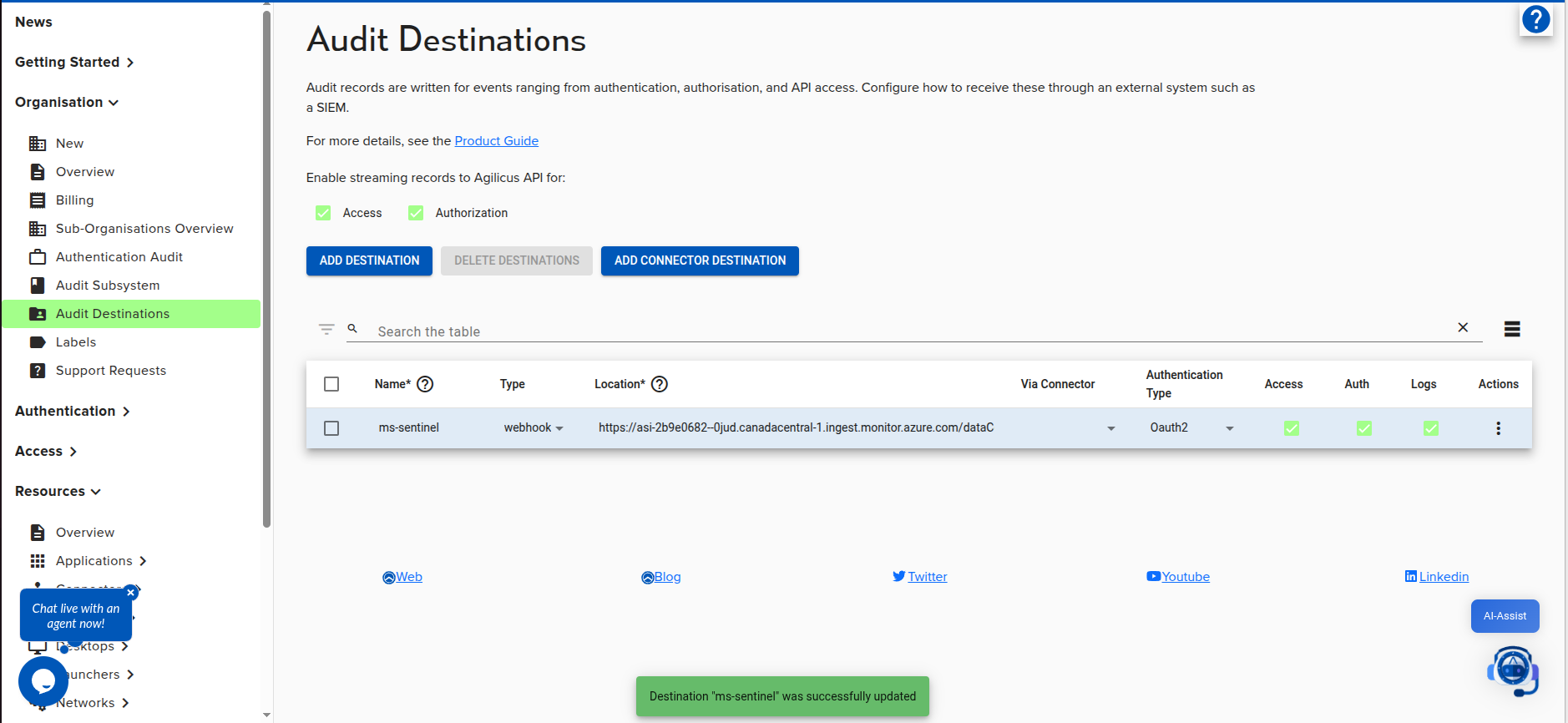
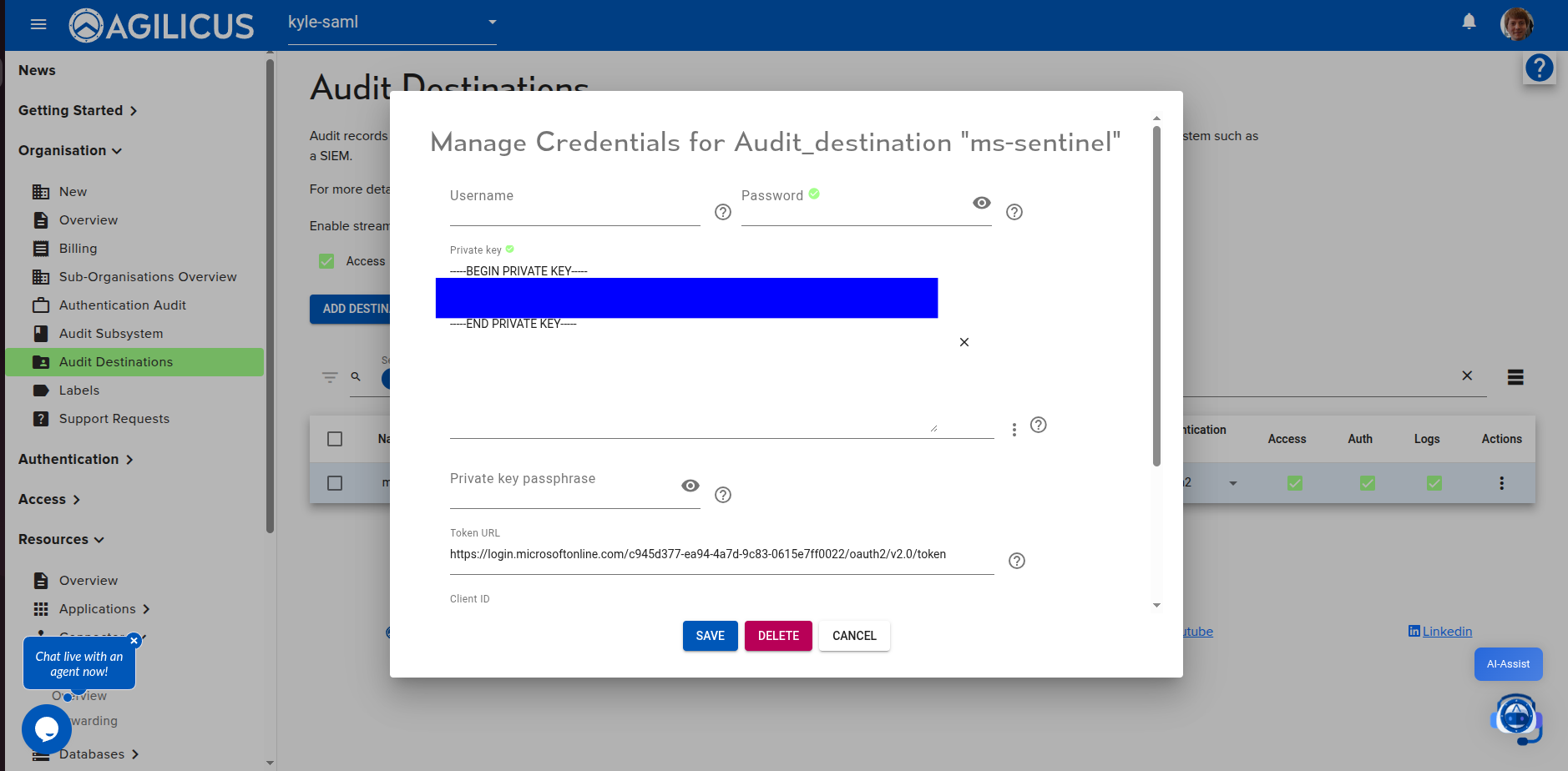
Next, click Actions->Manage Credentials on the new destination.
Enter the following information, then click Save.
- Private Key: <upload the private key (ms-sentinel.ec.key.pem) from earlier>
- Client ID: <Audit Destination Client ID from Azure>
- Token URL: <Audit Destination Token URL from Azure>
- Scopes: <Audit Destination Scopes from Azure>
- Fingerprint: <The certificate fingerprint you created earlier>
AnyX will start publishing records to Sentinel in a few minutes. To test connectivity, first generate some activity by accessing an AnyX resource such as a share. Then, Navigate to the “log analytics” link from the newly deployed connector in Azure.
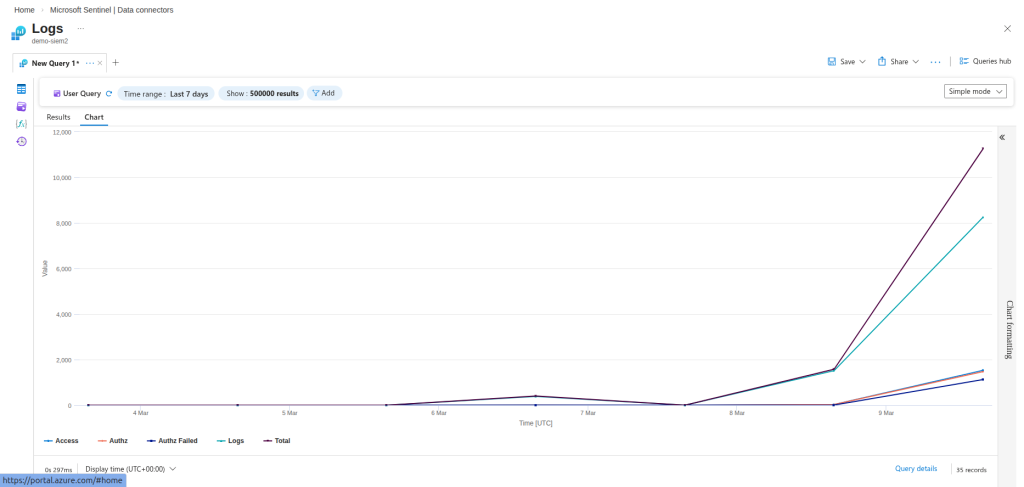
To view details, click the + beside the “New Query” tab to open a new query. Select “KQL mode” instead of simple mode then enter the following query and run it:
AgilicusUnifiedEvents_CL
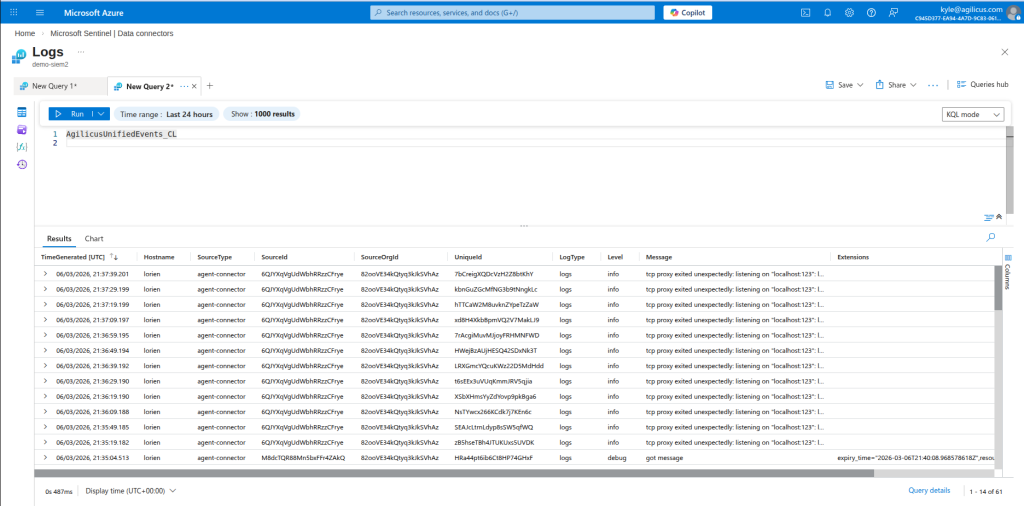
This shows you all the events coming from Agilicus. To see only access logs, run
AgilicusUnifiedEvents_CL
| where LogType == "access"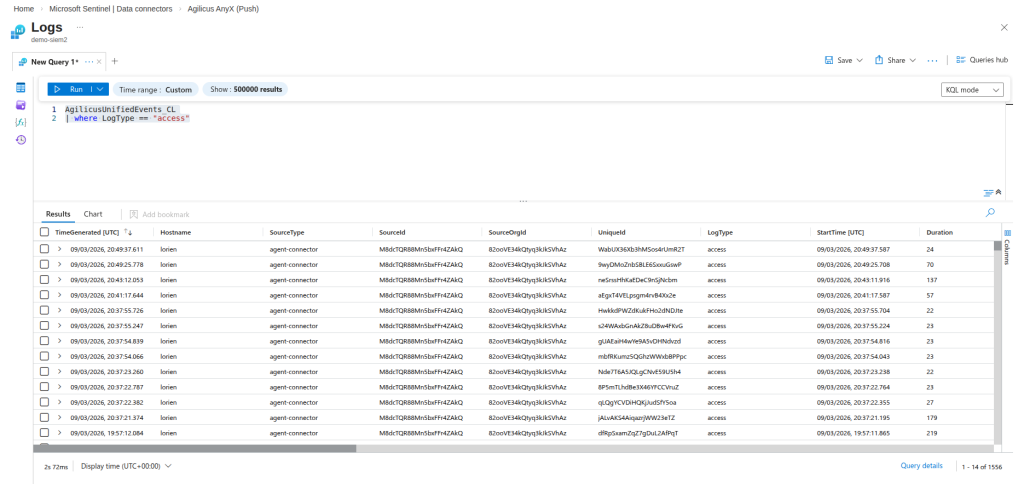
To see only authorization logs, run
AgilicusUnifiedEvents_CL
| where LogType == "authorization"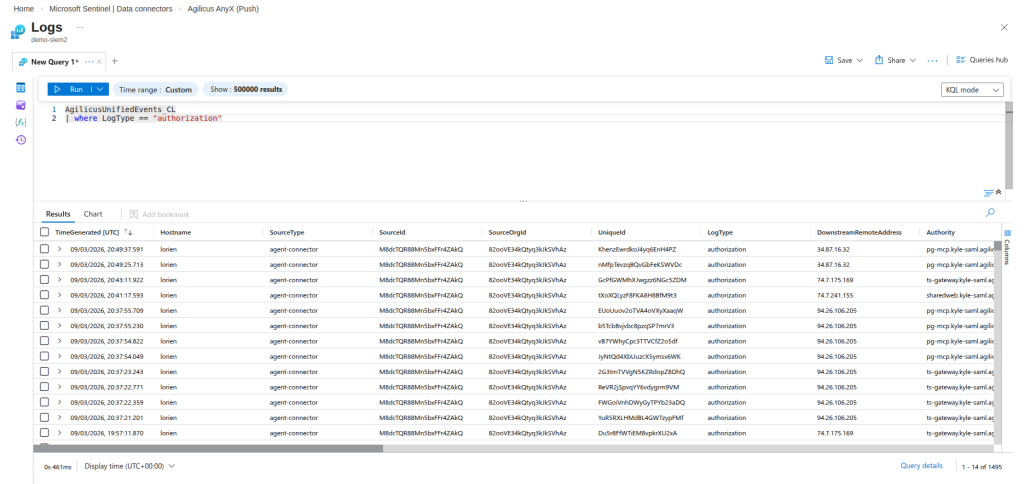
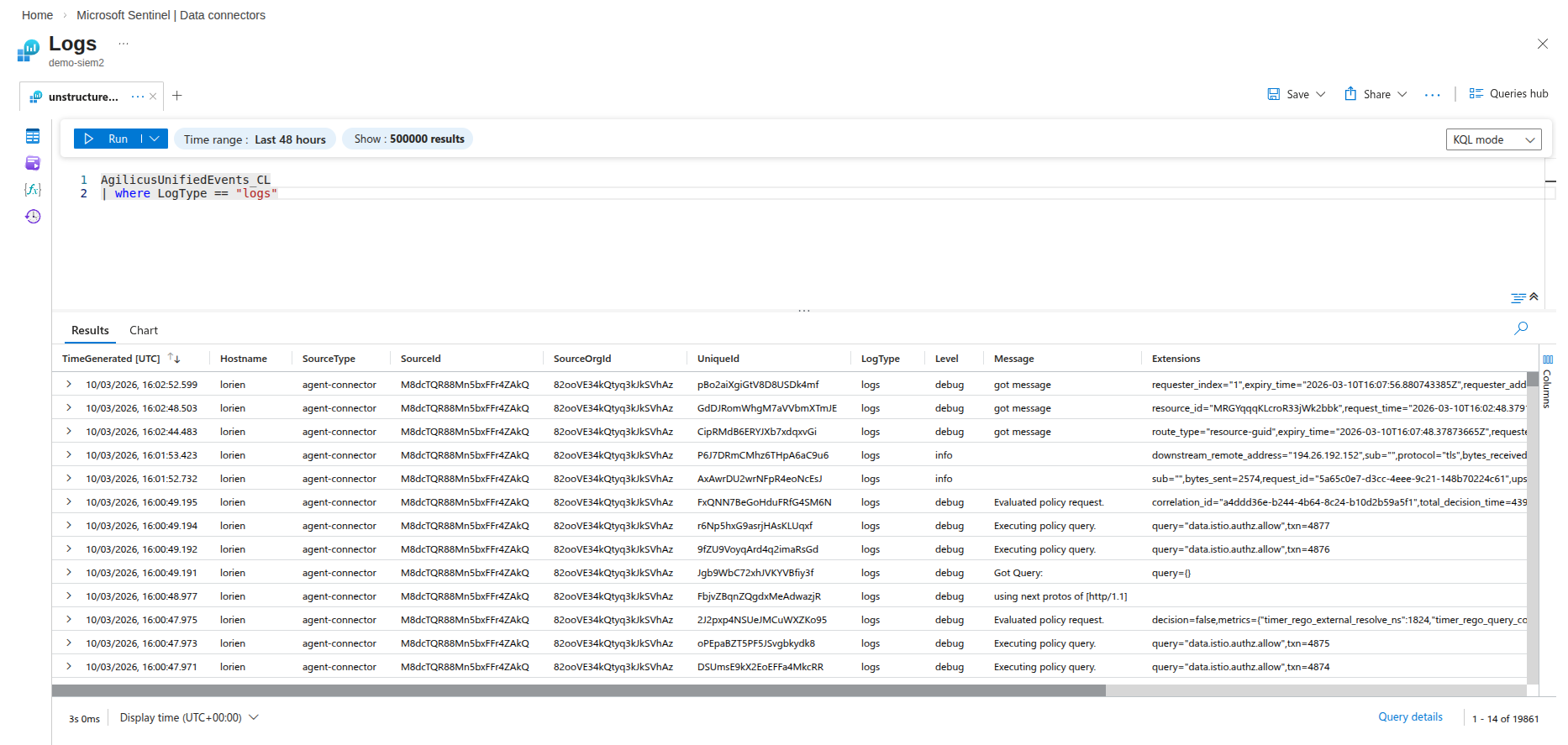
To see only unstructured logs, run
AgilicusUnifiedEvents_CL
| where LogType == "logs"