

Agilicus AnyX Frequently Asked Questions
AnyX – Initial Setup
Agilicus AnyX requires modern cryptography with a strong chain of trust. This is achieved using Let’s Encrypt.
Some older Microsoft Windows systems are not updated to have the proper cryptographic trust information installed. You should upgrade your Windows installation, but, if this is not possible, you can manually install the certificates.
First, download the .der file from https://letsencrypt.org/certificates for each of ‘X1 & X2‘.
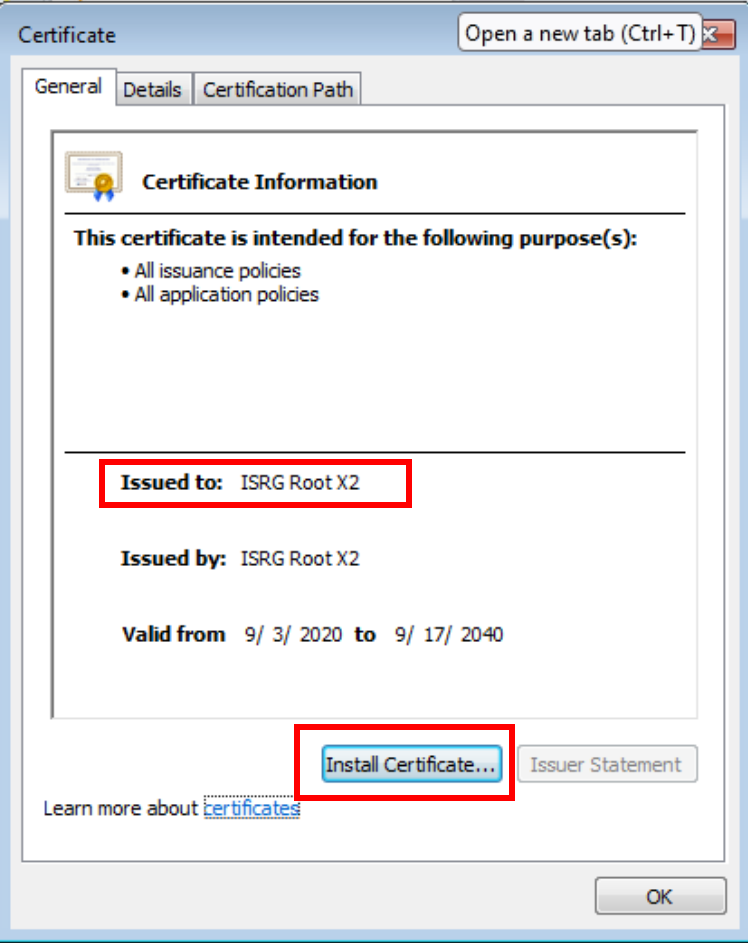
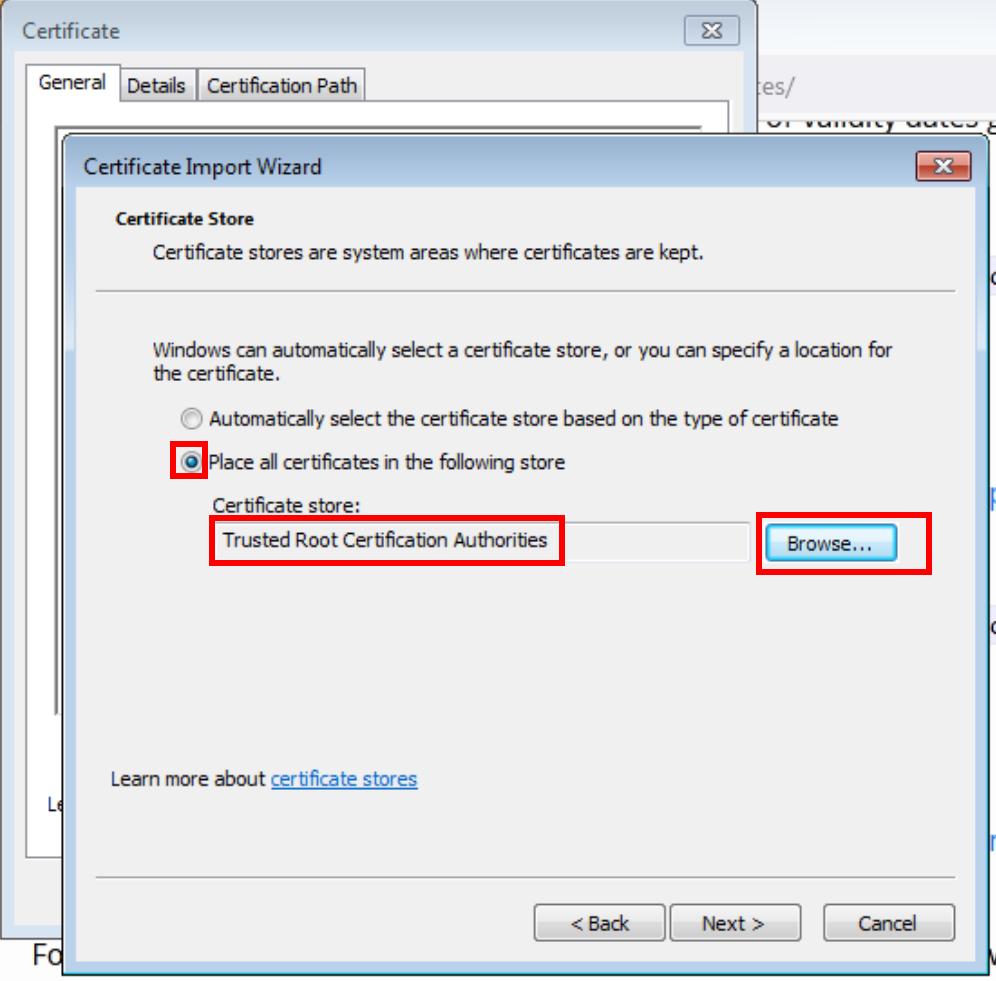
For the X1 der and X2 der, open these on your desktop. You will be prompted to open the certificate manager. From here, Install, and pick the “Trusted Root Certification Authorities”.
Now we must import these to the Machine trust as well (above we did your user). To do so, open ‘mmc’
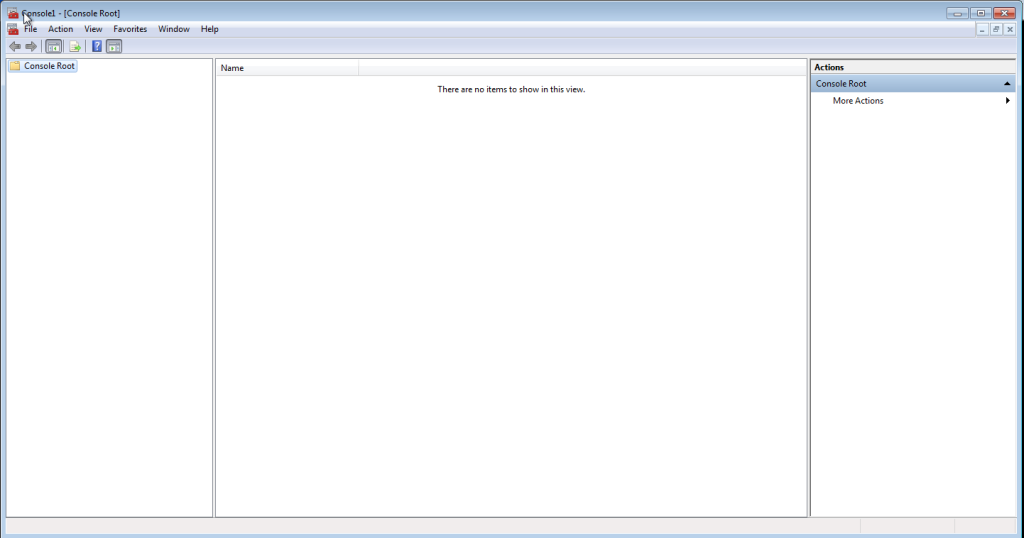
Now press ‘Control-M’.
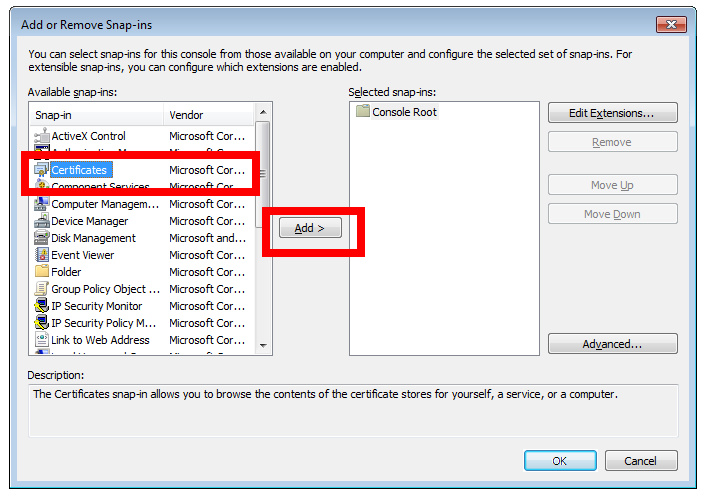
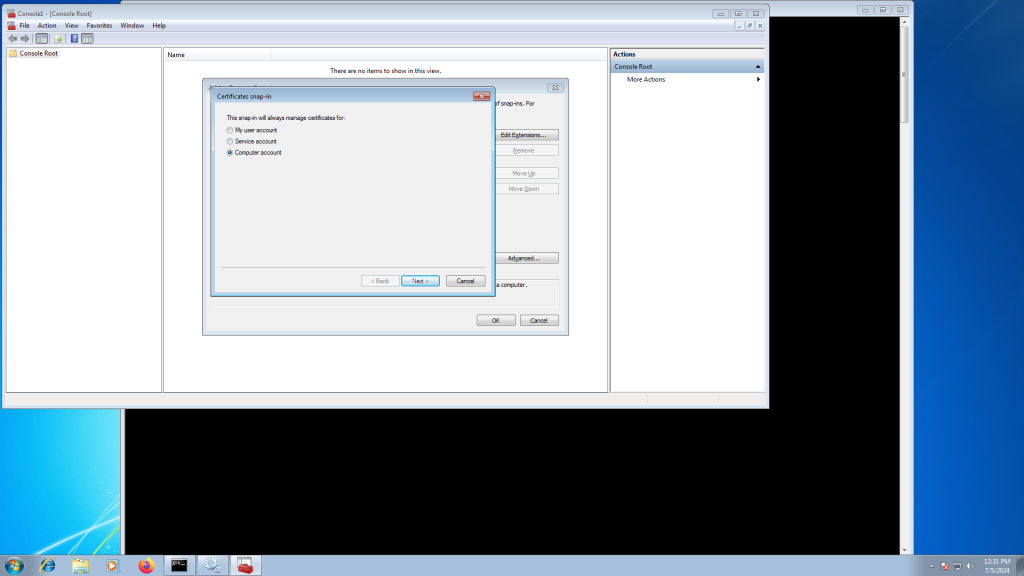
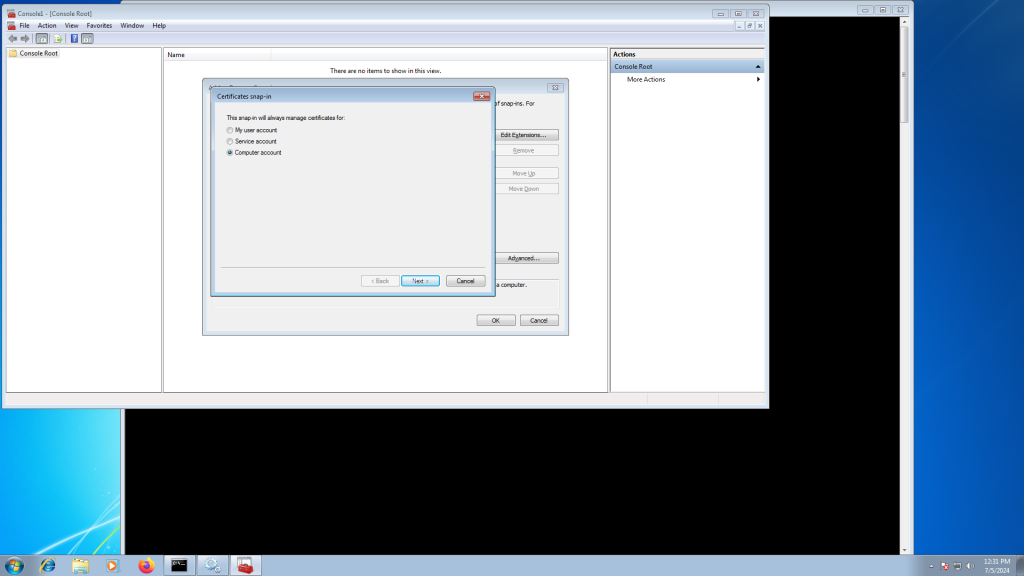
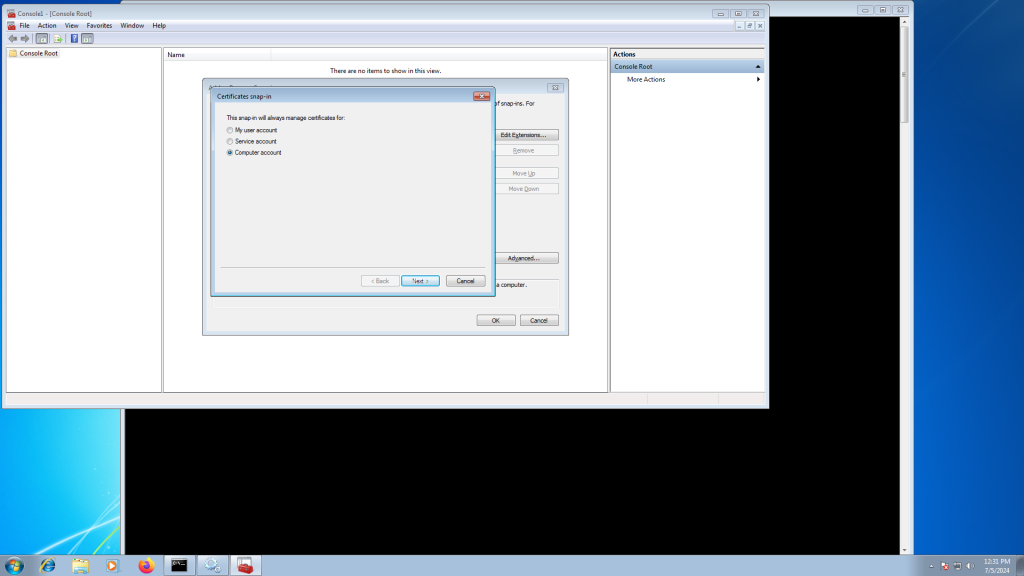
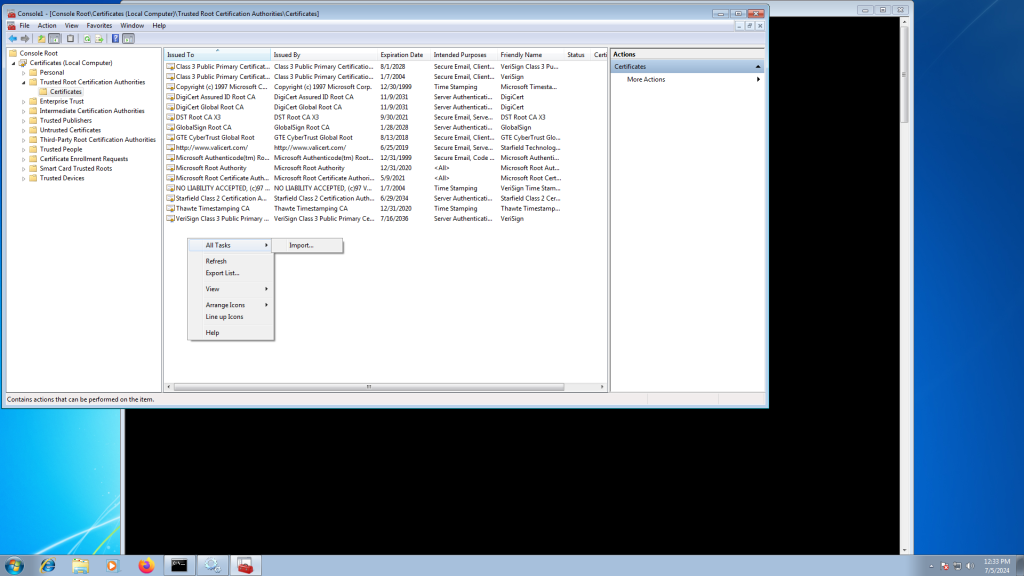
Select the X1 (and repeat for X2) certificate from earlier.
At this stage you should be able to install the Agilicus Connector.
Some customers have issues with their outbound or next-generation firewall. It might block their new domain name they use with Agilicus AnyX (e.g. connect.mydomain.com). We recommend configuring your firewall by hostname if possible. If it must be by IP, this could theoretically change in the future.
See “Firewall Configuration” for the specific rules.
Connector Installation
Agilicus AnyX requires modern cryptography with a strong chain of trust. This is achieved using Let’s Encrypt.
Some older Microsoft Windows systems are not updated to have the proper cryptographic trust information installed. You should upgrade your Windows installation, but, if this is not possible, you can manually install the certificates.
First, download the .der file from https://letsencrypt.org/certificates for each of ‘X1 & X2‘.
For the X1 der and X2 der, open these on your desktop. You will be prompted to open the certificate manager. From here, Install, and pick the “Trusted Root Certification Authorities”.
Now we must import these to the Machine trust as well (above we did your user). To do so, open ‘mmc’
Now press ‘Control-M’.
Select the X1 (and repeat for X2) certificate from earlier.
At this stage you should be able to install the Agilicus Connector.