Agilicus AnyX Frequently Asked Questions
AnyX – Initial Setup3
My company uses a restrictive firewall, how do I configure it?See "Firewall Configuration"
What do I need to setup in my outbound firewall to allow by IP or hostname?Some customers have issues with their outbound or next-generation firewall. It might block their new domain name they use with Agilicus AnyX (e.g. connect.mydomain.com). We recommend configuring your firewall by hostname if possible. If it must be by IP, this could theoretically change in the future.See "Firewall Configuration" for the specific rules.
Some customers have issues with their outbound or next-generation firewall. It might block their new domain name they use with Agilicus AnyX (e.g. connect.mydomain.com). We recommend configuring your firewall by hostname if possible. If it must be by IP, this could theoretically change in the future.
See “Firewall Configuration” for the specific rules.
Authentication, User Permissions25
How do I read the authentication audit?The authentication audit records every step of a sign-in. Learn how a flow runs, how success and failure are decided, why a flow can end at CodeIssued, and what the Policy Evaluation results mean.
Authentication is the process a user, or a machine, follows to prove an identity. Agilicus records every step of that process in the authentication audit. Each step writes a separate record, and every record in one attempt shares the same request_id. To reconstruct an attempt, collect all records with that request_id and read them in time order: the earliest record starts the flow and the newest record is its terminal state.
What is the typical flow for an authentication request?
There are two classes of authentication:
- End user: a person signing in through a browser or an application.
- Service account: a machine identity, such as a connector, that authenticates with an authentication document.
An end-user sign-in moves through a series of stages. Not every flow runs every stage: the path depends on your authentication rules and on whether the user already holds a valid session.
Stages
| Stage | Meaning |
|---|---|
Authentication Request | A step in an OpenID Connect sign-in. The authorisation request and the code exchange both appear in this stage. |
Identity Provider Authentication | The user is authenticating with an upstream identity provider. |
Identity Provider Callback | The identity provider has returned the user to Agilicus with a result. |
Whoami | Agilicus maps the upstream user to a user in your organisation, and refreshes group membership and profile details. |
Policy Evaluation | Agilicus applies your authentication rules to decide what happens next. |
Token | Agilicus issues an access token for its resources. |
MFA Challenge | Agilicus asks the user to answer a second factor. |
MFA Enrollment | A user is enrolling a second factor. |
Assertion Request | A service account authenticates with an authentication document. |
Refresh | A client exchanges a refresh token for new credentials. |
Revoke | A token or a session is being revoked. |
Older exports label these columns stage and event. The current API names them event_name and result. Each record also carries a result, and the result of the newest record in a request_id group is the terminal state of the attempt.
In a web application, the Connector runs the OpenID Connect proxy and acts as the OAuth client. The authorisation code grant, often called three-legged OAuth, has three parties: the user, the client and the authorisation server. The final leg, the code exchange at the token endpoint, comes from the Connector, so the Token record carries the Connector’s address rather than the user’s.
Example: end-user sign-in with a second factor
| Stage | Result |
|---|---|
Authentication Request | InProgress |
Policy Evaluation | Authenticate |
Identity Provider Authentication | InProgress |
Identity Provider Authentication | Success |
Identity Provider Callback | Success |
Policy Evaluation | DoMfa |
Policy Evaluation | Success |
Token | Create |
MFA Challenge | InProgress |
MFA Challenge | Success |
Authentication Request | CodeIssued |
Token | Create |
Authentication Request | Success |
%%{init: {"theme": "base", "themeVariables": {"background": "#ffffff", "primaryColor": "#e8f1fb", "primaryBorderColor": "#1f4e79", "primaryTextColor": "#111111", "lineColor": "#4a4a4a", "secondaryColor": "#f5f5f5", "fontFamily": "Inter, sans-serif"}} }%%
sequenceDiagram
    autonumber
    participant U as User
    participant C as Client
    participant A as Agilicus
    participant I as Identity provider
    U->>C: Start sign-in
    C->>A: Authentication Request, InProgress
    A->>A: Policy Evaluation, Authenticate
    A->>I: Identity Provider Authentication, InProgress
    I-->>A: Identity Provider Callback, Success
    A->>A: Policy Evaluation, DoMfa then Success
    A->>C: MFA Challenge, InProgress
    U->>C: Answer the second factor
    C->>A: MFA Challenge, Success
    A-->>C: Authentication Request, CodeIssued
    C->>A: Exchange the code for tokens, Token Create
    A-->>C: Authentication Request, Success
Example: end-user sign-in with a saved session
| Stage | Result |
|---|---|
Authentication Request | InProgress |
Whoami | UpstreamUserIDUpdated |
Policy Evaluation | AllowLogin |
Policy Evaluation | Success |
Authentication Request | CodeIssued |
Token | Create |
Authentication Request | Success |
%%{init: {"theme": "base", "themeVariables": {"background": "#ffffff", "primaryColor": "#e8f1fb", "primaryBorderColor": "#1f4e79", "primaryTextColor": "#111111", "lineColor": "#4a4a4a", "secondaryColor": "#f5f5f5", "fontFamily": "Inter, sans-serif"}} }%%
sequenceDiagram
    autonumber
    participant U as User
    participant C as Client
    participant A as Agilicus
    U->>C: Start sign-in
    C->>A: Authentication Request, InProgress
    A->>A: Whoami, UpstreamUserIDUpdated
    A->>A: Policy Evaluation, AllowLogin then Success
    A-->>C: Authentication Request, CodeIssued
    C->>A: Exchange the code for tokens, Token Create
    A-->>C: Authentication Request, Success
Example: refresh
| Stage | Result |
|---|---|
Refresh | InProgress |
Policy Evaluation | AllowLogin |
Policy Evaluation | Success |
Refresh | Success |
%%{init: {"theme": "base", "themeVariables": {"background": "#ffffff", "primaryColor": "#e8f1fb", "primaryBorderColor": "#1f4e79", "primaryTextColor": "#111111", "lineColor": "#4a4a4a", "secondaryColor": "#f5f5f5", "fontFamily": "Inter, sans-serif"}} }%%
sequenceDiagram
    autonumber
    participant C as Client
    participant A as Agilicus
    C->>A: Refresh, InProgress
    A->>A: Policy Evaluation, AllowLogin then Success
    A-->>C: Refresh, Success
    Note over A,C: A failed refresh writes Refresh, Failure instead.
Example: service account
| Stage | Result |
|---|---|
Assertion Request | InProgress |
Assertion Request | Success |
%%{init: {"theme": "base", "themeVariables": {"background": "#ffffff", "primaryColor": "#e8f1fb", "primaryBorderColor": "#1f4e79", "primaryTextColor": "#111111", "lineColor": "#4a4a4a", "secondaryColor": "#f5f5f5", "fontFamily": "Inter, sans-serif"}} }%%
sequenceDiagram
    autonumber
    participant K as Connector
    participant A as Agilicus
    K->>A: Assertion Request, InProgress
    A->>A: Validate the authentication document
    A-->>K: Assertion Request, Success
How is a request classified as success or failure?
The service does not write a single record that announces the outcome of a flow. It writes the first record as InProgress, and then appends a record for each step. To classify an attempt, group the records by request_id and read the newest one:
%%{init: {"theme": "base", "themeVariables": {"background": "#ffffff", "primaryColor": "#e8f1fb", "primaryBorderColor": "#1f4e79", "primaryTextColor": "#111111", "lineColor": "#4a4a4a", "secondaryColor": "#f5f5f5", "fontFamily": "Inter, sans-serif"}} }%%
flowchart TD
    A["Collect the records for one request_id"] --> B["Sort them by time"]
    B --> C{"Result of the newest record"}
    C -->|"Authentication Request, Success"| D["Signed in"]
    C -->|"Refresh, Success"| E["Refresh completed"]
    C -->|"Assertion Request, Success"| F["Service account authenticated"]
    C -->|"InProgress"| G["Still running, or abandoned by the client"]
    C -->|"Failure, Denied, Timeout, SessionExpired"| H["Not signed in"]
Authentication RequestwithSuccess: the user is signed in.RefreshwithSuccess: the refresh completed.Assertion RequestwithSuccess: the service account is authenticated.
A newest result of InProgress means the flow has not finished. A newest result of Failure, Denied, Timeout or SessionExpired means it stopped without signing the user in.
Some flows stop without a terminal record, because the client never calls the next endpoint. This happens when a user closes the browser, when a network connection drops, or when a web crawler follows the authorisation link. The service does not write a synthetic failure for these abandoned flows, so treat a dangling flow as an unsuccessful attempt.
The web interface applies the same rule. It groups the records by request_id, sorts each group from oldest to newest, takes the result of the newest record as the outcome, and lists the groups newest first. You can reproduce that logic in a spreadsheet or a script when you review an export.
Why does a flow end at CodeIssued without a Success?
CodeIssued means that Agilicus returned an authorisation code to the client and is waiting for the client to exchange it for tokens. That exchange is what later writes the Authentication Request with Success record. If the Success record is missing, the client did not complete the exchange. Common causes are a closed browser tab, a dropped network connection, and a web crawler that followed the authorisation link and then stopped.
It is not a sign that a valid token already exists. A flow that reuses an existing session takes a different path, and it still ends with Authentication Request and Success.
What do the Policy Evaluation results mean?
Policy Evaluation is where your authentication rules decide what happens next. The first Policy Evaluation record carries the decision, and a following Policy Evaluation record with Success confirms that Agilicus stored the decision.
| Result | Meaning |
|---|---|
AllowLogin | Continue the sign-in without a second factor. |
DontMfa | Deprecated. Continue the sign-in without a second factor. Newer rules return AllowLogin. |
DoMfa | Challenge the user for a second factor. |
Authenticate | Send the user to an upstream identity provider to authenticate. |
DenyLogin | Do not allow the user to continue. Agilicus terminates the sign-in. |
Three further results can appear on the Policy Evaluation stage:
Success: the decision was evaluated and stored.Failure: Agilicus could not evaluate the policy and aborted the sign-in. Report this to support if you see it.Denied: written after aDenyLogindecision, when the sign-in is terminated.
Why does a desktop session not appear in the authentication audit?
A desktop or Secure Shell session launched from Profile is not a sign-in, and it does not use an OpenID Connect client for each resource. Profile asks the Applications service for a client configuration. Applications mints an access token scoped to that one resource, and the connector records the session in the Access audit when the connection closes.
Use the Authentication audit to see the Profile sign-in, and the Access audit to see which desktop or network device the user reached, through which connector, and from where. The token and session identifiers link the two records.
See also
A user can’t log in, how can I fix this?The most common error is that a user is trying to log in with the wrong account. Make sure that they are using the correct login and domain. You can use the Authentication Audit page under Organization to review authentication attempts. See diagnosing user issues with audits for more information.
The most common error is that a user is trying to log in with the wrong account. Make sure that they are using the correct login and domain. You can use the Authentication Audit page under Organization to review authentication attempts. See diagnosing user issues with audits for more information.
Add a User to My OrgLearn how to add new team members or vendors and manage their access by assigning specific permissions directly or through user groups.
You have a new team member, or a new vendor supporting you. You wish to add them so they have specific permissions.
- Navigate to your admin interface (https://admin.__MYDOMAIN__)
- Under Access/Users, type in their email. Optional: add one or more group assignments for permission
- Optional: Navigate to Access/Groups and add them to one or more group assignments for permissions
- Optional: Navigate to Access/Resource Permissions, and directly assign permissions if not done through a group above.
Automatically Create Users / Assign Groups / Assign PermissionsFully automate user creation and group assignment in Agilicus AnyX using Microsoft Entra ID. Streamline end-user management and permissions.
If you use Microsoft/Azure Entra/Active Directory you can automatically create your users, and automatically assign their groups based on those in Entra. You can in turn assign permissions to those groups. This can fully automate end-user management.
To do this, you will create a Microsoft Application Registration, configure Agilicus AnyX to use it, and then enable the group claim.
See more information on Entra group integration.
See more information on Groups.
Using this technique you can have a 0-configuration, ongoing up-to-date system, where your users are entirely managed by Azure Entra and synced into Agilicus AnyX without ongoing maintenance.
Azure Application Consent RetriggersLearn why users see repeated app consent dialogs in Microsoft Entra and how disabling the Offline Consent setting can serve as a workaround.
Depending on your settings in Active Directory, you may either have:
- no application consent dialog
- an application consent dialog one time
- an application consent dialog one time per user
In some circumstances it might be one time per user per login. We encourage you to resolve this with your settings in Microsoft Entra, but as a workaround you can try disabling Offline Consent (as below). This will disable the use of Refresh Tokens, which in turn means the user might have to sign in more frequently.

Can I configure a different policy for my sub-organisations?You can enable different policy for sub-organisations on the "Organisations/Sub-Organisations Overview" page.
You enable a different policy for sub-organisations by choosing “Enable Unique Issuer” in the actions menu of the “Organiastions/Sub-Organisations Overview” page of your administrative portal. See https://www.agilicus.com/anyx-guide/organisation/ for details. Note that this will change how users of this sub-organisation log in to their profile and admin portal.
Can I control how often users need to authenticate?Control how often users authentication by editing the session duration configuration in the authentication policy.
Yes. The default policies contain an entry controlling for how long a user’s session is valid. Once this time has elapsed, the user will be asked to re-authenticate. See https://www.agilicus.com/anyx-guide/authentication-rules/#session-duration for details.
Can I control how often users need to provide their second factor?You can configure how frequently users provide their second factor in the "Authentication/Authentication Policy" screen.
Yes. This setting is configured in the “Authentication/Authentication Policy” screen. See https://www.agilicus.com/anyx-guide/multi-factor-authentication-cfg/#multi-factor-frequency for details
Can I require multi-factor authentication for specific users?You can write policy requiring multi-factor authentication in the Authentication/Authentication Policy page.
You can write policy requiring that users in one of a list of groups have a second factor registered and enabled. See https://www.agilicus.com/anyx-guide/multi-factor-authentication-cfg/#require-multi-factor for more details.
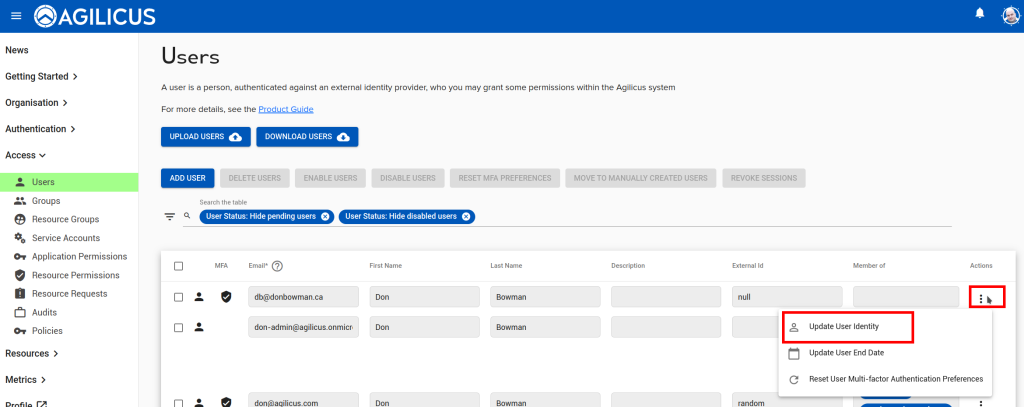
How do I change a user email / identity provider?If you have a user who has signed in with one identity provider (e.g. Google) and you wish to change them to another (e.g. Microsoft Azure), or, the user's email has been changed, use the 'Update User Identity' feature. This will disconnect the user from their existing identity provider, and, on their first new sign
If you have a user who has signed in with one identity provider (e.g. Google) and you wish to change them to another (e.g. Microsoft Azure), or, the user’s email has been changed, use the ‘Update User Identity’ feature. This will disconnect the user from their existing identity provider, and, on their first new sign in, they will be adopted by the new one. Once you have selected thhis option you may change the user’s Email or switch them to a different identity provider.
How do I control who has what permission on a resource?On the "Access/Resource Permissions" menu in your administrative web interface you can control which users or groups have which permissions on a resource. See "Permissions" for more information.
On the “Access/Resource Permissions” menu in your administrative web interface you can control which users or groups have which permissions on a resource. See “Permissions” for more information.
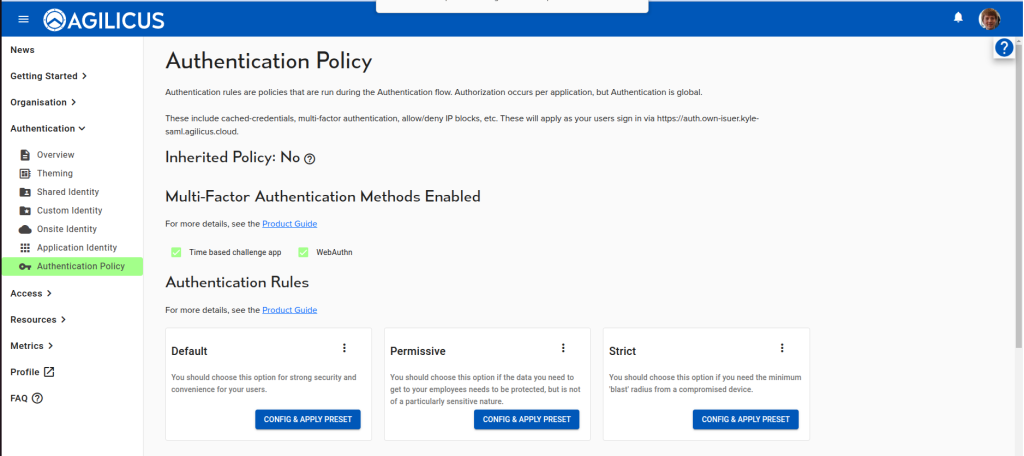
How do I enable or disable multi-factor authentication for everybody?Configure multifactor authentication on the "Authentication/Policy" page.
On the “Authentication/Policy” in your administrative web interface you can control which multi-factor methods your issuer allows. In the “Multi-Factor Authentication Methods Enabled” section, toggle the desired check-boxes to configure which methods your users can choose when enrolling a method, or authenticating.
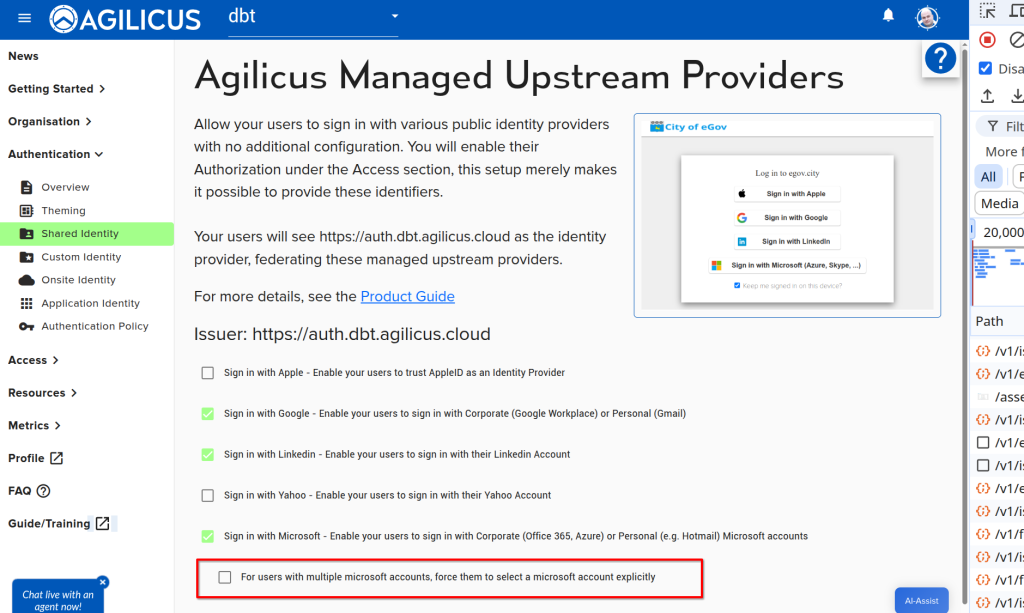
How do I force the account selector on login?In some circumstances you may have users with more than one account who are struggling to remember to use the correct one. Individually on each sign in they can use the account selector, but, you as the administrator may wish to force this for all users all the time. You may do this as below.
In some circumstances you may have users with more than one account who are struggling to remember to use the correct one. Individually on each sign in they can use the account selector, but, you as the administrator may wish to force this for all users all the time. You may do this as below.
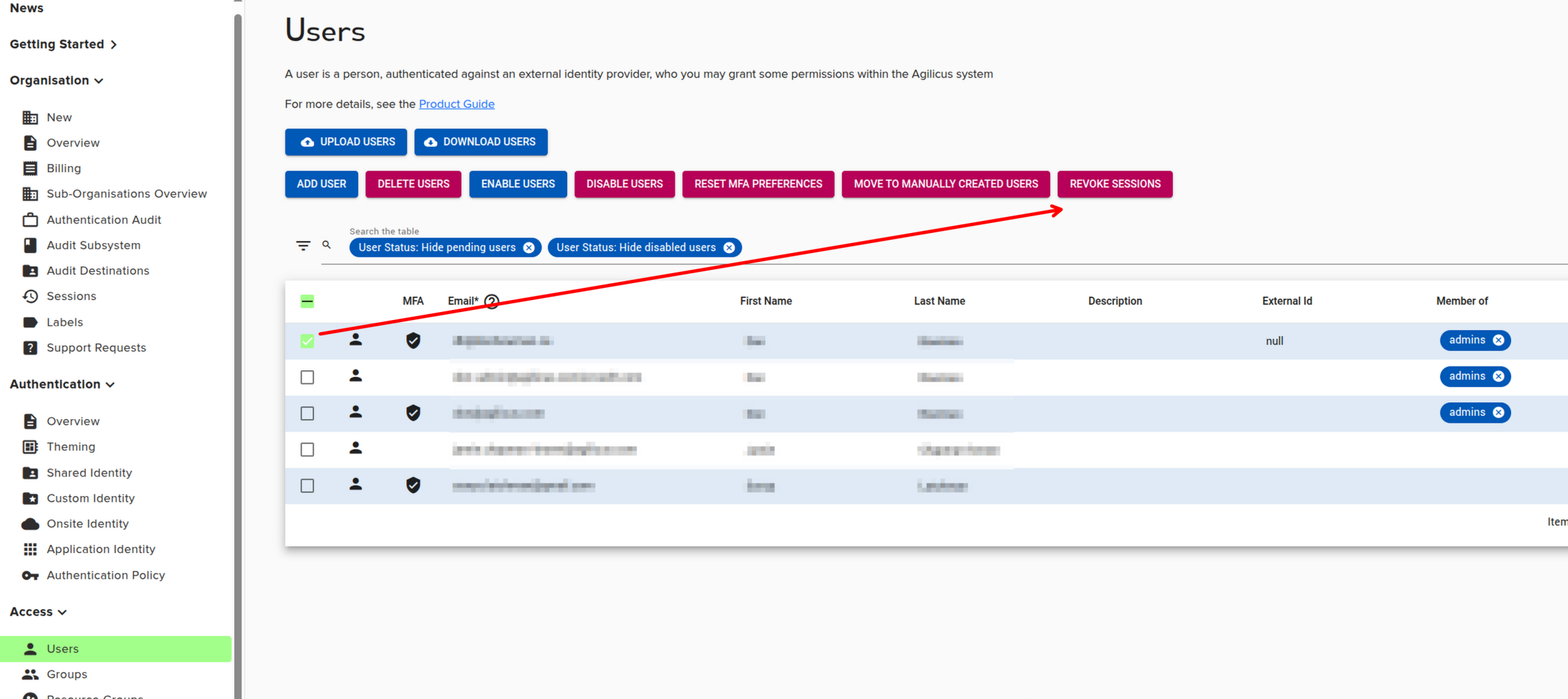
How do I terminate a session for a user?In your admin portal, navigate to Access/Users. select the specific user, and select REVOKE SESSIONS. Their sessions will sign out immediately (in some cases tokens may take 10 minutes to timeout if there is a cache).
In your admin portal, navigate to Access/Users. select the specific user, and select REVOKE SESSIONS. Their sessions will sign out immediately (in some cases tokens may take 10 minutes to timeout if there is a cache).
My Azure login is asking for approval, what does it mean?The first time a user authenticates against Microsoft Entra, it may ask for permission to do so. There is no information exchanged, no permission granted to access your Microsoft account, merely permission to authentication. You can configure who this happens for or if it happens at all in the azure console. See Azure Application Consent
The first time a user authenticates against Microsoft Entra, it may ask for permission to do so. There is no information exchanged, no permission granted to access your Microsoft account, merely permission to authentication. You can configure who this happens for or if it happens at all in the azure console. See Azure Application Consent for more information.
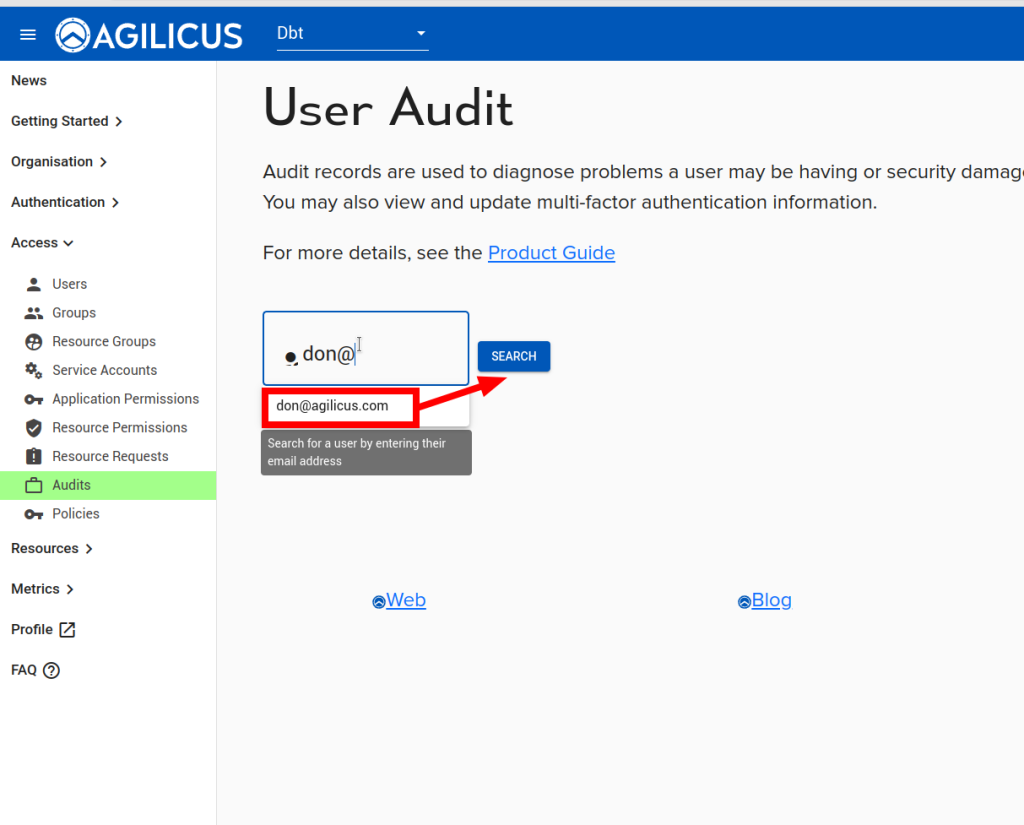
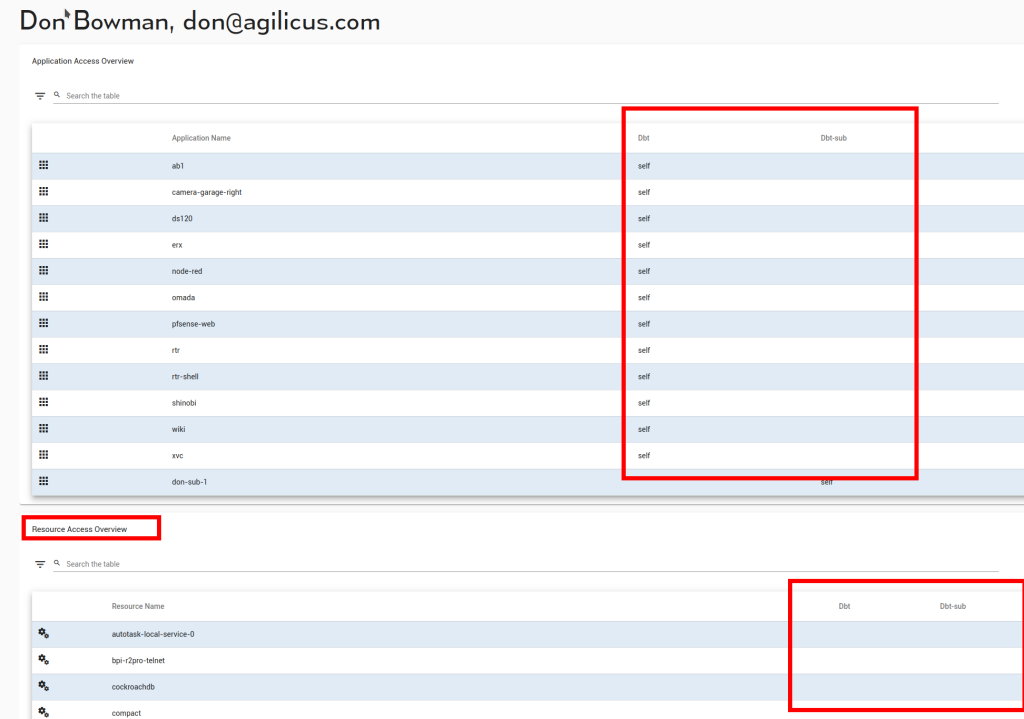
Reset Multi-Factor Token/Code for a UserI have a user who has lost their device, how may I reset their multi-factor? Navigate to access/audits, type in the user email, then search. there is a 'Reset' button which will cause the user to require to enter new multi-factor credentials (which they can do at https://profile.__MYDOMAIN__)
I have a user who has lost their device, how may I reset their multi-factor?
Navigate to access/audits, type in the user email, then search. there is a ‘Reset’ button which will cause the user to require to enter new multi-factor credentials (which they can do at https://profile.__MYDOMAIN__)
Reset User Upstream IdentityLearn how to reset a user's Identity Provider association, a necessary step when switching to a new custom application registration.
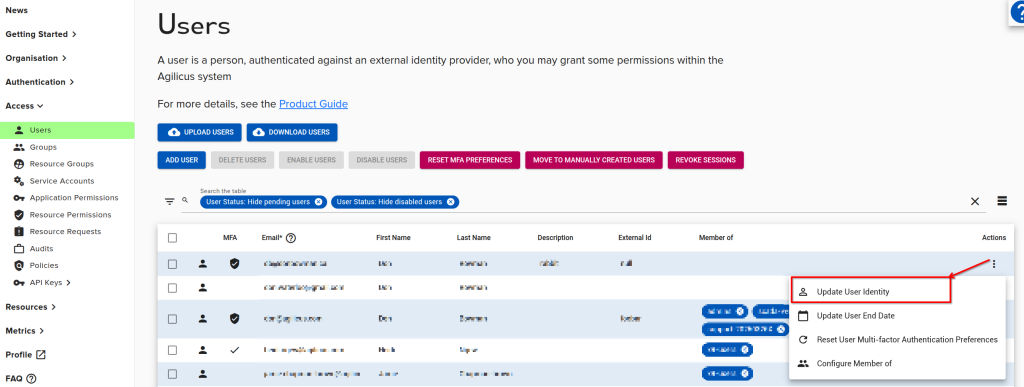
A user can only be tied to one Identity provider. In some cases (for example, switching from the Microsoft Shared Identity to a Custom Application Registration) you may wish to reset this association.
This need can also arise if you switch from on-premise Microsoft Active Directory to Microsoft Entra without migrating the users.
To do this, on the users screen, use the action-menu (the 3-dots button on the right), and select ‘Update User Identity’. This will unset the association, which will be recreated on the next sign in.
Should I create my own Azure Application Registration? (Custom Identity Provider)By default you will have a 'Shared' Microsoft Identity Provider enabled. This allows anyone to sign in with any Microsoft account: Azure, Office 365, Outlook.com, etc. This is useful for 3rd parties, vendors, etc.If you wish to force your users to sign in with your own Azure tenant (e.g. to enable auto-create), you may create
By default you will have a ‘Shared’ Microsoft Identity Provider enabled. This allows anyone to sign in with any Microsoft account: Azure, Office 365, Outlook.com, etc. This is useful for 3rd parties, vendors, etc.
If you wish to force your users to sign in with your own Azure tenant (e.g. to enable auto-create), you may create a ‘Custom Authentication Issuer’.
What Multi-Factor Authentication methods are supported?You may use Time-Based One-Time Codes (TOTP) (e.g. Google Authenticator, Microsoft Authenticator, Authy, etc), or, any of the standards from the WebAuthn standard set (e.g. USB-based like YubiKey, Passkeys, TPM-based, biometric, etc).
What is an Upstream Identity Provider (IdP)?Agilicus AnyX joins together (federates) a set of Identity Providers (IdP). As an end user, you will see this as e.g. 'Sign In With Google' or 'Sign In With Microsoft'. The AnyX platform in turn presents these federated IdP as a new IdP. The Upstream Identity Provider is it original one that the user interacts
Agilicus AnyX joins together (federates) a set of Identity Providers (IdP). As an end user, you will see this as e.g. ‘Sign In With Google’ or ‘Sign In With Microsoft’. The AnyX platform in turn presents these federated IdP as a new IdP. The Upstream Identity Provider is it original one that the user interacts with (e.g. Microsoft, Google, Active Directory Federation Services, etc).
When should I use a Custom Identity provider?You should create a bespoke issuer if you want to use your own dedicated source of identity. If you manage users in a google workspace, azure Active Directory or any other Identity provider which supports OpenID Connect (oidc) this is a reasonable choice. If you need access to settings from your own Identity provider. For
You should create a bespoke issuer if you want to use your own dedicated source of identity. If you manage users in a google workspace, azure Active Directory or any other Identity provider which supports OpenID Connect (oidc) this is a reasonable choice. If you need access to settings from your own Identity provider. For example, if you want all users on this identity provider to be provisioned automatically, or if you want to use multi-factor authentication from your identity provider itself.
See https://www.agilicus.com/anyx-guide/authentication-issuer/ for more information.
When should I use a group?When there are many people that you would like to assign the same resources, use groups in order to put them together
When there are many people that you would like to assign the same resources, use groups in order to put them together
When should I use a resource group?Use a resource group when there's many different resources that you would like to assign to users together, using a resource group allows you to assign access to several shares, desktops, etc all at once
Use a resource group when there’s many different resources that you would like to assign to users together, using a resource group allows you to assign access to several shares, desktops, etc all at once
When should I use an Onsite Identity?If your users primarily log on with local Active Directory, this allows users to log in with their normal credentials. See Onsite Identity for more information on onsite identity providers.
If your users primarily log on with local Active Directory, this allows users to log in with their normal credentials. See Onsite Identity for more information on onsite identity providers.
When should I use the builtin issuer?The builtin user is very simple to set up than a custom identity provider, so if you want to add users manually, and allow them to log in, this is a great option. It's especially useful if you have users that aren't attached to an identity provider you own, for example temporary contractors.
The builtin user is very simple to set up than a custom identity provider, so if you want to add users manually, and allow them to log in, this is a great option. It’s especially useful if you have users that aren’t attached to an identity provider you own, for example temporary contractors.
Connector Diagnostics19
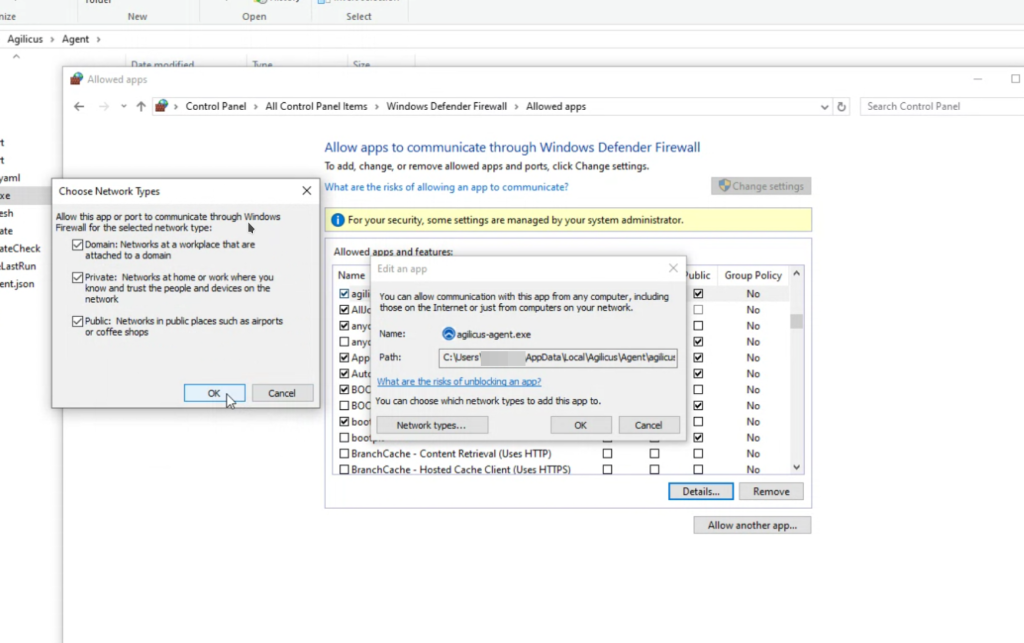
An attempt was made to access a socket in a way forbidden by its access permissionsWindows Firewall prevents connector sign-in, 'attempt made to access socket forbidden by access permissions
The connector and the launcher both might observe this error on a Microsoft Windows platform when trying to refresh credentials.
The normal operation of the Launcher is to be automatically refreshed via Profile when the desktop integration is installed. However, if the user does not have the desktop integration, or, the credentials have timed out, they will see the Launcher open a browser to facilitate a refresh.
As part of this flow, the Launcher will open a local TCP port (e.g. port 53210) on localhost.
Normally the Windows firewall will allow this since the port is localhost only. However, some environments require the Agilicus Connector & Launcher to be explicitly allowed in the Microsoft Windows firewall. In this case, you might see a message “bind: an attempt was made to access a socket in a way forbidden by its access permissions.”
Can I have a backup/redundant/standby connector?The Agilicus Connector supports running in an Active/Active high-availability mode, with up to four instances running at a time on separate hardware (and on separate sites with separate Internet connections). This allows you to implement a disaster-recovery scenario.
The Agilicus Connector supports running in an Active/Active high-availability mode, with up to four instances running at a time on separate hardware (and on separate sites with separate Internet connections). This allows you to implement a disaster-recovery scenario.
Note that if the Connector exposes a Share, then it cannot run in Active/Active mode. Instead, consider an approach like a Agilicus Connector Windows Cluster.
Note that each connector in a high-availability set must be able to reach the same upstream services.
Can I see the logs for requests hitting the connectorYes. First, you need to enable connector logging in Organisation -> Audit Destinations by clicking the Access and Authorization check-boxes. Your connectors will shortly start streaming their logs to Agilicus. You can see the logs in Applications->Diagnose. Fill in the time range you are interested in, then click View Logs. Note that you may see
Yes. First, you need to enable connector logging in Organisation -> Audit Destinations by clicking the Access and Authorization check-boxes. Your connectors will shortly start streaming their logs to Agilicus. You can see the logs in Applications->Diagnose. Fill in the time range you are interested in, then click View Logs. Note that you may see other logs related to your Organisation here. The relevant ones will have source_type equal to agent-connector
Certificate failure connecting to auth.__MYDOMAIN__Certificate error when starting/installing the connector
If you see a TLS/SSL certificate when starting (or installing) the connector, it usually indicates there is a SSL-inspecting firewall on site.
If you have a openssl installed, you can run this command:
openssl s_client -showcerts -servername auth.__MYDOMAIN__ -connect auth.__MYDOMAIN__:443 </dev/null
It should emit something like below, note the ISRG Root X1 and the Let’s Encrypt.
root@rtr:~# openssl s_client -showcerts -servername auth.agilicus.com -connect auth.agilicus.com:443 </dev/null
CONNECTED(00000003)
depth=2 C = US, O = Internet Security Research Group, CN = ISRG Root X1
verify return:1
depth=1 C = US, O = Let's Encrypt, CN = R10
verify return:1
depth=0 CN = auth.agilicus.com
verify return:1
---
Certificate chain
 0 s:CN = auth.agilicus.com
   i:C = US, O = Let's Encrypt, CN = R10
   a:PKEY: rsaEncryption, 2048 (bit); sigalg: RSA-SHA256
   v:NotBefore: Feb 13 09:47:07 2025 GMT; NotAfter: May 14 09:47:06 2025 GMT
-----BEGIN CERTIFICATE-----
MIIE8jCCA9qgAwIBAgISA8KDmAmZrQROkCo9atCLeVDYMA0GCSqGSIb3DQEBCwUA
MDMxCzAJBgNVBAYTAlVTMRYwFAYDVQQKEw1MZXQncyBFbmNyeXB0MQwwCgYDVQQD
EwNSMTAwHhcNMjUwMjEzMDk0NzA3WhcNMjUwNTE0MDk0NzA2WjAcMRowGAYDVQQD
ExFhdXRoLmFnaWxpY3VzLmNvbTCCASIwDQYJKoZIhvcNAQEBBQADggEPADCCAQoC
ggEBAL1IA85qUqUSo3jKR6vNgLDRqPYsriX1R7kEoiCZfeMoPnWpia70meCezHy8
BdHs3Vhav1jLQvv3VUa+0ouh61qZMZ5daDnshdn/mgcNlvheqxC7gLBo+uRLuMDA
96w6pm51Mo7UCwj+/CDhDNVbhTG1wCgsgYKZYs4v3epXzLgY1U9U+YH0Y7Lbwq2l
jWw+AOAAozEiOKUMwOQwYut476UOaOkoAUx9tcDAssj4NwJ8mwGUeerZ9larOv0y
Y4NSW/Mc+aIpOotZQ9Qvs3v1z8U5/JWPuUqCyag0pnYs+IZXFo5sZBV/9Mevoyoq
wRjOS4CFfpaVix7x04tlEFxvnRMCAwEAAaOCAhUwggIRMA4GA1UdDwEB/wQEAwIF
oDAdBgNVHSUEFjAUBggrBgEFBQcDAQYIKwYBBQUHAwIwDAYDVR0TAQH/BAIwADAd
BgNVHQ4EFgQUWKF8pzlpBAyy6BgVJ4XYjGclipkwHwYDVR0jBBgwFoAUu7zDR6Xk
vKnGw6RyDBCNojXhyOgwVwYIKwYBBQUHAQEESzBJMCIGCCsGAQUFBzABhhZodHRw
Oi8vcjEwLm8ubGVuY3Iub3JnMCMGCCsGAQUFBzAChhdodHRwOi8vcjEwLmkubGVu
Y3Iub3JnLzAcBgNVHREEFTATghFhdXRoLmFnaWxpY3VzLmNvbTATBgNVHSAEDDAK
MAgGBmeBDAECATCCAQQGCisGAQQB1nkCBAIEgfUEgfIA8AB2AMz7D2qFcQll/pWb
U87psnwi6YVcDZeNtql+VMD+TA2wAAABlP7qBrsAAAQDAEcwRQIhALEu1X27I+ri
KPr8YHbJkoJC5MrRcyty17i1dSsofSv5AiB7Z1So5zkm+P0YoB1YA565NahOS1eo
xCnzBYkhjzcEPQB2AKLjCuRF772tm3447Udnd1PXgluElNcrXhssxLlQpEfnAAAB
lP7qBrMAAAQDAEcwRQIhAL/i58WlCBWAELpFjiDDSLZFTY8HReOhUUN20Srp928b
AiBenIEa3TXkLpROo+s8JLwrSe+3IeStW1461Pm+256ssjANBgkqhkiG9w0BAQsF
AAOCAQEAt7c/TU7oHw4v8KAMzTHicT/uugTty0mdzl8tw+G30TO6SGKdn79ddhPa
052d4S2SoEW1p9r3OrpzjMZEywEG4hN4MS6vsILTKKQ0BFKEjqWkTz5YH+oWjwiJ
ABlaajkTcLbiBk8xcDVR0TpND7sjMAqurRf/cFeuGevsAACdY7S4swMIPp1OXdZb
cSXkZ3ET6NpItL/WfF0JG9ke3OVrtaF9mETG1Hvy/lHkUP2qTSrV3GLqG+tOPEfH
KzQCaDOPHZt9V82finAqRYCOOdeB41REF2uoBrokCc5qm7flyzsUVGhkOuleoorj
utKYMp7QRmHn2LCAgfYctnRoIrm1pA==
-----END CERTIFICATE-----
 1 s:C = US, O = Let's Encrypt, CN = R10
   i:C = US, O = Internet Security Research Group, CN = ISRG Root X1
   a:PKEY: rsaEncryption, 2048 (bit); sigalg: RSA-SHA256
   v:NotBefore: Mar 13 00:00:00 2024 GMT; NotAfter: Mar 12 23:59:59 2027 GMT
-----BEGIN CERTIFICATE-----
MIIFBTCCAu2gAwIBAgIQS6hSk/eaL6JzBkuoBI110DANBgkqhkiG9w0BAQsFADBP
MQswCQYDVQQGEwJVUzEpMCcGA1UEChMgSW50ZXJuZXQgU2VjdXJpdHkgUmVzZWFy
Y2ggR3JvdXAxFTATBgNVBAMTDElTUkcgUm9vdCBYMTAeFw0yNDAzMTMwMDAwMDBa
Fw0yNzAzMTIyMzU5NTlaMDMxCzAJBgNVBAYTAlVTMRYwFAYDVQQKEw1MZXQncyBF
bmNyeXB0MQwwCgYDVQQDEwNSMTAwggEiMA0GCSqGSIb3DQEBAQUAA4IBDwAwggEK
AoIBAQDPV+XmxFQS7bRH/sknWHZGUCiMHT6I3wWd1bUYKb3dtVq/+vbOo76vACFL
YlpaPAEvxVgD9on/jhFD68G14BQHlo9vH9fnuoE5CXVlt8KvGFs3Jijno/QHK20a
/6tYvJWuQP/py1fEtVt/eA0YYbwX51TGu0mRzW4Y0YCF7qZlNrx06rxQTOr8IfM4
FpOUurDTazgGzRYSespSdcitdrLCnF2YRVxvYXvGLe48E1KGAdlX5jgc3421H5KR
mudKHMxFqHJV8LDmowfs/acbZp4/SItxhHFYyTr6717yW0QrPHTnj7JHwQdqzZq3
DZb3EoEmUVQK7GH29/Xi8orIlQ2NAgMBAAGjgfgwgfUwDgYDVR0PAQH/BAQDAgGG
MB0GA1UdJQQWMBQGCCsGAQUFBwMCBggrBgEFBQcDATASBgNVHRMBAf8ECDAGAQH/
AgEAMB0GA1UdDgQWBBS7vMNHpeS8qcbDpHIMEI2iNeHI6DAfBgNVHSMEGDAWgBR5
tFnme7bl5AFzgAiIyBpY9umbbjAyBggrBgEFBQcBAQQmMCQwIgYIKwYBBQUHMAKG
Fmh0dHA6Ly94MS5pLmxlbmNyLm9yZy8wEwYDVR0gBAwwCjAIBgZngQwBAgEwJwYD
VR0fBCAwHjAcoBqgGIYWaHR0cDovL3gxLmMubGVuY3Iub3JnLzANBgkqhkiG9w0B
AQsFAAOCAgEAkrHnQTfreZ2B5s3iJeE6IOmQRJWjgVzPw139vaBw1bGWKCIL0vIo
zwzn1OZDjCQiHcFCktEJr59L9MhwTyAWsVrdAfYf+B9haxQnsHKNY67u4s5Lzzfd
u6PUzeetUK29v+PsPmI2cJkxp+iN3epi4hKu9ZzUPSwMqtCceb7qPVxEbpYxY1p9
1n5PJKBLBX9eb9LU6l8zSxPWV7bK3lG4XaMJgnT9x3ies7msFtpKK5bDtotij/l0
GaKeA97pb5uwD9KgWvaFXMIEt8jVTjLEvwRdvCn294GPDF08U8lAkIv7tghluaQh
1QnlE4SEN4LOECj8dsIGJXpGUk3aU3KkJz9icKy+aUgA+2cP21uh6NcDIS3XyfaZ
QjmDQ993ChII8SXWupQZVBiIpcWO4RqZk3lr7Bz5MUCwzDIA359e57SSq5CCkY0N
4B6Vulk7LktfwrdGNVI5BsC9qqxSwSKgRJeZ9wygIaehbHFHFhcBaMDKpiZlBHyz
rsnnlFXCb5s8HKn5LsUgGvB24L7sGNZP2CX7dhHov+YhD+jozLW2p9W4959Bz2Ei
RmqDtmiXLnzqTpXbI+suyCsohKRg6Un0RC47+cpiVwHiXZAW+cn8eiNIjqbVgXLx
KPpdzvvtTnOPlC7SQZSYmdunr3Bf9b77AiC/ZidstK36dRILKz7OA54=
-----END CERTIFICATE-----
---
Server certificate
subject=CN = auth.agilicus.com
issuer=C = US, O = Let's Encrypt, CN = R10
---
No client certificate CA names sent
Peer signing digest: SHA256
Peer signature type: RSA-PSS
Server Temp Key: X25519, 253 bits
---
SSL handshake has read 3054 bytes and written 403 bytes
Verification: OK
---
New, TLSv1.3, Cipher is TLS_AES_256_GCM_SHA384
Server public key is 2048 bit
Secure Renegotiation IS NOT supported
No ALPN negotiated
Early data was not sent
Verify return code: 0 (ok)
---
DONEConnector Self-Test DiagnosticIf you are finding errors such as "My devices are offline with the message "Resource unavailable: on-site connector is down"", or your connector shows down, you may try its built-in network selftest. Run agilicus-agent test and observe the output INFO[2026-06-09T16:55:25-04:00] Starting test – version v0.336.1 — Preflight Tests — PASS – https://api.agilicus.com/v1/resolve?type=CNAME&name=ca-1.agilicus.ca PASS – https://www.agilicus.com/
If you are finding errors such as “My devices are offline with the message “Resource unavailable: on-site connector is down””, or your connector shows down, you may try its built-in network selftest.
Run agilicus-agent test and observe the output
INFO[2026-06-09T16:55:25-04:00] Starting test - version v0.336.1
--- Preflight Tests ---
PASS - https://api.agilicus.com/v1/resolve?type=CNAME&name=ca-1.agilicus.ca
PASS - https://www.agilicus.com/
--- Overall: PASS ---

--- Preflight Tests ---
PASS - local DNS check for agent-server.ca-1.agilicus.ca
PASS - https://agent-server.ca-1.agilicus.ca/healthz
PASS - https://agent-server.ca-1.agilicus.ca/healthz @ 34.95.12.47
PASS - local DNS check for auth.__MY_DOMAIN__
PASS - https://auth.__MY_DOMAIN__/healthz
PASS - https://auth.__MY_DOMAIN__/healthz @ 34.95.12.47
--- Overall: PASS ---Connector shows: no active tunnel connections to AgilicusYour connector is down, showing "no active tunnel connections to Agilicus" This typically implies that your connector is running but unable to reach Agilicus. This can mean an issue with your outbound firewall, see Site Firewall Configuration for more information. The simplest way to diagnose this is to run the built-in self test. On windows,
Your connector is down, showing “no active tunnel connections to Agilicus”
This typically implies that your connector is running but unable to reach Agilicus. This can mean an issue with your outbound firewall, see Site Firewall Configuration for more information.
The simplest way to diagnose this is to run the built-in self test.
On windows, run the first command below. On Linux simply run ‘agilicus-agent test’ in a shell.
C:\>"C:\Program Files\agilicus\agent\agilicus-agent.exe" test
time="2025-12-15T14:24:28-05:00" level=info msg="Starting test - version v0.317.0"
--- Preflight Tests ---
PASS - https://api.agilicus.com/v1/resolve?type=CNAME&name=ca-1.agilicus.ca
PASS - https://www.agilicus.com/
--- Overall: PASS ---

--- Preflight Tests ---
PASS - https://auth.r.XXX.ca/healthz
PASS - https://auth.r.XXX.ca/healthz @ 34.95.12.47
PASS - https://auth.r.XXX.ca/healthz @ 35.240.184.197
You will also see additional information in the system logs (eventvwr, journalctl, syslog)
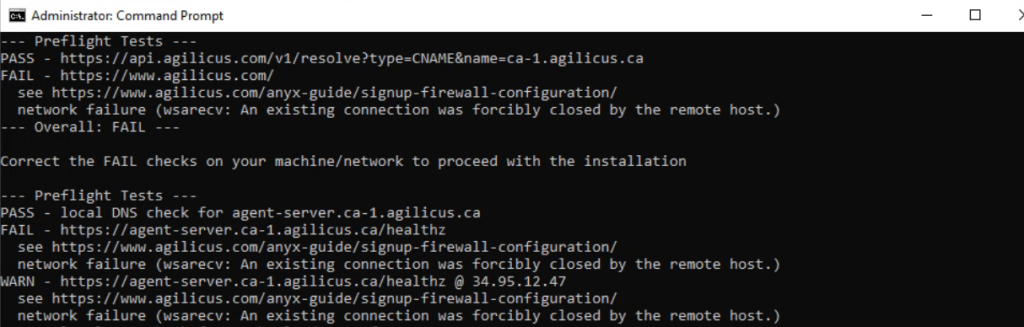
Connector: wsrecv: An existing connection was forcibly closed by remote hostIf you have an outbound firewall which does TLS/SNI inspection, it may be mis-configured and block connectivity to Agilicus services. You can see the domains required in Site Firewall Configuration. You can run the network self test (agilicus-agent test) to check connectivity, it may show an error as below. This is showing that your site
If you have an outbound firewall which does TLS/SNI inspection, it may be mis-configured and block connectivity to Agilicus services. You can see the domains required in Site Firewall Configuration.
You can run the network self test (agilicus-agent test) to check connectivity, it may show an error as below. This is showing that your site firewall is sending a TCP RESET (RST) packet when the connector tries to connect to its upstream. Please update the configuration of your firewall to allow the required domains.
Debugging Network Path Connectivity to Agilicus Infrastructure from WindowsLearn to resolve connection issues if your firewall is blocking users or connectors from accessing the Agilicus infrastructure.
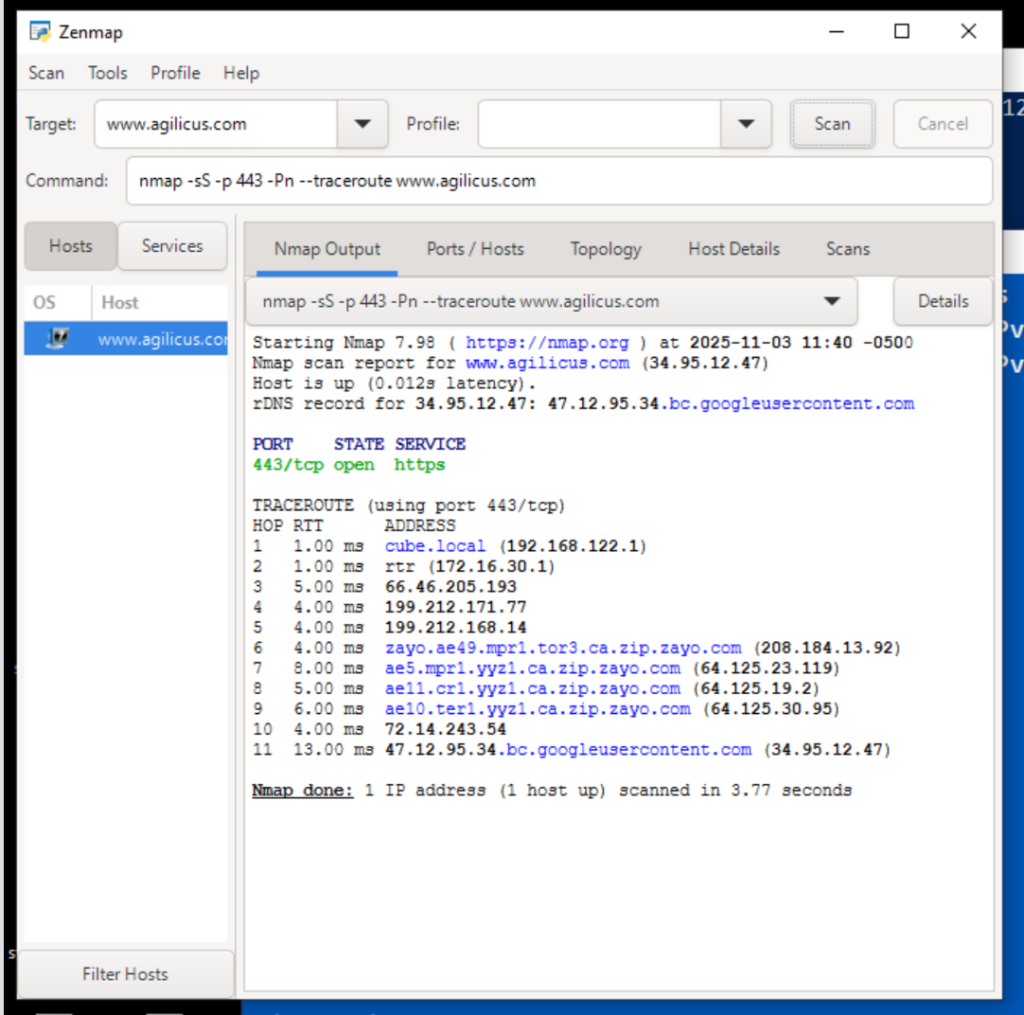
You may find that your users, or your connectors, are blocked from connecting to the Agilicus infrastructure by some firewall device on your site.
A good tool to try this is Nmap (https://nmap.org/download) and then do a TCP-based traceroute on port 443, using SYN packets. This emulates the connection.
You would use ‘nmap -sS -p 443 -Pn –traceroute admin.__MYDOMAIN__’ similar to the below image.
Does my connector need to be directly connected to my Networks?No it does not. However, given that it will use TCP/IP to connect to them, it needs to be able to route to the IP it determines for the network, and any firewalls in between must allow access to that IP and the target TCP port.
No it does not. However, given that it will use TCP/IP to connect to them, it needs to be able to route to the IP it determines for the network, and any firewalls in between must allow access to that IP and the target TCP port.
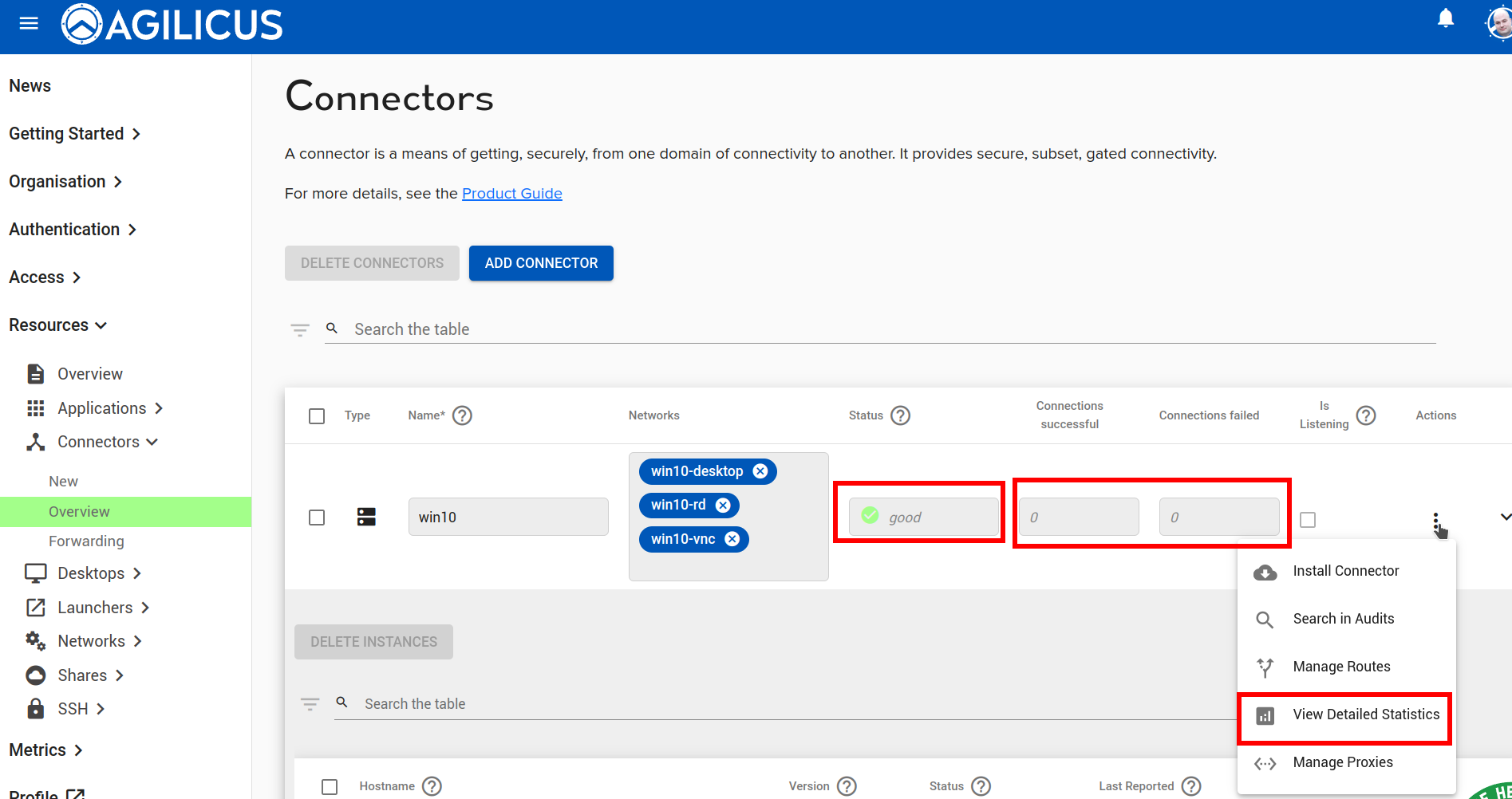
How do I know if my connector is connected to Agilicus?Go to the Connector->Overview screen. Each connector reports an overview status here. "Good" means all instances of the connector are running, and that they are fully connected to Agilicus.
Go to the Connector->Overview screen. Each connector reports an overview status here. “Good” means all instances of the connector are running, and that they are fully connected to Agilicus.
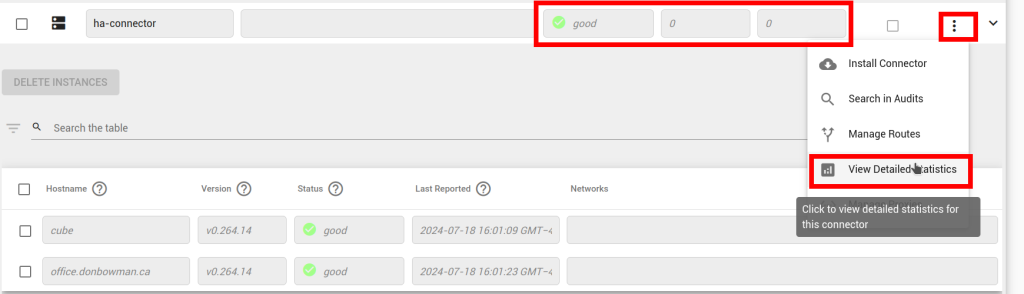
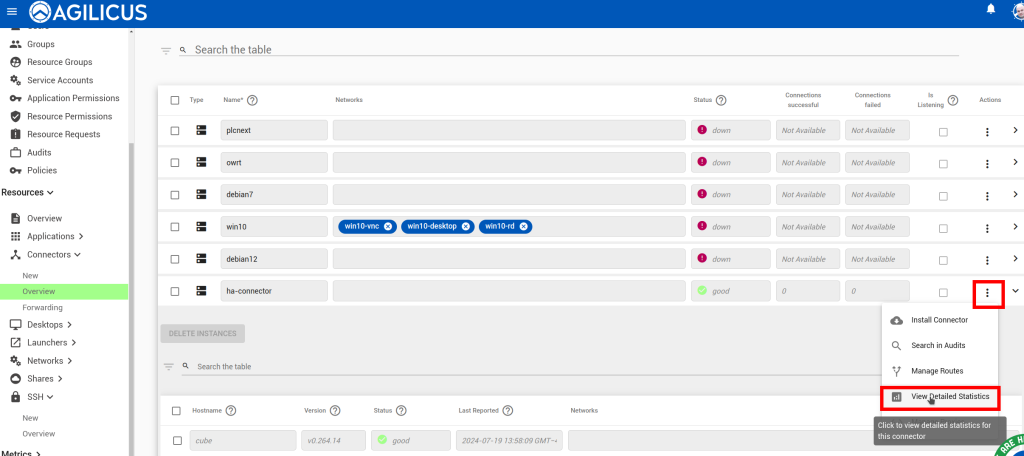
How do I know if my connector is forwarding traffic?Go to the Connector->Overview screen. Your connectors will shortly begin to publish statistics. You can see a summaryof successful/failed connections in the overview table. Click Actions -> View Detailed Statistics for a breakdown of these stats. Check that the connector itself is up (the 'Good'/green in below). After you open the detailed statistics screen, reproduce
Go to the Connector->Overview screen. Your connectors will shortly begin to publish statistics. You can see a summary
of successful/failed connections in the overview table. Click Actions -> View Detailed Statistics for a breakdown of these stats.
Check that the connector itself is up (the ‘Good’/green in below). After you open the detailed statistics screen, reproduce the problem, and look at which counters increment.
How do I know where my connector is installedAs part of maintaining its connection to Agilicus, the connector reports some system information. In the Connector->Overview screen, click on the connector in which you are interested. The resulting expanded table shows each instance of the connector and the hostname of the machine on which it is running.
As part of maintaining its connection to Agilicus, the connector reports some system information. In the Connector->Overview screen, click on the connector in which you are interested. The resulting expanded table shows each instance of the connector and the hostname of the machine on which it is running.
How do I view live connector logs?Watch a live, scrolling trace of a connector's debug logs from the connectors overview, without signing in to the connector host.
You can watch a live trace of a connector’s logs without signing in to the connector host. This is useful when a resource fails to connect, when a share reports a list error, or when you need to confirm that a configuration change took effect.
In your admin interface, open Resources > Connectors > Overview (resources/connectors/overview).
- Find the connector you want to inspect and open its actions menu.
- Select Live Logs.
- A wide window opens and begins streaming the connector’s debug logs. Each line shows the time, the connector instance, the severity level (for example
info,warn, orerror), and the message.
The view scrolls automatically as new lines arrive. Use Auto-scroll to pause or resume following the log, and Clear to empty the window. Closing the dialog stops the trace.
Live Logs is available for agent connectors, and the connector must be running. It can take up to a minute for the connector to begin publishing, so if the window stays empty, wait a moment and confirm the connector is online. For logs stored on the connector host itself, see Retrieve connector logs (on Windows) or Retrieve connector logs (on Linux).
For a wider view of every log source available to you, see Diagnostic Logs, and for background on the connector, see the Agilicus Connector guide.
How does my connector route to NetworkWhen establishing a connection to a Network, the connector first determines an IP with which to communicate with. If an Override IP is present in the Network's configuration, it will use that. Otherwise, it will use the local system's DNS configuration to do a DNS lookup of the network's Hostname. It then establishes a connection
When establishing a connection to a Network, the connector first determines an IP with which to communicate with. If an Override IP is present in the Network’s configuration, it will use that. Otherwise, it will use the local system’s DNS configuration to do a DNS lookup of the network’s Hostname. It then establishes a connection to that IP using the local system’s standard TCP/IP stack.
My connector disappeared, Sophos says CXrep/MalGo-ASophos has a persistent heuristic-based false positive against applications implemented using the go programming language and networking. Their product will remove the affected binary, and, unregister and remove the service. You can submit the binary to Sophos and ask them to re-evaluate. Typically they do this automatically around 24 – hours after they send the
Sophos has a persistent heuristic-based false positive against applications implemented using the go programming language and networking. Their product will remove the affected binary, and, unregister and remove the service.
You can submit the binary to Sophos and ask them to re-evaluate. Typically they do this automatically around 24 – hours after they send the false positive out to all the clients.
To resolve, first in your Sophos console as Sophos not to scan (or ignore the specific false positive of CXrep/MalGo-A) for the binary ‘agilicus-agent.exe’, usually in C:\Program Files\Agilicus\Agent, but, in desktop launcher cases, end-user specific.
Secondly, you must re-install the connector. no config or state is lost. Navigate to “Resources/Connectors” in your admin interface, at the far right is a > sign, pull that down, remove the stale instance. Now use the 3-dots action button to install. The connector will pick back up where it was.

My connector does not come online or show status ‘Good’You may have a local firewall which is blocking outbound communication. See 'Firewall Configuration'. Check the connector logs (on Windows, using EventViewer, on Linux typically with journalctl -fu agilicus-agent)
You may have a local firewall which is blocking outbound communication. See ‘Firewall Configuration‘. Check the connector logs (on Windows, using EventViewer, on Linux typically with journalctl -fu agilicus-agent)
Why does my connector successfully send data to my HTTP server, but fail to connect?Your Network for the HTTP server may be incorrectly configured. The connector proxies HTTP requests at the application layer. If the HTTP server runs HTTPS/TLS, the Network must be configured to initiate an HTTPS/TLS connection, and it must trust the certificate presented by the server. Conversely, if the HTTP server is plaintext (unencrypted), but the
Your Network for the HTTP server may be incorrectly configured. The connector proxies HTTP requests at the application layer. If the HTTP server runs HTTPS/TLS, the Network must be configured to initiate an HTTPS/TLS connection, and it must trust the certificate presented by the server. Conversely, if the HTTP server is plaintext (unencrypted), but the connector is configured to expect TLS, it will fail to establish the connection.
Wireshark Packet Capture For Diagnostics [Windows]Diagnose a faulty network service by capturing at the Agilicus Connector with Wireshark (Windows instructions)
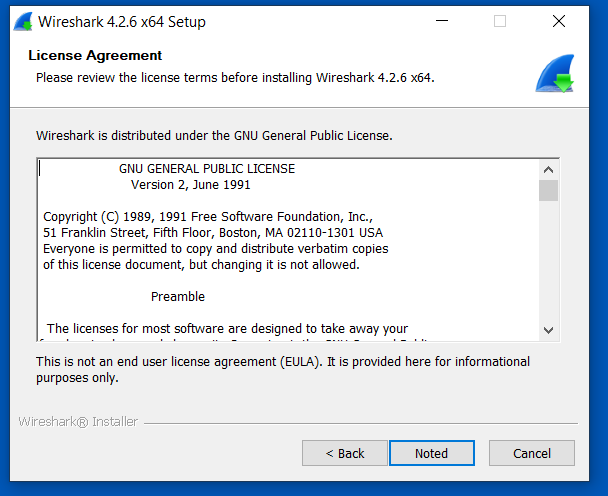
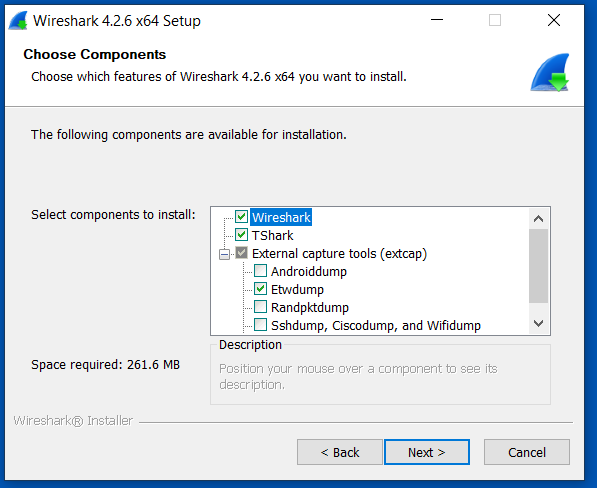
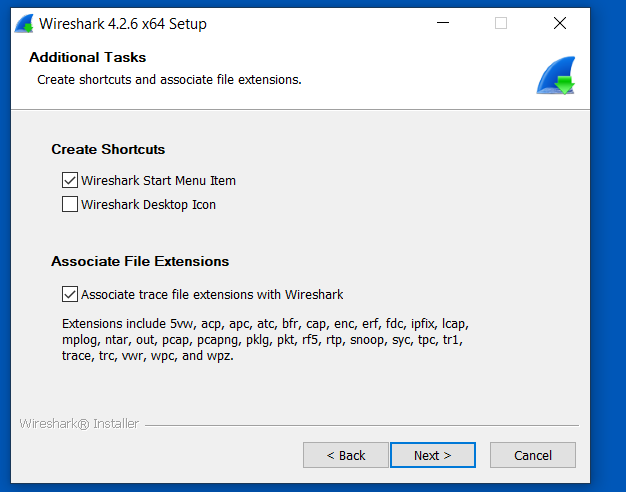
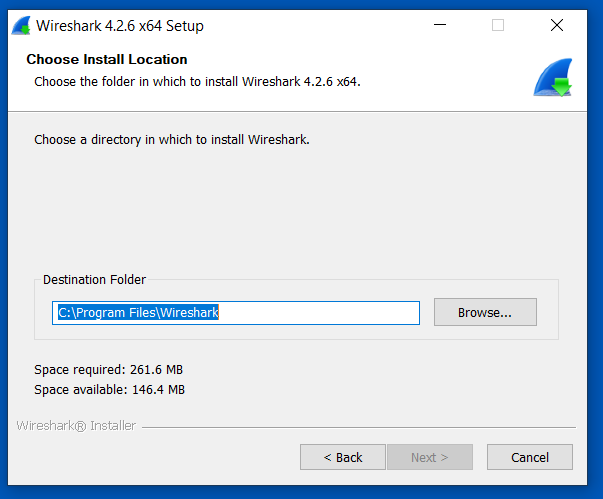
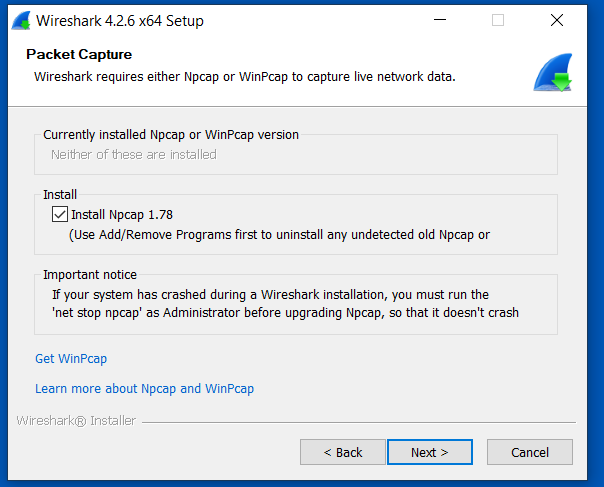
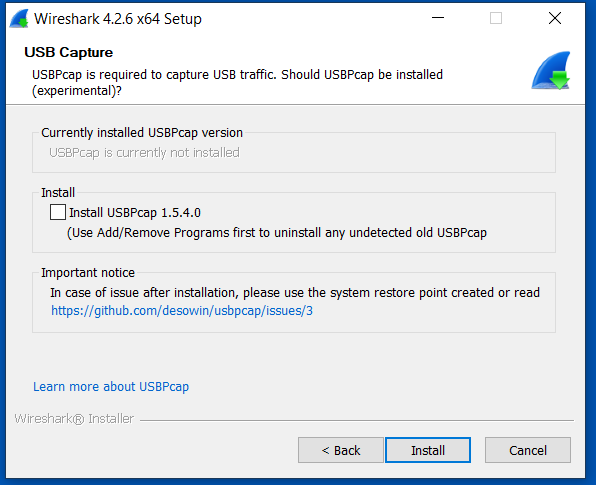
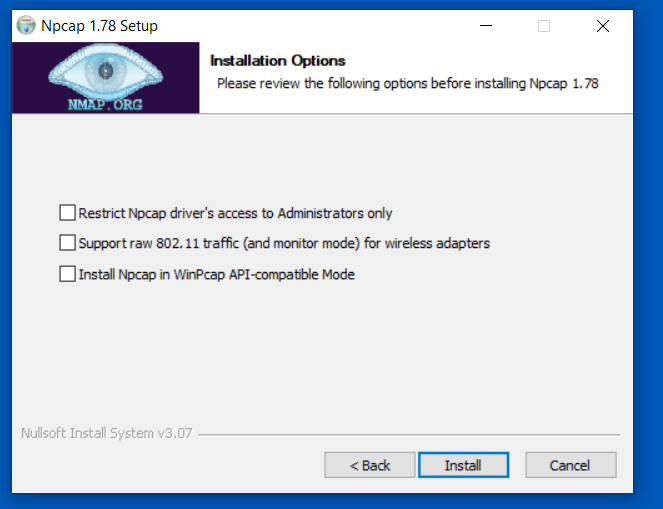
In some cases, Agilicus Support might be more effectively able to assist you with a packet capture from the machine running your connector. To do this, we can use Wireshark as below.
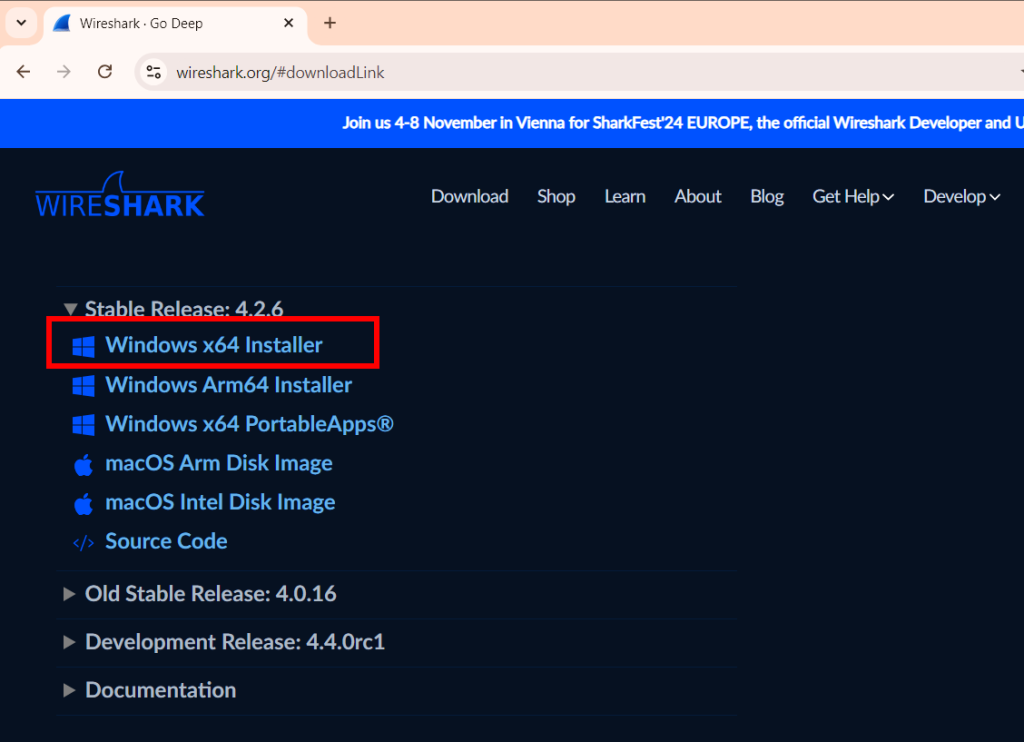
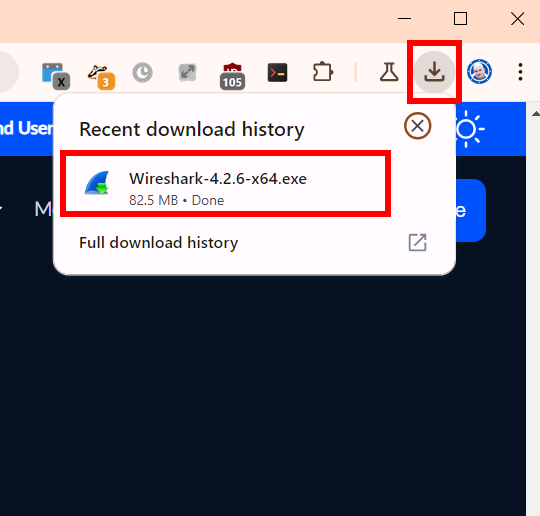
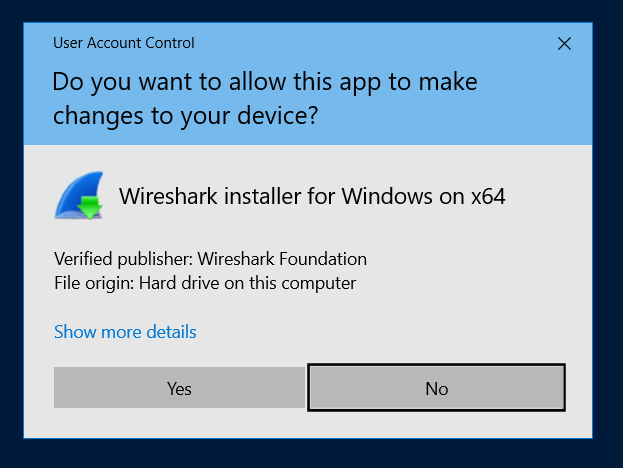
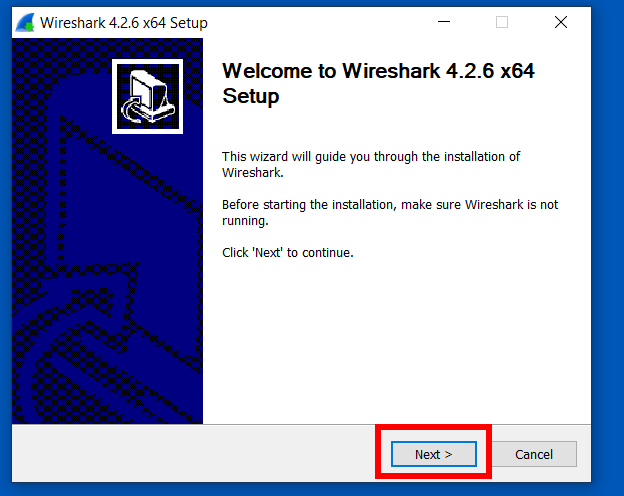
Install Wireshark
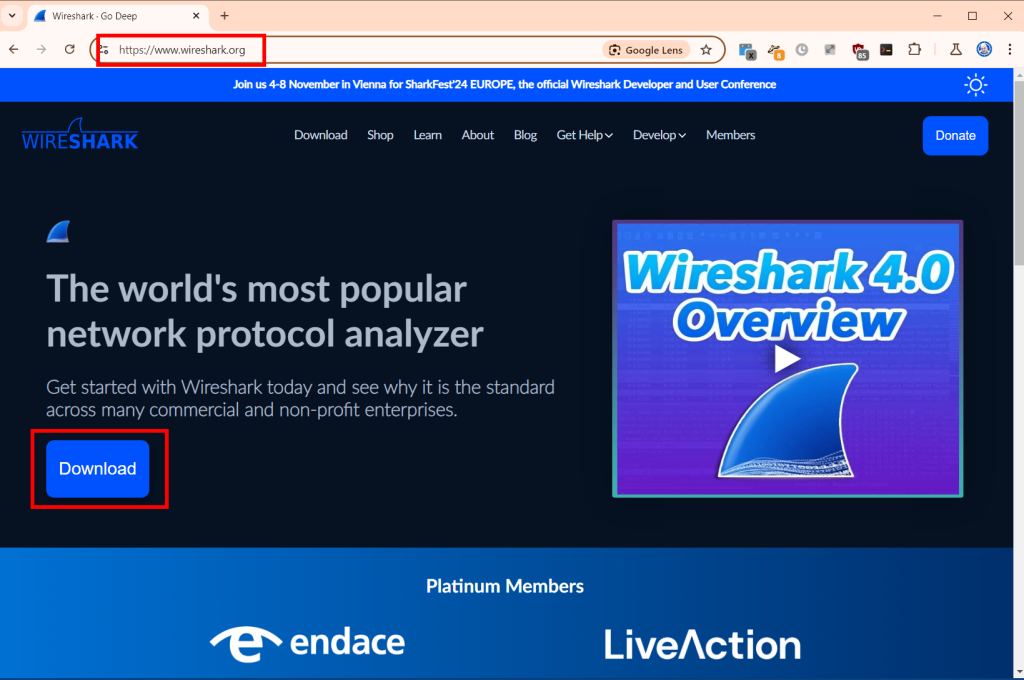
Open a browser to https://www.wireshark.org/. Select ‘Download’.
Open Wireshark, Start Capture
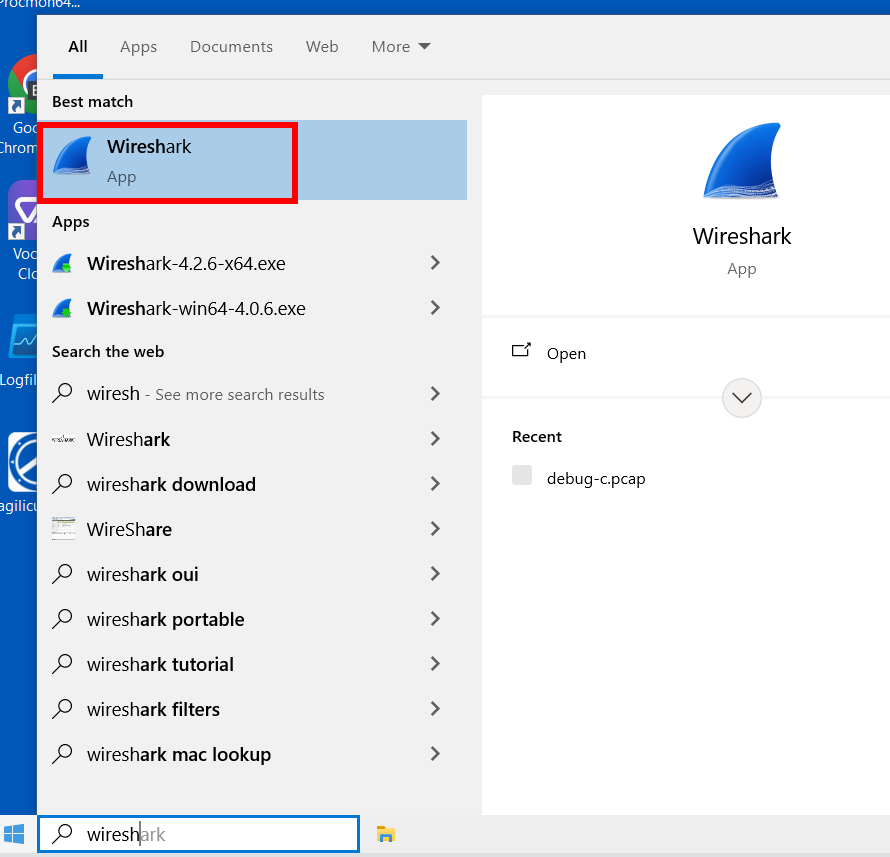
Double-click the primary/default network connection.
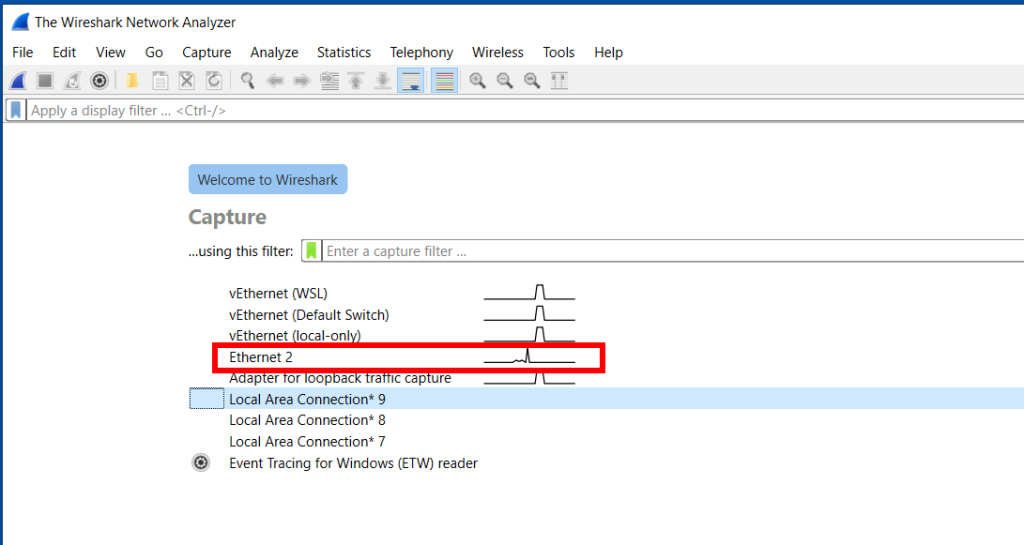
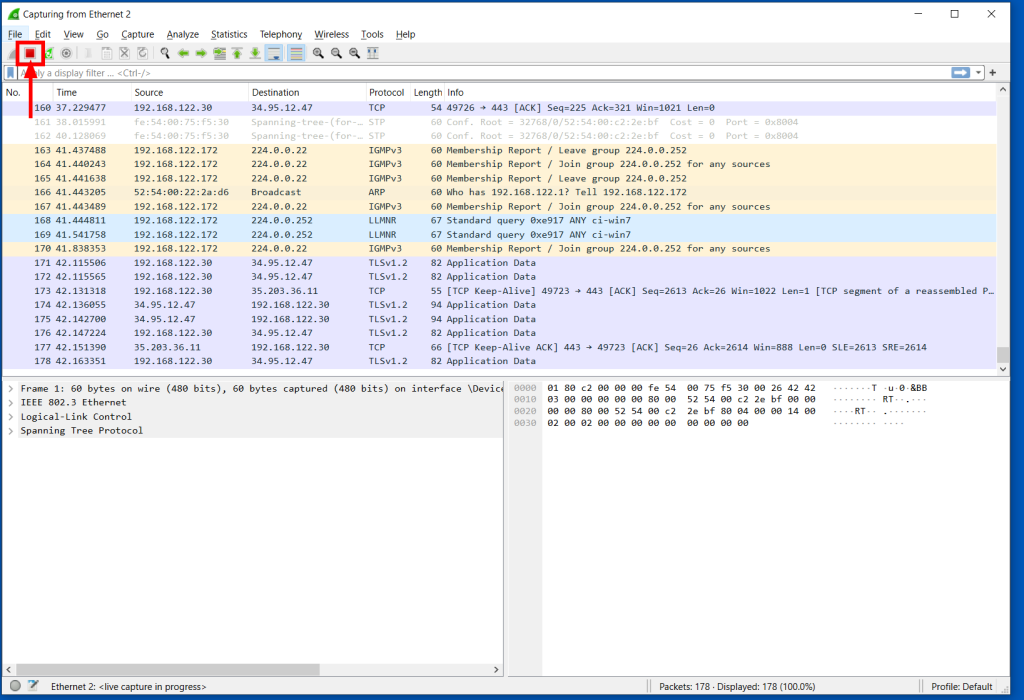
Now, reproduce the problem, usually a few times. For example, if you have a NVR which is not working, attempt to use it from the Agilicus profile interface.
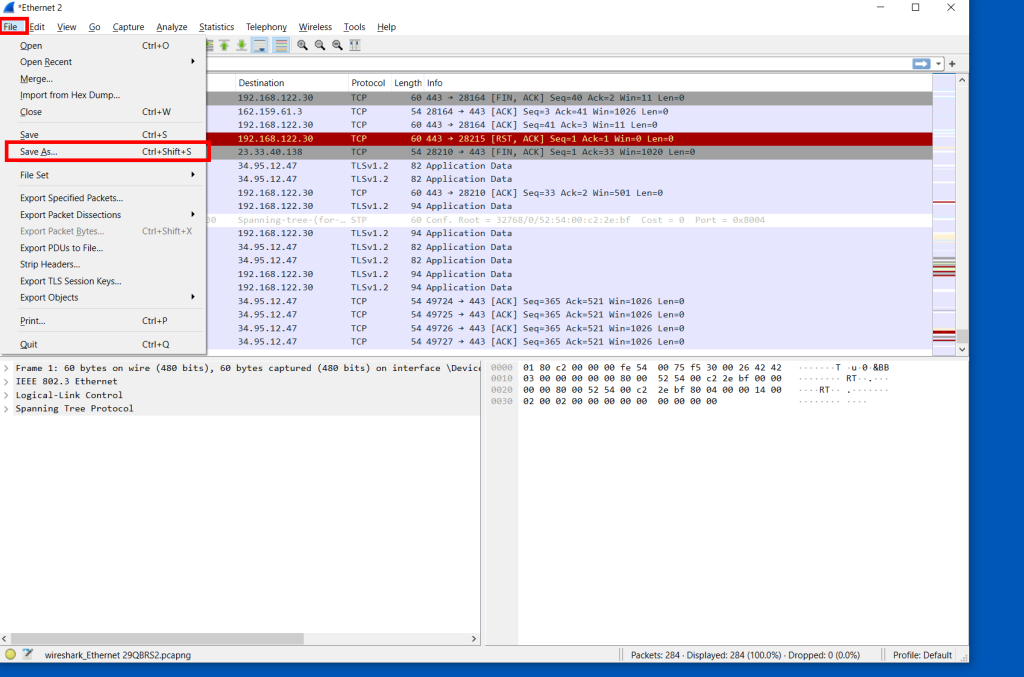
Now, stop the capture:
Send the Capture to Agilicus
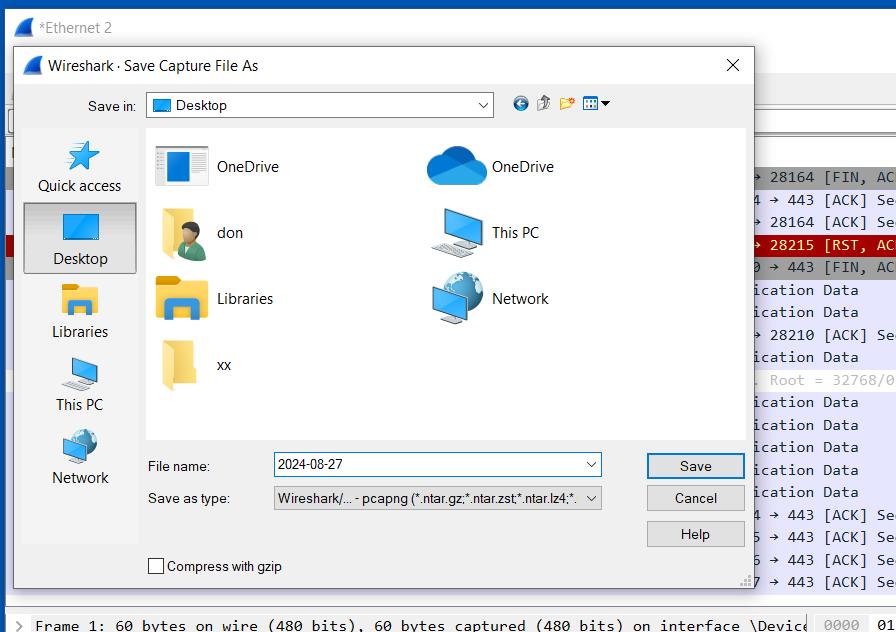
Depending on how long you have captured, this file can be large. Contact Agilicus via the ‘Chat’ interface in the web interface if you need a location to put the file.
Please describe what you were doing, what you observed, what was incorrect, and information about the network.
upstream connection failed: The upstream host could be downEnd-user has received 'upstream connection failed', indicating that the underlying resource is not up/changed IP.
The end-user receives this message on sign-in:
Message: upstream connection failed
Action: The upstream host could be down
This indicates the Agilicus Connector is up, and the user was able to sign in correctly, however, the customer-supplied application is either down, or unreachable from the Agilicus Connector.
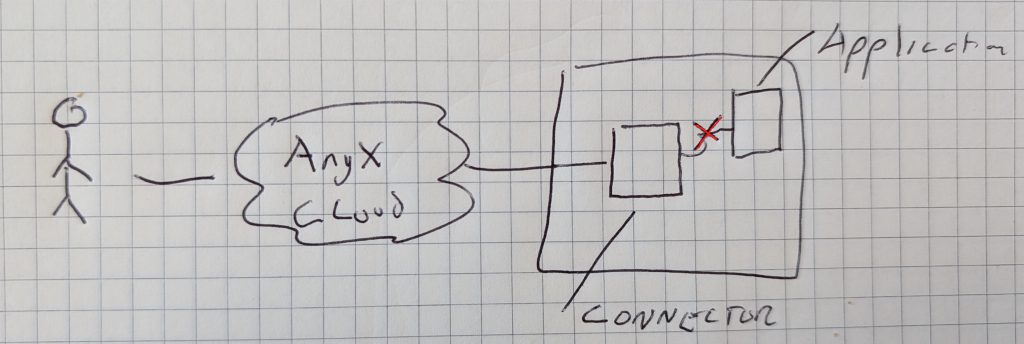
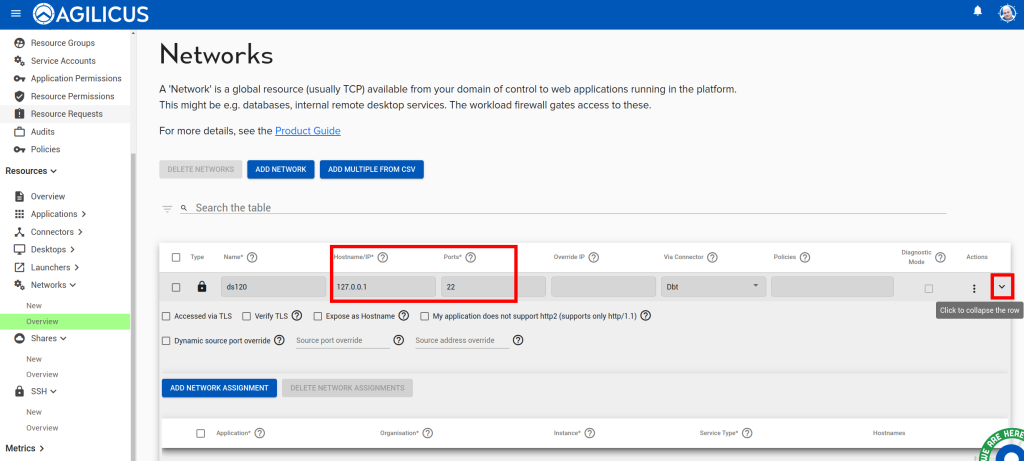
A common issue is a change in IP/port of the application, you may change this as below.
To diagnose the issue, use the detailed stats from the connector overview page:
Connector Installation12
Agilicus Connector – Windows 7Can I install the Agilicus Connector on an obsolete OS like Windows 7? What caveats exist?
Microsoft has discontinued support for Windows 7 and Windows 2012. The Agilicus connector continues to run on these machines, however, it is important to have KB2533623 installed.
If the Windows 7 machine is missing KB2533623, the connector may fail to start. The update can be manually installed from:
https://web.archive.org/web/20200412130407/https://www.microsoft.com/en-us/download/details.aspx?id=26764
Note: it is possible a superceding KB might be installed, e.g. KB3063858 or KB4457144 or KB3063858.
Connector install: The revocation function was unable to check revocation for the certificate.Air-gapped connector install fails with certificate revocation check error, add –ssl-no-revoke to curl to workaround
In some cases your air gapped environment does not allow Certificate Revocation List checking. This can occur if you have a server which has never been able to fetch the CRL. This can cause an issue installing, but not running, the Agilicus Connector.
If you see an error like “The revocation function was unable to check revocation for the certificate” when you paste the installation command for the Agilicus Connector, add the parameter “–ssl-no-revoke” to the curl component. This will vary a little bit depending on your platform, but below is an example for a Windows platform:
curl --ssl-no-revoke -sSL -o "%TEMP%\aa.exe" https://www.agilicus.com/www/releases/secure-agent/stable/agilicus-agent.exe && "%TEMP%\aa.exe" client --install --challenge-id XXXX --challenge-code XXXX && del "%TEMP%\aa.exe"Once installed, this will not be a problem again.
If you wish to verify the Agilicus Connector executable, it is digitally signed.
We discuss this problem a bit more, and a generic solution for other components in “Locked-Down Networks Certificate Revocation“. If you are looking for a general purpose secure firewall solution that can forward Certificate Revocation, and only Certificate Revocation (including OCSP) without fixed IP address lists, please contact us, we have a full solution in this area.
Enable Let’s Encrypt on Older WindowsMy older windows version does not have the Let's Encrypt intermediates installed, preventing use of the Agilicus AnyX platform. How can I install the intermediate?
Agilicus AnyX requires modern cryptography with a strong chain of trust. This is achieved using Let’s Encrypt.
Some older Microsoft Windows systems are not updated to have the proper cryptographic trust information installed. You should upgrade your Windows installation, but, if this is not possible, you can manually install the certificates.
First, download the .der file from https://letsencrypt.org/certificates for each of ‘X1 & X2‘.
For the X1 der and X2 der, open these on your desktop. You will be prompted to open the certificate manager. From here, Install, and pick the “Trusted Root Certification Authorities”.
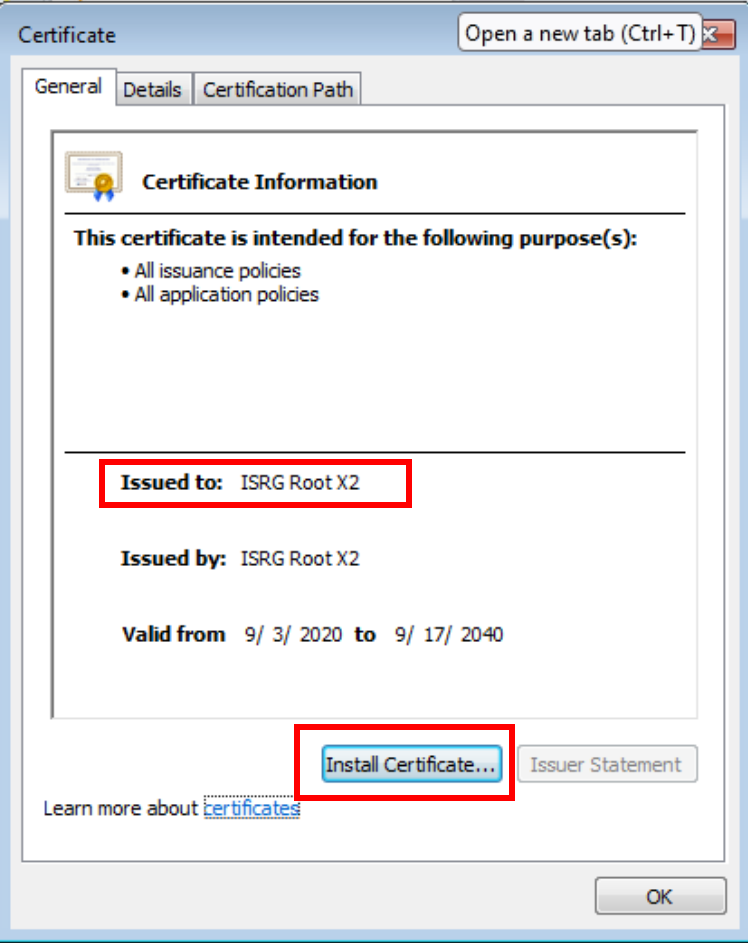
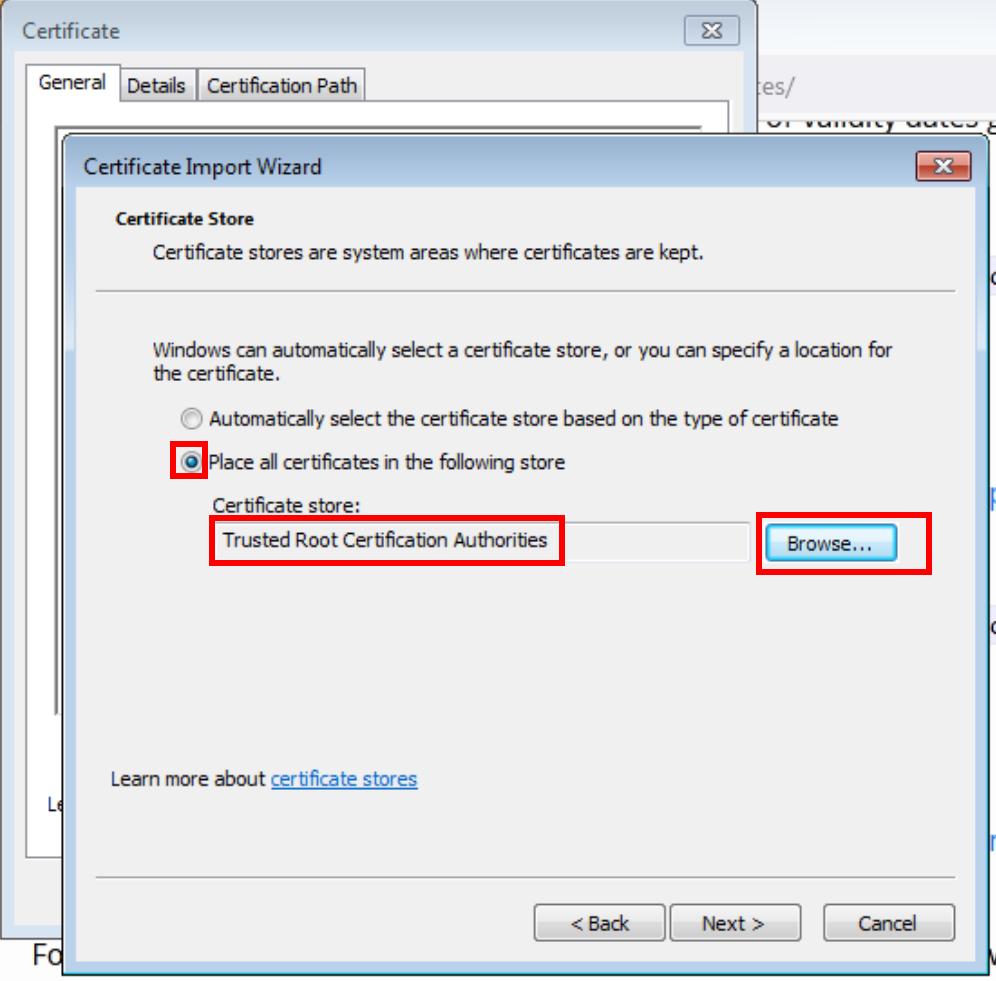
Now we must import these to the Machine trust as well (above we did your user). To do so, open ‘mmc’
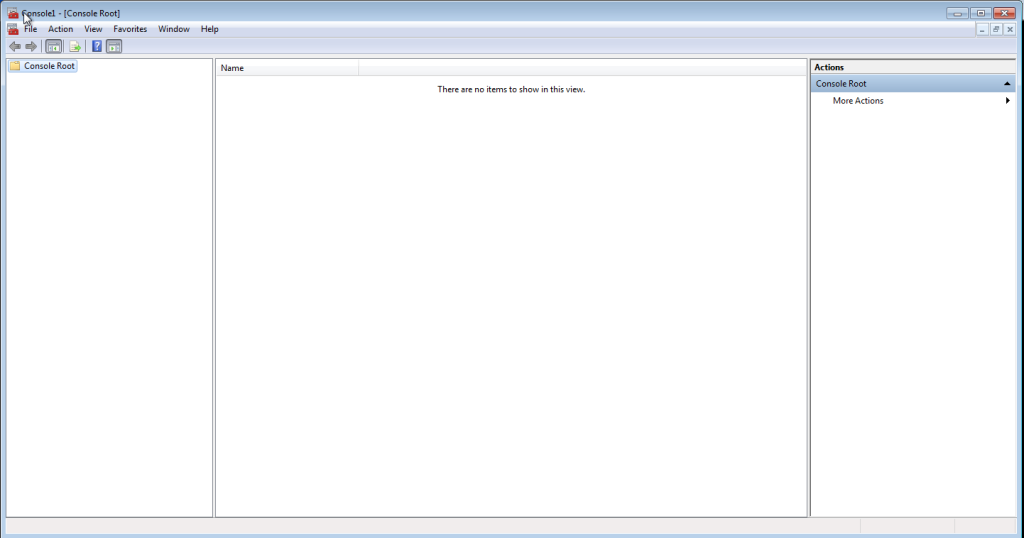
Now press ‘Control-M’.
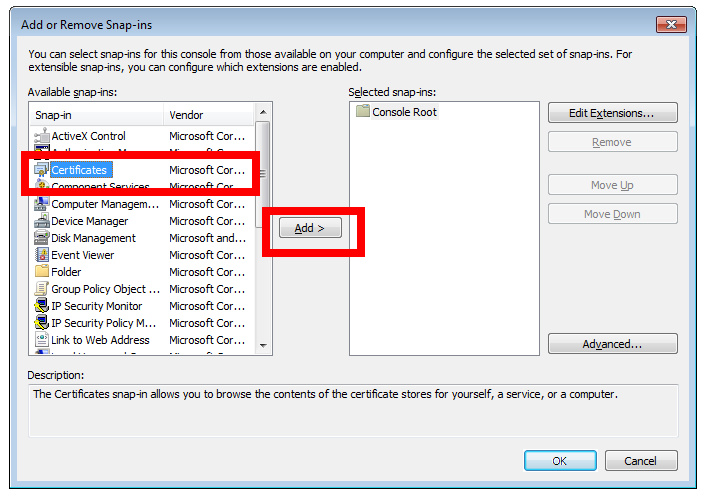
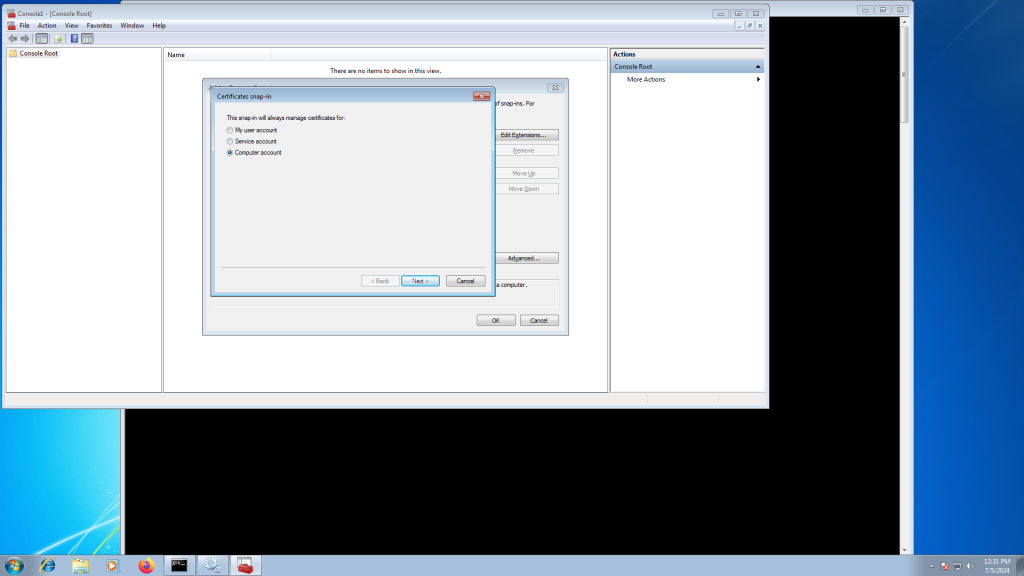
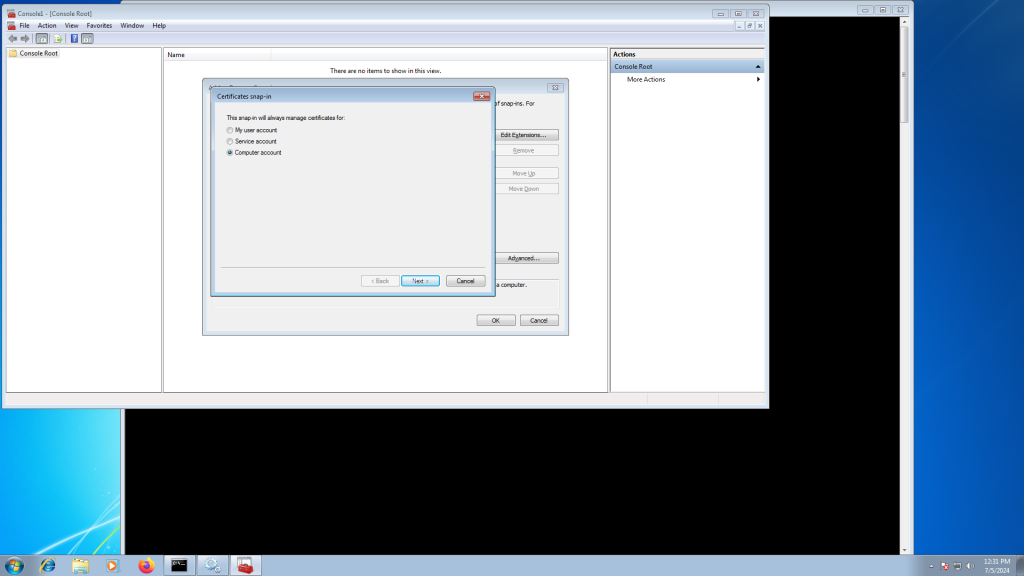
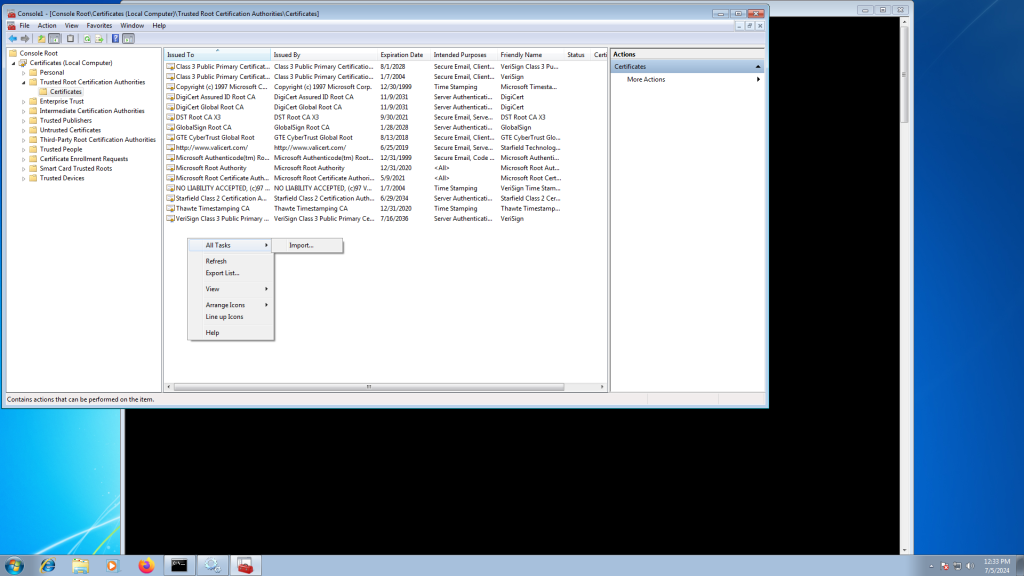
Select the X1 (and repeat for X2) certificate from earlier.
At this stage you should be able to install the Agilicus Connector.
Force connector upgradeLearn how to manually force an update for the Agilicus connector. This guide shows how to trigger a new version check on Windows and Linux systems.
The Agilicus connector automatically upgrades, with all connectors skewed in time. Normally this is completed automated and can be ignored.
In some circumstances you may wish to force it to re-evaluate if there is a new version. To achieve this, remove the ‘agilicusLastUpdateCheck’ file, and restart the service.
On windows:
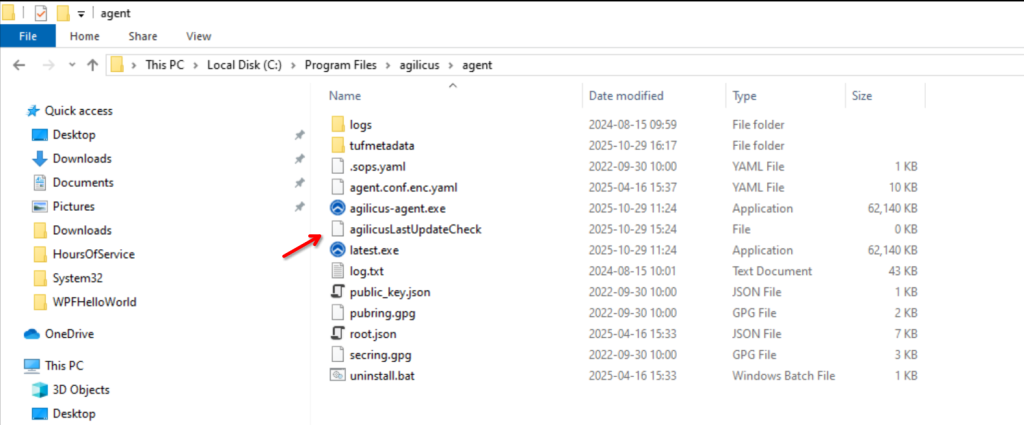
on Linux: rm /opt/agilicus/agent/agilicusLastUpdateCheck
On windows you may restart the service from the windows service manager. On Linux you may use ‘systemctl restart agilicus-agent’.
How do I check if the connector is running (on Linux)?The connector status can be found by checking the systemctl service status:$ sudo systemctl status agilicus-agent
The connector status can be found by checking the systemctl service status:
$ sudo systemctl status agilicus-agent
How do I check if the connector is running (on Microsoft Windows)?The Agilicus Connector runs as a Windows Service. Open the Windows 'Services' app and look for 'Agilicus Connector'. The 'Service Status' will show the current status.
The Agilicus Connector runs as a Windows Service. Open the Windows ‘Services’ app and look for ‘Agilicus Connector’. The ‘Service Status’ will show the current status.
How do I check the status of the Connector?Navigate to your organization's Agilicus Admin console. Under Resources -> Connectors -> Overview, the column named 'Status' reflects the real-time status of the connector. The overall status is shown as 'GOOD', 'DEGRADE', 'DOWN'.
Navigate to your organization’s Agilicus Admin console. Under Resources -> Connectors -> Overview, the column named ‘Status’ reflects the real-time status of the connector.
The overall status is shown as ‘GOOD’, ‘DEGRADE’, ‘DOWN’.
Installation Error: “date does not match with local machine”Accurate globally synced time is critical to the proper operation of many modern cryptographic tools. It affects certificte allocation/revocation, sign-in audit logs, etc. See https://www.agilicus.com/anyx-guide/time-synchronisation/ for further details to ensure the local machine time synchronization is setup.
Accurate globally synced time is critical to the proper operation of many modern cryptographic tools. It affects certificte allocation/revocation, sign-in audit logs, etc. See https://www.agilicus.com/anyx-guide/time-synchronisation/ for further details to ensure the local machine time synchronization is setup.
Retrieve connector logs (on Linux)Connector logs on Linux are via journalctl -fu agilicus-agent
Connector logs on Linux are via journalctl -fu agilicus-agent
Retrieve connector logs (on Windows)Connector logs on Windows can be found in the Windows Event Viewer. Inside Event Viewer (Local) -> Windows Logs -> Application, See "Agilicus Connector – Microsoft Windows".
Connector logs on Windows can be found in the Windows Event Viewer. Inside Event Viewer (Local) -> Windows Logs -> Application, See “Agilicus Connector – Microsoft Windows“.
Where do I need to install an Agilicus Connector?The Agilicus Connector needs to be able to reach any service it is used to expose. For a share, this means running on a machine with access to the files. For a Desktop, it means being able to reach via TCP (port 3389 or port 5900 for RDP or VNC typically) the destination system. This
The Agilicus Connector needs to be able to reach any service it is used to expose. For a share, this means running on a machine with access to the files. For a Desktop, it means being able to reach via TCP (port 3389 or port 5900 for RDP or VNC typically) the destination system. This might mean running on the same system, this might mean running on a device on the same network segment or inside the same firewall.
tls: failed to verify certificate: x509: certificate signed by unknown authorityResolve the "x509: certificate signed by unknown authority" error with the Agilicus Connector, an issue often caused by an SSL-inspecting firewall.
When installing the Agilicus Connector you may see an error “tls: failed to verify certificate: x509: certificate signed by unknown authority”. This indicates that your site has a SSL-inspecting firewall present (e.g. Palo Alto, Fortinet, Sophos, etc).
This firewall may be redirecting DNS, or, using some other network-based technique to intercept traffic.
See “Site Firewall Configuration” for hints on how to resolve.
Cyber security best practices25
How do I reduce exposure to the PHP2Shell remote code execution family?PHP2Shell is two critical PHP engine flaws that allow unauthenticated remote code execution. Patch to PHP 8.2.35 or later, then replace broad POST rules with named paths and authorised roles.
PHP2Shell is the name given to two critical vulnerabilities in the PHP engine itself, CVE-2026-109618 and CVE-2026-109619, both rated 9.2 under CVSS version 4.0. The flaws are not in WordPress, Drupal, Laravel or any other application. An unauthenticated attacker can run code as the web server account, and one of the pair also exposes worker process memory. Exploitation happens during request startup, before application code runs, so application logs often show nothing.
Patch first. The fixed versions are PHP 8.2.35, 8.3.36, 8.4.27 and 8.5.12. Restart every worker after the update, because the flaws live in state held by long-running processes. Apache mod_php is the confirmed exploitation path. If you cannot patch yet, disable the upload progress callback for CVE-2026-109619 and remove the out-of-memory trigger for CVE-2026-109618. Neither setting replaces the patch. See the NVD entry for CVE-2026-109618 and the NVD entry for CVE-2026-109619.
Both flaws assume one thing: that an unauthenticated request can reach PHP. Agilicus AnyX removes that assumption. Every request must match a firewall rule before it reaches the connector and the application, and AnyX denies any request that matches no rule. Narrowing those rules is the part most customers can improve today.
Replace broad POST rules with rules that name the path and the people:
- Replace a catch-all rule such as a path regex of /.* with method all by one rule per endpoint, naming the exact path and the method it needs.
- Attach every POST rule to a named role or group. Allow anyone only on a sign-in form, and limit that rule to the exact sign-in path.
- Require a recent multi-factor authentication proof on administrative and upload endpoints, using the maximum seconds condition on the rule.
- Deny the methods an endpoint does not need. A POST rule on a path that only serves pages is unnecessary exposure.
- Keep the common path prefix consistent, and check that the rules follow it after a prefix change.
For connector-hosted applications, the service HTTP configuration includes an Allow file uploads setting, on by default. Turn it off for an application that never accepts uploads, and the connector rejects multipart form data with HTTP 415 before the request reaches PHP. The proxy decides from the Content-Type header only, so it does not inspect the body, and it does not replace the PHP update.
For more information, see Firewall rules and Web Application Security.
How do outbound-only reverse tunnels improve security?Outbound-only reverse tunnels improve security by ensuring that no ports are open to the public internet. Instead of a remote user connecting directly into the network, a secure connector inside the environment initiates an outbound connection to a trusted proxy. This setup effectively hides the network from search engines and scanners, eliminates the vulnerabilities associated
Outbound-only reverse tunnels improve security by ensuring that no ports are open to the public internet. Instead of a remote user connecting directly into the network, a secure connector inside the environment initiates an outbound connection to a trusted proxy. This setup effectively hides the network from search engines and scanners, eliminates the vulnerabilities associated with inbound port forwarding, and works seamlessly across network address translation and non-public internet protocol environments. Learn more about the advantages of an outbound-only network.
For more information, see Industrial Cyber Security Best Practices.
How does Layer-7 analysis improve visibility in industrial networks?Layer-7 analysis involves inspecting network traffic at the application layer to understand the specific actions being performed, such as which files are being accessed or which commands are being sent to a programmable logic controller. This provides much deeper visibility than traditional firewall logging, which only sees the source and destination at the network layer.
Layer-7 analysis involves inspecting network traffic at the application layer to understand the specific actions being performed, such as which files are being accessed or which commands are being sent to a programmable logic controller. This provides much deeper visibility than traditional firewall logging, which only sees the source and destination at the network layer. By monitoring these granular details in real time, security teams can detect subtle anomalies that may indicate a sophisticated attack in progress. Our evolution guide explains this shift in visibility.
For more information, see Industrial Cyber Security Best Practices.
How does administrative tool restriction harden industrial systems?Administrative tool restriction limits the availability of powerful system utilities, such as PowerShell and command-line interfaces, to only specifically authorised service accounts. Attackers often "live off the land" by using these native tools to perform discovery, escalate privileges, and execute malware. By restricting these tools and using application whitelisting to block unauthorised executables, organisations can
Administrative tool restriction limits the availability of powerful system utilities, such as PowerShell and command-line interfaces, to only specifically authorised service accounts. Attackers often “live off the land” by using these native tools to perform discovery, escalate privileges, and execute malware. By restricting these tools and using application whitelisting to block unauthorised executables, organisations can significantly reduce the internal tools available to an adversary. Discover system hardening techniques in our evolution guide.
For more information, see Industrial Cyber Security Best Practices.
How does application-layer brokering prevent lateral movement?Application-layer brokering prevents lateral movement by connecting a user only to a specific application or service, rather than dropping them directly onto a network subnet. In traditional architectures, once a user is authenticated, they can often see and attempt to connect to any device on the same local area network. By brokering at the application
Application-layer brokering prevents lateral movement by connecting a user only to a specific application or service, rather than dropping them directly onto a network subnet. In traditional architectures, once a user is authenticated, they can often see and attempt to connect to any device on the same local area network. By brokering at the application layer, the user remains isolated from the underlying infrastructure, ensuring that an adversary cannot use a single compromised session to scan the network for other vulnerable targets. Learn about brokering vs. port forwarding.
For more information, see Industrial Cyber Security Best Practices.
How does machine-to-machine security protect industrial assets?Machine-to-machine security focuses on securing the communication between devices, such as programmable logic controllers and engineering workstations, without human intervention. Instead of relying on static application programming interface (API) keys that can be stolen, modern security frameworks use short-lived tokens and cryptographically bind identities to specific hardware. This ensures that only authorised machines can talk
Machine-to-machine security focuses on securing the communication between devices, such as programmable logic controllers and engineering workstations, without human intervention. Instead of relying on static application programming interface (API) keys that can be stolen, modern security frameworks use short-lived tokens and cryptographically bind identities to specific hardware. This ensures that only authorised machines can talk to one another, preventing rogue devices from injecting malicious commands. Our blueprint for industrial security details these hardware-bound protections.
For more information, see Industrial Cyber Security Best Practices.
How does vendor federation simplify industrial access?Vendor federation allows third-party technicians to use their own corporate identities to access specific resources on your network. This eliminates the burden of creating and managing hundreds of guest accounts and ensures that you do not have to store passwords for external users. By trusting the authentication performed by the vendor, you can focus on
Vendor federation allows third-party technicians to use their own corporate identities to access specific resources on your network. This eliminates the burden of creating and managing hundreds of guest accounts and ensures that you do not have to store passwords for external users. By trusting the authentication performed by the vendor, you can focus on granular authorisation—deciding exactly what they can do—while maintaining a high degree of security and auditability. See our case study on vendor access for a real-world example.
For more information, see Industrial Cyber Security Best Practices.
What are CIS Benchmarks and how do they apply to industrial security?CIS Benchmarks are a set of globally recognised best practices for securing individual software applications and operating systems. In an industrial security context, applying these benchmarks involves hardening workstations, servers, and network equipment to a verified, secure standard. This includes disabling unnecessary services, closing unused ports, and enforcing strong password policies. By following these vendor-neutral
CIS Benchmarks are a set of globally recognised best practices for securing individual software applications and operating systems. In an industrial security context, applying these benchmarks involves hardening workstations, servers, and network equipment to a verified, secure standard. This includes disabling unnecessary services, closing unused ports, and enforcing strong password policies. By following these vendor-neutral guidelines, organisations can establish a robust security baseline for their entire operational technology estate. Learn about hardening as part of boundary defence.
For more information, see Industrial Cyber Security Best Practices.
What are process zones in an industrial security context?Process zones are logical groupings of assets that perform a similar function or belong to the same industrial process. Defining these zones allows security teams to apply specific communication policies, ensuring that devices within a zone can interact while traffic between zones is strictly monitored and controlled. This architecture is a core component of the
Process zones are logical groupings of assets that perform a similar function or belong to the same industrial process. Defining these zones allows security teams to apply specific communication policies, ensuring that devices within a zone can interact while traffic between zones is strictly monitored and controlled. This architecture is a core component of the ISA/IEC 62443 standard for protecting industrial automation and control systems. Read more in our pragmatic blueprint for industrial security.
For more information, see Industrial Cyber Security Best Practices.
What are shadow perimeters in industrial environments?Shadow perimeters refer to undocumented or unauthorised connections that bypass established security boundaries, such as rogue cellular modems or vendor-installed wireless access points. These connections create invisible entry points into the operational technology network, circumventing firewalls and monitoring tools. To maintain a secure posture, organisations must perform physical and logical audits to identify and secure
Shadow perimeters refer to undocumented or unauthorised connections that bypass established security boundaries, such as rogue cellular modems or vendor-installed wireless access points. These connections create invisible entry points into the operational technology network, circumventing firewalls and monitoring tools. To maintain a secure posture, organisations must perform physical and logical audits to identify and secure these hidden entry points. Learn more about securing boundaries in our strategic blueprint.
For more information, see Industrial Cyber Security Best Practices.
What are the benefits of identity-aware logging?Identity-aware logging captures every user action and ties it directly to a verified identity, providing a complete audit trail of who did what and when. In traditional industrial environments, logs are often device-centric, showing that a connection was made from an internet protocol address but not which specific person was responsible. By integrating identity into
Identity-aware logging captures every user action and ties it directly to a verified identity, providing a complete audit trail of who did what and when. In traditional industrial environments, logs are often device-centric, showing that a connection was made from an internet protocol address but not which specific person was responsible. By integrating identity into the logging process, organisations can quickly identify and respond to suspicious activity and meet stringent regulatory requirements for auditing and compliance. Read about auditing in our configuration guide.
For more information, see Industrial Cyber Security Best Practices.
What are the benefits of unified identity for operational technology?Unified identity centralises user credentials and access permissions into a single corporate directory, such as Microsoft Entra or Google Workspace. This eliminates the need for fragmented, local, or shared accounts across different industrial systems, which are difficult to manage and secure. By using a single sign-on approach, organisations can enforce global security policies and ensure
Unified identity centralises user credentials and access permissions into a single corporate directory, such as Microsoft Entra or Google Workspace. This eliminates the need for fragmented, local, or shared accounts across different industrial systems, which are difficult to manage and secure. By using a single sign-on approach, organisations can enforce global security policies and ensure that access is immediately revoked when an employee or contractor leaves the company. Discover the efficiency of unified access in our comparison.
For more information, see Industrial Cyber Security Best Practices.
What are the benefits of using an identity-aware proxy for remote access?An identity-aware proxy provides a secure gateway that terminates remote sessions at the application layer rather than the network layer. Unlike a traditional virtual private network that often grants broad network access, an identity-aware proxy verifies the user identity and specific permissions before allowing access to a single application or resource. This prevents an infected
An identity-aware proxy provides a secure gateway that terminates remote sessions at the application layer rather than the network layer. Unlike a traditional virtual private network that often grants broad network access, an identity-aware proxy verifies the user identity and specific permissions before allowing access to a single application or resource. This prevents an infected remote device from moving laterally across the network and ensures that access is strictly controlled and fully audited. See how this evolves industrial remote access.
For more information, see Industrial Cyber Security Best Practices.
What is configuration drift and why should I monitor it?Configuration drift is the gradual deviation of a system's settings from its established, secure baseline due to manual changes, software updates, or unauthorised modifications. Monitoring for drift is essential because even small changes—such as an accidentally opened port or a disabled security service—can create new vulnerabilities. By using automated tools to detect and alert on
Configuration drift is the gradual deviation of a system’s settings from its established, secure baseline due to manual changes, software updates, or unauthorised modifications. Monitoring for drift is essential because even small changes—such as an accidentally opened port or a disabled security service—can create new vulnerabilities. By using automated tools to detect and alert on these changes, security teams can ensure that systems remain in a known, secure state. Our documentation on maintaining secure configurations provides further context.
For more information, see Industrial Cyber Security Best Practices.
What is immutable infrastructure in an industrial setting?Immutable infrastructure is a design principle where systems are replaced rather than updated or repaired. In an industrial setting, this involves using read-only file systems for controllers and workstations, ensuring that no permanent changes can be made to the software once it is deployed. If a system is suspected of being compromised or requires an
Immutable infrastructure is a design principle where systems are replaced rather than updated or repaired. In an industrial setting, this involves using read-only file systems for controllers and workstations, ensuring that no permanent changes can be made to the software once it is deployed. If a system is suspected of being compromised or requires an update, it is simply rebuilt from a trusted, gold image. This approach eliminates configuration drift and ensures that the environment always returns to a known, secure state. See our pragmatic blueprint for modern infrastructure.
For more information, see Industrial Cyber Security Best Practices.
What is least-privilege authorisation in operational technology?Least-privilege authorisation is a security principle where users and devices are granted only the minimum level of access necessary to perform their specific functions. In an operational technology environment, this means a technician might have read-only access to telemetry data but no permission to change engineering configurations. By strictly limiting access rights, organisations can prevent
Least-privilege authorisation is a security principle where users and devices are granted only the minimum level of access necessary to perform their specific functions. In an operational technology environment, this means a technician might have read-only access to telemetry data but no permission to change engineering configurations. By strictly limiting access rights, organisations can prevent accidental changes and ensure that if a set of credentials is compromised, the potential damage is contained. See our comparison of granular access vs. legacy methods.
For more information, see Industrial Cyber Security Best Practices.
What is phishing-resistant multi-factor authentication?Phishing-resistant multi-factor authentication uses hardware security keys and cryptographic protocols to ensure that authentication cannot be intercepted or spoofed by an attacker. Unlike traditional methods like short message service (SMS) codes or email-based notifications, which can be vulnerable to social engineering and interception, hardware-based keys require physical possession of a token. This is a critical
Phishing-resistant multi-factor authentication uses hardware security keys and cryptographic protocols to ensure that authentication cannot be intercepted or spoofed by an attacker. Unlike traditional methods like short message service (SMS) codes or email-based notifications, which can be vulnerable to social engineering and interception, hardware-based keys require physical possession of a token. This is a critical requirement for protecting administrative access to critical infrastructure. You can read about implementing strong authentication in our evolution guide.
For more information, see Industrial Cyber Security Best Practices.
What is the Swiss Cheese Model in industrial cyber security?The Swiss Cheese Model is a defensive strategy where multiple, distinct layers of security are stacked to ensure that no single point of failure leads to a systemic breach. Each layer, whether it is a network boundary, an identity control, or system hardening, has inherent flaws, much like the holes in Swiss cheese. By ensuring
The Swiss Cheese Model is a defensive strategy where multiple, distinct layers of security are stacked to ensure that no single point of failure leads to a systemic breach. Each layer, whether it is a network boundary, an identity control, or system hardening, has inherent flaws, much like the holes in Swiss cheese. By ensuring these layers are orthogonal and diverse, an adversary who bypasses one layer is still blocked by the next, significantly reducing the overall risk to operational technology environments. You can learn more about how this applies to modern infrastructure in our pragmatic blueprint for industrial cyber security.
For more information, see Industrial Cyber Security Best Practices.
What role does credential protection play in industrial security?Credential protection involves implementing technical controls to prevent attackers from stealing or using authentication data, such as passwords and tokens. In Windows environments, this includes using features like Credential Guard and disabling outdated protocols like NTLM to prevent "pass-the-hash" attacks. Protecting credentials is vital because once an attacker has administrative access, they can often bypass
Credential protection involves implementing technical controls to prevent attackers from stealing or using authentication data, such as passwords and tokens. In Windows environments, this includes using features like Credential Guard and disabling outdated protocols like NTLM to prevent “pass-the-hash” attacks. Protecting credentials is vital because once an attacker has administrative access, they can often bypass other security layers to take full control of critical infrastructure. Our best practices guide explains these protection mechanisms.
For more information, see Industrial Cyber Security Best Practices.
Why is firmware integrity critical for industrial equipment?Firmware integrity ensures that the software running on industrial controllers and devices has not been tampered with or modified by an unauthorised party. Attackers may attempt to inject malicious code into firmware during a supply chain attack or after gaining access to the network. By verifying cryptographic signatures before installation and centrally managing updates, organisations
Firmware integrity ensures that the software running on industrial controllers and devices has not been tampered with or modified by an unauthorised party. Attackers may attempt to inject malicious code into firmware during a supply chain attack or after gaining access to the network. By verifying cryptographic signatures before installation and centrally managing updates, organisations can ensure that their hardware only runs trusted, authorised code. Our blueprint for industrial security covers these supply chain protections.
For more information, see Industrial Cyber Security Best Practices.
Why is identity considered the new air gap?In a zero trust architecture, identity replaces the traditional, physical air gap as the primary line of defence. As industrial networks become more interconnected, relying on physical isolation is no longer a viable strategy. Instead, robust authentication and authorisation ensure that only verified users and devices can access specific assets, regardless of their location. This
In a zero trust architecture, identity replaces the traditional, physical air gap as the primary line of defence. As industrial networks become more interconnected, relying on physical isolation is no longer a viable strategy. Instead, robust authentication and authorisation ensure that only verified users and devices can access specific assets, regardless of their location. This shift allows for secure remote access while maintaining the rigorous control once provided by isolation. Our post on modern identity strategies explores this transition.
For more information, see Industrial Cyber Security Best Practices.
Why is internal encryption necessary for east-west traffic?Internal encryption ensures that all communication within a network, often referred to as east-west traffic, is cryptographically protected from sniffing and interception. In many industrial environments, data is sent in plain text once it passes the perimeter, allowing an attacker who has gained internal access to capture sensitive administrative credentials or process data. By using
Internal encryption ensures that all communication within a network, often referred to as east-west traffic, is cryptographically protected from sniffing and interception. In many industrial environments, data is sent in plain text once it passes the perimeter, allowing an attacker who has gained internal access to capture sensitive administrative credentials or process data. By using a managed internal certificate authority to encrypt all traffic between internal assets, you ensure that every session remains private and secure. See our blueprint for encrypting internal traffic.
For more information, see Industrial Cyber Security Best Practices.
Why is network micro-segmentation necessary for operational technology?Network micro-segmentation involves dividing an industrial network into small, isolated zones based on functional requirements. This prevents a breach in one area, such as a building management system, from spreading to more critical assets like a water treatment process. By enforcing security policies at the individual asset level, organisations can create granular boundaries that block
Network micro-segmentation involves dividing an industrial network into small, isolated zones based on functional requirements. This prevents a breach in one area, such as a building management system, from spreading to more critical assets like a water treatment process. By enforcing security policies at the individual asset level, organisations can create granular boundaries that block lateral movement by attackers. Learn about the technical implementation of logical zones.
For more information, see Industrial Cyber Security Best Practices.
Why should I eliminate inbound ports in my operational technology network?Eliminating inbound ports is a critical step in reducing the attack surface of an operational technology network. Traditional remote access often relies on open listeners or legacy virtual private networks, which make internal systems visible to automated scanners and malicious actors on the public internet. By replacing these with outbound-only reverse tunnels, you render the
Eliminating inbound ports is a critical step in reducing the attack surface of an operational technology network. Traditional remote access often relies on open listeners or legacy virtual private networks, which make internal systems visible to automated scanners and malicious actors on the public internet. By replacing these with outbound-only reverse tunnels, you render the internal environment invisible to external threats while still allowing secure, authenticated access for authorized users. You can find more details on our comparison of identity-aware access and port-forwarding.
For more information, see Industrial Cyber Security Best Practices.
Why should legacy protocols like RDP be eradicated from internal networks?Legacy protocols such as remote desktop protocol (RDP), server message block (SMB), and Telnet were not designed with modern security threats in mind and are frequently exploited by ransomware to spread across networks. These protocols often lack robust encryption and multi-factor authentication, making them prime targets for lateral movement. Eradicating these from internal subnets and
Legacy protocols such as remote desktop protocol (RDP), server message block (SMB), and Telnet were not designed with modern security threats in mind and are frequently exploited by ransomware to spread across networks. These protocols often lack robust encryption and multi-factor authentication, making them prime targets for lateral movement. Eradicating these from internal subnets and replacing them with secure, identity-aware proxies significantly hardens the environment. See how we evolve past legacy protocols.
For more information, see Industrial Cyber Security Best Practices.
General Diagnostics4
A resource icon does not show in ProfileEnd users interact with AnyX via Profile (at https://profile.__MYDOMAIN__). Each resource is represented by an icon. There are 3 'tabs' (mine, requested, all). If an icon does not show in the 'mine' tab, but does show in 'all', the user is missing permission. If the icon does not show at all, try refreshing the browser.
End users interact with AnyX via Profile (at https://profile.__MYDOMAIN__). Each resource is represented by an icon. There are 3 ‘tabs’ (mine, requested, all). If an icon does not show in the ‘mine’ tab, but does show in ‘all’, the user is missing permission. If the icon does not show at all, try refreshing the browser.
Access Google Chrome Console on AndroidIn some cases you will find that a web application misbehaves on an Android device, but not on a desktop. This can make it more difficult to obtain the console logs to point to the issue. Follow the below instructions to obtain these logs. On the Android device, enable Debugging Tap 'Build Number' 7 times
In some cases you will find that a web application misbehaves on an Android device, but not on a desktop. This can make it more difficult to obtain the console logs to point to the issue. Follow the below instructions to obtain these logs.
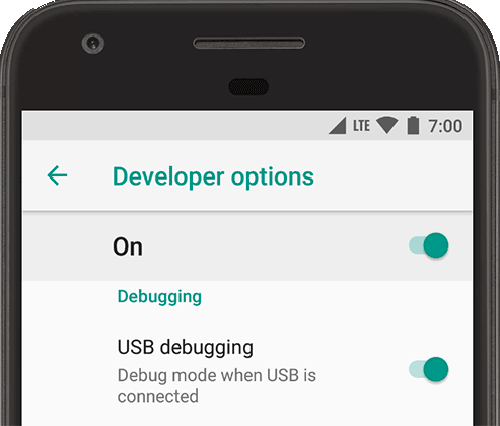
- On the Android device, enable Debugging
- Tap ‘Build Number’ 7 times (Settings > About phone > Software information > Build number)
- Enable “USB” Debugging” under Developer Options
- Plug the Android device into your desktop PC via USB
- If prompted, “Allow USB debugging” when prompted
- On your desktop chrome, open ‘chrome://inspect/#devices’ in the URL bar
- Select ‘Discover USB devices’
- Select your device, click ‘inspect’ (you may need to click the specific URL/tab that is open)
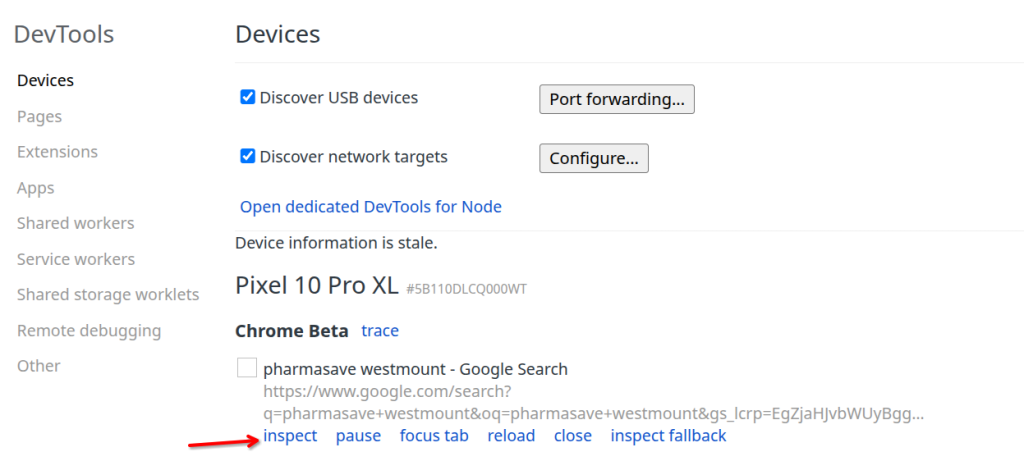
from here you should see the console log and network. You may also wish to save the HAR file for offline diagnostics.
Diagnostic LogsAgilicus has a number of different log sources and types: Authentication Audits. See your admin interface, Organisation/Authentication Audit API/System change Audits. See your admin interface, Organisation/Audit Subsystem Per user diagnostic and access audit: See your admin interface, Access/Audits and enter the user's email External SIEM, graylog, etc. See your admin interface, Organisation/Audit Destinations Access logs.
Agilicus has a number of different log sources and types:
- Authentication Audits. See your admin interface, Organisation/Authentication Audit
- API/System change Audits. See your admin interface, Organisation/Audit Subsystem
- Per user diagnostic and access audit: See your admin interface, Access/Audits and enter the user’s email
- External SIEM, graylog, etc. See your admin interface, Organisation/Audit Destinations
- Access logs. See your connector’s log in the OS-dependent fashion (e.g. Eventvwr, Systemd journal)
- (Legacy). For hosted applications, see Applications/Diagnose
How May I Grant Temporary Permission To Agilicus Support?Use the Support Requests feature to grant temporary, secure access to our team for collaboration. Learn how to manage, audit, and revoke permissions.
For more information on support options, please see Support.
When you are working with a member of the Agilicus customer support team, and wish to give them access to your Organisation in order to collaborate, you may use the Support Requests feature. This will temporarily give a single person access. All activities will show up in the Audits, and you may revoke this permission at any time.
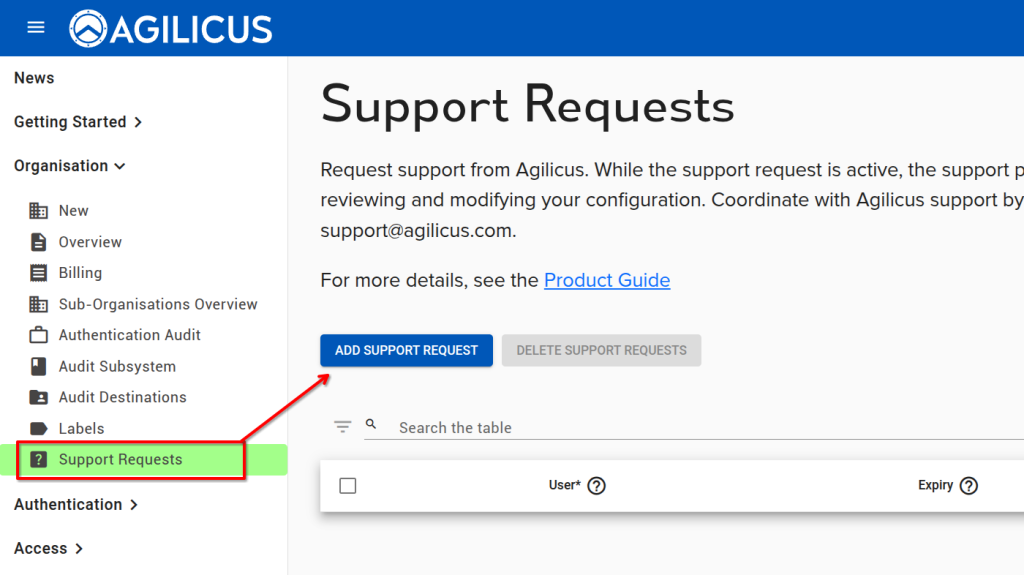
Google SecOps6
Can AnyX forward events to both Google SecOps and Microsoft Sentinel at the same time?Yes. Google SecOps and Microsoft Sentinel forwarding run as independent destinations. You can stream events to both platforms simultaneously, or run either provider independently.
Yes. Google SecOps and Microsoft Sentinel forwarding run as independent destinations. You can stream events to both platforms simultaneously, or run either provider independently.
Does Agilicus require interactive browser sign-in to Google?No. Event delivery is server-to-server using service-account credentials. AnyX never requests, requires or stores interactive Google user sessions.
No. Event delivery is server-to-server using service-account credentials. AnyX never requests, requires or stores interactive Google user sessions.
How do I decommission Google SecOps forwarding?Open Connectors, click SIEM FORWARDING, switch Enable Google SecOps Forwarding to off and click UPDATE SETTINGS. AnyX terminates the forwarder and deletes the stored credential. You should also delete the service-account key in the Google Cloud console.
Open Connectors, click SIEM FORWARDING, switch Enable Google SecOps Forwarding to off and click UPDATE SETTINGS. AnyX terminates the forwarder and deletes the stored credential. You should also delete the service-account key in the Google Cloud console.
How does forwarding scale across multiple Connectors?Cloud-origin events are transmitted once by the Agilicus cloud audit forwarder. Connector-origin events are forwarded directly by the specific Connector recording the activity. You do not need to distribute credentials to individual Connectors; configuration is managed centrally.
Cloud-origin events are transmitted once by the Agilicus cloud audit forwarder. Connector-origin events are forwarded directly by the specific Connector recording the activity. You do not need to distribute credentials to individual Connectors; configuration is managed centrally.
Where is the service-account private key stored?The key is stored in the Agilicus credentials service as an encrypted audit-destination secret, protected by strict role-based access control.
The key is stored in the Agilicus credentials service as an encrypted audit-destination secret, protected by strict role-based access control.
Which Google API endpoint does AnyX target?AnyX transmits payloads to the regional ingestion endpoint https://{location}-chronicle.googleapis.com using the events:import method and targeting the parent resource projects/{project}/locations/{location}/instances/{instance}.
AnyX transmits payloads to the regional ingestion endpoint https://{location}-chronicle.googleapis.com using the events:import method and targeting the parent resource projects/{project}/locations/{location}/instances/{instance}.
Industrial Control Systems1
Best Practices VNC HMIAgilicus AnyX allows your existing VNC HMI to be modernised to meet the needs of standards like NIS2: strong encryption, single-sign-on, multi-factor authentication, without changes to your existing equipment or network or infrastructure. You can see more information on this operates at Zero Trust: VNC Remote Desktop.
Agilicus AnyX allows your existing VNC HMI to be modernised to meet the needs of standards like NIS2: strong encryption, single-sign-on, multi-factor authentication, without changes to your existing equipment or network or infrastructure.
You can see more information on this operates at Zero Trust: VNC Remote Desktop.
Invoices, Billing3
How may I set or update my credit card?See "Organisation/Billing" in your admin portal (https://admin.__MYDOMAIN__). From here, select 'VIEW/UPDATE PAYMENT INFORMATION"
See “Organisation/Billing” in your admin portal (https://admin.__MYDOMAIN__). From here, select ‘VIEW/UPDATE PAYMENT INFORMATION”
How may I set or update my credit card?See "Organisation/Billing" in your admin portal (https://admin.__MYDOMAIN__). From here, select 'VIEW/UPDATE PAYMENT INFORMATION"
See “Organisation/Billing” in your admin portal (https://admin.__MYDOMAIN__). From here, select ‘VIEW/UPDATE PAYMENT INFORMATION”
How may I set who receives email notice of an invoice?See "Organisation/Billing" in your admin portal (https://admin.__MYDOMAIN__). From here, select 'VIEW/UPDATE PAYMENT INFORMATION"
See “Organisation/Billing” in your admin portal (https://admin.__MYDOMAIN__). From here, select ‘VIEW/UPDATE PAYMENT INFORMATION”
Key Concepts2
What is my admin URL? What is the URL for my applications?When you initially signed up to the Agilicus AnyX platform, you choose a domain (either your own DNS name with a CNAME, or, an Agilicus-supplied domain). Your domain looks something like ORGNAME.agilicus.cloud. You will have received a welcome email with this information, as well as have been automatically signed-in in your browser to e.g. https://admin.__MYDOMAIN__.
When you initially signed up to the Agilicus AnyX platform, you choose a domain (either your own DNS name with a CNAME, or, an Agilicus-supplied domain). Your domain looks something like ORGNAME.agilicus.cloud. You will have received a welcome email with this information, as well as have been automatically signed-in in your browser to e.g. https://admin.__MYDOMAIN__.
Where do I administer Agilicus AnyX?To administer Agilicus AnyX, open the admin web user interface at https://admin.__MYDOMAIN__/.
Open the admin web user interface at https://admin.__MYDOMAIN__/
Policies1
You have been denied access via a local policy rule such as GeoIP.Troubleshoot the "denied access via a local policy rule" error. Learn what causes this denial, from GeoIP to other security policies.
The user may see this error “You have been denied access via a local policy rule such as GeoIP.” on trying to use a resource. This is something your end user will see when opening a web application that is normally available through the Agilicus Connector.
This indicates that a policy has returned false, denying access. This could be a geo-ip policy, a multi-factor authorisation policy, a subnet-based policy, etc.
See Policies, Policy-Based Access Control By Subnet, Geo-Location-Based Access Control and Firewall rules for more information.
If you are the system administrator, you may look at which specific policies apply to the given resource, and, which ones might be matching. Also check the connector logs (overall, windows, Linux)
Printers8
Can I set a default printer and driver?Yes. The printer resource carries a driver name, location, comment and default flag. The launcher applies them on each reconcile, and the default driver is the inbox Microsoft IPP Class Driver.
Yes. The printer resource carries a driver name, location, comment and default flag. The launcher applies them on each reconcile, and the default driver is the inbox Microsoft IPP Class Driver.
Can I use a printer that does not support IPP?Yes. Enable the raw (JetDirect or AppSocket) option on the printer resource. AnyX translates incoming IPP requests into the raw print stream the device expects.
Yes. Enable the raw (JetDirect or AppSocket) option on the printer resource. AnyX translates incoming IPP requests into the raw print stream the device expects.
Does Agilicus install the printer automatically?Yes. The Agilicus launcher reconciles the printers a user may reach on each launch, installs missing printers and removes those whose access has been revoked.
Yes. The Agilicus launcher reconciles the printers a user may reach on each launch, installs missing printers and removes those whose access has been revoked.
Does AnyX require an inbound firewall rule to print?No. The Agilicus Connector uses an outbound-only connection, and the printer is never exposed to the internet.
No. The Agilicus Connector uses an outbound-only connection, and the printer is never exposed to the internet.
How do users authenticate to a printer?Users sign in with their corporate identity. The launcher embeds a short-lived, printer-scoped access token, and manual setups use the user email address and an access token from the profile.
Users sign in with their corporate identity. The launcher embeds a short-lived, printer-scoped access token, and manual setups use the user email address and an access token from the profile.
What happens when I revoke access or rotate the key?On the next launcher refresh the printer is removed, or reinstalled with fresh credentials if access remains.
On the next launcher refresh the printer is removed, or reinstalled with fresh credentials if access remains.
Which client operating systems are supported?Windows 10 and Windows 11, macOS, and Linux with the Common Unix Printing System (CUPS).
Windows 10 and Windows 11, macOS, and Linux with the Common Unix Printing System (CUPS).
Which printing protocols does AnyX support?Agilicus AnyX publishes printers over the Internet Printing Protocol (IPP) and IPP over Transport Layer Security (IPPS). For devices that do not support IPP, AnyX presents a raw JetDirect or AppSocket endpoint on TCP port 9100.
Agilicus AnyX publishes printers over the Internet Printing Protocol (IPP) and IPP over Transport Layer Security (IPPS). For devices that do not support IPP, AnyX presents a raw JetDirect or AppSocket endpoint on TCP port 9100.
Resource – Desktops7
Android Remote DesktopUse Microsoft Remote Desktop client on Android.
In the Google Play store, install Microsoft Remote Desktop. Once installed, use the Agilicus profile (https://profile.__MYDOMAIN__) and launch the remote desktop icon for your resource.
The first time you run this, you may be asked to grant permission, as below.
Desktop Connection Fails with “No stuffable upstream security type found”To stuff credentials the connector and VNC server must mutually support an appropriate protocol.
If your VNC desktop has credential stuffing enabled (i.e. it has an entry in one of the username or password fields in its expanded configuration under Resources/Desktops), the connector and VNC server must mutually support a protocol which allows for credential exchange. If the connector cannot negotiate a protocol compatible with credential stuffing, it will fail with this message. The following screenshot provides an example. Note the red bar.
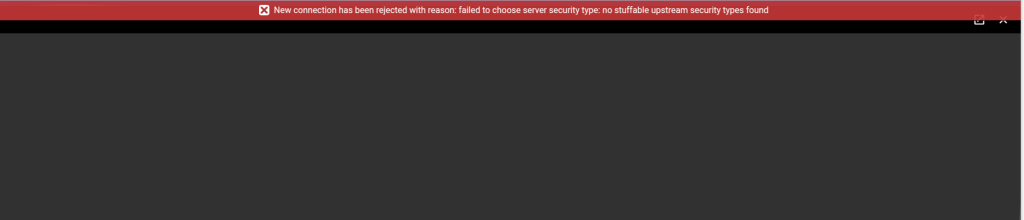
The connector supports the following protocols which allow for credential stuffing:
- VNC Authentication (Type 2)
- RA2 (Type 5)
- RA2r (Type 13)
- RA2_256 (Type 129)
To overcome this problem, either disable credential stuffing, or configure the server so that it supports one of the above protocols.
Does Agilicus AnyX Support Network Level Authentication (NLA) For Remote Desktop?Unlock secure remote desktop access. Explore how Agilicus AnyX works with Microsoft Network Level Authentication (NLA) for domain and non-domain devices.
Microsoft supports a concept called ‘Network Level Authentication’. In this model, if the client-machine (running mstsc) is joined to a Windows domain, and, the server is also on the same domain, it will check and enforce this.
With Agilicus AnyX, a common use case is ‘any device’, allowing the user to use a tablet or personal machine to reach a remote desktop server. In this case, the client is not joined to the domain, and, Microsoft Network Level Authentication will fail.
Agilicus AnyX is transparent, and, supports Network Level Authentication. If 100% of your users devices are attached to your domain, you may enable this on your server. If you have users who are not attached to your domain you will need to disable or make it optional on your server.
See the Product Guide for more information.
Enable RealVNC ServerEnable interoperability between standard VNC clients and RealVNC® server by enabling VNC Password authentication mechanism.
RealVNC® by default uses a proprietary authentication mechanism, rendering it inoperable with standard clients. You can enable standard authentication as shown in the below image (enable VNC Password as an authentication mechanism).
You may also wish to see more detail about how to use the RealVNC as shipped with Raspberry PI.
Remote Desktop error 0x1908The Remote Desktop error 0x1908 (often displayed as extended error 0x0) means your RDP client is configured to require smart card or Windows Hello for Business authentication, but the remote computer or your current session setup cannot support or access those devices. See https://learn.microsoft.com/en-ie/answers/questions/2129230/rdp-fails-on-win11-24h2-the-selected-user-credenti You can bypass or fix this issue using the following steps:
The Remote Desktop error 0x1908 (often displayed as extended error 0x0) means your RDP client is configured to require smart card or Windows Hello for Business authentication, but the remote computer or your current session setup cannot support or access those devices. See https://learn.microsoft.com/en-ie/answers/questions/2129230/rdp-fails-on-win11-24h2-the-selected-user-credenti
You can bypass or fix this issue using the following steps:
Method 1: Disable Smart Card Redirection (Recommended)
This is the most common fix when connecting from a personal device. [1]
- Open the Remote Desktop Connection (mstsc) app.
- Click Show Options at the bottom to expand the menu.
- Navigate to the Local Resources tab.
- Under Local devices and resources, click the More… button.
- Uncheck the box for Smart cards or Windows Hello for Business.
- Click OK, go back to the General tab, and click Save. [1, 2, 3]
Method 2: Check RDP Client Group Policy
If you are managing the connection through Group Policy, you may need to explicitly disable required smart card policies. [1]
- Press
Win + R, typegpedit.msc, and press Enter. - Go to
Computer Configuration>Administrative Templates>Windows Components>Remote Desktop Services>Remote Desktop Session Host>Security. - Locate Require use of specific security layer for remote (RDP) connections and set it to Enabled, choosing
RDPorNegotiateas the security layer (instead of forcing SSL/TLS which sometimes triggers authentication conflicts). - Open the command prompt as administrator and run
gpupdate /forceto apply the policy. [1, 2, 3]
Method 3: Disable Network Level Authentication (NLA)
Sometimes the remote session manager gets stuck caching these credentials, and turning off NLA allows a legacy password login. [1]
- On the remote computer, press
Win + R, typesysdm.cpl, and hit Enter. - Go to the Remote tab.
- Uncheck Allow connections only from computers running Remote Desktop with Network Level Authentication (more secure).
- Try to connect from your client machine. Once connected and authenticated, you can turn this setting back on. [1, 2, 3, 4]
If you’d like, I can:
Setup Desktop to a specific monitorTightVNC via command line allows specifying the specific display adapter number.TIghtVNC also allows display offsets in the 'Extra Ports' configuration. By specifying a specific port (eg. 5091), a display offset can be configured for a monitor. Once the port is configured and known, a new desktop can be configured in the Agilicus Admin portal with
TightVNC via command line allows specifying the specific display adapter number.
TIghtVNC also allows display offsets in the ‘Extra Ports’ configuration. By specifying a specific port (eg. 5091), a display offset can be configured for a monitor. Once the port is configured and known, a new desktop can be configured in the Agilicus Admin portal with the port number.
What does the ‘viewer’ role do?Agilicus AnyX has a rich role-based web application firewall. Some protocols this can mean very fine control (e.g. Web). Others like VNC Desktops its more coarse: read-only versus read-write. Others like RDP are all or nothing. THe built-in roles are: Owner: do anything Editor: read/modify existing things Viewer: read existing things Self: do anything on
Agilicus AnyX has a rich role-based web application firewall. Some protocols this can mean very fine control (e.g. Web). Others like VNC Desktops its more coarse: read-only versus read-write. Others like RDP are all or nothing.
THe built-in roles are:
- Owner: do anything
- Editor: read/modify existing things
- Viewer: read existing things
- Self: do anything on your own data.
When looking at a protocol like Microsoft Remote Desktop (RDP), we recommend only using Owner.
Resource – Launchers3
Debug desktop launcher (Windows)debug the Agilicus launcher not starting/not working.
Diagnosing a Single PC Issue
If you’re experiencing a problem with your Agilicus Agent on a single PC, these are the primary diagnostic steps you can take:
- Review Log Files:
First, check the contents of the log files located in your agent’s logs directory. These files often contain valuable information about recent activities and errors.- Path:
%LOCALAPPDATA%\Agilicus\Agent\logs - What to look for: Examine the most recent log files for any error messages, warnings, or unexpected behavior.
- Path:
- Run a Debug Refresh:
If the log files don’t reveal the issue, you can force a client refresh with debug logging enabled. This can provide more detailed output about the agent’s operation.- Steps:
- Open a
cmd(Command Prompt) window. - Run the following command:
%LOCALAPPDATA%\Agilicus\Agent\agilicus-agent.exe client --cfg-file %LOCALAPPDATA%\Agilicus\Agent\agent.conf.enc.yaml --client-refresh true --debug
- Open a
- Sharing Results (Optional): If you need to share the results of this debug refresh with Agilicus support, you can append the following to the command to save the output to a file:
%LOCALAPAPPDATA%\Agilicus\Agent\agilicus-agent.exe client --cfg-file %LOCALAPPDATA%\Agilicus\Agent\agent.conf.enc.yaml --client-refresh true --debug > "%USERPROFILE%\Desktop\debug.log" 2>&1
After running this, a file nameddebug.logwill be created on your desktop, which you can then share.
- Steps:
- Debug a Specific Launcher:
If the previous steps don’t identify the problem, you can debug the specific launcher directly. This allows you to see any issues related to its specific command execution.- Steps:
- Locate the shortcut icon for the specific launcher you are having trouble with (e.g., on your desktop or Start Menu).
- Right-click the shortcut and select “Properties.”
- In the “Shortcut” tab, find the “Target” field. This field contains the full command line used to launch the application.
- Copy the entire command line from the “Target” field.
- Open a
cmd(Command Prompt) window as your regular user (not as an administrator). - Paste the copied command line into the
cmdwindow. - Append
--debugto the end of the command line. - Press Enter to run the command.
- This will execute the launcher with debug logging, and any remaining issues or output will be displayed directly in the command prompt window.
- Steps:
Diagnose LauncherTroubleshoot application launcher errors or startup failures. Learn how to generate debugging output from the command line to help diagnose the issue.
You may find there is an issue with the launcher. Examples include:
- application starting but exiting right away
- application starts and gives an error dialog
- application does not start
The first step to diagnose this is to find the debugging output. The simplest way is:
- on Start menu, find the application. ‘Open File Location’
- Right-click on the icon, select ‘Properties’
- Open a ‘cmd’ window (start menu, ‘cmd’)
- run cd “DIR” where dir is the ‘Start In” field. Use double-quotes.
- Run the program, appending –debug to the end of the string
These steps are shown below.
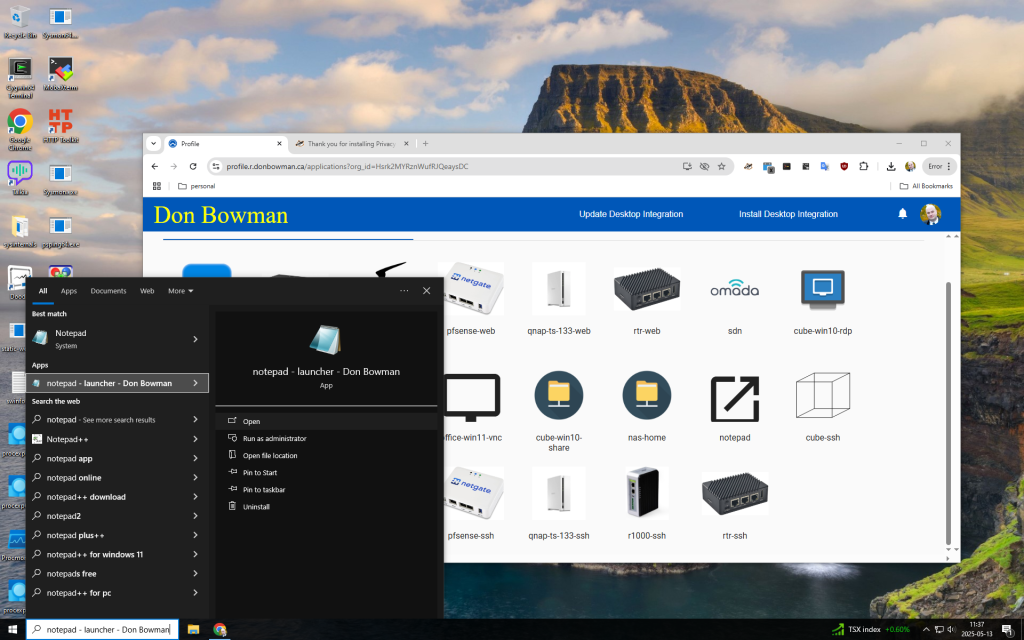
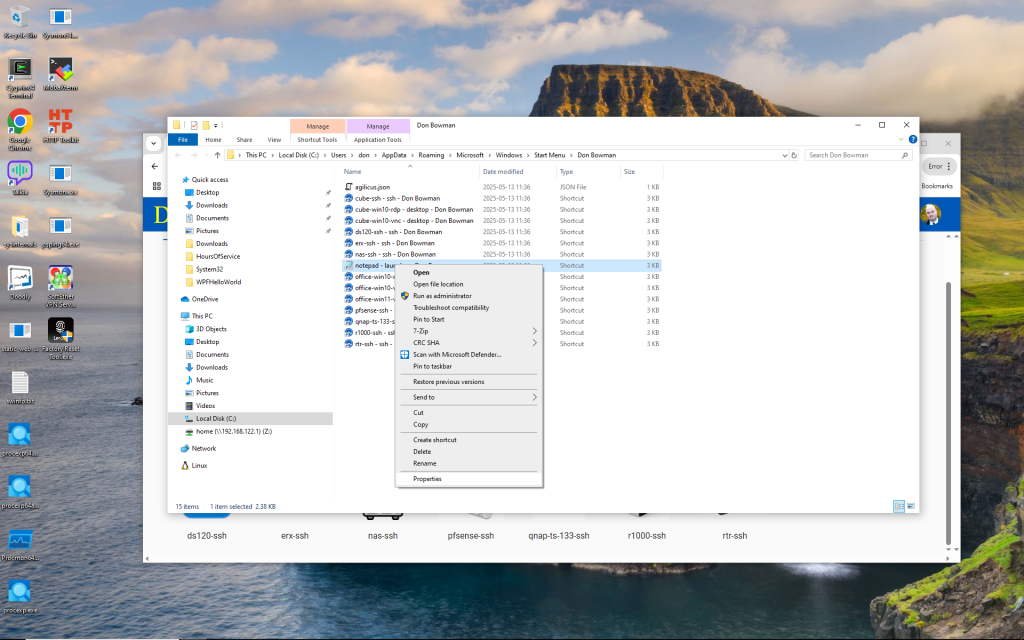
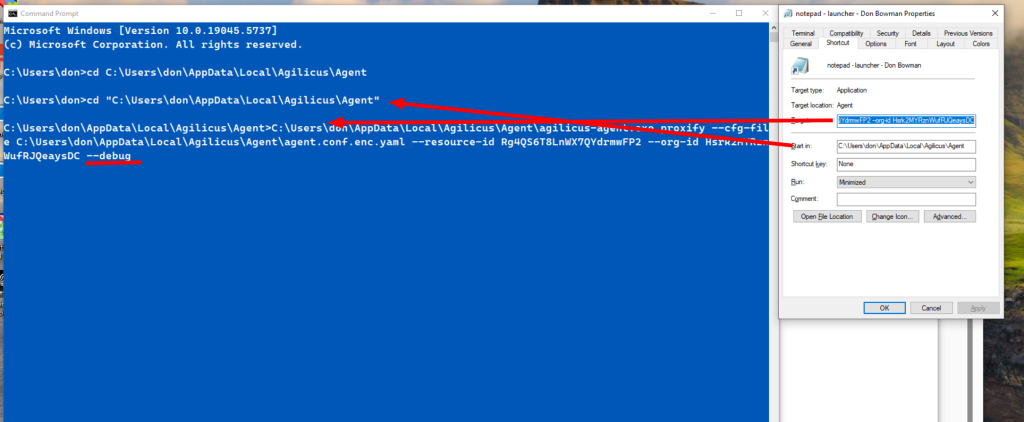
The output will look similar to below.
C:\Users\don\AppData\Local\Agilicus\Agent>C:\Users\don\AppData\Local\Agilicus\Agent\agilicus-agent.exe proxify --cfg-file C:\Users\don\AppData\Local\Agilicus\Agent\agent.conf.enc.yaml --resource-id Rg4QS6T8LnWX7QYdrmwFP2 --org-id Hsrk2MYRznWufRJQeaysDC --debug
time="2025-05-13T11:45:15-04:00" level=info msg="Starting proxify - version v0.298.2"
time="2025-05-13T11:45:15-04:00" level=debug msg="checking if should migrate install path"
time="2025-05-13T11:45:18-04:00" level=debug msg="checking stat file C:\Users\don\AppData\Local\Agilicus\Agent\agilicusLastUpdate"
time="2025-05-13T11:45:18-04:00" level=debug msg="file C:\Users\don\AppData\Local\Agilicus\Agent\agilicusLastUpdate updated"
time="2025-05-13T11:45:18-04:00" level=debug msg="checking C:\Users\don\AppData\Local\Agilicus\Agent\agilicusUpgradeLastRun"
time="2025-05-13T11:45:19-04:00" level=debug msg="upgrade threshold time not met"
time="2025-05-13T11:45:19-04:00" level=debug msg="Launching resource Rg4QS6T8LnWX7QYdrmwFP2 for orgID Hsrk2MYRznWufRJQeaysDC"
time="2025-05-13T11:45:19-04:00" level=debug msg="checking stat file C:\Users\don\AppData\Local\Agilicus\Agent\agilicusLastRefresh"
time="2025-05-13T11:45:19-04:00" level=debug msg="the cache file is: C:\Users\don\AppData\Local\cache\agilicus\resource_info.json"
time="2025-05-13T11:45:19-04:00" level=debug msg="using user resource access info from cache for Rg4QS6T8LnWX7QYdrmwFP2"
time="2025-05-13T11:45:19-04:00" level=debug msg="storing cache in directory: C:\Users\don\AppData\Local\cache\agilicus\tunnel-info"
time="2025-05-13T11:45:19-04:00" level=debug msg="Setting SSL_CERT_FILE=C:\Users\don\AppData\Local\Agilicus\Agent\4274-proxify.crt"
time="2025-05-13T11:45:19-04:00" level=info msg="Adding C:\Users\don\AppData\Local\Agilicus\Agent\4274-proxify.crt to default cert pool"
time="2025-05-13T11:45:19-04:00" level=debug msg="Listen on port 55031"
time="2025-05-13T11:45:19-04:00" level=debug msg="Setting proxy env vars to: http://localhost:55031"
time="2025-05-13T11:45:19-04:00" level=debug msg="Setting _JAVA_OPTIONS var to: -Dhttp.proxyHost=localhost -Dhttp.proxyPort=55031 -Dhttps.proxyHost=localhost -Dhttps.proxyPort=55031"
time="2025-05-13T11:45:19-04:00" level=debug msg="storing cache in directory: C:\Users\don\AppData\Local\cache\agilicus\tunnel-info"
time="2025-05-13T11:45:19-04:00" level=debug msg="exec (waitDescendants: true, workingDir: ): c:\windows\system32\notepad.exe"
d
Rockwell Studio listen tcp 127.74.52.3:44818: bind: An attempt was made to access a socket in a way forbidden by its access permissions.Launcher unable to bind on Windows
If you are using an Agilicus Launcher with Rockwell Studio rslinx to reach one or more PLCs, you may see an error “listen tcp 127.74.52.3:44818: bind: An attempt was made to access a socket in a way forbidden by its access permissions.”
This indicates you have another process running which has globally opened this port. You may find this process via:
netstat -an |findstr 44818If you see a result like:
TCP 0.0.0.0:44818 0.0.0.0:0 LISTENINGThis means that there is a process running with this port globally, exclusively, open. You can find the process:
netstat -anband you will see the named process. Stop this process which has the port open exclusively, and, the Agilicus Launcher should now work.
To avoid this, you can either use a different port, reconfigure the exclusive process to use a specific IP (instead of 0.0.0.0), or, run the Agilicus Launcher first.
Resource – Networks1
I accidentally setup an application as HTTPS, but its HTTPLearn how to configure your network's TLS settings. This guide shows you how to modify the upstream connection to enhance your application's security.
Navigate to Resources/networks. There you will find the ‘network’ (the upstream connection to your application).
Expand the details, from here you can change the TLS settings.
You might see these symptoms, a message:
“Bad Request. Your browser sent a request that this server could not understand. Reason: You’re speaking plain HTTP to an SSL-enabled server port. Instead use the HTTPS scheme to access this URI.”
Resource – Shares12
Enable WebClient/WebDav on Windows ServerEnable Agilicus Share on Windows Server desktop via enabling WebClient and WebDav
The Agilicus Share feature makes use of the Microsoft WebClient. This is an optional component which may not have been enabled at installation time on your Windows Server. Microsoft has a knowledge base entry discussing the WebDav redirector.
Installing WebDAV support on Windows Server 2012 R2
- Start Server Manager from the Start screen.
- Click Manage, then click Add Roles and Features.
- Select Role-based or feature-based installation. Click Next.
- Select a local server from the server pool. Click Next.
- The Desktop Experience feature is not a Server Role, so skip the Server Roles page by clicking Next.
- In the Select Features section, expand User Interfaces and Infrastructure and check the Desktop Experience check box. Probably it will now ask you whether you also want to install the features required by Desktop Experience. Click the Add Features button to proceed. Now, click the Next button to proceed.
- In the Confirmation section, optionally check the Restart the destination server automatically if required check box as the Desktop Experience feature will need a restart to complete. You can also manually restart the server after the wizard steps are complete.
- Wait while the features are being installed. You can also close the Add Roles and Features Wizard window – it will continue to run in the background.
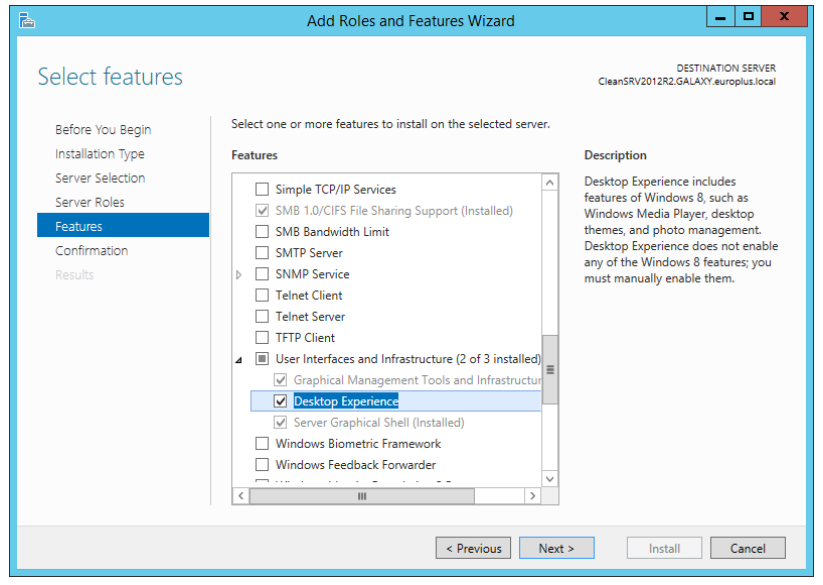
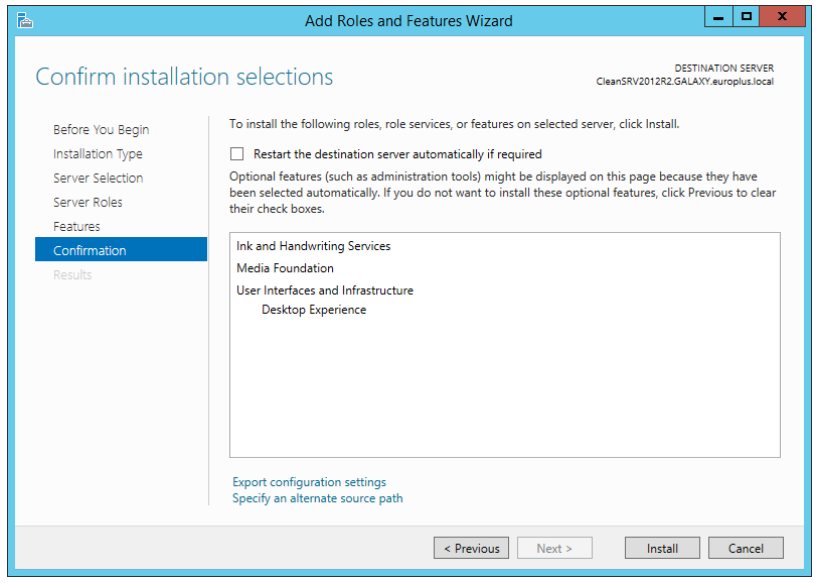
Installing WebDAV support on Windows Server 2016, Windows Server 2019, and Windows Server 2022
While installing Windows Server 2016, Windows Server 2019, or Windows Server 2022 operating systems, you probably enabled Desktop Experience. So after you install your Server OS, you have to enable WebDAV Redirector.
- Start Server Manager from the Start screen.
- Open Manage menu and click Add Roles and Features.
- Click Features tab.
- Select WebDAV Redirector feature.
- Click Next to proceed to the Confirm installation selections window.
- Click Install. You can close the window while the feature is being installed.
- Close Add Roles and Features window.
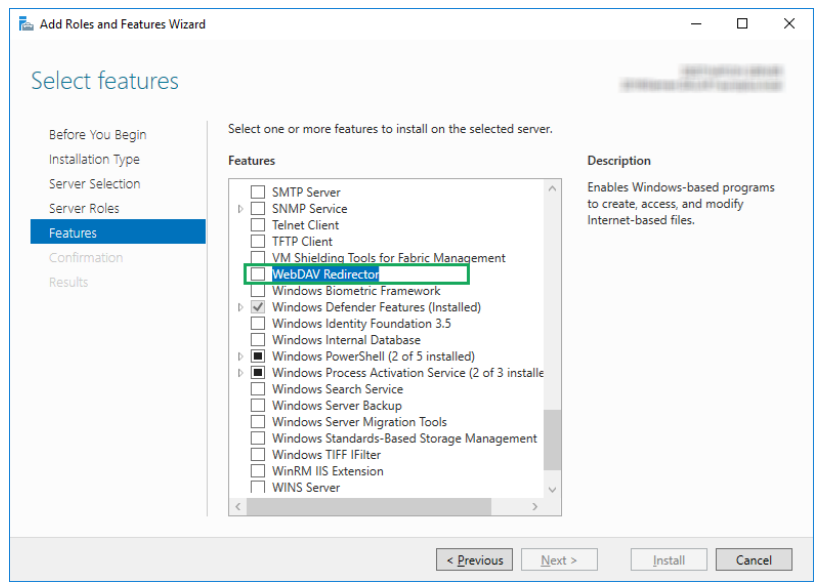
Enabling WebClient Services
On some machines, you also have to enable the WebClient Service to Automatic” Startup Type.
Do the following:
- Press Windows key (or <Ctrl> + <Esc>) to open the search.
- Type in “Services” and run the Services window.
- Locate the service WebClient.
- Double click WebClient to open its properties.
- In the Startup type combo box select Automatic.
- If the service is not running yet, click Start button.
- Click OK.
- Close Services window.
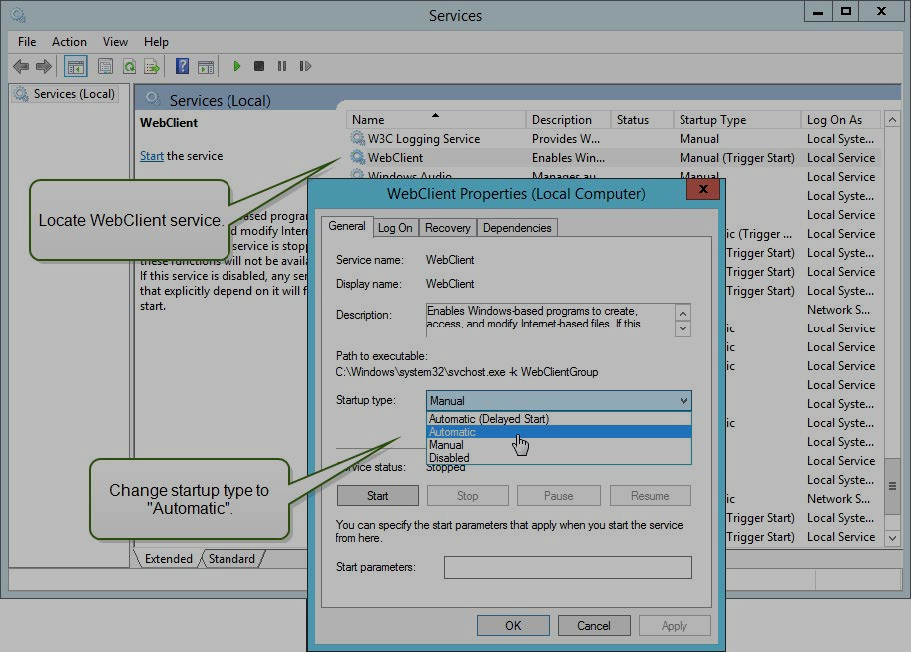
Enabling Portable Device Enumerator Service
On some machines, you also have to enable the Portable Device Enumerator Service to Automatic Startup Type, when you want to use Microsoft Access or Microsoft Excel data files from the Document Storage.
How can I see who has an excel or word file locked?I am seeing file is locked for editing by another user. How can I see who has this file locked? Microsoft Office (Word, Excel etc) create lock files with a ~ in the name (e.g. ~Workbook.xlsx). This will be owned by the user who has locked the file. If you have file-level permissions enabled, this
I am seeing file is locked for editing by another user. How can I see who has this file locked?
Microsoft Office (Word, Excel etc) create lock files with a ~ in the name (e.g. ~Workbook.xlsx). This will be owned by the user who has locked the file.
If you have file-level permissions enabled, this will be the person.
In your explorer, right click on the column bar and add a column ‘Owner’. This will now show you who has the file locked.
Is my data stored with Agilicus?Using a share, is my data ever stored on the Agilicus AnyX platform?
No, we do not store anything from your share. All data always lives on your file server. You have the sole data at rest on your system, and, data in motion is encrypted end to end.
Profile Says ‘List Error’ on ShareEnd user sees 'List Error' in profile when accessing a share due to connector running as LocalSystem on Microsoft Windows.
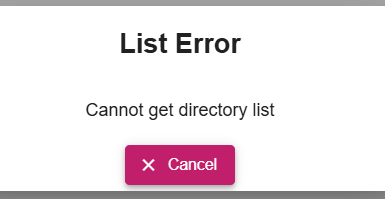
An end user might see a ‘List Error’ on a share in Profile. This usually implies that the associated connector cannot read the underlying directly. In turn, this normally is a permissions problem. A common cause is a Windows system where the connector runs as LocalSystem, and, the LocalSystem account does not have permission to the shared file (or it in turn is another inbound Share).
To make a network drive mount available to the LocalSystem account on Windows, you need to modify the share permissions on the network folder to explicitly grant the “LocalSystem” group full control access, allowing the system account to access the mounted drive.
Steps:
- Access the Shared Folder Properties:
- Navigate to the shared folder on the network drive using File Explorer.
- Right-click on the folder and select “Properties”.
- Open Sharing Tab:
- In the Properties window, go to the “Sharing” tab.
- Manage Permissions:
- Click “Advanced Sharing”.
- Click “Permissions”.
- Add LocalSystem Group:
- Click “Add”.
- In the “Enter the object names to select” field, type “LocalSystem” and click “Check Names” to verify.
- Click “OK”.
- Grant Full Control:
- Select the “LocalSystem” group from the list.
- Under “Allow” column, check the box next to “Full Control”.
Important Considerations:
- Security Implications:Granting full control to the LocalSystem account can be a security concern, so only do this if absolutely necessary and ensure the network share is properly secured otherwise.
- Alternative Methods:Depending on your specific situation, you might be able to achieve the desired access by using a different system account with appropriate permissions instead of directly using “LocalSystem.”
Sharing network mapped drivesWhen creating a new Agilicus share the Agilicus connector cannot see network mapped drives because it runs as the local system user, and not a logged in user. This means that it cannot see shares which are only typically mapped for logged in users. When this happens, if you browse to the share in profile,
When creating a new Agilicus share the Agilicus connector cannot see network mapped drives because it runs as the local system user, and not a logged in user. This means that it cannot see shares which are only typically mapped for logged in users. When this happens, if you browse to the share in profile, you will get a ‘list directory error’ as the connector cannot see the directory. In order to correct this, create a link to the network drive on a local drive eg mklink /D C:\myLink \\127.0.0.1\c$. Then use the link as the path for the Agilicus share, in the example C:\myLink. You may also need to change the user which the connector runs as is in order to access the drive.
Resource – Web Applications5
Application hosted on subpath of domainIf you have an application hosted on a Subfolder/path in your Web ServerYou may have an application hosted under a subfolder/path on your web server, possibly because it is better than having another server for it. For example: localhost:port/subpath, localhost:port/support etc.To enable the subpath hosting for your application,1. Go to Resources > Applications > Define
If you have an application hosted on a Subfolder/path in your Web Server
You may have an application hosted under a subfolder/path on your web server, possibly because it is better than having another server for it. For example: localhost:port/subpath, localhost:port/support etc.
To enable the subpath hosting for your application,
1. Go to Resources > Applications > Define and select the application from the drop down at the top of the page
2. Then in Security (tab) > Firewall Rules > HTTP Rules, change the / entry under path to your custom subpath (For example, /subpath)
3. Under Proxy (tab) > HTTP Rewrites, inside the Common Path Prefix field, enter your custom subpath again (For example, /subpath)
Diagnosing Web Applications with HAR fileHow-to debug a web application by sharing a HAR file after reproducing the problem.
In some circumstances it is more efficient to diagnose a web application issue by generating a HAR file and sharing with Agilicus Support.
Google Chrome (And Derived Browsers Like Microsoft Edge)
In Google Chrome (and other Chrome-derived browsers such as Microsoft Edge), you can enter the developer mode (ctrl-shift-I or F12), and then select the ‘Export HAR (sanitized)…)’ button.
- Open a new incognito window.
- Click the more actions menu (…) to the right of the toolbar and select More tools – Developer Tools (or press F12 or CTRL-SHIFT-I)
- Select the Network tab.
- Ensure that Google Chrome is recording. A red button indicates that a recording is already in progress. Otherwise, click Record network log.
- Select Preserve Log.
- Clear any existing logs by clicking Clear network log (
 ).
). - Go to the page where the issue occurred and reproduce the issue.
- Click Export HAR (the down arrow icon) to export the file as HAR.
- Save the HAR file.
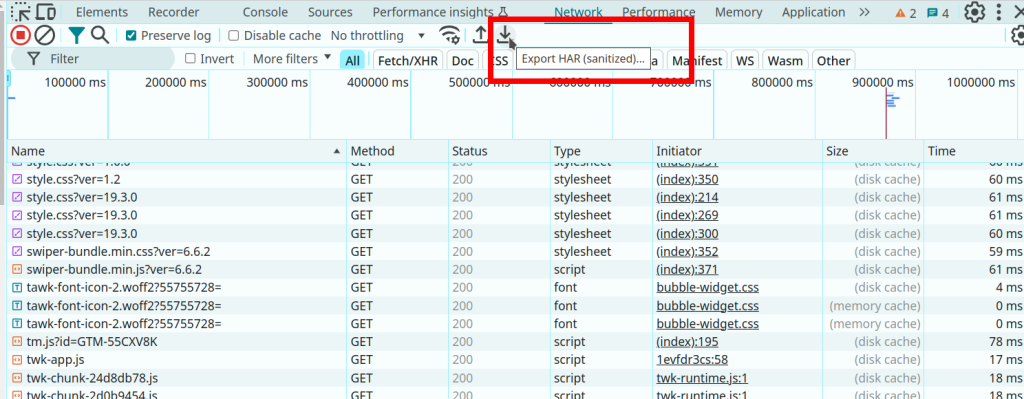
Firefox
- To open the developer console in Firefox, click on the Firefox Menu in the upper-right-hand corner of the browser and select More Tools > Browser Console. You can also use Option + ⌘ + E (on macOS) or Shift + CTRL + C (on Windows/Linux).
- Refresh the page.
- Go to the Network tab and, click the settings icon (upper right side of the panel), choose Save All As Har.
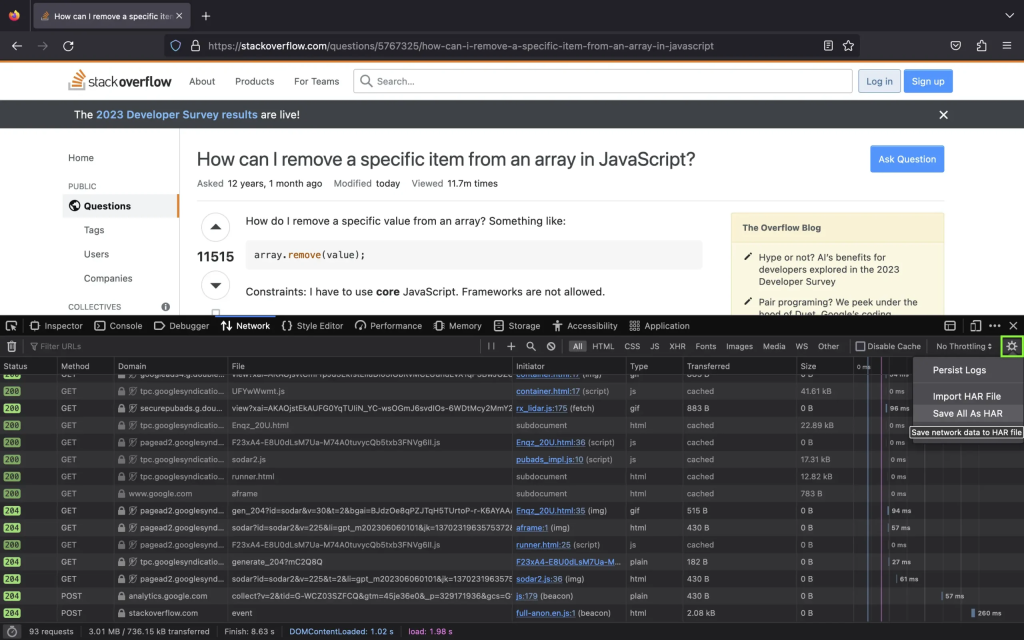
Apple Safari
Ensure the ”Show Develop menu” in the menu bar is checked under Safari > Settings > Advanced tab.
- Visit the web page from where you want to export the traffic.
- Click Develop on the Menubar, then select Show Web Inspector. Refresh the page.
- Go to the Network tab and click Export on the upper right side of the pane.
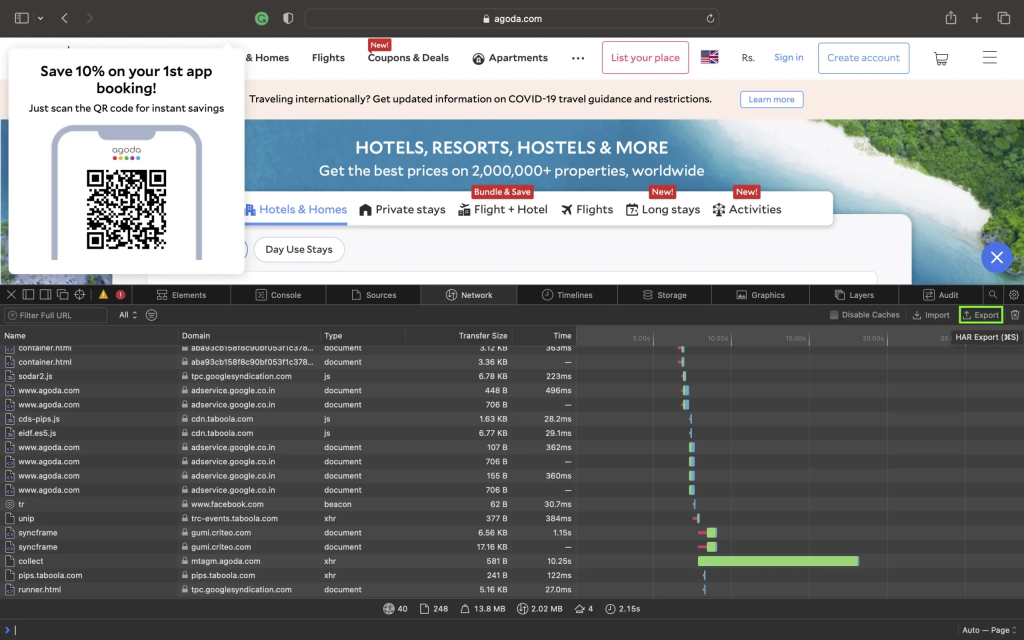
Note: if he web application is an embedded browser such as Microsoft Webview, set this environment variable prior to launch.
WEBVIEW2_ADDITIONAL_BROWSER_ARGUMENTS="--auto-open-devtools-for-tabs"
How do I change the network address/port of a web application backend?Web Applications use network resources. You can change where the network resource is accessed (either the connector it is bound to, or the hostname/IP/port that it is internally known as) by navigating to Networks/Overview. The specific resource(s) will be named similarly to the web application, with -local-service appended.
Web Applications use network resources. You can change where the network resource is accessed (either the connector it is bound to, or the hostname/IP/port that it is internally known as) by navigating to Networks/Overview.
The specific resource(s) will be named similarly to the web application, with -local-service appended.
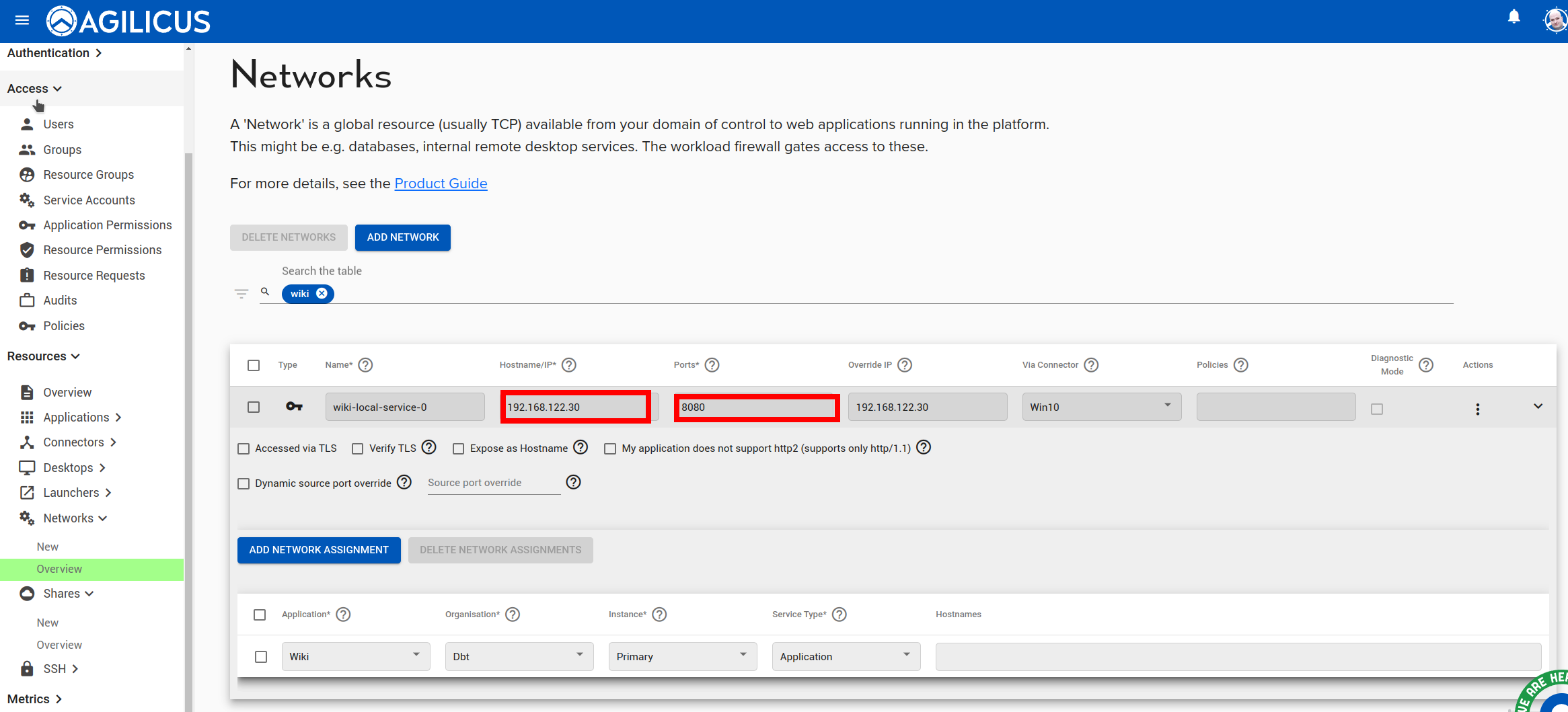
SolarWinds missing info in alerts panelSolarWinds requires a text/javascript media rewrite.
When using SolarWinds web application through Agilicus AnyX you may find there is information missing in the output screen.
By default, SolarWindows uses a JavaScript file with the IP address embedded in it. You can enable ‘text/javascript’ “rewrite”Rewrite Media Types” in the Agilicus admin interface to resolve this issue.
Navigate to Resources/Applications/Overview. Select your web application. Click on the ‘proxy’ tab, from here select ‘Rewrite Media Types’, add ‘text/javascript’ as below.
Now do a hard reload of your browser on your SolarWinds URL, and it should properly populate.
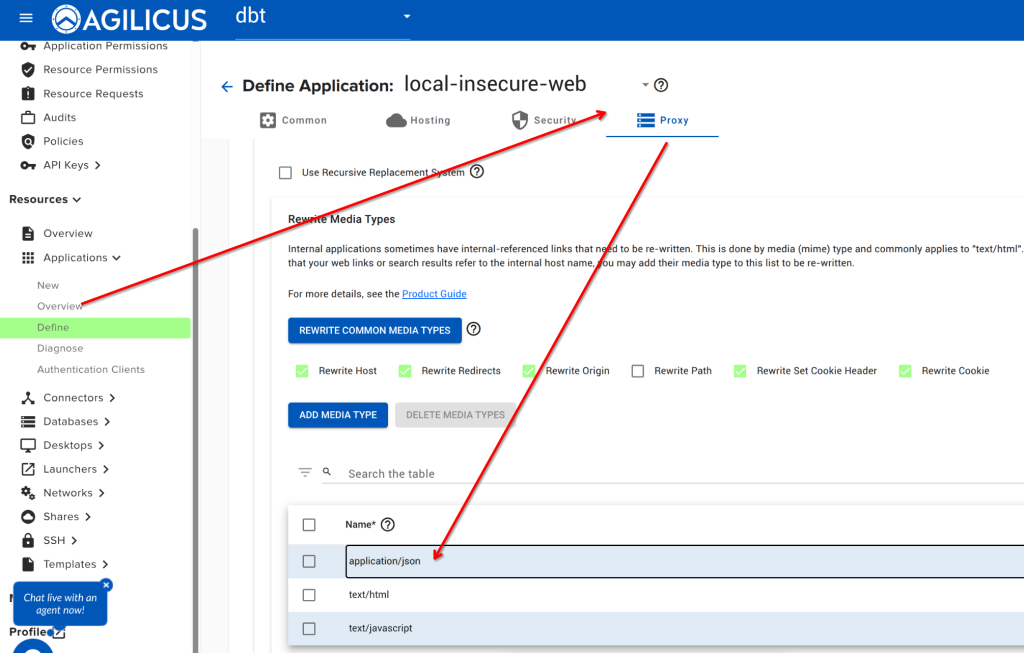
Unregistered redirect_uriIf you are using a custom authentication client id in your web application, or your web application participates in the sign in, you may find you see a message "Message: Unregistered redirect_uri". You may find that either: a) you have selected "my application participates in authentication" and you did not mean this b) your application
If you are using a custom authentication client id in your web application, or your web application participates in the sign in, you may find you see a message “Message: Unregistered redirect_uri”.
You may find that either:
a) you have selected “my application participates in authentication” and you did not mean this
b) your application does participate, but, you have not added the proper redirect_uri to Resources/Applications/Authentication Clients in admin.
Resources3
How Do I Change The Icon In Profile For A Resource?Set a custom profile icon for any resource, from SSH to web apps. Learn how to upload a square PNG, JPG, or SVG file to personalize your view.
You can set the icon profile show for any resource type:
- ssh
- desktop
- web application
- launcher
Navigate to Resources/Overview, select the icon for the given resource and upload a PNG or JPG or SVG file that is square in aspect ratio (e.g. 256×256, 64×64, etc).
You can then test the icon by navigating to profile and refreshing.
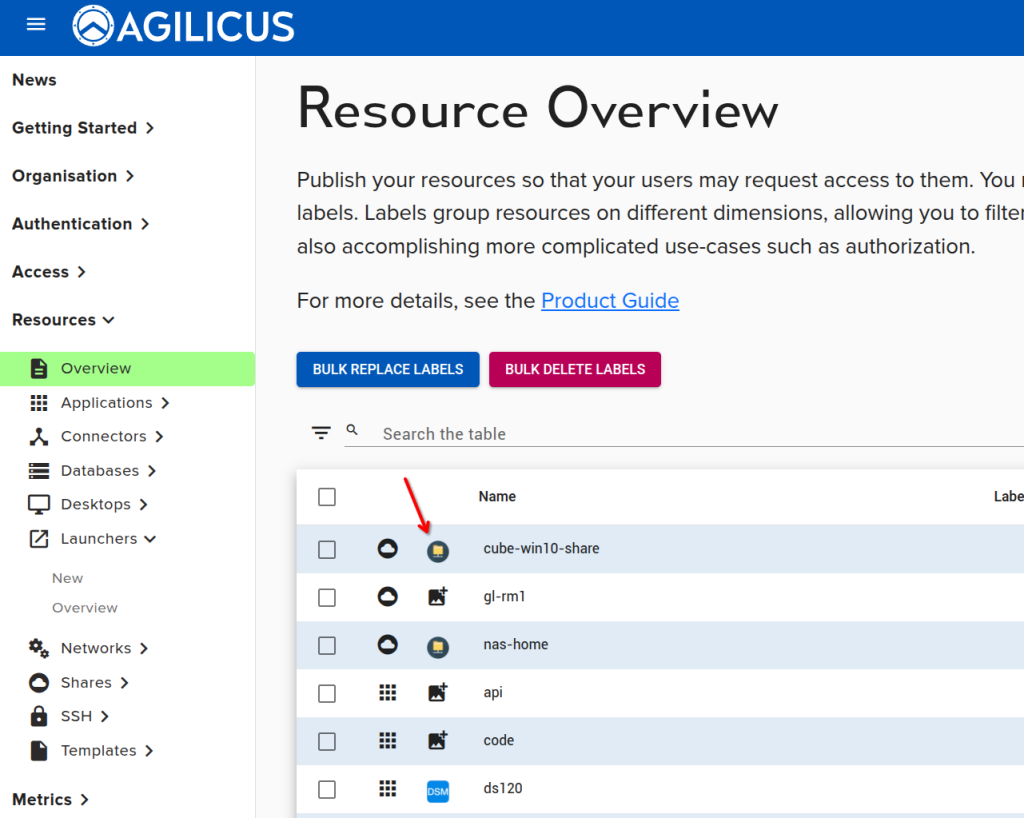
I can’t access my resource, what should I do?The most common reason that accessing a resource stops working is if the connector providing it goes down, or if the connector loses access to the underlying resources. You can check to see if the connector is up on the connector overview page on the portal. If the connector is up, ensure it has access
The most common reason that accessing a resource stops working is if the connector providing it goes down, or if the connector loses access to the underlying resources. You can check to see if the connector is up on the connector overview page on the portal. If the connector is up, ensure it has access to the service.
Resource isn’t showing on profileThe most common reason for a resource to not show up on the Profile or the user’s desktop start menu is that the user doesn't have access to it. Even administrators need permission in order to access them! Permissions are assigned under Access/Resource Permissions, either to the user directly, or, via a group. You can
The most common reason for a resource to not show up on the Profile or the user’s desktop start menu is that the user doesn’t have access to it. Even administrators need permission in order to access them!
Permissions are assigned under Access/Resource Permissions, either to the user directly, or, via a group.
You can check what resources a user has access to by entering a user’s email in the User Audit page on the admin portal (https://admin.__MYDOMAIN__), it’s found under Access->Audits.
Starlink15
Are you affiliated with SpaceX / Starlink?No, we are not in anyway affiliated with SpaceX / Starlink.
No, we are not in anyway affiliated with SpaceX / Starlink.
Can I run the connector on a Mac?Agilicus connector on an Apple Mac. There is no Apple server, so this is usually not needed, however, can be run under Docker.
No, Apple does not provide a server platform since the XServe. The connector is supported on Linux, Windows, various embedded platforms like Synology, pfSense, Mikrotik, etc. To run the connector on an Apple Mac, you may use the Docker instructions (see Install Docker Desktop on Mac).
If you are an enthusiast, consider running the connector under Docker on your Mac.
Can you run security cameras off of Starlink?Can you use a security camera through Starlinks CGNAT? Yes via Agilicus AnyX, an FAQ pointing to some resources.
Yes, via Agilicus AnyX, we can help you with the carrier NAT (CGNAT) issue you might be hitting to access your security camera. See “Seamless Inbound Remote Access via Starlink”, “Starlink Port Forwarding“
See Will this work with my security camera? and “Network Video Recorder Setup” and “Synology Surveillance Station“
See also “3-Steps to Enable Inbound Remote Access: Starlink Remote Cameras“
Do I need to install any Hardware?No. The Agilicus AnyX is a SaaS solution, cloud based. In order to work with your Starlink network, you will install a small piece of software on a single device you already own.
No. The Agilicus AnyX is a SaaS solution, cloud based. In order to work with your Starlink network, you will install a small piece of software on a single device you already own.
Do I need to install any Software?The Agilicus AnyX platform is almost entirely cloud SaaS. In order to work with your Starlink network, you will be installing the Agilicus Connector on a device you already have. This software will facilitate the incoming network traffic.
Does the end-user profile and launcher support MacOS?Yes, the end user can use the web-based profile as well as the desktop based launcher. The desktop-based launcher requires OSX 11 (last supported version by Apple) or later.
Yes, the end user can use the web-based profile as well as the desktop based launcher. The desktop-based launcher requires OSX 11 (last supported version by Apple) or later.
How can this work? I thought Starlink used CGNAT with no public IP?You can see an animated diagram on the Agilicus Connector page. But in general, this works the same way e.g. a Google Nest thermostat works. Something inside your home network makes a persistent outbound connection to our cloud. When you are away, you will connect to our cloud, it will confirm your identity, and bridge
You can see an animated diagram on the Agilicus Connector page. But in general, this works the same way e.g. a Google Nest thermostat works. Something inside your home network makes a persistent outbound connection to our cloud. When you are away, you will connect to our cloud, it will confirm your identity, and bridge you across these two outbound connections.
How is this secure?Agilicus AnyX is an implementation of Zero Trust, a security best practice. You will use single-sign-on authentication via your Google or Microsoft account (there are no passwords). You can optionally enable multi-factor authentication. All traffic is encrypted with TLS 1.3 HTTPS. You can configure firewall rules in this system for e.g. geo-ip based access, as
Agilicus AnyX is an implementation of Zero Trust, a security best practice. You will use single-sign-on authentication via your Google or Microsoft account (there are no passwords). You can optionally enable multi-factor authentication. All traffic is encrypted with TLS 1.3 HTTPS. You can configure firewall rules in this system for e.g. geo-ip based access, as well as other more complex rules. You will have a full audit trail of who used what when.
How much will this cost for just me and one other user?You can see the pricing here. If you have only 2 users there will be no ongoing cost.
I’m not sure, can we discuss?Certainly! Please either open the chat icon in the lower-left, fill in the form, or email us (info @ agilicus.com) and our team would be happy to discuss further with you.
Is this a good product for a consumer environment?Agilicus AnyX is an industrial, business product. The large set of features may make it too complex for a consumer environment.
Agilicus AnyX is an industrial, business product. The large set of features may make it too complex for a consumer environment.
Is this a good solution for me?Agilicus AnyX is an excellent solution for web applications, for SSH (e.g. command line access), for a Share (e.g. file access), and for remote desktop (Microsoft Remote Desktop, VNC). If you have complex networking needs that require layer-3 routing this is probably not the right solution for you.
Agilicus AnyX is an excellent solution for web applications, for SSH (e.g. command line access), for a Share (e.g. file access), and for remote desktop (Microsoft Remote Desktop, VNC). If you have complex networking needs that require layer-3 routing this is probably not the right solution for you.
What type of device can I install the Agilicus Connector on?The Agilicus Connector supports many device types. Windows, Linux, OpenWRT, Synology. You can see more information on the product guide page. In general, the machine will need about 100MB of storage, 20MB of ram to operate. It is very unlikely the Agilicus Connector will install on your camera.
The Agilicus Connector supports many device types. Windows, Linux, OpenWRT, Synology. You can see more information on the product guide page. In general, the machine will need about 100MB of storage, 20MB of ram to operate.
It is very unlikely the Agilicus Connector will install on your camera.
Will this work with RTSP? Or only HTTP?We do not recommend using the RTSP feature of your camera with Agilicus AnyX. Instead we recommend using the HTTP interface.
We do not recommend using the RTSP feature of your camera with Agilicus AnyX. Instead we recommend using the HTTP interface.
Will this work with my security camera?Many security cameras have a web interface. If you have a URL you can use from your browser at home, then you can use it while away with Agilicus AnyX. In most cases, if you have an NVR, this will work. If your camera supports ONVIF, we have specific support for some NVR with that.
Many security cameras have a web interface. If you have a URL you can use from your browser at home, then you can use it while away with Agilicus AnyX.
In most cases, if you have an NVR, this will work. If your camera supports ONVIF, we have specific support for some NVR with that.
Many people use Synology Surveillance Station or Shinobi NVR with Agilicus AnyX.
Sample setups for generic ONVIF cameras are here.
A sample setup for an older Hikvision is here.
Uncategorised8
Agilicus AnyX StatusYou can check the status of Agilicus AnyX globally using https://uptime.agilicus.ca/status/anyx.
You can check the status of Agilicus AnyX globally using https://uptime.agilicus.ca/status/anyx.
Typically issues relate to either the connector on your site being down, or, the network between the connector and the Internet is down, or, the upstream service (e.g. your application) is unavailable to the connector. See Diagnostics for these.
Can you support FTP/SFTP?Some development tools, e.g. Netbeans deploy code via FTP or SFTP. Agilicus natively supports SSH, which SFTP is built on. You can use this with your existing client in the same way you would use SSH. We do not recommend FTP as it is not secure, however, if you must use it, you can consider
Some development tools, e.g. Netbeans deploy code via FTP or SFTP.
Agilicus natively supports SSH, which SFTP is built on. You can use this with your existing client in the same way you would use SSH.
We do not recommend FTP as it is not secure, however, if you must use it, you can consider using it as a network directly, exposing port 20 + 21, and then using the Agilicus Launcher to start your ftp client.
Connector install fails with “failed preflight check: error making HTTP request”As part of the connector install it checks that it can reach https://api.agilicus.com/ with proper encryption. Some sites use an Actor In The Middle SSL inspecting firewall, these redirect port 443 to themselves and send a different certificate back. This prevents end to end encryption from operating safely.
As part of the connector install it checks that it can reach https://api.agilicus.com/ with proper encryption. Some sites use an Actor In The Middle SSL inspecting firewall, these redirect port 443 to themselves and send a different certificate back. This prevents end to end encryption from operating safely.
On a site with one of these security appliances, you can either configure the connector to participate with the proxy (by setting http_proxy environment variable), or, configure the security appliance to not redirect the traffic for the IP of the machine the connector is on.
You can confirm the certificate chain issue by running:
openssl s_client -showcerts -servername api.agilicus.com -connect api.agilicus.com:443 </dev/null | more
Enable multiple-monitor remote desktopMultiple-monitor remote desktop configuration
You can configure the default generation of the remote desktop file using the Profile/Desktop Configuration menu.
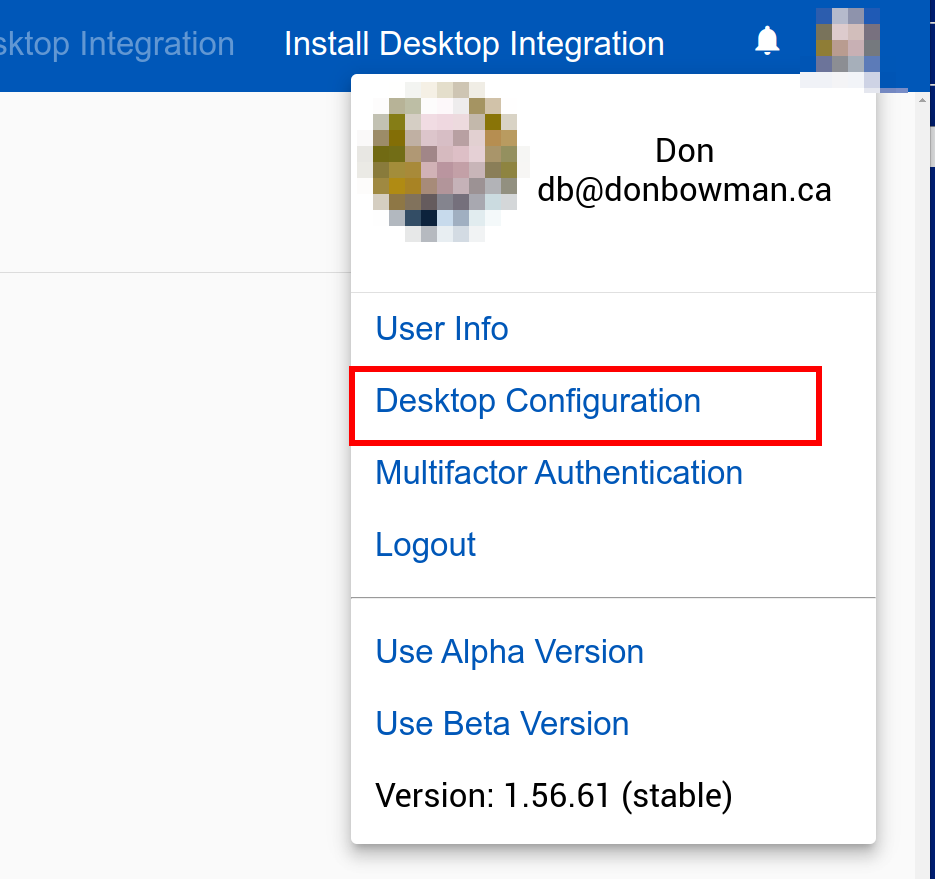
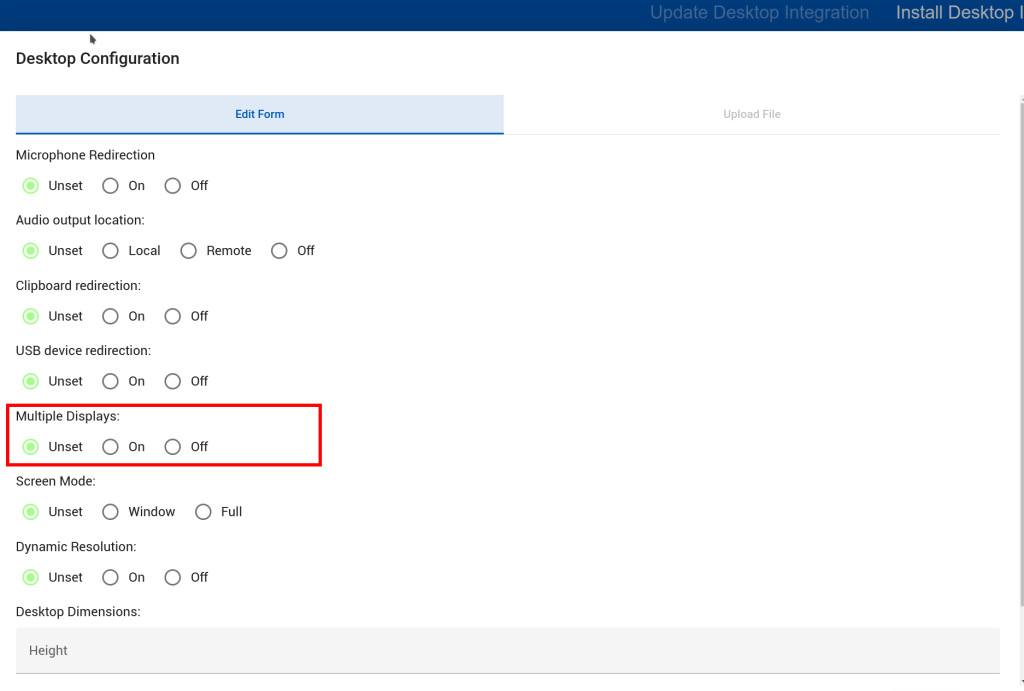
Microsoft edge redirects to https://localhostMicrosoft Edge inadvertently forces localhost connections to https (due to HSTS). This can prevent Agilicus Connector or Launcher authentication
Microsoft Edge inadvertently forces localhost connections to https (due to HSTS). This can prevent Agilicus Connector or Launcher authentication. To solve, go to Edge browser and type following statement in address bar.
chrome://net-internals/#hstsScroll all the way down to the section below and enter “localhost”, then click “Delete”.

Now, your localhost will be excluded from the HTTPS redirection.
Sending Logs To A SIEM TargetSee "Send Events to Microsoft Sentinel SIEM" for information on how to send logs to a SIEM target of Microsoft Sentinel. For more information, see Audit Destinations on generic forwarding such as Graylog, Syslog, etc.
See “Send Events to Microsoft Sentinel SIEM” for information on how to send logs to a SIEM target of Microsoft Sentinel.
For more information, see Audit Destinations on generic forwarding such as Graylog, Syslog, etc.
Windows Service Manager TimeoutOn a Microsoft Windows architecture machine, the Windows Service manager has a hard time limit to get all services started. In some circumstances on a reboot, the machine might be busy and unable to achieve this goal, leaving the Agilicus Connector unstarted.
On a Microsoft Windows architecture machine, the Windows Service manager has a hard time limit to get all services started. In some circumstances on a reboot, the machine might be busy and unable to achieve this goal, leaving the Agilicus Connector unstarted.
The Agilicus Connector has a watchdog to workaround this issue, with a default time of 300 seconds. In the event your individual server is even slower than this, you can change the Windows Registry key AutoStartDelay (using regedit) at
Computer\HKEY_LOCAL_MACHINE\SYSTEM\CurrentControlSet\Services\agilicus-connector-watchdog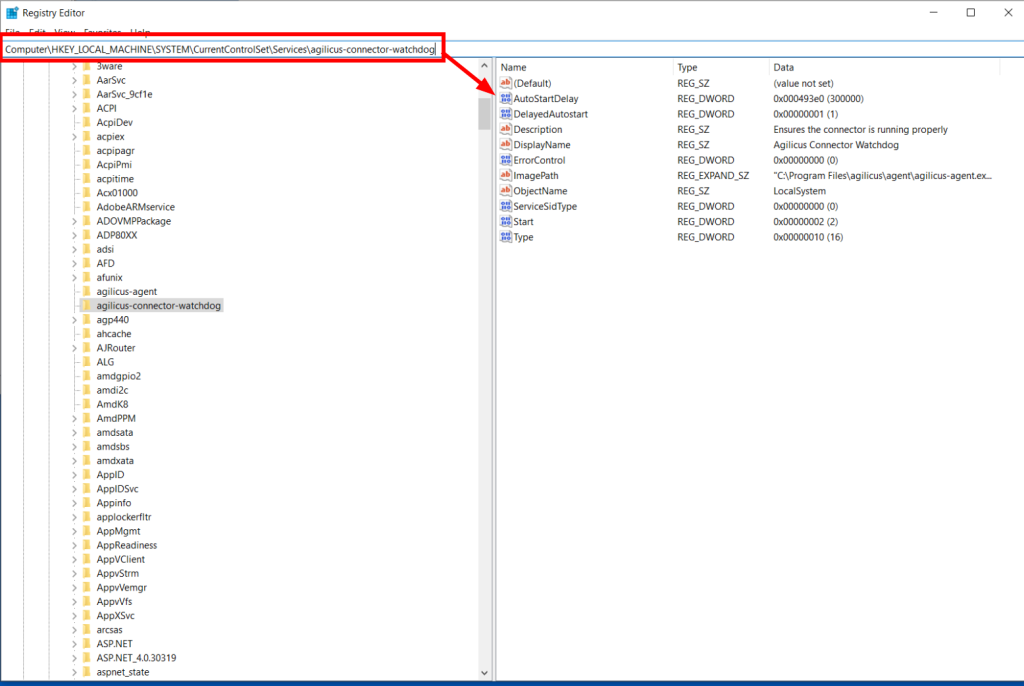
You may not have this watchdog installed, if not, you can manually enable it with:
"C:\Program Files\agilicus\agent\agilicus-agent.exe" client --force-install-connector-watchdog --cfg-file "C:\Program Files\agilicus\agent\agent.conf.enc.yaml"You do not currently have any assigned resourcesAn end user has complained that Profile shows "You do not currently have any assigned resources.
An end user has complained that Profile shows “You do not currently have any assigned resources.
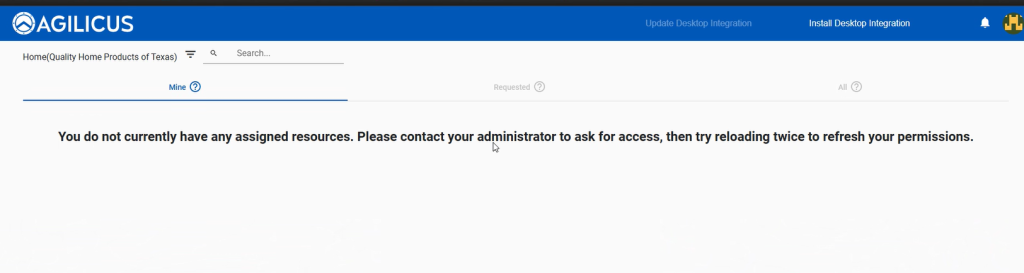
This means this user does not have any permission assigned.
In turn this can mean:
- they are signing into profile with an alternative user (to diagnose, click on their profile, icon in upper right, it will tell you).
- to check permissions, use Access/Audits, enter a bit of their name (see below screenshot)
- if you determine there is a missing assignment of permission, it could be either
- you assign it via a group, and the user is not in the group (see Access/Groups), or
- the permissions are assigned directly: see Access/Application Permissions (for web applications) and Access/Resource Permissions (Desktop, Share, …)