

Agilicus AnyX Frequently Asked Questions
Connector Diagnostics
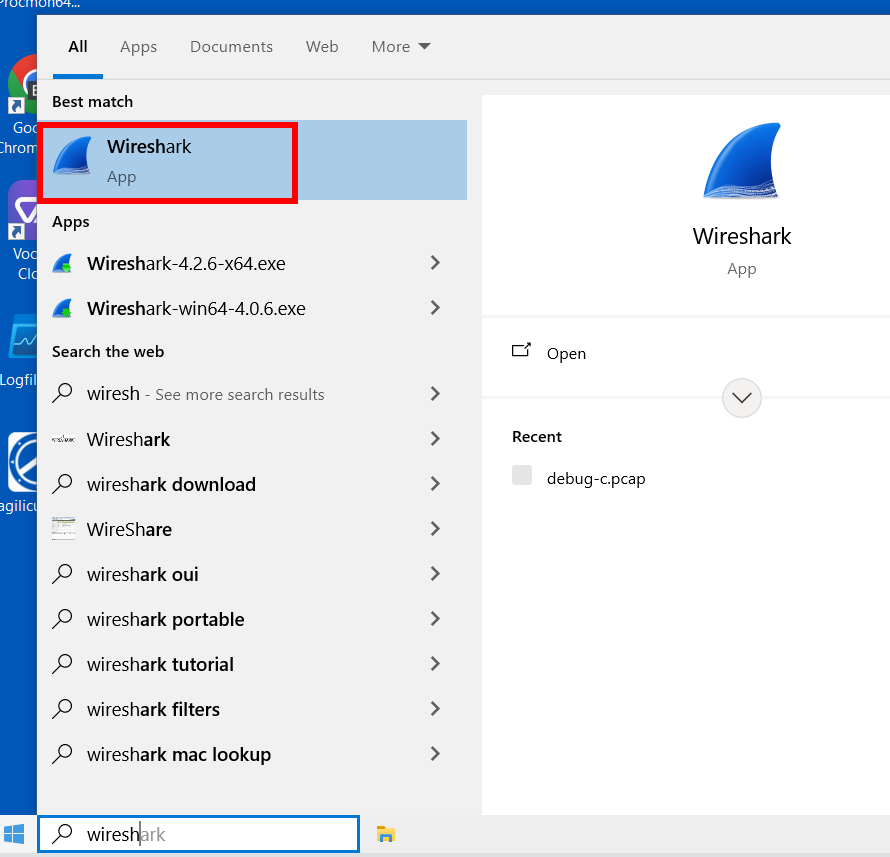
In some cases, Agilicus Support might be more effectively able to assist you with a packet capture from the machine running your connector. To do this, we can use Wireshark as below.
Install Wireshark
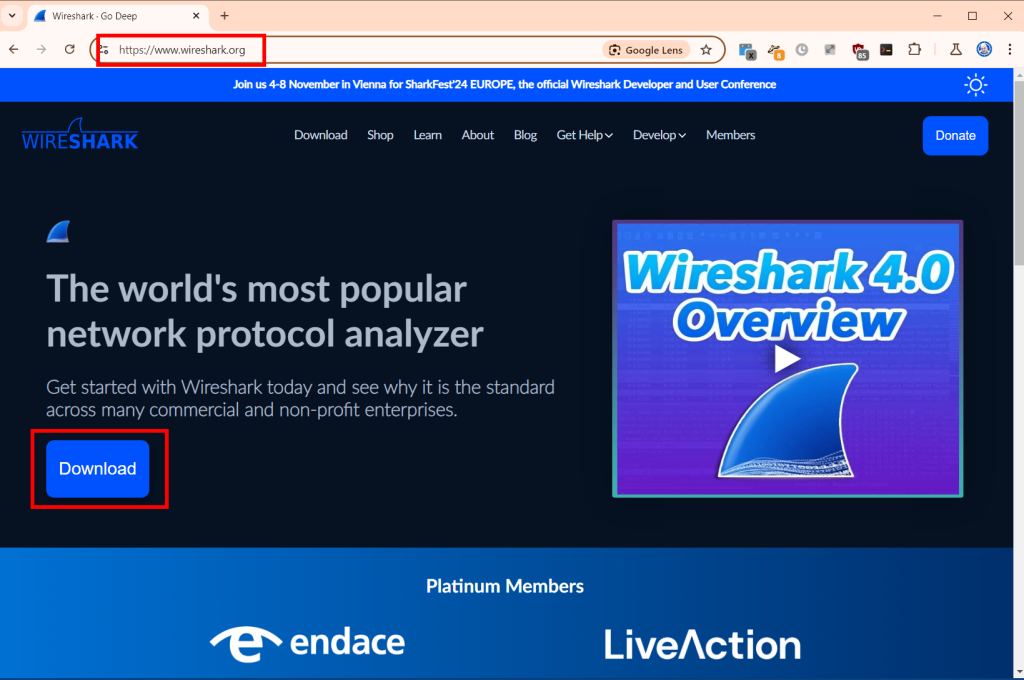
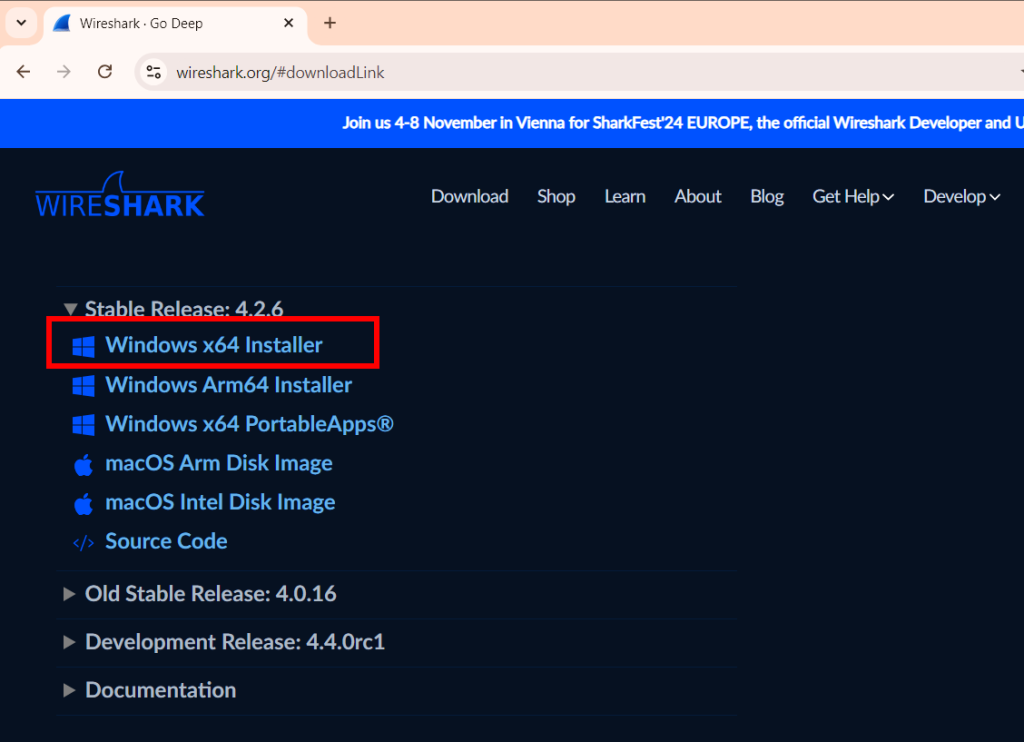
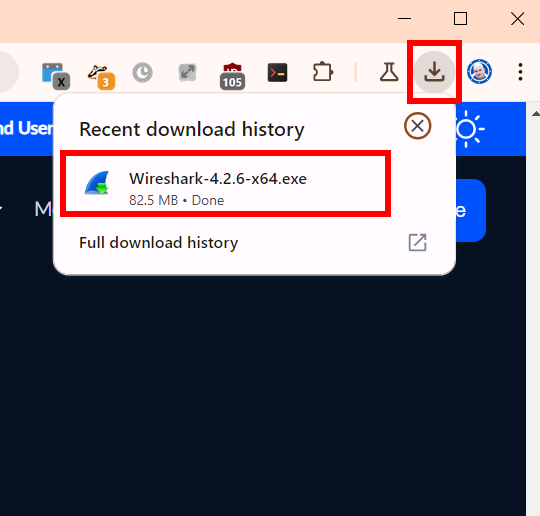
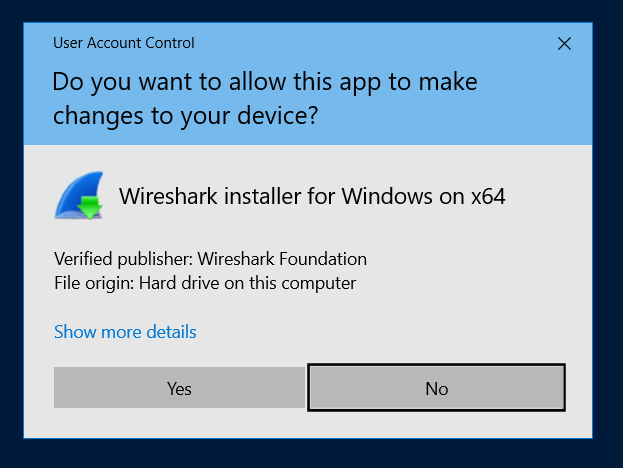
Open a browser to https://www.wireshark.org/. Select ‘Download’.
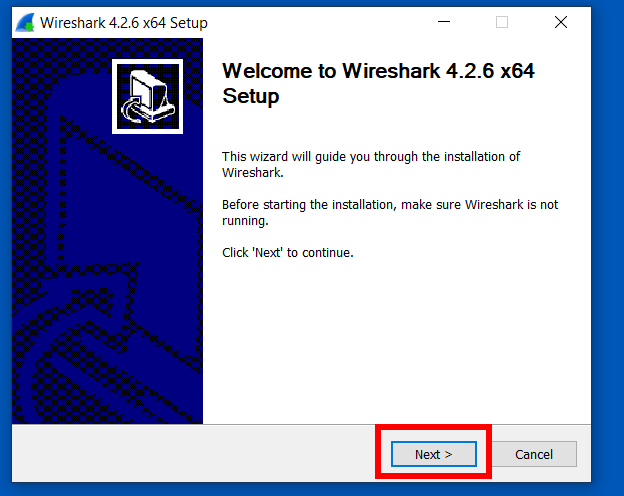
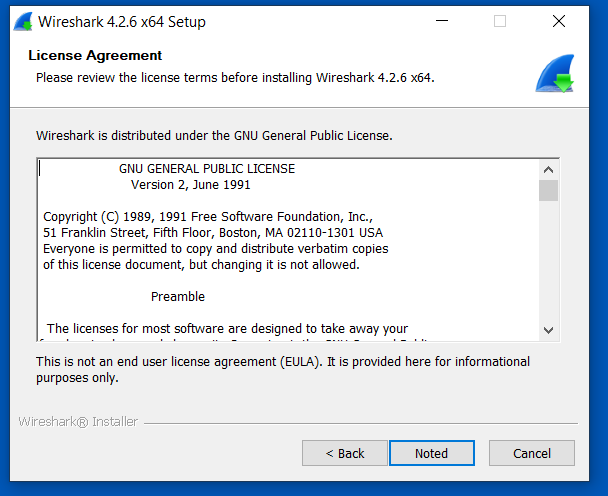
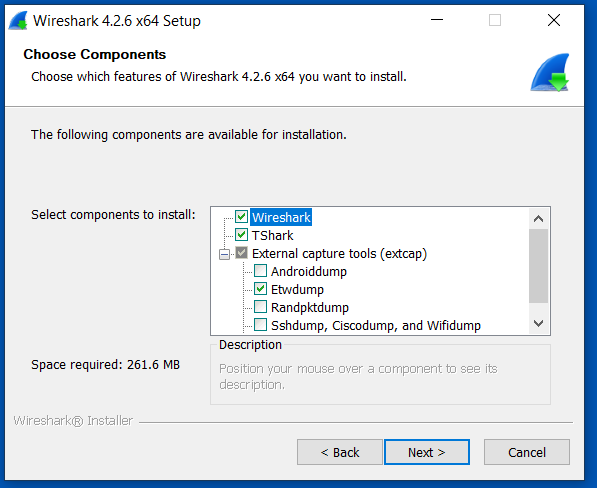
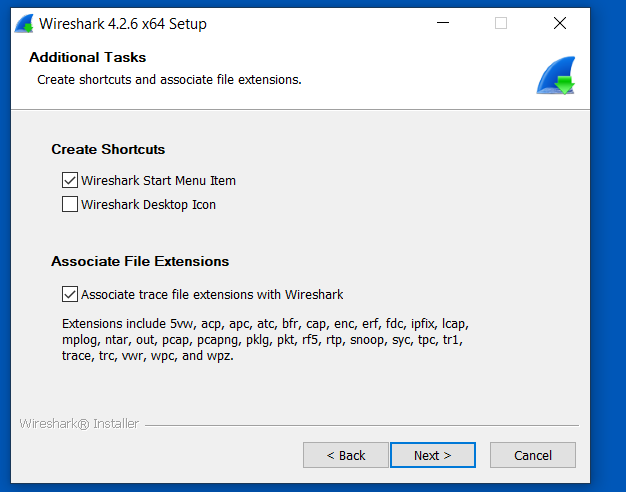
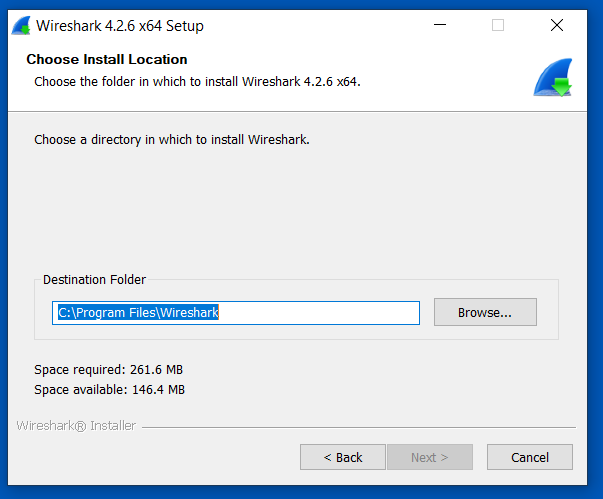
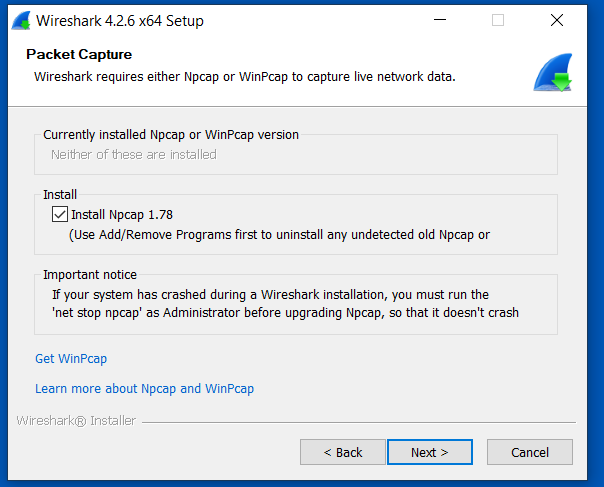
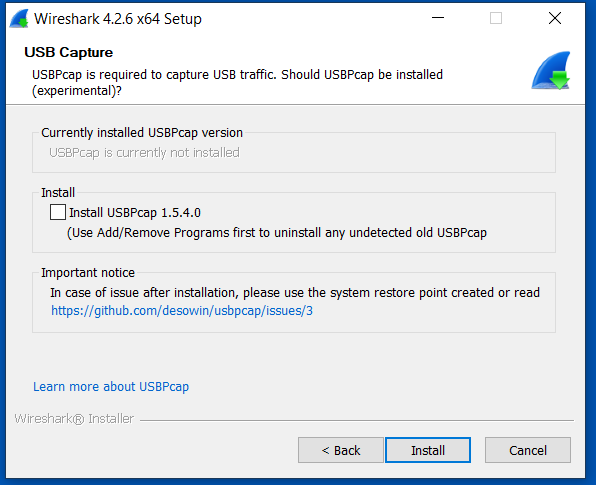
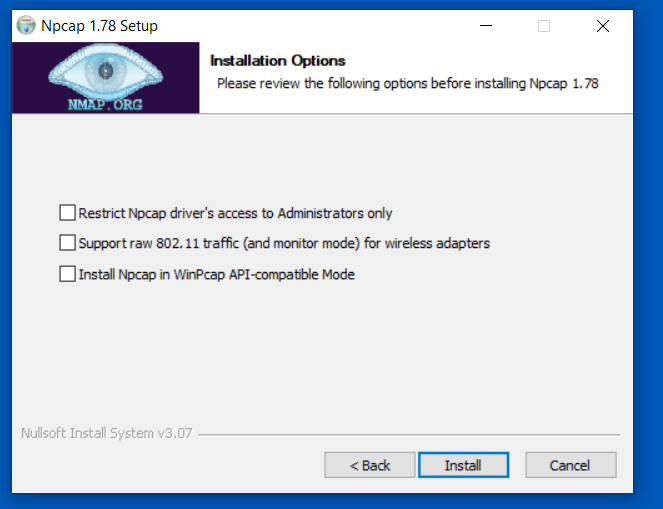
Open Wireshark, Start Capture
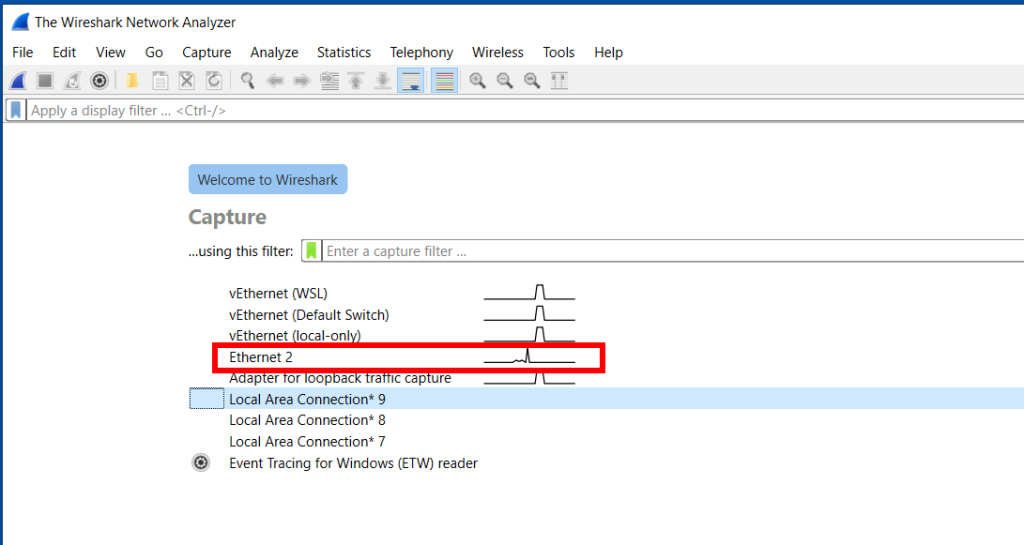
Double-click the primary/default network connection.
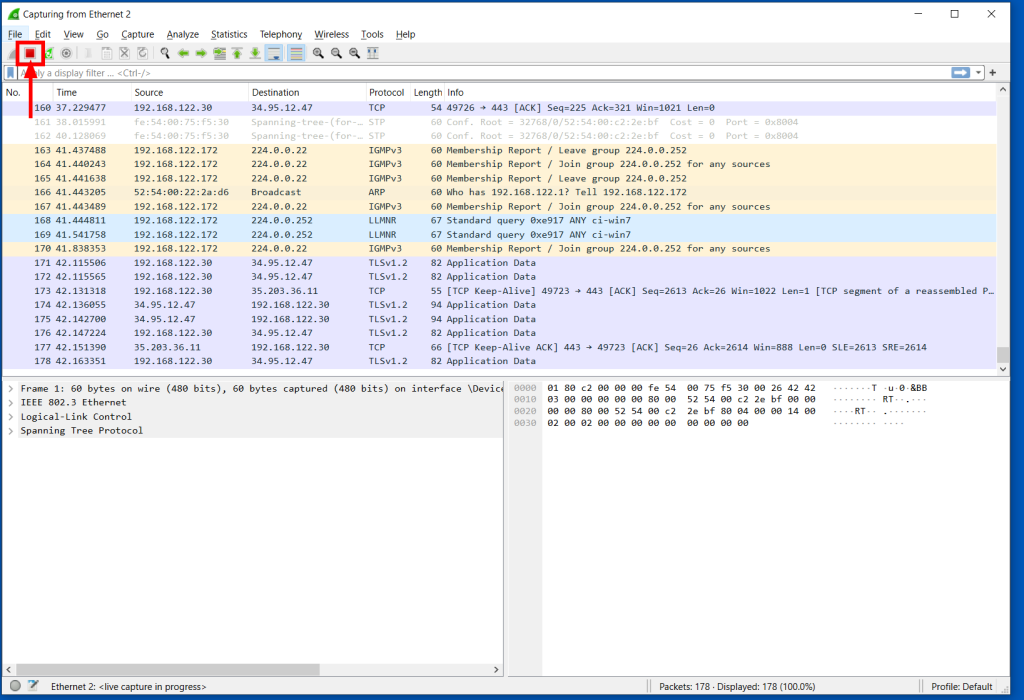
Now, reproduce the problem, usually a few times. For example, if you have a NVR which is not working, attempt to use it from the Agilicus profile interface.
Now, stop the capture:
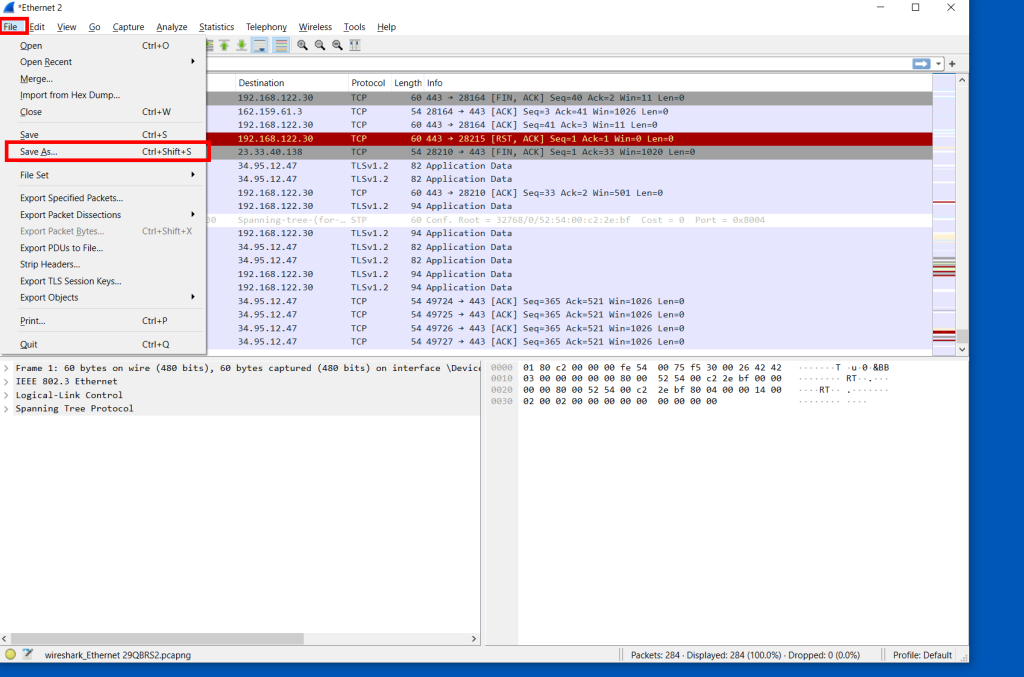
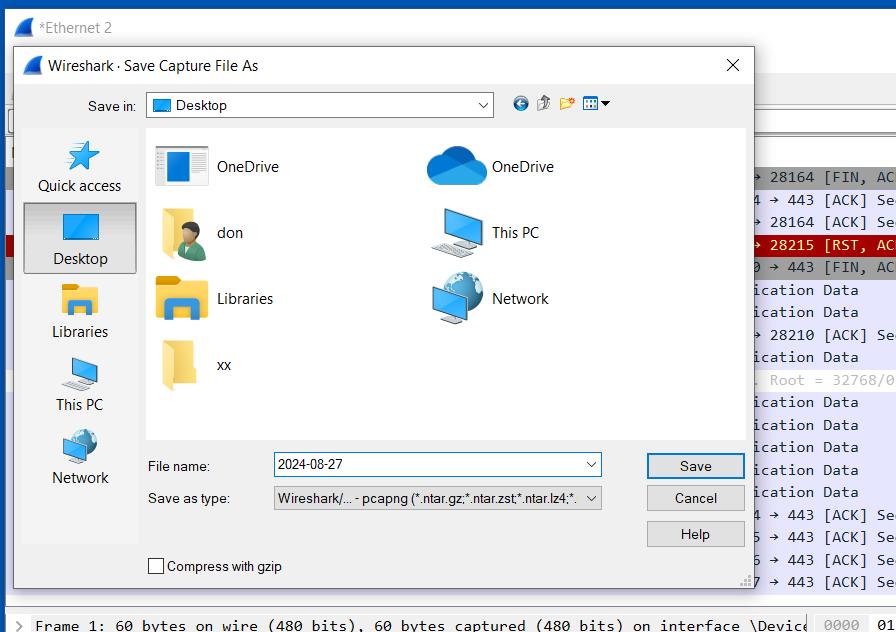
Send the Capture to Agilicus
Depending on how long you have captured, this file can be large. Contact Agilicus via the ‘Chat’ interface in the web interface if you need a location to put the file.
Please describe what you were doing, what you observed, what was incorrect, and information about the network.
General Diagnostics
In some circumstances it is more efficient to diagnose a web application issue by generating a HAR file and sharing with Agilicus Support.
Google Chrome (And Derived Browsers Like Microsoft Edge)
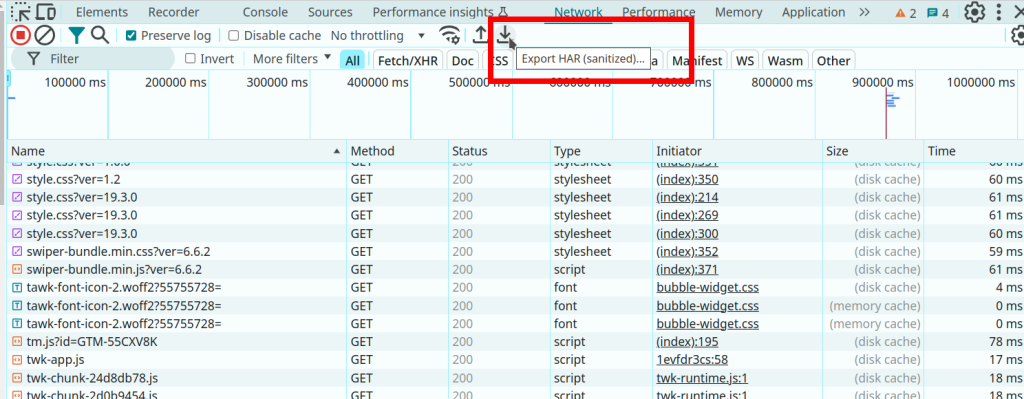
In Google Chrome (and other Chrome-derived browsers such as Microsoft Edge), you can enter the developer mode (ctrl-shift-I or F12), and then select the ‘Export HAR (sanitized)…)’ button.
- Open a new incognito window.
- Click the more actions menu (…) to the right of the toolbar and select More tools – Developer Tools (or press F12 or CTRL-SHIFT-I)
- Select the Network tab.
- Ensure that Google Chrome is recording. A red button indicates that a recording is already in progress. Otherwise, click Record network log.
- Select Preserve Log.
- Clear any existing logs by clicking Clear network log (
 ).
). - Go to the page where the issue occurred and reproduce the issue.
- Click Export HAR (the down arrow icon) to export the file as HAR.
- Save the HAR file.
Firefox
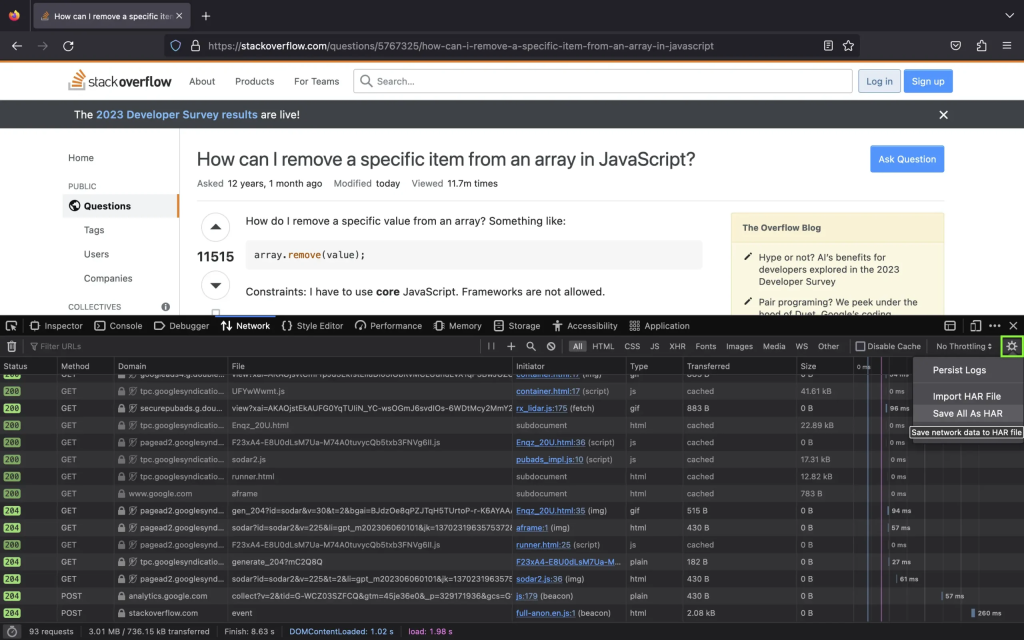
- To open the developer console in Firefox, click on the Firefox Menu in the upper-right-hand corner of the browser and select More Tools > Browser Console. You can also use Option + ⌘ + E (on macOS) or Shift + CTRL + C (on Windows/Linux).
- Refresh the page.
- Go to the Network tab and, click the settings icon (upper right side of the panel), choose Save All As Har.
Apple Safari
Ensure the ”Show Develop menu” in the menu bar is checked under Safari > Settings > Advanced tab.
- Visit the web page from where you want to export the traffic.
- Click Develop on the Menubar, then select Show Web Inspector. Refresh the page.
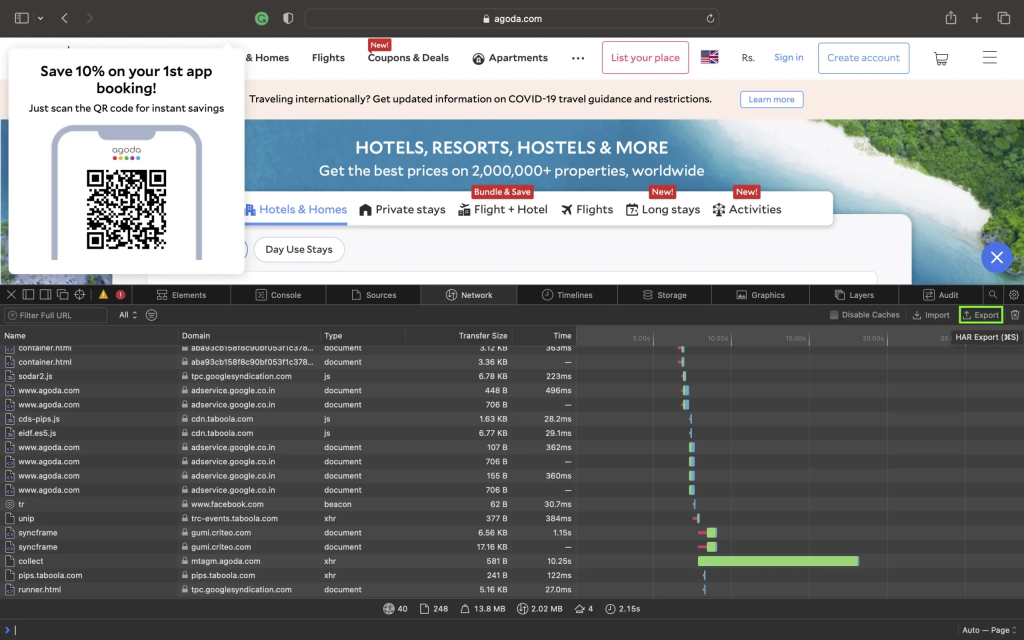
- Go to the Network tab and click Export on the upper right side of the pane.
Note: if he web application is an embedded browser such as Microsoft Webview, set this environment variable prior to launch.
WEBVIEW2_ADDITIONAL_BROWSER_ARGUMENTS="--auto-open-devtools-for-tabs"
Resource – Desktops
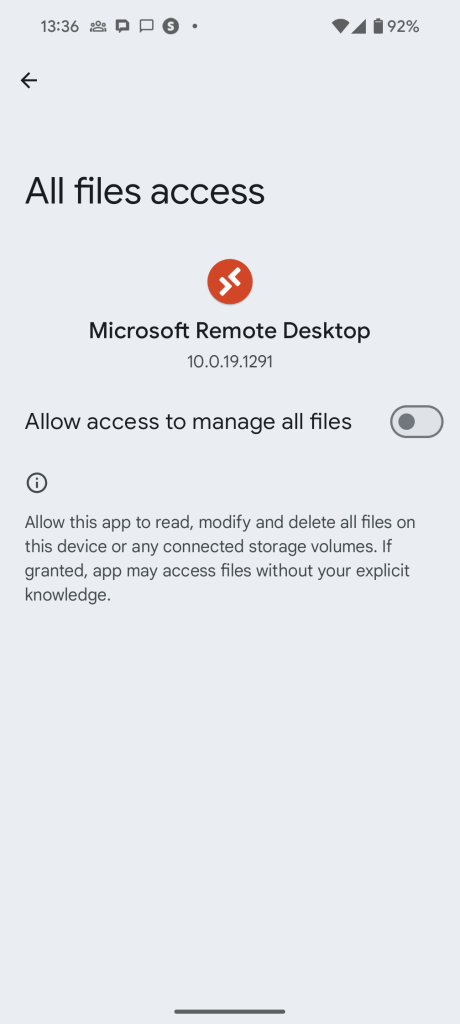
In the Google Play store, install Microsoft Remote Desktop. Once installed, use the Agilicus profile (https://profile.__MYDOMAIN__) and launch the remote desktop icon for your resource.
The first time you run this, you may be asked to grant permission, as below.
If your VNC desktop has credential stuffing enabled (i.e. it has an entry in one of the username or password fields in its expanded configuration under Resources/Desktops), the connector and VNC server must mutually support a protocol which allows for credential exchange. If the connector cannot negotiate a protocol compatible with credential stuffing, it will fail with this message. The following screenshot provides an example. Note the red bar.
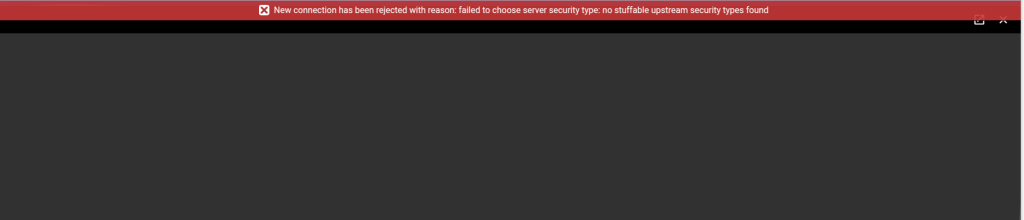
The connector supports the following protocols which allow for credential stuffing:
- VNC Authentication (Type 2)
- RA2 (Type 5)
- RA2r (Type 13)
- RA2_256 (Type 129)
To overcome this problem, either disable credential stuffing, or configure the server so that it supports one of the above protocols.
Microsoft supports a concept called ‘Network Level Authentication’. In this model, if the client-machine (running mstsc) is joined to a Windows domain, and, the server is also on the same domain, it will check and enforce this.
With Agilicus AnyX, a common use case is ‘any device’, allowing the user to use a tablet or personal machine to reach a remote desktop server. In this case, the client is not joined to the domain, and, Microsoft Network Level Authentication will fail.
Agilicus AnyX is transparent, and, supports Network Level Authentication. If 100% of your users devices are attached to your domain, you may enable this on your server. If you have users who are not attached to your domain you will need to disable or make it optional on your server.
See the Product Guide for more information.
RealVNC® by default uses a proprietary authentication mechanism, rendering it inoperable with standard clients. You can enable standard authentication as shown in the below image (enable VNC Password as an authentication mechanism).
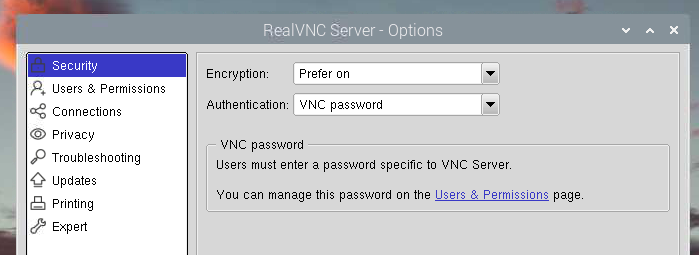
You may also wish to see more detail about how to use the RealVNC as shipped with Raspberry PI.
The Remote Desktop error 0x1908 (often displayed as extended error 0x0) means your RDP client is configured to require smart card or Windows Hello for Business authentication, but the remote computer or your current session setup cannot support or access those devices. See https://learn.microsoft.com/en-ie/answers/questions/2129230/rdp-fails-on-win11-24h2-the-selected-user-credenti
You can bypass or fix this issue using the following steps:
Method 1: Disable Smart Card Redirection (Recommended)
This is the most common fix when connecting from a personal device. [1]
- Open the Remote Desktop Connection (mstsc) app.
- Click Show Options at the bottom to expand the menu.
- Navigate to the Local Resources tab.
- Under Local devices and resources, click the More… button.
- Uncheck the box for Smart cards or Windows Hello for Business.
- Click OK, go back to the General tab, and click Save. [1, 2, 3]
Method 2: Check RDP Client Group Policy
If you are managing the connection through Group Policy, you may need to explicitly disable required smart card policies. [1]
- Press
Win + R, typegpedit.msc, and press Enter. - Go to
Computer Configuration>Administrative Templates>Windows Components>Remote Desktop Services>Remote Desktop Session Host>Security. - Locate Require use of specific security layer for remote (RDP) connections and set it to Enabled, choosing
RDPorNegotiateas the security layer (instead of forcing SSL/TLS which sometimes triggers authentication conflicts). - Open the command prompt as administrator and run
gpupdate /forceto apply the policy. [1, 2, 3]
Method 3: Disable Network Level Authentication (NLA)
Sometimes the remote session manager gets stuck caching these credentials, and turning off NLA allows a legacy password login. [1]
- On the remote computer, press
Win + R, typesysdm.cpl, and hit Enter. - Go to the Remote tab.
- Uncheck Allow connections only from computers running Remote Desktop with Network Level Authentication (more secure).
- Try to connect from your client machine. Once connected and authenticated, you can turn this setting back on. [1, 2, 3, 4]
If you’d like, I can:
TightVNC via command line allows specifying the specific display adapter number.
TIghtVNC also allows display offsets in the ‘Extra Ports’ configuration. By specifying a specific port (eg. 5091), a display offset can be configured for a monitor. Once the port is configured and known, a new desktop can be configured in the Agilicus Admin portal with the port number.
Agilicus AnyX has a rich role-based web application firewall. Some protocols this can mean very fine control (e.g. Web). Others like VNC Desktops its more coarse: read-only versus read-write. Others like RDP are all or nothing.
THe built-in roles are:
- Owner: do anything
- Editor: read/modify existing things
- Viewer: read existing things
- Self: do anything on your own data.
When looking at a protocol like Microsoft Remote Desktop (RDP), we recommend only using Owner.
Resource – Launchers
Diagnosing a Single PC Issue
If you’re experiencing a problem with your Agilicus Agent on a single PC, these are the primary diagnostic steps you can take:
- Review Log Files:
First, check the contents of the log files located in your agent’s logs directory. These files often contain valuable information about recent activities and errors.- Path:
%LOCALAPPDATA%\Agilicus\Agent\logs - What to look for: Examine the most recent log files for any error messages, warnings, or unexpected behavior.
- Path:
- Run a Debug Refresh:
If the log files don’t reveal the issue, you can force a client refresh with debug logging enabled. This can provide more detailed output about the agent’s operation.- Steps:
- Open a
cmd(Command Prompt) window. - Run the following command:
%LOCALAPPDATA%\Agilicus\Agent\agilicus-agent.exe client --cfg-file %LOCALAPPDATA%\Agilicus\Agent\agent.conf.enc.yaml --client-refresh true --debug
- Open a
- Sharing Results (Optional): If you need to share the results of this debug refresh with Agilicus support, you can append the following to the command to save the output to a file:
%LOCALAPAPPDATA%\Agilicus\Agent\agilicus-agent.exe client --cfg-file %LOCALAPPDATA%\Agilicus\Agent\agent.conf.enc.yaml --client-refresh true --debug > "%USERPROFILE%\Desktop\debug.log" 2>&1
After running this, a file nameddebug.logwill be created on your desktop, which you can then share.
- Steps:
- Debug a Specific Launcher:
If the previous steps don’t identify the problem, you can debug the specific launcher directly. This allows you to see any issues related to its specific command execution.- Steps:
- Locate the shortcut icon for the specific launcher you are having trouble with (e.g., on your desktop or Start Menu).
- Right-click the shortcut and select “Properties.”
- In the “Shortcut” tab, find the “Target” field. This field contains the full command line used to launch the application.
- Copy the entire command line from the “Target” field.
- Open a
cmd(Command Prompt) window as your regular user (not as an administrator). - Paste the copied command line into the
cmdwindow. - Append
--debugto the end of the command line. - Press Enter to run the command.
- This will execute the launcher with debug logging, and any remaining issues or output will be displayed directly in the command prompt window.
- Steps:
You may find there is an issue with the launcher. Examples include:
- application starting but exiting right away
- application starts and gives an error dialog
- application does not start
The first step to diagnose this is to find the debugging output. The simplest way is:
- on Start menu, find the application. ‘Open File Location’
- Right-click on the icon, select ‘Properties’
- Open a ‘cmd’ window (start menu, ‘cmd’)
- run cd “DIR” where dir is the ‘Start In” field. Use double-quotes.
- Run the program, appending –debug to the end of the string
These steps are shown below.
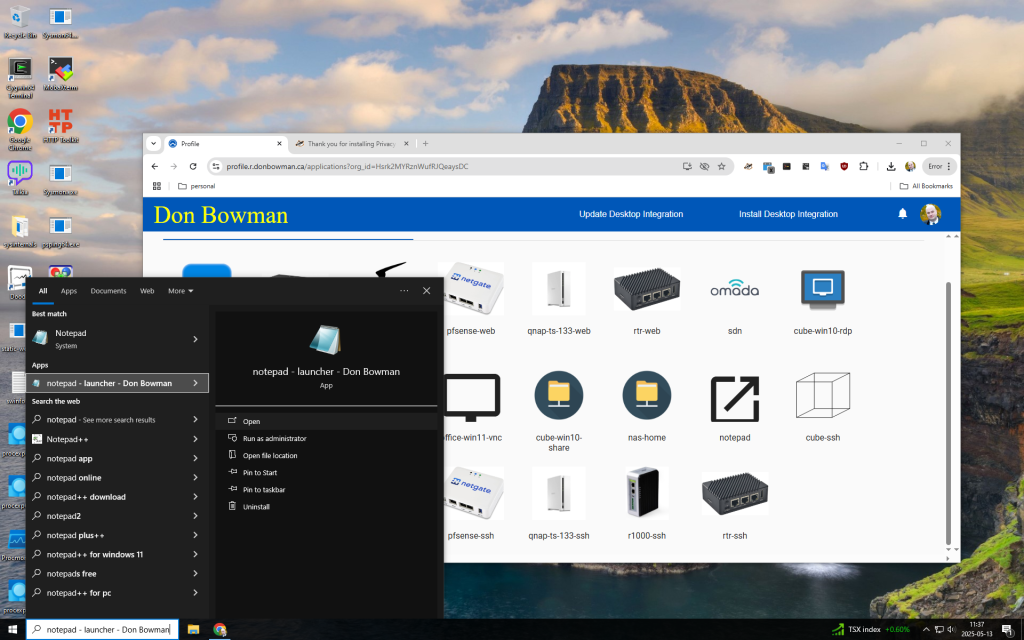
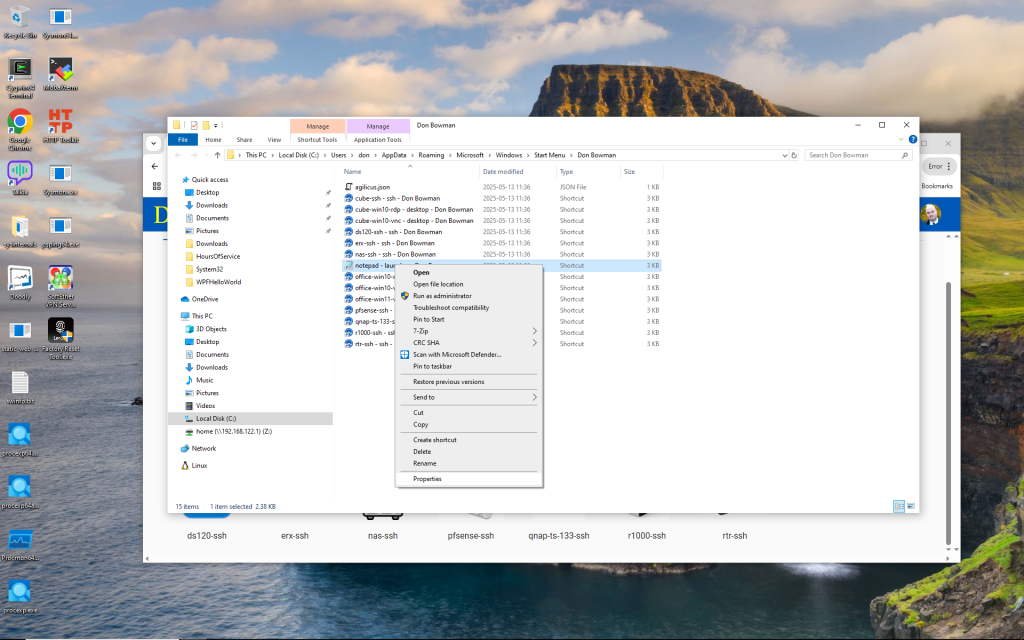
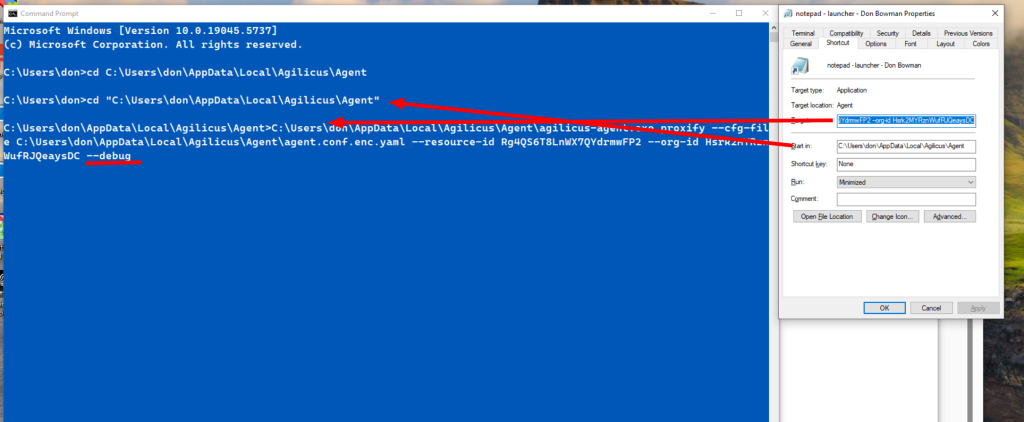
The output will look similar to below.
C:\Users\don\AppData\Local\Agilicus\Agent>C:\Users\don\AppData\Local\Agilicus\Agent\agilicus-agent.exe proxify --cfg-file C:\Users\don\AppData\Local\Agilicus\Agent\agent.conf.enc.yaml --resource-id Rg4QS6T8LnWX7QYdrmwFP2 --org-id Hsrk2MYRznWufRJQeaysDC --debug
time="2025-05-13T11:45:15-04:00" level=info msg="Starting proxify - version v0.298.2"
time="2025-05-13T11:45:15-04:00" level=debug msg="checking if should migrate install path"
time="2025-05-13T11:45:18-04:00" level=debug msg="checking stat file C:\Users\don\AppData\Local\Agilicus\Agent\agilicusLastUpdate"
time="2025-05-13T11:45:18-04:00" level=debug msg="file C:\Users\don\AppData\Local\Agilicus\Agent\agilicusLastUpdate updated"
time="2025-05-13T11:45:18-04:00" level=debug msg="checking C:\Users\don\AppData\Local\Agilicus\Agent\agilicusUpgradeLastRun"
time="2025-05-13T11:45:19-04:00" level=debug msg="upgrade threshold time not met"
time="2025-05-13T11:45:19-04:00" level=debug msg="Launching resource Rg4QS6T8LnWX7QYdrmwFP2 for orgID Hsrk2MYRznWufRJQeaysDC"
time="2025-05-13T11:45:19-04:00" level=debug msg="checking stat file C:\Users\don\AppData\Local\Agilicus\Agent\agilicusLastRefresh"
time="2025-05-13T11:45:19-04:00" level=debug msg="the cache file is: C:\Users\don\AppData\Local\cache\agilicus\resource_info.json"
time="2025-05-13T11:45:19-04:00" level=debug msg="using user resource access info from cache for Rg4QS6T8LnWX7QYdrmwFP2"
time="2025-05-13T11:45:19-04:00" level=debug msg="storing cache in directory: C:\Users\don\AppData\Local\cache\agilicus\tunnel-info"
time="2025-05-13T11:45:19-04:00" level=debug msg="Setting SSL_CERT_FILE=C:\Users\don\AppData\Local\Agilicus\Agent\4274-proxify.crt"
time="2025-05-13T11:45:19-04:00" level=info msg="Adding C:\Users\don\AppData\Local\Agilicus\Agent\4274-proxify.crt to default cert pool"
time="2025-05-13T11:45:19-04:00" level=debug msg="Listen on port 55031"
time="2025-05-13T11:45:19-04:00" level=debug msg="Setting proxy env vars to: http://localhost:55031"
time="2025-05-13T11:45:19-04:00" level=debug msg="Setting _JAVA_OPTIONS var to: -Dhttp.proxyHost=localhost -Dhttp.proxyPort=55031 -Dhttps.proxyHost=localhost -Dhttps.proxyPort=55031"
time="2025-05-13T11:45:19-04:00" level=debug msg="storing cache in directory: C:\Users\don\AppData\Local\cache\agilicus\tunnel-info"
time="2025-05-13T11:45:19-04:00" level=debug msg="exec (waitDescendants: true, workingDir: ): c:\windows\system32\notepad.exe"
d
If you are using an Agilicus Launcher with Rockwell Studio rslinx to reach one or more PLCs, you may see an error “listen tcp 127.74.52.3:44818: bind: An attempt was made to access a socket in a way forbidden by its access permissions.”
This indicates you have another process running which has globally opened this port. You may find this process via:
netstat -an |findstr 44818If you see a result like:
TCP 0.0.0.0:44818 0.0.0.0:0 LISTENINGThis means that there is a process running with this port globally, exclusively, open. You can find the process:
netstat -anband you will see the named process. Stop this process which has the port open exclusively, and, the Agilicus Launcher should now work.
To avoid this, you can either use a different port, reconfigure the exclusive process to use a specific IP (instead of 0.0.0.0), or, run the Agilicus Launcher first.
Resource – Networks
Navigate to Resources/networks. There you will find the ‘network’ (the upstream connection to your application).
Expand the details, from here you can change the TLS settings.
You might see these symptoms, a message:
“Bad Request. Your browser sent a request that this server could not understand. Reason: You’re speaking plain HTTP to an SSL-enabled server port. Instead use the HTTPS scheme to access this URI.”
Resource – Shares
In some cases you will wish to mount a share from a machine without a human user. An example would be mounting from many local systems into your backup server.
To do this, perform these steps:
- Create a service account under “Access/Service Accounts”
- Download the Authentication Document (Actions menu on the line for the Service Account)
- Use ‘Copy Service Account Email” from the (Actions menu on the line for the Service Account)
- Using the CLI, lookup the user-id for the ‘Service Account Email’ via ‘show user’
- Using the CLI, call ‘add-api-key’
agilicus-cli --issuer https://auth.__MYDOMAIN__ show-user MYSERVICEACCOUNT@serviceaccounts.agilicus.com
agilicus-cli --authentication-document /tmp/authdoc.json add-api-key --duration-seconds 0 --scope "urn:agilicus:fileshare:*:viewer" --user-id USER-GUID --name "Backup read-only mount"The Agilicus Share feature makes use of the Microsoft WebClient. This is an optional component which may not have been enabled at installation time on your Windows Server. Microsoft has a knowledge base entry discussing the WebDav redirector.
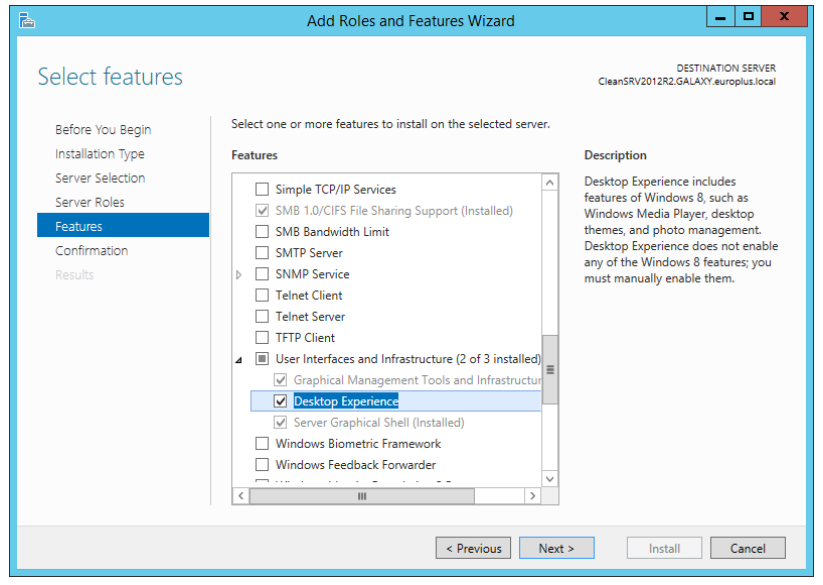
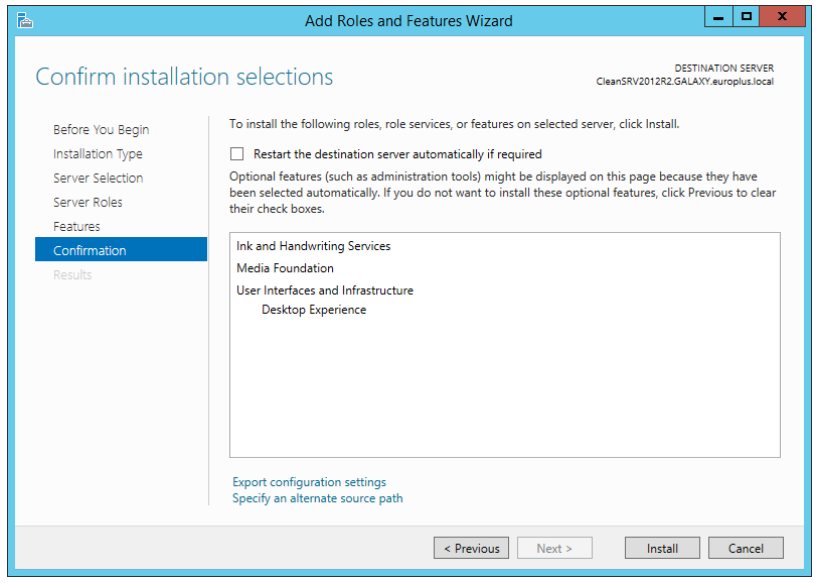
Installing WebDAV support on Windows Server 2012 R2
- Start Server Manager from the Start screen.
- Click Manage, then click Add Roles and Features.
- Select Role-based or feature-based installation. Click Next.
- Select a local server from the server pool. Click Next.
- The Desktop Experience feature is not a Server Role, so skip the Server Roles page by clicking Next.
- In the Select Features section, expand User Interfaces and Infrastructure and check the Desktop Experience check box. Probably it will now ask you whether you also want to install the features required by Desktop Experience. Click the Add Features button to proceed. Now, click the Next button to proceed.
- In the Confirmation section, optionally check the Restart the destination server automatically if required check box as the Desktop Experience feature will need a restart to complete. You can also manually restart the server after the wizard steps are complete.
- Wait while the features are being installed. You can also close the Add Roles and Features Wizard window – it will continue to run in the background.
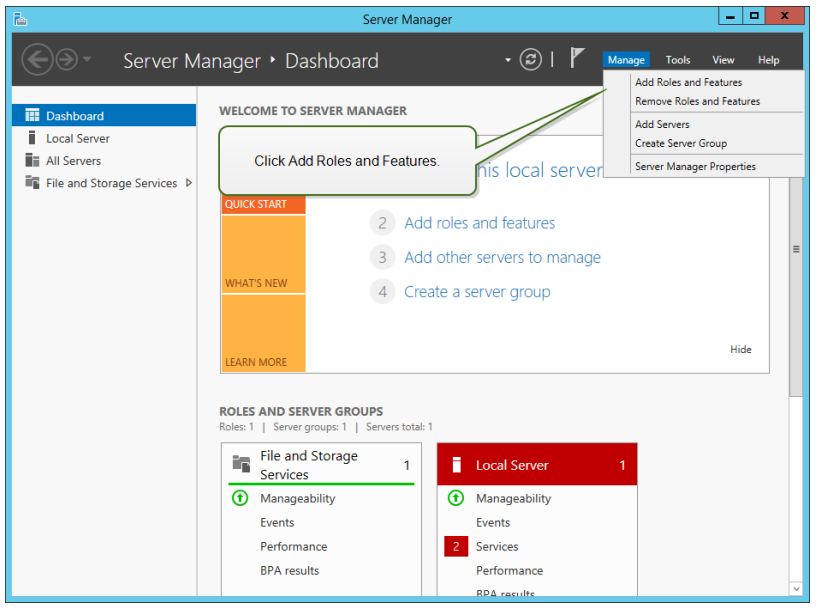
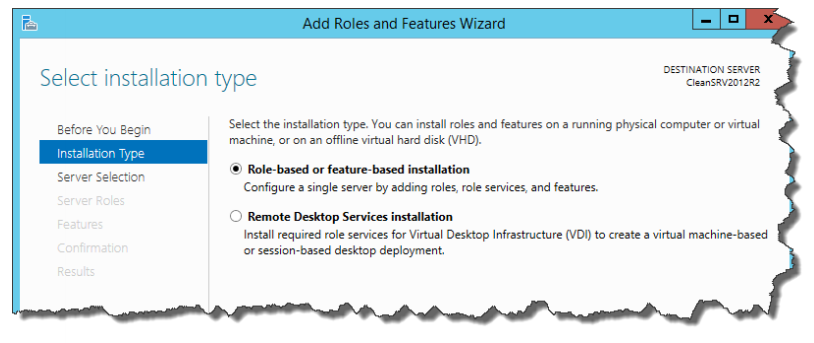
Installing WebDAV support on Windows Server 2016, Windows Server 2019, and Windows Server 2022
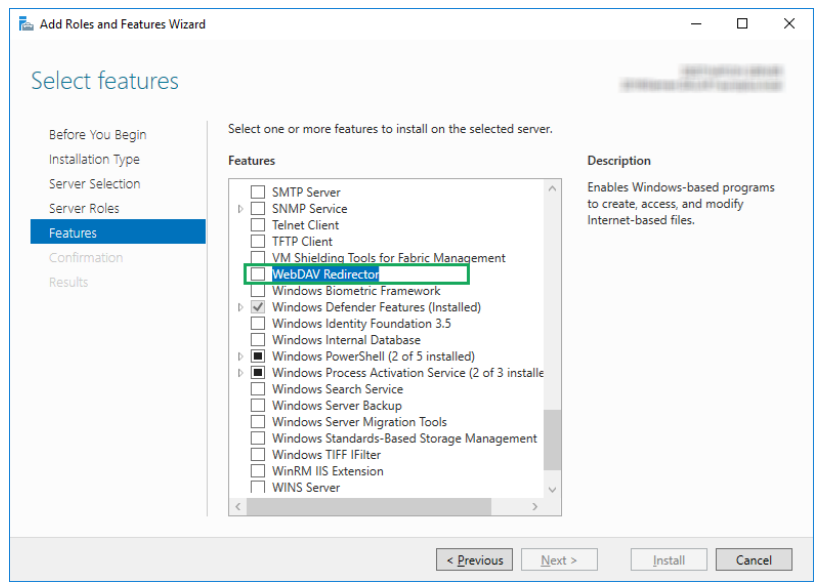
While installing Windows Server 2016, Windows Server 2019, or Windows Server 2022 operating systems, you probably enabled Desktop Experience. So after you install your Server OS, you have to enable WebDAV Redirector.
- Start Server Manager from the Start screen.
- Open Manage menu and click Add Roles and Features.
- Click Features tab.
- Select WebDAV Redirector feature.
- Click Next to proceed to the Confirm installation selections window.
- Click Install. You can close the window while the feature is being installed.
- Close Add Roles and Features window.
Enabling WebClient Services
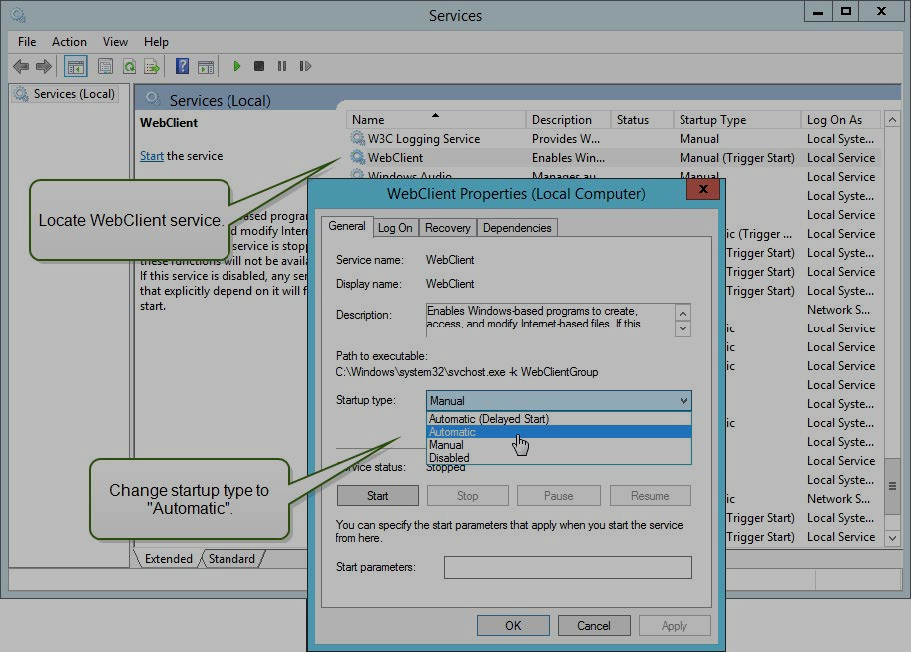
On some machines, you also have to enable the WebClient Service to Automatic” Startup Type.
Do the following:
- Press Windows key (or <Ctrl> + <Esc>) to open the search.
- Type in “Services” and run the Services window.
- Locate the service WebClient.
- Double click WebClient to open its properties.
- In the Startup type combo box select Automatic.
- If the service is not running yet, click Start button.
- Click OK.
- Close Services window.
Enabling Portable Device Enumerator Service
On some machines, you also have to enable the Portable Device Enumerator Service to Automatic Startup Type, when you want to use Microsoft Access or Microsoft Excel data files from the Document Storage.
I am seeing file is locked for editing by another user. How can I see who has this file locked?
Microsoft Office (Word, Excel etc) create lock files with a ~ in the name (e.g. ~Workbook.xlsx). This will be owned by the user who has locked the file.
If you have file-level permissions enabled, this will be the person.
In your explorer, right click on the column bar and add a column ‘Owner’. This will now show you who has the file locked.
Admin can enable user requests in the admin portal. This eases the process of giving or denying access of a user, but a user will see all the available resources
From the admin portal, Organisation > Overview (check the Disable User Requests checkbox)
All admin will receive notifications upon a resource request from users
You may refer here for more information on permissions
If you see a List error and the folder exists, often that means that the account the connector runs on cannot see the folder being shared. This may mean that the connector needs to run as a different account, or you need to follow the above steps for Sharing network mapped drives. See product-guide/product-guide-shares for more information.
If you see a List error and the folder exists, often that means that the account the Agilicus Connector runs on cannot see the folder being shared.
This may mean that the connector needs to run as a different account, or you need to follow the above steps for Sharing network mapped drives. See Shares for more information.
No, we do not store anything from your share. All data always lives on your file server. You have the sole data at rest on your system, and, data in motion is encrypted end to end.
You may see a ‘List Error’ in your share. This can mean a few things, the next step to diagnose it to look at your connector logs (see Windows, Linux). You should also look at your connector overview in https://admin.__MYDOMAIN__/ under resources/connectors/overview.
Different reasons:
- The connector may be missing OS-level permission to read the underlying files
- The share directory may be missing.
- You may have fine-grained permissions enabled and the user does not have permission (e.g. is not on your domain, or, NTFS permissions restrict).
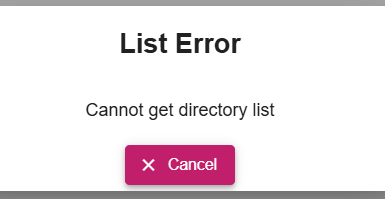
An end user might see a ‘List Error’ on a share in Profile. This usually implies that the associated connector cannot read the underlying directly. In turn, this normally is a permissions problem. A common cause is a Windows system where the connector runs as LocalSystem, and, the LocalSystem account does not have permission to the shared file (or it in turn is another inbound Share).
To make a network drive mount available to the LocalSystem account on Windows, you need to modify the share permissions on the network folder to explicitly grant the “LocalSystem” group full control access, allowing the system account to access the mounted drive.
Steps:
- Access the Shared Folder Properties:
- Navigate to the shared folder on the network drive using File Explorer.
- Right-click on the folder and select “Properties”.
- Open Sharing Tab:
- In the Properties window, go to the “Sharing” tab.
- Manage Permissions:
- Click “Advanced Sharing”.
- Click “Permissions”.
- Add LocalSystem Group:
- Click “Add”.
- In the “Enter the object names to select” field, type “LocalSystem” and click “Check Names” to verify.
- Click “OK”.
- Grant Full Control:
- Select the “LocalSystem” group from the list.
- Under “Allow” column, check the box next to “Full Control”.
Important Considerations:
- Security Implications:Granting full control to the LocalSystem account can be a security concern, so only do this if absolutely necessary and ensure the network share is properly secured otherwise.
- Alternative Methods:Depending on your specific situation, you might be able to achieve the desired access by using a different system account with appropriate permissions instead of directly using “LocalSystem.”
In some cases you will have the connector running on an embedded device, and, have files on a remote machine that you wish to export as an Agilicus Share.
One approach is to install a second connector on the remote machine.
Another approach is to use the native SMB of the machine the connector is running on. Have it mount the remote machine. Then, create an Agilicus Share to re-export that directory.
When creating a new Agilicus share the Agilicus connector cannot see network mapped drives because it runs as the local system user, and not a logged in user. This means that it cannot see shares which are only typically mapped for logged in users. When this happens, if you browse to the share in profile, you will get a ‘list directory error’ as the connector cannot see the directory. In order to correct this, create a link to the network drive on a local drive eg mklink /D C:\myLink \\127.0.0.1\c$. Then use the link as the path for the Agilicus share, in the example C:\myLink. You may also need to change the user which the connector runs as is in order to access the drive.
Generally, the agent will automatically add a share to the trusted sites list in order to enable windows features to work with shared drives. Logging in and out will fix this problem.
If you have configured a group policy that defines the Site to Zone Assignment List, than you will need to add the share to that list. In order to do this, find the group policy configuring the setting, and add file://(your share domain)@ssl, and set the value to 1. You can find this by opening profile, and clicking manual mount. You will see the URL for the share on top.
Doing this will prevent windows from treating the share as an unknown external resource.
Resource – Web Applications
If you have an application hosted on a Subfolder/path in your Web Server
You may have an application hosted under a subfolder/path on your web server, possibly because it is better than having another server for it. For example: localhost:port/subpath, localhost:port/support etc.
To enable the subpath hosting for your application,
1. Go to Resources > Applications > Define and select the application from the drop down at the top of the page
2. Then in Security (tab) > Firewall Rules > HTTP Rules, change the / entry under path to your custom subpath (For example, /subpath)
3. Under Proxy (tab) > HTTP Rewrites, inside the Common Path Prefix field, enter your custom subpath again (For example, /subpath)
In some circumstances it is more efficient to diagnose a web application issue by generating a HAR file and sharing with Agilicus Support.
Google Chrome (And Derived Browsers Like Microsoft Edge)
In Google Chrome (and other Chrome-derived browsers such as Microsoft Edge), you can enter the developer mode (ctrl-shift-I or F12), and then select the ‘Export HAR (sanitized)…)’ button.
- Open a new incognito window.
- Click the more actions menu (…) to the right of the toolbar and select More tools – Developer Tools (or press F12 or CTRL-SHIFT-I)
- Select the Network tab.
- Ensure that Google Chrome is recording. A red button indicates that a recording is already in progress. Otherwise, click Record network log.
- Select Preserve Log.
- Clear any existing logs by clicking Clear network log ().
- Go to the page where the issue occurred and reproduce the issue.
- Click Export HAR (the down arrow icon) to export the file as HAR.
- Save the HAR file.
Firefox
- To open the developer console in Firefox, click on the Firefox Menu in the upper-right-hand corner of the browser and select More Tools > Browser Console. You can also use Option + ⌘ + E (on macOS) or Shift + CTRL + C (on Windows/Linux).
- Refresh the page.
- Go to the Network tab and, click the settings icon (upper right side of the panel), choose Save All As Har.
Apple Safari
Ensure the ”Show Develop menu” in the menu bar is checked under Safari > Settings > Advanced tab.
- Visit the web page from where you want to export the traffic.
- Click Develop on the Menubar, then select Show Web Inspector. Refresh the page.
- Go to the Network tab and click Export on the upper right side of the pane.
Note: if he web application is an embedded browser such as Microsoft Webview, set this environment variable prior to launch.
WEBVIEW2_ADDITIONAL_BROWSER_ARGUMENTS="--auto-open-devtools-for-tabs"
Web Applications use network resources. You can change where the network resource is accessed (either the connector it is bound to, or the hostname/IP/port that it is internally known as) by navigating to Networks/Overview.
The specific resource(s) will be named similarly to the web application, with -local-service appended.
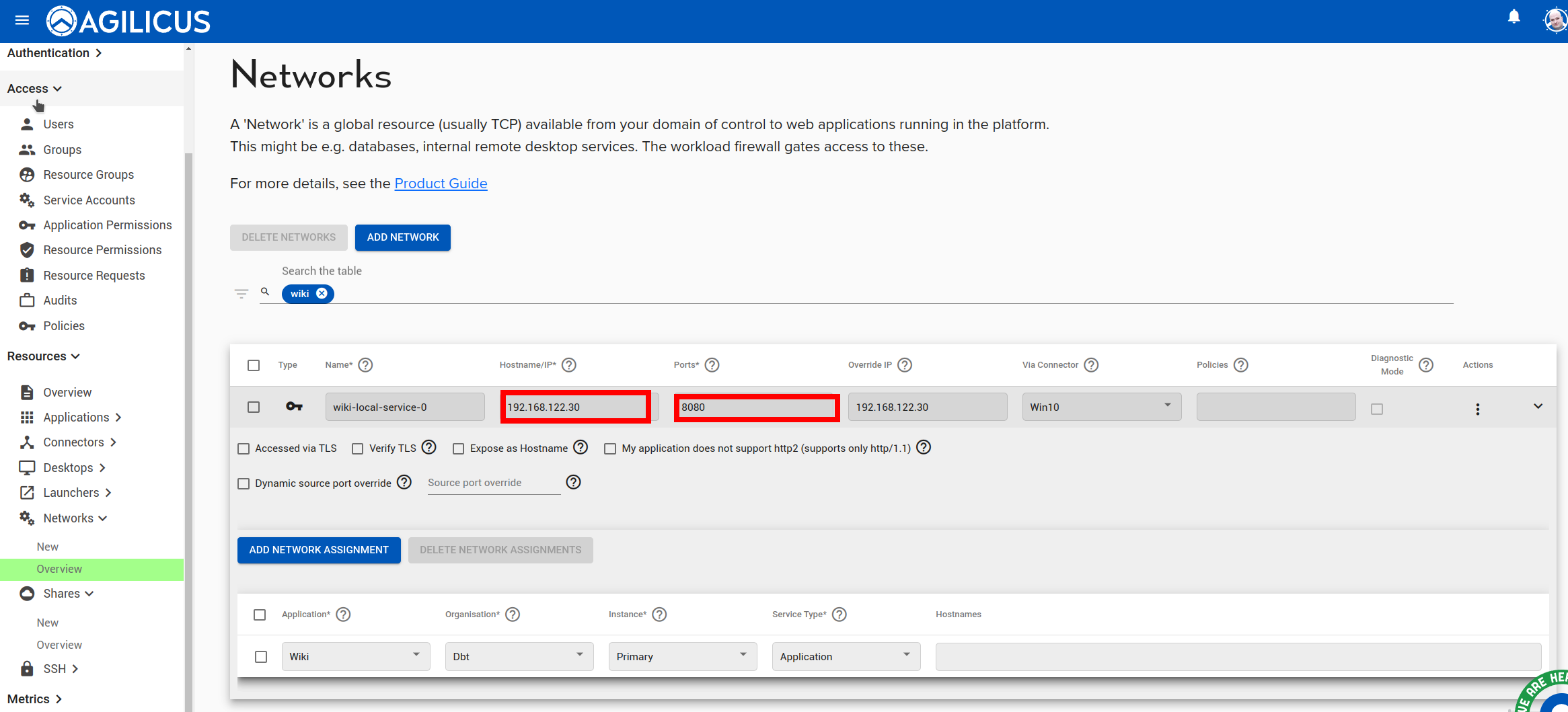
Navigate to Resources/networks. There you will find the ‘network’ (the upstream connection to your application).
Expand the details, from here you can change the TLS settings.
You might see these symptoms, a message:
“Bad Request. Your browser sent a request that this server could not understand. Reason: You’re speaking plain HTTP to an SSL-enabled server port. Instead use the HTTPS scheme to access this URI.”
When using SolarWinds web application through Agilicus AnyX you may find there is information missing in the output screen.
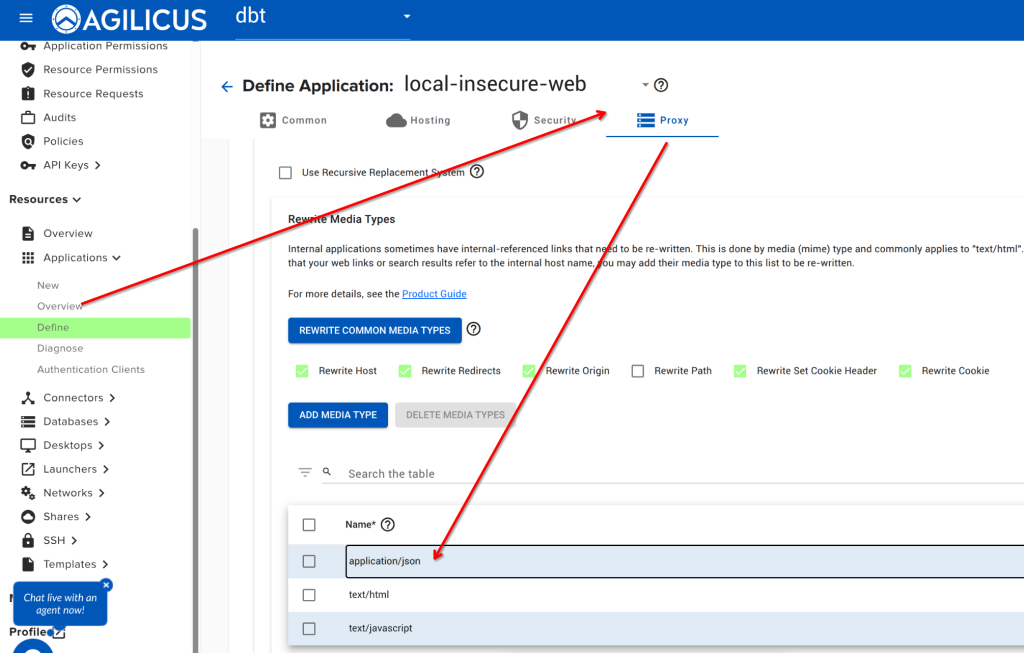
By default, SolarWindows uses a JavaScript file with the IP address embedded in it. You can enable ‘text/javascript’ “rewrite”Rewrite Media Types” in the Agilicus admin interface to resolve this issue.
Navigate to Resources/Applications/Overview. Select your web application. Click on the ‘proxy’ tab, from here select ‘Rewrite Media Types’, add ‘text/javascript’ as below.
Now do a hard reload of your browser on your SolarWinds URL, and it should properly populate.
If you are using a custom authentication client id in your web application, or your web application participates in the sign in, you may find you see a message “Message: Unregistered redirect_uri”.
You may find that either:
a) you have selected “my application participates in authentication” and you did not mean this
b) your application does participate, but, you have not added the proper redirect_uri to Resources/Applications/Authentication Clients in admin.
In some cases, Agilicus Support might be more effectively able to assist you with a packet capture from the machine running your connector. To do this, we can use Wireshark as below.
Install Wireshark
Open a browser to https://www.wireshark.org/. Select ‘Download’.
Open Wireshark, Start Capture
Double-click the primary/default network connection.
Now, reproduce the problem, usually a few times. For example, if you have a NVR which is not working, attempt to use it from the Agilicus profile interface.
Now, stop the capture:
Send the Capture to Agilicus
Depending on how long you have captured, this file can be large. Contact Agilicus via the ‘Chat’ interface in the web interface if you need a location to put the file.
Please describe what you were doing, what you observed, what was incorrect, and information about the network.
Resources
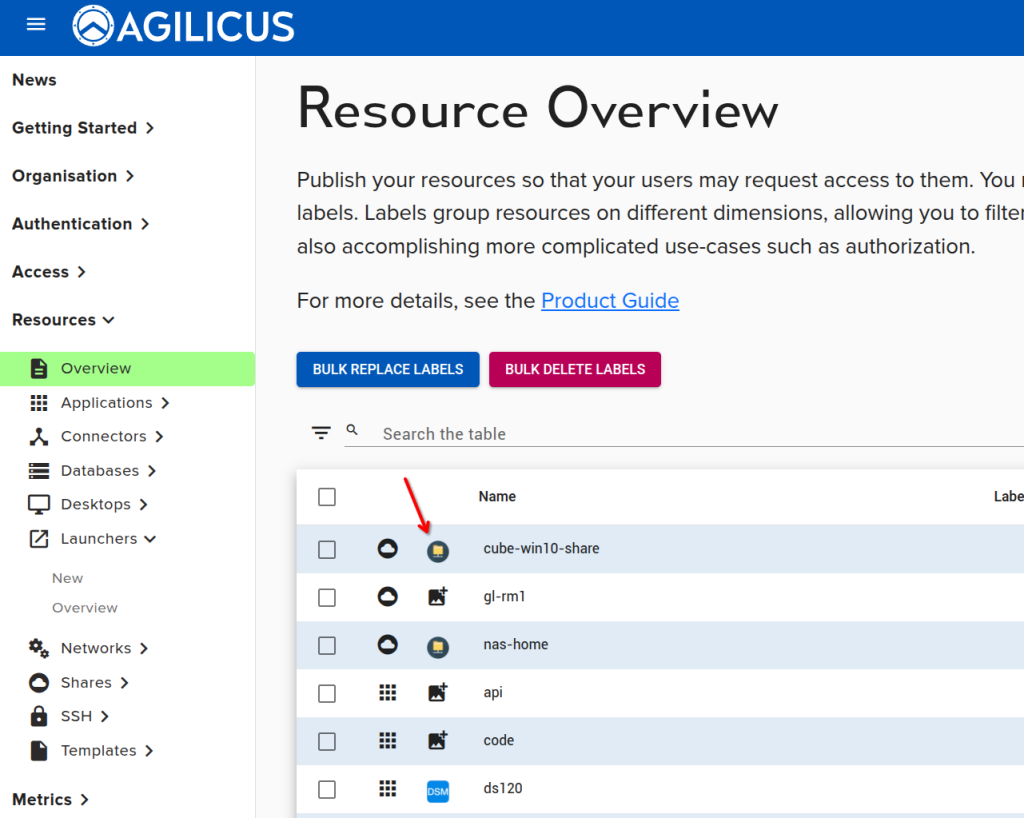
You can set the icon profile show for any resource type:
- ssh
- desktop
- web application
- launcher
Navigate to Resources/Overview, select the icon for the given resource and upload a PNG or JPG or SVG file that is square in aspect ratio (e.g. 256×256, 64×64, etc).
You can then test the icon by navigating to profile and refreshing.
The most common reason that accessing a resource stops working is if the connector providing it goes down, or if the connector loses access to the underlying resources. You can check to see if the connector is up on the connector overview page on the portal. If the connector is up, ensure it has access to the service.
The most common reason for a resource to not show up on the Profile or the user’s desktop start menu is that the user doesn’t have access to it. Even administrators need permission in order to access them! You can check what resources a user has access to by entering a user’s email in the User Audit page on the admin portal (https://admin.__MYDOMAIN__), it’s found under Access->Audits.