

Agilicus AnyX Frequently Asked Questions
Connector Installation
When installing the Agilicus Connector you may see an error “tls: failed to verify certificate: x509: certificate signed by unknown authority”. This indicates that your site has a SSL-inspecting firewall present (e.g. Palo Alto, Fortinet, Sophos, etc).
This firewall may be redirecting DNS, or, using some other network-based technique to intercept traffic.
See “Site Firewall Configuration” for hints on how to resolve.
General Diagnostics
End users interact with AnyX via Profile (at https://profile.__MYDOMAIN__). Each resource is represented by an icon. There are 3 ‘tabs’ (mine, requested, all). If an icon does not show in the ‘mine’ tab, but does show in ‘all’, the user is missing permission. If the icon does not show at all, try refreshing the browser.
In some cases you will find that a web application misbehaves on an Android device, but not on a desktop. This can make it more difficult to obtain the console logs to point to the issue. Follow the below instructions to obtain these logs.
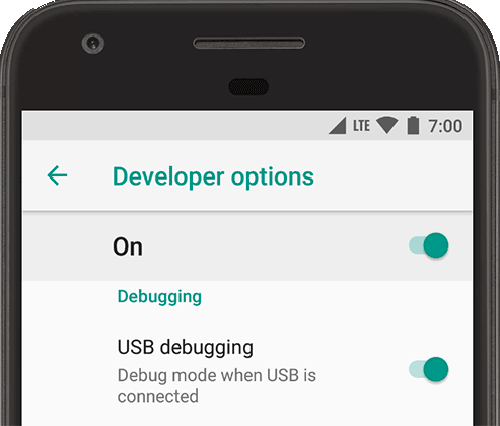
- On the Android device, enable Debugging
- Tap ‘Build Number’ 7 times (Settings > About phone > Software information > Build number)
- Enable “USB” Debugging” under Developer Options
- Plug the Android device into your desktop PC via USB
- If prompted, “Allow USB debugging” when prompted
- On your desktop chrome, open ‘chrome://inspect/#devices’ in the URL bar
- Select ‘Discover USB devices’
- Select your device, click ‘inspect’ (you may need to click the specific URL/tab that is open)
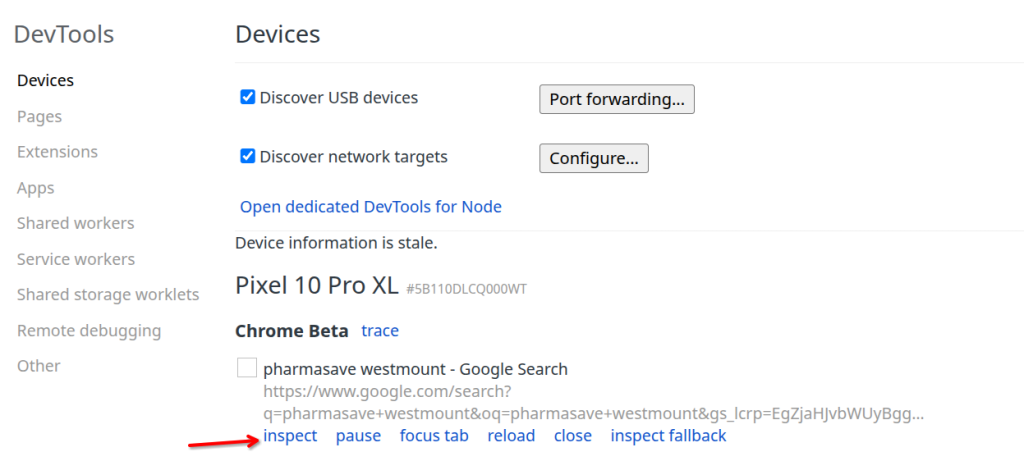
from here you should see the console log and network. You may also wish to save the HAR file for offline diagnostics.
In some circumstances it is more efficient to diagnose a web application issue by generating a HAR file and sharing with Agilicus Support.
Google Chrome (And Derived Browsers Like Microsoft Edge)
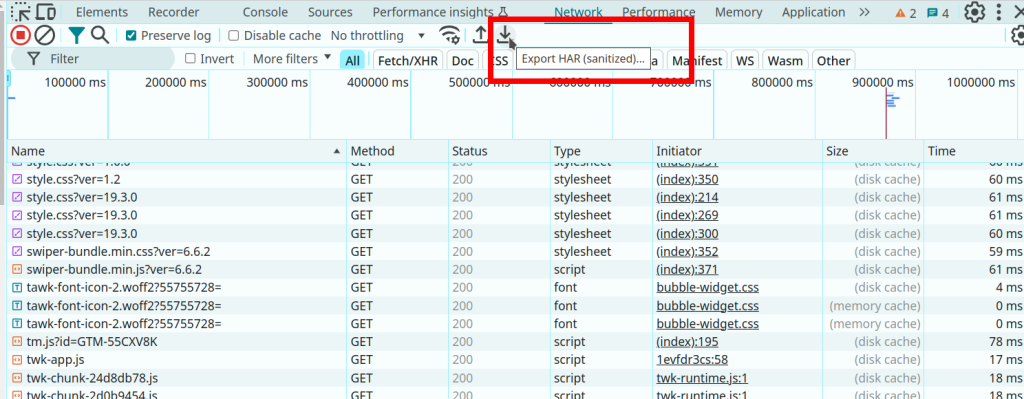
In Google Chrome (and other Chrome-derived browsers such as Microsoft Edge), you can enter the developer mode (ctrl-shift-I or F12), and then select the ‘Export HAR (sanitized)…)’ button.
- Open a new incognito window.
- Click the more actions menu (…) to the right of the toolbar and select More tools – Developer Tools (or press F12 or CTRL-SHIFT-I)
- Select the Network tab.
- Ensure that Google Chrome is recording. A red button indicates that a recording is already in progress. Otherwise, click Record network log.
- Select Preserve Log.
- Clear any existing logs by clicking Clear network log (
 ).
). - Go to the page where the issue occurred and reproduce the issue.
- Click Export HAR (the down arrow icon) to export the file as HAR.
- Save the HAR file.
Firefox
- To open the developer console in Firefox, click on the Firefox Menu in the upper-right-hand corner of the browser and select More Tools > Browser Console. You can also use Option + ⌘ + E (on macOS) or Shift + CTRL + C (on Windows/Linux).
- Refresh the page.
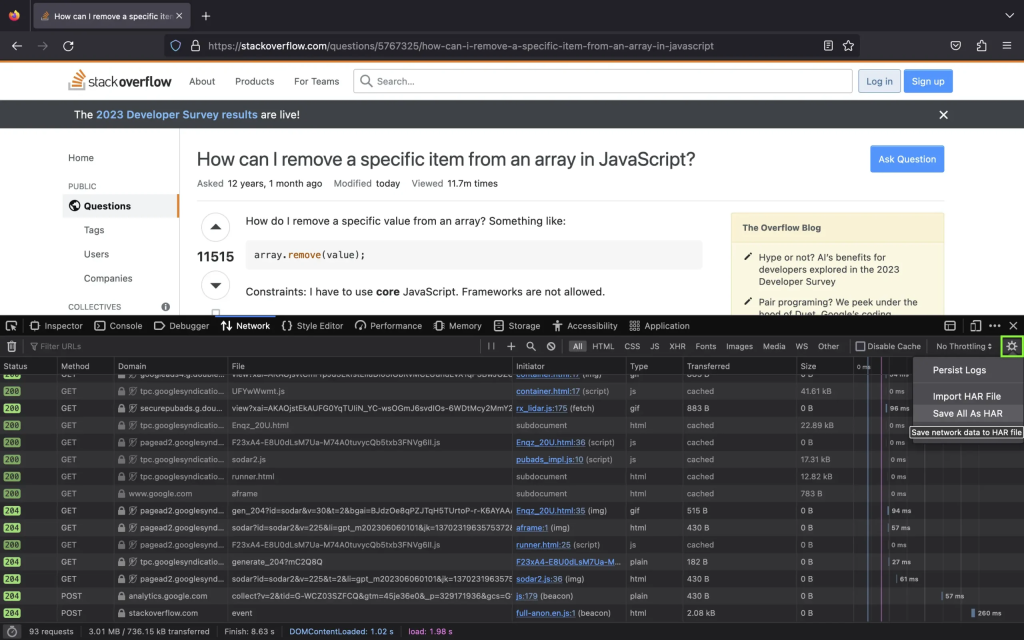
- Go to the Network tab and, click the settings icon (upper right side of the panel), choose Save All As Har.
Apple Safari
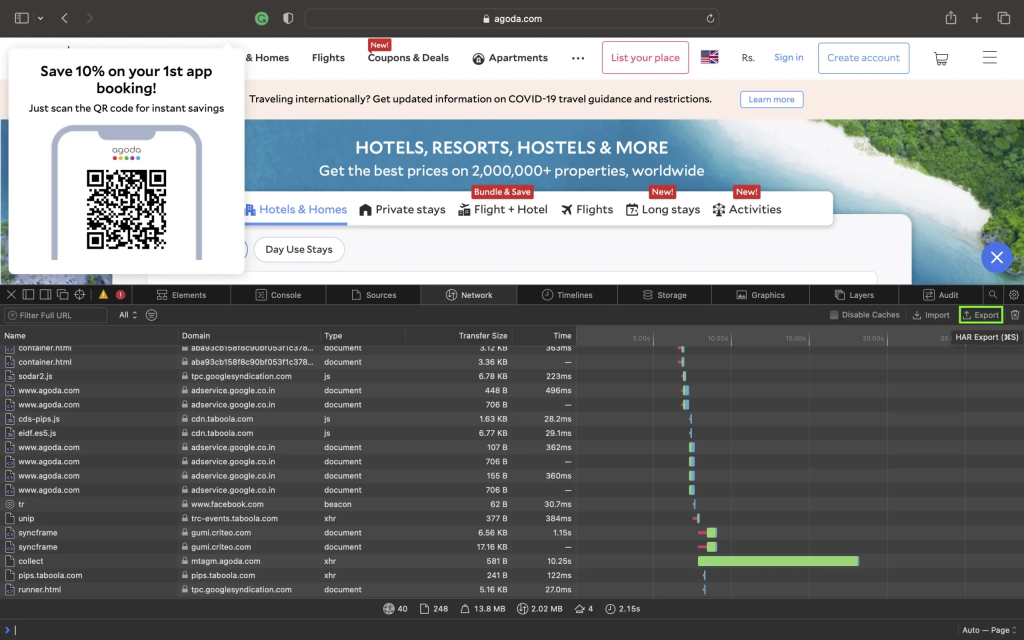
Ensure the ”Show Develop menu” in the menu bar is checked under Safari > Settings > Advanced tab.
- Visit the web page from where you want to export the traffic.
- Click Develop on the Menubar, then select Show Web Inspector. Refresh the page.
- Go to the Network tab and click Export on the upper right side of the pane.
Note: if he web application is an embedded browser such as Microsoft Webview, set this environment variable prior to launch.
WEBVIEW2_ADDITIONAL_BROWSER_ARGUMENTS="--auto-open-devtools-for-tabs"
Agilicus has a number of different log sources and types:
- Authentication Audits. See your admin interface, Organisation/Authentication Audit
- API/System change Audits. See your admin interface, Organisation/Audit Subsystem
- Per user diagnostic and access audit: See your admin interface, Access/Audits and enter the user’s email
- External SIEM, graylog, etc. See your admin interface, Organisation/Audit Destinations
- Access logs. See your connector’s log in the OS-dependent fashion (e.g. Eventvwr, Systemd journal)
- (Legacy). For hosted applications, see Applications/Diagnose
For more information on support options, please see Support.
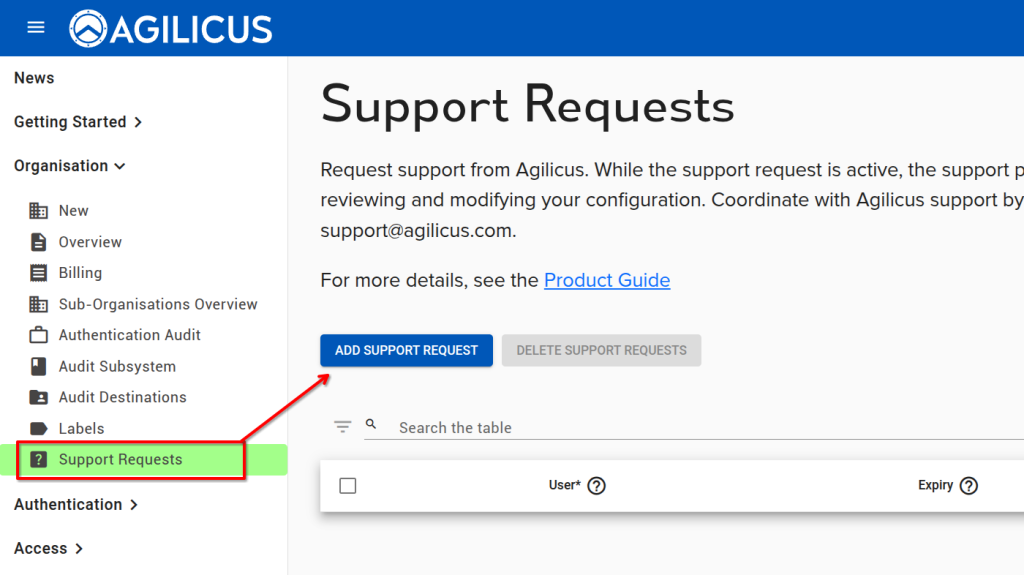
When you are working with a member of the Agilicus customer support team, and wish to give them access to your Organisation in order to collaborate, you may use the Support Requests feature. This will temporarily give a single person access. All activities will show up in the Audits, and you may revoke this permission at any time.
When installing the Agilicus Connector you may see an error “tls: failed to verify certificate: x509: certificate signed by unknown authority”. This indicates that your site has a SSL-inspecting firewall present (e.g. Palo Alto, Fortinet, Sophos, etc).
This firewall may be redirecting DNS, or, using some other network-based technique to intercept traffic.
See “Site Firewall Configuration” for hints on how to resolve.
Key Concepts
For more information on support options, please see Support.
When you are working with a member of the Agilicus customer support team, and wish to give them access to your Organisation in order to collaborate, you may use the Support Requests feature. This will temporarily give a single person access. All activities will show up in the Audits, and you may revoke this permission at any time.
Resource – Web Applications
In some circumstances it is more efficient to diagnose a web application issue by generating a HAR file and sharing with Agilicus Support.
Google Chrome (And Derived Browsers Like Microsoft Edge)
In Google Chrome (and other Chrome-derived browsers such as Microsoft Edge), you can enter the developer mode (ctrl-shift-I or F12), and then select the ‘Export HAR (sanitized)…)’ button.
- Open a new incognito window.
- Click the more actions menu (…) to the right of the toolbar and select More tools – Developer Tools (or press F12 or CTRL-SHIFT-I)
- Select the Network tab.
- Ensure that Google Chrome is recording. A red button indicates that a recording is already in progress. Otherwise, click Record network log.
- Select Preserve Log.
- Clear any existing logs by clicking Clear network log ().
- Go to the page where the issue occurred and reproduce the issue.
- Click Export HAR (the down arrow icon) to export the file as HAR.
- Save the HAR file.
Firefox
- To open the developer console in Firefox, click on the Firefox Menu in the upper-right-hand corner of the browser and select More Tools > Browser Console. You can also use Option + ⌘ + E (on macOS) or Shift + CTRL + C (on Windows/Linux).
- Refresh the page.
- Go to the Network tab and, click the settings icon (upper right side of the panel), choose Save All As Har.
Apple Safari
Ensure the ”Show Develop menu” in the menu bar is checked under Safari > Settings > Advanced tab.
- Visit the web page from where you want to export the traffic.
- Click Develop on the Menubar, then select Show Web Inspector. Refresh the page.
- Go to the Network tab and click Export on the upper right side of the pane.
Note: if he web application is an embedded browser such as Microsoft Webview, set this environment variable prior to launch.
WEBVIEW2_ADDITIONAL_BROWSER_ARGUMENTS="--auto-open-devtools-for-tabs"