

Agilicus AnyX Frequently Asked Questions
Resource – Desktops
In the Google Play store, install Microsoft Remote Desktop. Once installed, use the Agilicus profile (https://profile.__MYDOMAIN__) and launch the remote desktop icon for your resource.
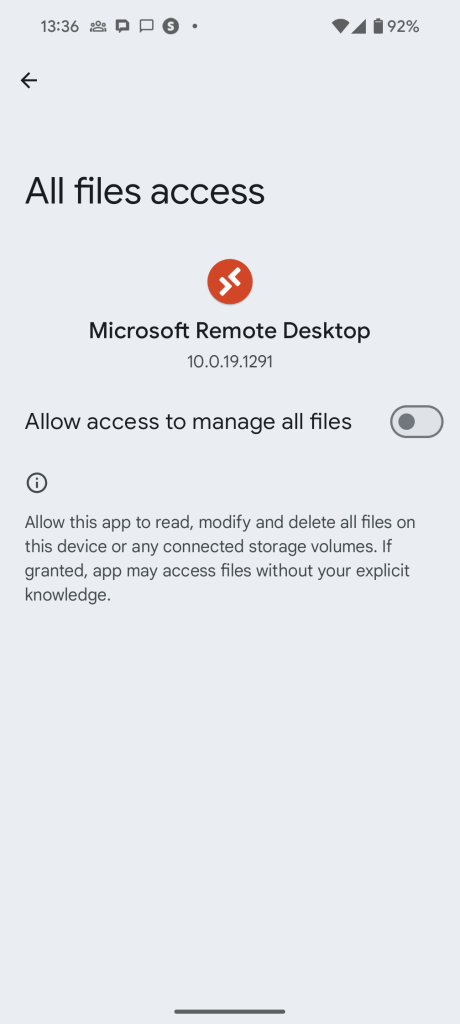
The first time you run this, you may be asked to grant permission, as below.
If your VNC desktop has credential stuffing enabled (i.e. it has an entry in one of the username or password fields in its expanded configuration under Resources/Desktops), the connector and VNC server must mutually support a protocol which allows for credential exchange. If the connector cannot negotiate a protocol compatible with credential stuffing, it will fail with this message. The following screenshot provides an example. Note the red bar.
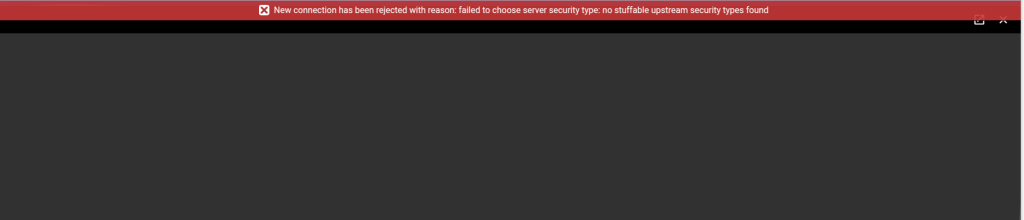
The connector supports the following protocols which allow for credential stuffing:
- VNC Authentication (Type 2)
- RA2 (Type 5)
- RA2r (Type 13)
- RA2_256 (Type 129)
To overcome this problem, either disable credential stuffing, or configure the server so that it supports one of the above protocols.
Microsoft supports a concept called ‘Network Level Authentication’. In this model, if the client-machine (running mstsc) is joined to a Windows domain, and, the server is also on the same domain, it will check and enforce this.
With Agilicus AnyX, a common use case is ‘any device’, allowing the user to use a tablet or personal machine to reach a remote desktop server. In this case, the client is not joined to the domain, and, Microsoft Network Level Authentication will fail.
Agilicus AnyX is transparent, and, supports Network Level Authentication. If 100% of your users devices are attached to your domain, you may enable this on your server. If you have users who are not attached to your domain you will need to disable or make it optional on your server.
See the Product Guide for more information.
RealVNC® by default uses a proprietary authentication mechanism, rendering it inoperable with standard clients. You can enable standard authentication as shown in the below image (enable VNC Password as an authentication mechanism).
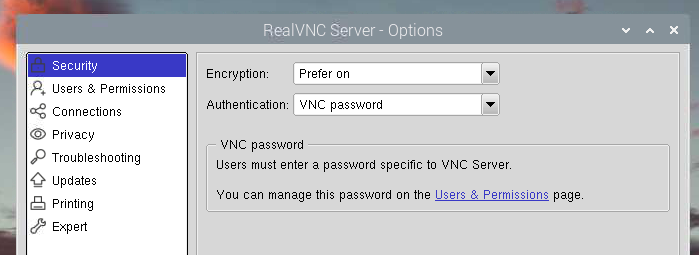
You may also wish to see more detail about how to use the RealVNC as shipped with Raspberry PI.
The Remote Desktop error 0x1908 (often displayed as extended error 0x0) means your RDP client is configured to require smart card or Windows Hello for Business authentication, but the remote computer or your current session setup cannot support or access those devices. See https://learn.microsoft.com/en-ie/answers/questions/2129230/rdp-fails-on-win11-24h2-the-selected-user-credenti
You can bypass or fix this issue using the following steps:
Method 1: Disable Smart Card Redirection (Recommended)
This is the most common fix when connecting from a personal device. [1]
- Open the Remote Desktop Connection (mstsc) app.
- Click Show Options at the bottom to expand the menu.
- Navigate to the Local Resources tab.
- Under Local devices and resources, click the More… button.
- Uncheck the box for Smart cards or Windows Hello for Business.
- Click OK, go back to the General tab, and click Save. [1, 2, 3]
Method 2: Check RDP Client Group Policy
If you are managing the connection through Group Policy, you may need to explicitly disable required smart card policies. [1]
- Press
Win + R, typegpedit.msc, and press Enter. - Go to
Computer Configuration>Administrative Templates>Windows Components>Remote Desktop Services>Remote Desktop Session Host>Security. - Locate Require use of specific security layer for remote (RDP) connections and set it to Enabled, choosing
RDPorNegotiateas the security layer (instead of forcing SSL/TLS which sometimes triggers authentication conflicts). - Open the command prompt as administrator and run
gpupdate /forceto apply the policy. [1, 2, 3]
Method 3: Disable Network Level Authentication (NLA)
Sometimes the remote session manager gets stuck caching these credentials, and turning off NLA allows a legacy password login. [1]
- On the remote computer, press
Win + R, typesysdm.cpl, and hit Enter. - Go to the Remote tab.
- Uncheck Allow connections only from computers running Remote Desktop with Network Level Authentication (more secure).
- Try to connect from your client machine. Once connected and authenticated, you can turn this setting back on. [1, 2, 3, 4]
If you’d like, I can:
TightVNC via command line allows specifying the specific display adapter number.
TIghtVNC also allows display offsets in the ‘Extra Ports’ configuration. By specifying a specific port (eg. 5091), a display offset can be configured for a monitor. Once the port is configured and known, a new desktop can be configured in the Agilicus Admin portal with the port number.
Agilicus AnyX has a rich role-based web application firewall. Some protocols this can mean very fine control (e.g. Web). Others like VNC Desktops its more coarse: read-only versus read-write. Others like RDP are all or nothing.
THe built-in roles are:
- Owner: do anything
- Editor: read/modify existing things
- Viewer: read existing things
- Self: do anything on your own data.
When looking at a protocol like Microsoft Remote Desktop (RDP), we recommend only using Owner.