

Agilicus AnyX Frequently Asked Questions
Connector Diagnostics
The connector and the launcher both might observe this error on a Microsoft Windows platform when trying to refresh credentials.
The normal operation of the Launcher is to be automatically refreshed via Profile when the desktop integration is installed. However, if the user does not have the desktop integration, or, the credentials have timed out, they will see the Launcher open a browser to facilitate a refresh.
As part of this flow, the Launcher will open a local TCP port (e.g. port 53210) on localhost.
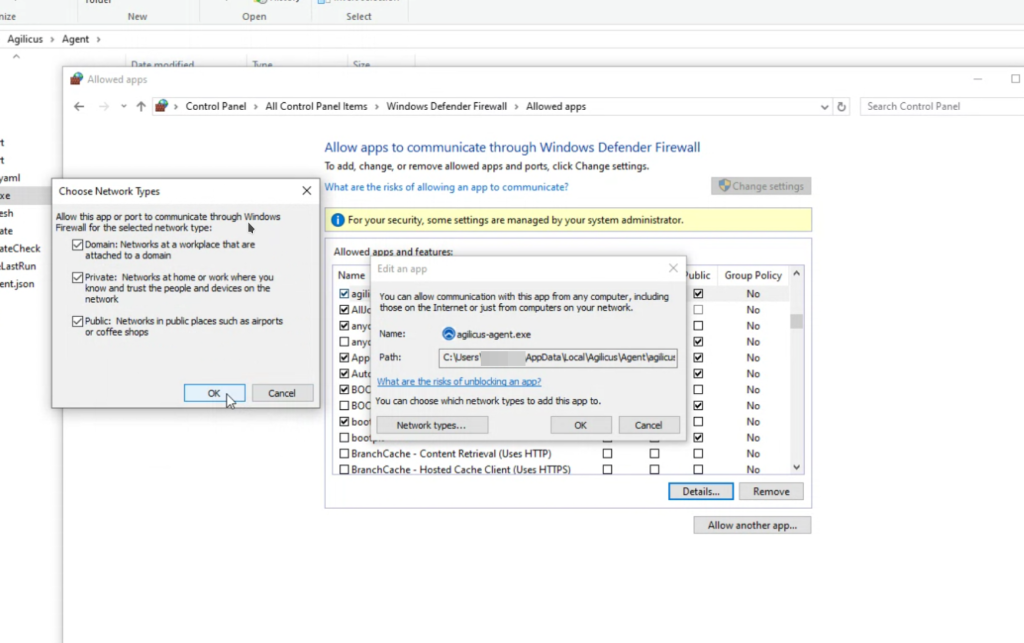
Normally the Windows firewall will allow this since the port is localhost only. However, some environments require the Agilicus Connector & Launcher to be explicitly allowed in the Microsoft Windows firewall. In this case, you might see a message “bind: an attempt was made to access a socket in a way forbidden by its access permissions.”
The Agilicus Connector supports running in an Active/Active high-availability mode, with up to four instances running at a time on separate hardware (and on separate sites with separate Internet connections). This allows you to implement a disaster-recovery scenario.
Note that if the Connector exposes a Share, then it cannot run in Active/Active mode. Instead, consider an approach like a Agilicus Connector Windows Cluster.
Note that each connector in a high-availability set must be able to reach the same upstream services.
Yes. First, you need to enable connector logging in Organisation -> Audit Destinations by clicking the Access and Authorization check-boxes. Your connectors will shortly start streaming their logs to Agilicus. You can see the logs in Applications->Diagnose. Fill in the time range you are interested in, then click View Logs. Note that you may see other logs related to your Organisation here. The relevant ones will have source_type equal to agent-connector
If you see a TLS/SSL certificate when starting (or installing) the connector, it usually indicates there is a SSL-inspecting firewall on site.
If you have a openssl installed, you can run this command:
openssl s_client -showcerts -servername auth.__MYDOMAIN__ -connect auth.__MYDOMAIN__:443 </dev/null
It should emit something like below, note the ISRG Root X1 and the Let’s Encrypt.
root@rtr:~# openssl s_client -showcerts -servername auth.agilicus.com -connect auth.agilicus.com:443 </dev/null
CONNECTED(00000003)
depth=2 C = US, O = Internet Security Research Group, CN = ISRG Root X1
verify return:1
depth=1 C = US, O = Let's Encrypt, CN = R10
verify return:1
depth=0 CN = auth.agilicus.com
verify return:1
---
Certificate chain
 0 s:CN = auth.agilicus.com
   i:C = US, O = Let's Encrypt, CN = R10
   a:PKEY: rsaEncryption, 2048 (bit); sigalg: RSA-SHA256
   v:NotBefore: Feb 13 09:47:07 2025 GMT; NotAfter: May 14 09:47:06 2025 GMT
-----BEGIN CERTIFICATE-----
MIIE8jCCA9qgAwIBAgISA8KDmAmZrQROkCo9atCLeVDYMA0GCSqGSIb3DQEBCwUA
MDMxCzAJBgNVBAYTAlVTMRYwFAYDVQQKEw1MZXQncyBFbmNyeXB0MQwwCgYDVQQD
EwNSMTAwHhcNMjUwMjEzMDk0NzA3WhcNMjUwNTE0MDk0NzA2WjAcMRowGAYDVQQD
ExFhdXRoLmFnaWxpY3VzLmNvbTCCASIwDQYJKoZIhvcNAQEBBQADggEPADCCAQoC
ggEBAL1IA85qUqUSo3jKR6vNgLDRqPYsriX1R7kEoiCZfeMoPnWpia70meCezHy8
BdHs3Vhav1jLQvv3VUa+0ouh61qZMZ5daDnshdn/mgcNlvheqxC7gLBo+uRLuMDA
96w6pm51Mo7UCwj+/CDhDNVbhTG1wCgsgYKZYs4v3epXzLgY1U9U+YH0Y7Lbwq2l
jWw+AOAAozEiOKUMwOQwYut476UOaOkoAUx9tcDAssj4NwJ8mwGUeerZ9larOv0y
Y4NSW/Mc+aIpOotZQ9Qvs3v1z8U5/JWPuUqCyag0pnYs+IZXFo5sZBV/9Mevoyoq
wRjOS4CFfpaVix7x04tlEFxvnRMCAwEAAaOCAhUwggIRMA4GA1UdDwEB/wQEAwIF
oDAdBgNVHSUEFjAUBggrBgEFBQcDAQYIKwYBBQUHAwIwDAYDVR0TAQH/BAIwADAd
BgNVHQ4EFgQUWKF8pzlpBAyy6BgVJ4XYjGclipkwHwYDVR0jBBgwFoAUu7zDR6Xk
vKnGw6RyDBCNojXhyOgwVwYIKwYBBQUHAQEESzBJMCIGCCsGAQUFBzABhhZodHRw
Oi8vcjEwLm8ubGVuY3Iub3JnMCMGCCsGAQUFBzAChhdodHRwOi8vcjEwLmkubGVu
Y3Iub3JnLzAcBgNVHREEFTATghFhdXRoLmFnaWxpY3VzLmNvbTATBgNVHSAEDDAK
MAgGBmeBDAECATCCAQQGCisGAQQB1nkCBAIEgfUEgfIA8AB2AMz7D2qFcQll/pWb
U87psnwi6YVcDZeNtql+VMD+TA2wAAABlP7qBrsAAAQDAEcwRQIhALEu1X27I+ri
KPr8YHbJkoJC5MrRcyty17i1dSsofSv5AiB7Z1So5zkm+P0YoB1YA565NahOS1eo
xCnzBYkhjzcEPQB2AKLjCuRF772tm3447Udnd1PXgluElNcrXhssxLlQpEfnAAAB
lP7qBrMAAAQDAEcwRQIhAL/i58WlCBWAELpFjiDDSLZFTY8HReOhUUN20Srp928b
AiBenIEa3TXkLpROo+s8JLwrSe+3IeStW1461Pm+256ssjANBgkqhkiG9w0BAQsF
AAOCAQEAt7c/TU7oHw4v8KAMzTHicT/uugTty0mdzl8tw+G30TO6SGKdn79ddhPa
052d4S2SoEW1p9r3OrpzjMZEywEG4hN4MS6vsILTKKQ0BFKEjqWkTz5YH+oWjwiJ
ABlaajkTcLbiBk8xcDVR0TpND7sjMAqurRf/cFeuGevsAACdY7S4swMIPp1OXdZb
cSXkZ3ET6NpItL/WfF0JG9ke3OVrtaF9mETG1Hvy/lHkUP2qTSrV3GLqG+tOPEfH
KzQCaDOPHZt9V82finAqRYCOOdeB41REF2uoBrokCc5qm7flyzsUVGhkOuleoorj
utKYMp7QRmHn2LCAgfYctnRoIrm1pA==
-----END CERTIFICATE-----
 1 s:C = US, O = Let's Encrypt, CN = R10
   i:C = US, O = Internet Security Research Group, CN = ISRG Root X1
   a:PKEY: rsaEncryption, 2048 (bit); sigalg: RSA-SHA256
   v:NotBefore: Mar 13 00:00:00 2024 GMT; NotAfter: Mar 12 23:59:59 2027 GMT
-----BEGIN CERTIFICATE-----
MIIFBTCCAu2gAwIBAgIQS6hSk/eaL6JzBkuoBI110DANBgkqhkiG9w0BAQsFADBP
MQswCQYDVQQGEwJVUzEpMCcGA1UEChMgSW50ZXJuZXQgU2VjdXJpdHkgUmVzZWFy
Y2ggR3JvdXAxFTATBgNVBAMTDElTUkcgUm9vdCBYMTAeFw0yNDAzMTMwMDAwMDBa
Fw0yNzAzMTIyMzU5NTlaMDMxCzAJBgNVBAYTAlVTMRYwFAYDVQQKEw1MZXQncyBF
bmNyeXB0MQwwCgYDVQQDEwNSMTAwggEiMA0GCSqGSIb3DQEBAQUAA4IBDwAwggEK
AoIBAQDPV+XmxFQS7bRH/sknWHZGUCiMHT6I3wWd1bUYKb3dtVq/+vbOo76vACFL
YlpaPAEvxVgD9on/jhFD68G14BQHlo9vH9fnuoE5CXVlt8KvGFs3Jijno/QHK20a
/6tYvJWuQP/py1fEtVt/eA0YYbwX51TGu0mRzW4Y0YCF7qZlNrx06rxQTOr8IfM4
FpOUurDTazgGzRYSespSdcitdrLCnF2YRVxvYXvGLe48E1KGAdlX5jgc3421H5KR
mudKHMxFqHJV8LDmowfs/acbZp4/SItxhHFYyTr6717yW0QrPHTnj7JHwQdqzZq3
DZb3EoEmUVQK7GH29/Xi8orIlQ2NAgMBAAGjgfgwgfUwDgYDVR0PAQH/BAQDAgGG
MB0GA1UdJQQWMBQGCCsGAQUFBwMCBggrBgEFBQcDATASBgNVHRMBAf8ECDAGAQH/
AgEAMB0GA1UdDgQWBBS7vMNHpeS8qcbDpHIMEI2iNeHI6DAfBgNVHSMEGDAWgBR5
tFnme7bl5AFzgAiIyBpY9umbbjAyBggrBgEFBQcBAQQmMCQwIgYIKwYBBQUHMAKG
Fmh0dHA6Ly94MS5pLmxlbmNyLm9yZy8wEwYDVR0gBAwwCjAIBgZngQwBAgEwJwYD
VR0fBCAwHjAcoBqgGIYWaHR0cDovL3gxLmMubGVuY3Iub3JnLzANBgkqhkiG9w0B
AQsFAAOCAgEAkrHnQTfreZ2B5s3iJeE6IOmQRJWjgVzPw139vaBw1bGWKCIL0vIo
zwzn1OZDjCQiHcFCktEJr59L9MhwTyAWsVrdAfYf+B9haxQnsHKNY67u4s5Lzzfd
u6PUzeetUK29v+PsPmI2cJkxp+iN3epi4hKu9ZzUPSwMqtCceb7qPVxEbpYxY1p9
1n5PJKBLBX9eb9LU6l8zSxPWV7bK3lG4XaMJgnT9x3ies7msFtpKK5bDtotij/l0
GaKeA97pb5uwD9KgWvaFXMIEt8jVTjLEvwRdvCn294GPDF08U8lAkIv7tghluaQh
1QnlE4SEN4LOECj8dsIGJXpGUk3aU3KkJz9icKy+aUgA+2cP21uh6NcDIS3XyfaZ
QjmDQ993ChII8SXWupQZVBiIpcWO4RqZk3lr7Bz5MUCwzDIA359e57SSq5CCkY0N
4B6Vulk7LktfwrdGNVI5BsC9qqxSwSKgRJeZ9wygIaehbHFHFhcBaMDKpiZlBHyz
rsnnlFXCb5s8HKn5LsUgGvB24L7sGNZP2CX7dhHov+YhD+jozLW2p9W4959Bz2Ei
RmqDtmiXLnzqTpXbI+suyCsohKRg6Un0RC47+cpiVwHiXZAW+cn8eiNIjqbVgXLx
KPpdzvvtTnOPlC7SQZSYmdunr3Bf9b77AiC/ZidstK36dRILKz7OA54=
-----END CERTIFICATE-----
---
Server certificate
subject=CN = auth.agilicus.com
issuer=C = US, O = Let's Encrypt, CN = R10
---
No client certificate CA names sent
Peer signing digest: SHA256
Peer signature type: RSA-PSS
Server Temp Key: X25519, 253 bits
---
SSL handshake has read 3054 bytes and written 403 bytes
Verification: OK
---
New, TLSv1.3, Cipher is TLS_AES_256_GCM_SHA384
Server public key is 2048 bit
Secure Renegotiation IS NOT supported
No ALPN negotiated
Early data was not sent
Verify return code: 0 (ok)
---
DONEIf you are finding errors such as “My devices are offline with the message “Resource unavailable: on-site connector is down””, or your connector shows down, you may try its built-in network selftest.
Run agilicus-agent test and observe the output
INFO[2026-06-09T16:55:25-04:00] Starting test - version v0.336.1
--- Preflight Tests ---
PASS - https://api.agilicus.com/v1/resolve?type=CNAME&name=ca-1.agilicus.ca
PASS - https://www.agilicus.com/
--- Overall: PASS ---

--- Preflight Tests ---
PASS - local DNS check for agent-server.ca-1.agilicus.ca
PASS - https://agent-server.ca-1.agilicus.ca/healthz
PASS - https://agent-server.ca-1.agilicus.ca/healthz @ 34.95.12.47
PASS - local DNS check for auth.__MY_DOMAIN__
PASS - https://auth.__MY_DOMAIN__/healthz
PASS - https://auth.__MY_DOMAIN__/healthz @ 34.95.12.47
--- Overall: PASS ---Your connector is down, showing “no active tunnel connections to Agilicus”
This typically implies that your connector is running but unable to reach Agilicus. This can mean an issue with your outbound firewall, see Site Firewall Configuration for more information.
The simplest way to diagnose this is to run the built-in self test.
On windows, run the first command below. On Linux simply run ‘agilicus-agent test’ in a shell.
C:\>"C:\Program Files\agilicus\agent\agilicus-agent.exe" test
time="2025-12-15T14:24:28-05:00" level=info msg="Starting test - version v0.317.0"
--- Preflight Tests ---
PASS - https://api.agilicus.com/v1/resolve?type=CNAME&name=ca-1.agilicus.ca
PASS - https://www.agilicus.com/
--- Overall: PASS ---

--- Preflight Tests ---
PASS - https://auth.r.XXX.ca/healthz
PASS - https://auth.r.XXX.ca/healthz @ 34.95.12.47
PASS - https://auth.r.XXX.ca/healthz @ 35.240.184.197
You will also see additional information in the system logs (eventvwr, journalctl, syslog)
If you have an outbound firewall which does TLS/SNI inspection, it may be mis-configured and block connectivity to Agilicus services. You can see the domains required in Site Firewall Configuration.
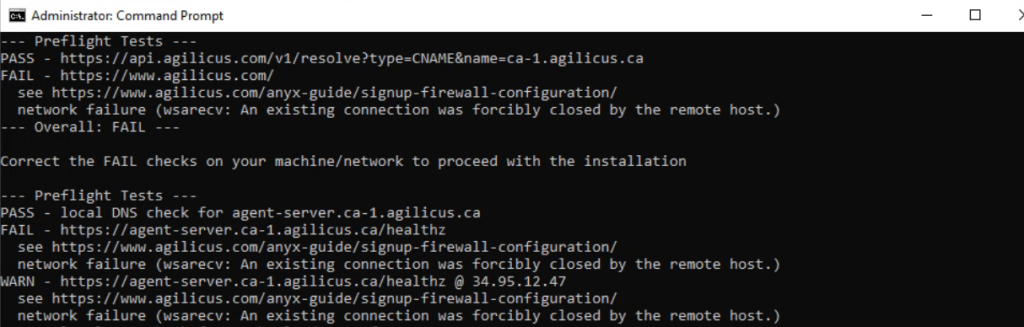
You can run the network self test (agilicus-agent test) to check connectivity, it may show an error as below. This is showing that your site firewall is sending a TCP RESET (RST) packet when the connector tries to connect to its upstream. Please update the configuration of your firewall to allow the required domains.
You may find that your users, or your connectors, are blocked from connecting to the Agilicus infrastructure by some firewall device on your site.
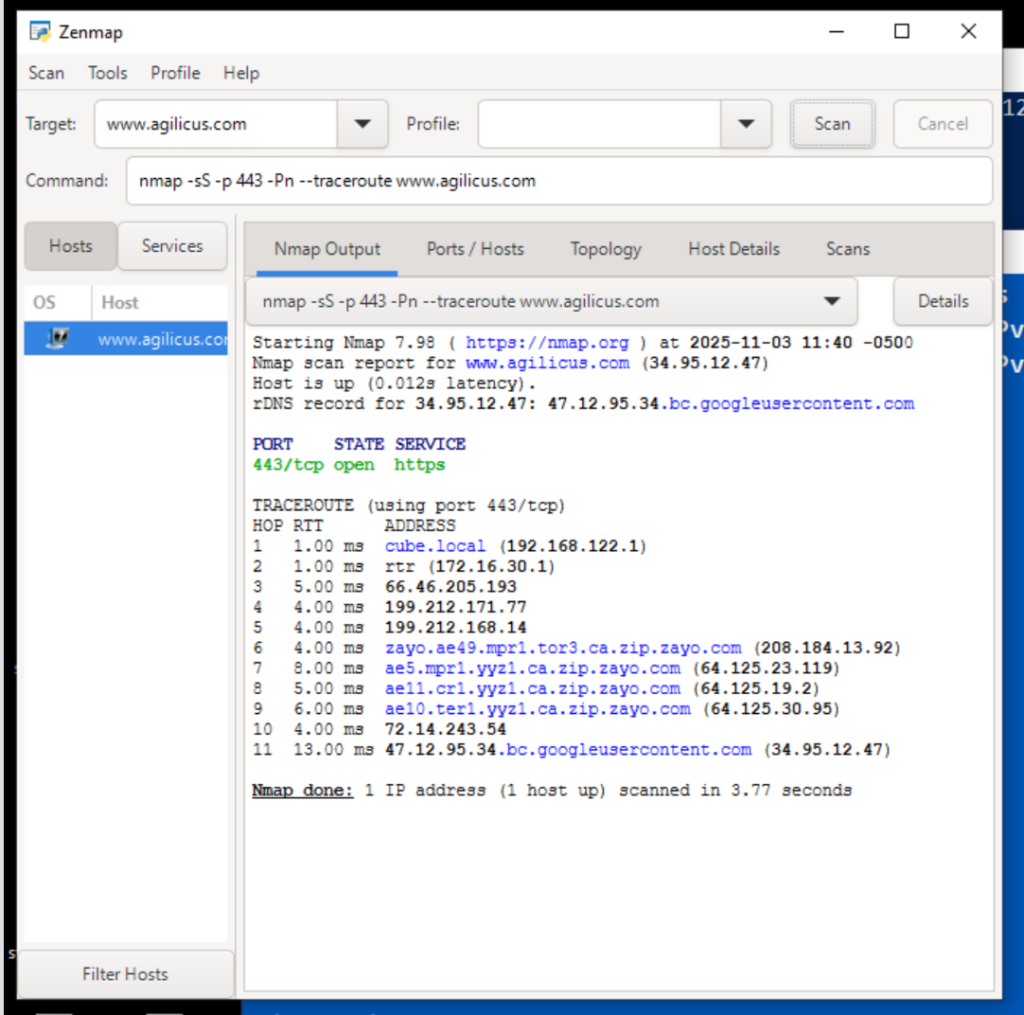
A good tool to try this is Nmap (https://nmap.org/download) and then do a TCP-based traceroute on port 443, using SYN packets. This emulates the connection.
You would use ‘nmap -sS -p 443 -Pn –traceroute admin.__MYDOMAIN__’ similar to the below image.
No it does not. However, given that it will use TCP/IP to connect to them, it needs to be able to route to the IP it determines for the network, and any firewalls in between must allow access to that IP and the target TCP port.
Go to the Connector->Overview screen. Each connector reports an overview status here. “Good” means all instances of the connector are running, and that they are fully connected to Agilicus.
Go to the Connector->Overview screen. Your connectors will shortly begin to publish statistics. You can see a summary
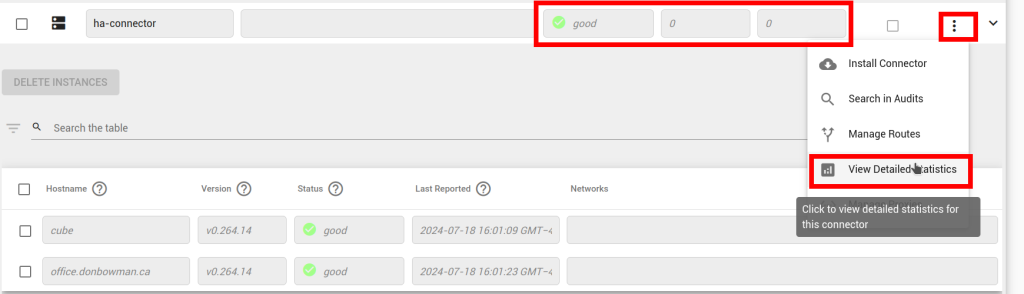
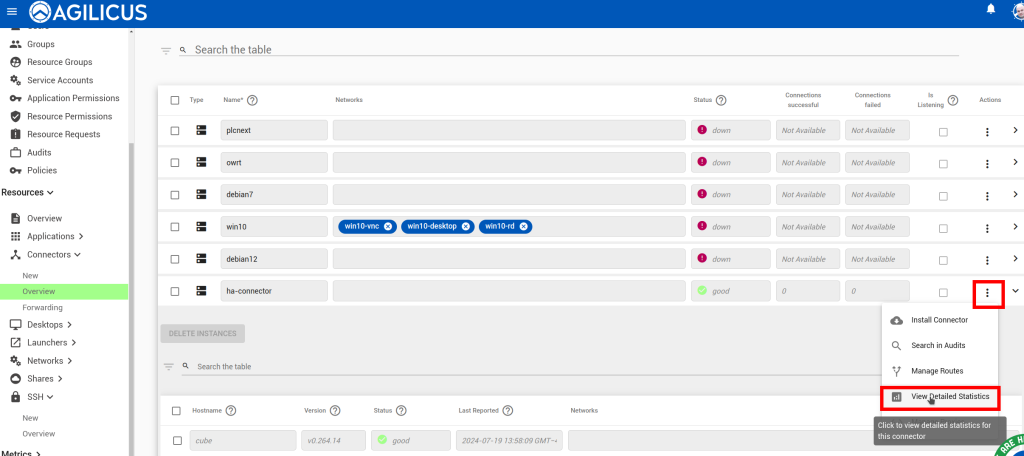
of successful/failed connections in the overview table. Click Actions -> View Detailed Statistics for a breakdown of these stats.
Check that the connector itself is up (the ‘Good’/green in below). After you open the detailed statistics screen, reproduce the problem, and look at which counters increment.
As part of maintaining its connection to Agilicus, the connector reports some system information. In the Connector->Overview screen, click on the connector in which you are interested. The resulting expanded table shows each instance of the connector and the hostname of the machine on which it is running.
When establishing a connection to a Network, the connector first determines an IP with which to communicate with. If an Override IP is present in the Network’s configuration, it will use that. Otherwise, it will use the local system’s DNS configuration to do a DNS lookup of the network’s Hostname. It then establishes a connection to that IP using the local system’s standard TCP/IP stack.
You may have a local firewall which is blocking outbound communication. See ‘Firewall Configuration‘. Check the connector logs (on Windows, using EventViewer, on Linux typically with journalctl -fu agilicus-agent)
Your Network for the HTTP server may be incorrectly configured. The connector proxies HTTP requests at the application layer. If the HTTP server runs HTTPS/TLS, the Network must be configured to initiate an HTTPS/TLS connection, and it must trust the certificate presented by the server. Conversely, if the HTTP server is plaintext (unencrypted), but the connector is configured to expect TLS, it will fail to establish the connection.
In some cases, Agilicus Support might be more effectively able to assist you with a packet capture from the machine running your connector. To do this, we can use Wireshark as below.
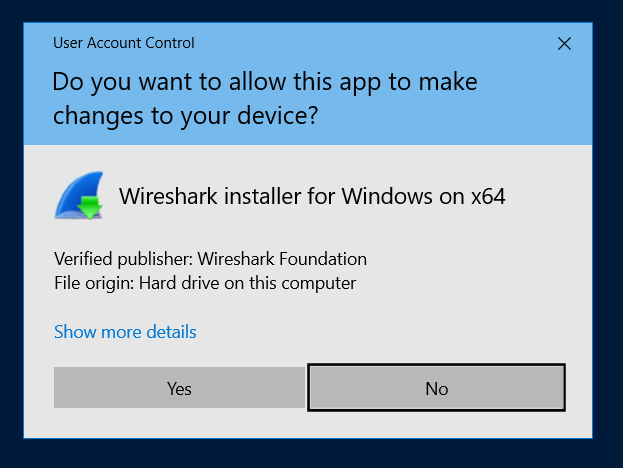
Install Wireshark
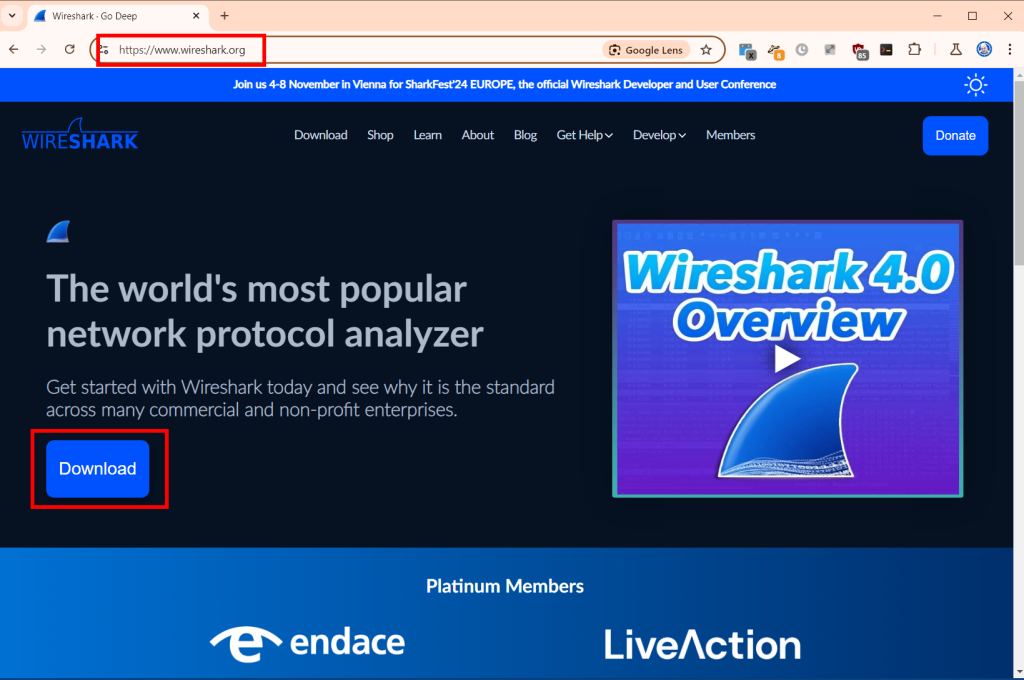
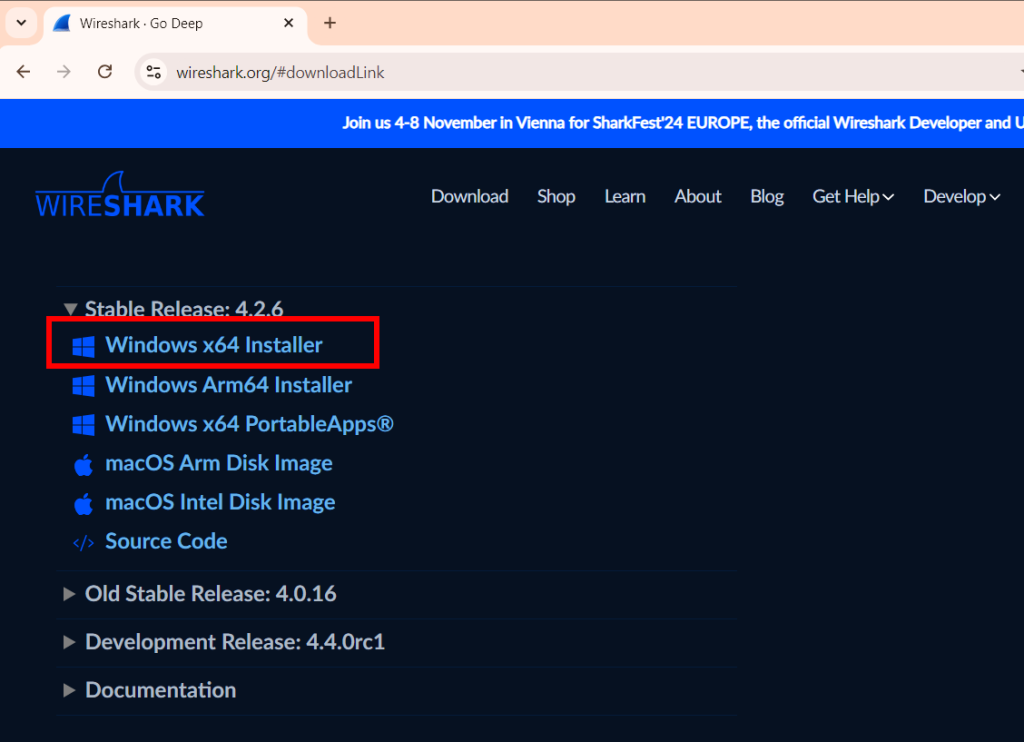
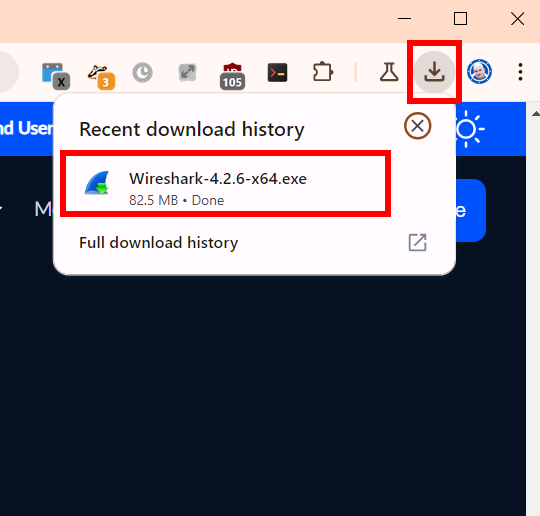
Open a browser to https://www.wireshark.org/. Select ‘Download’.
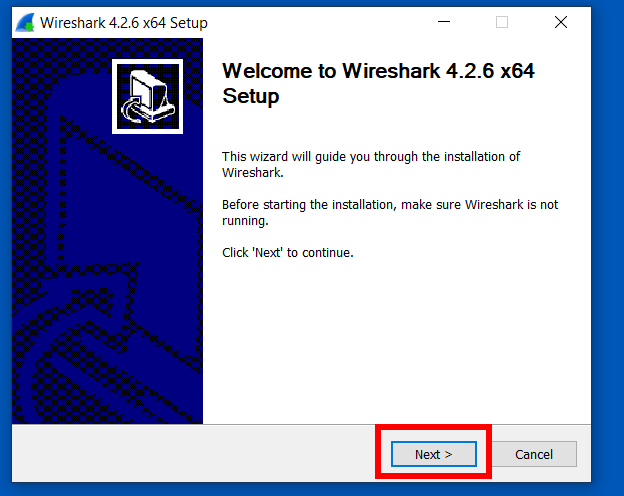
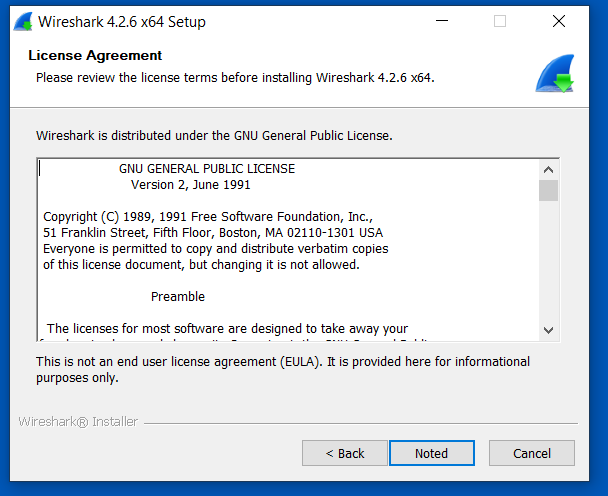
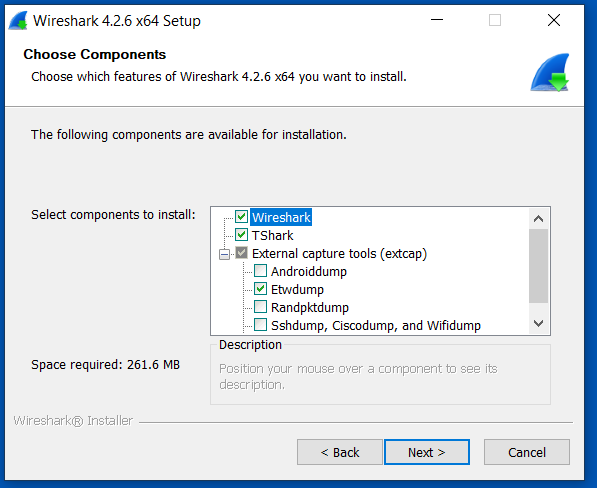
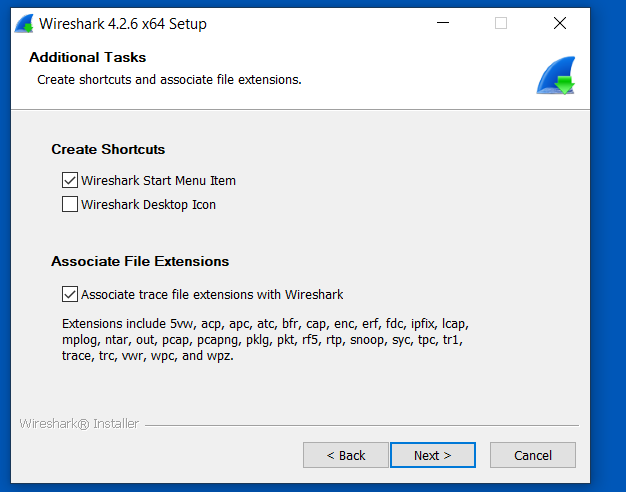
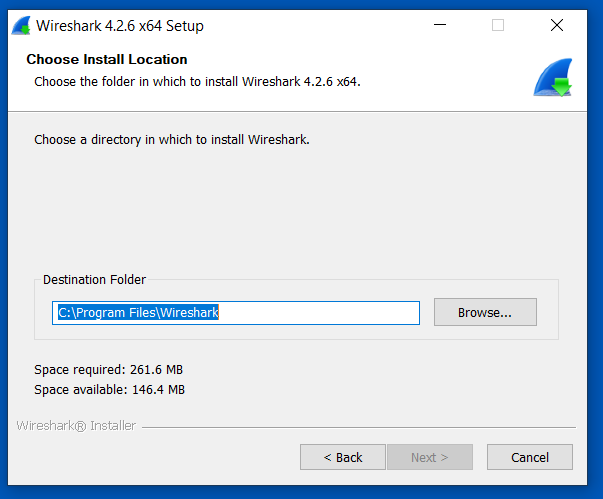
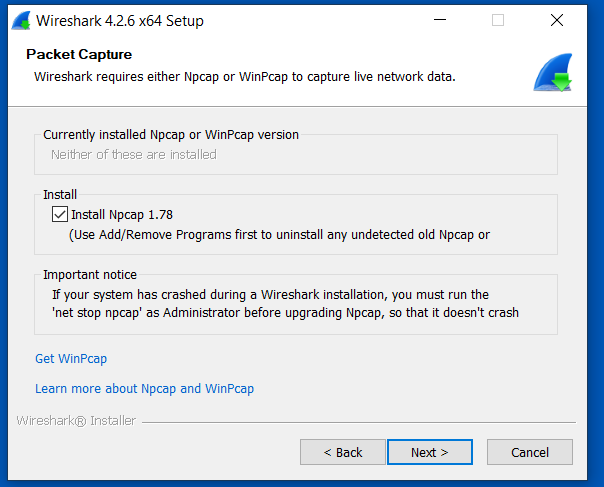
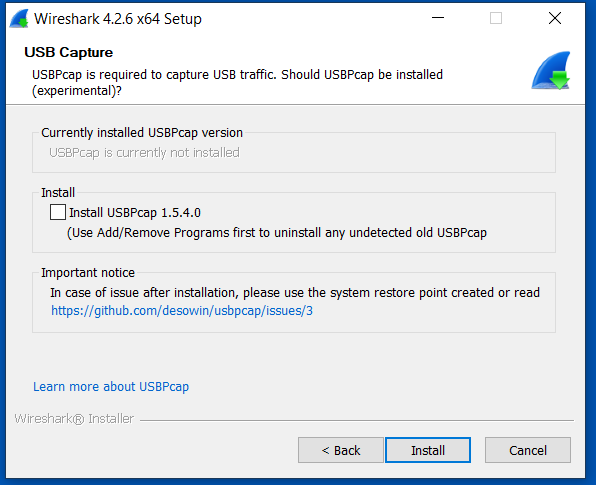
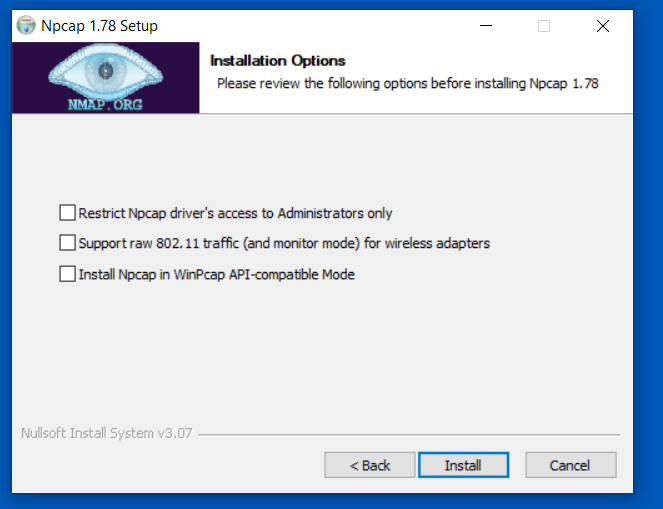
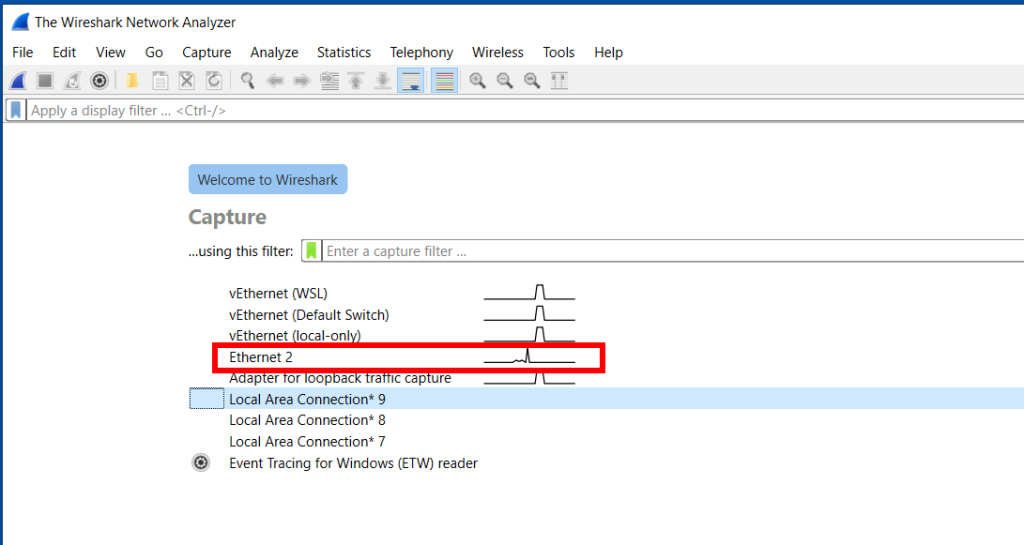
Open Wireshark, Start Capture
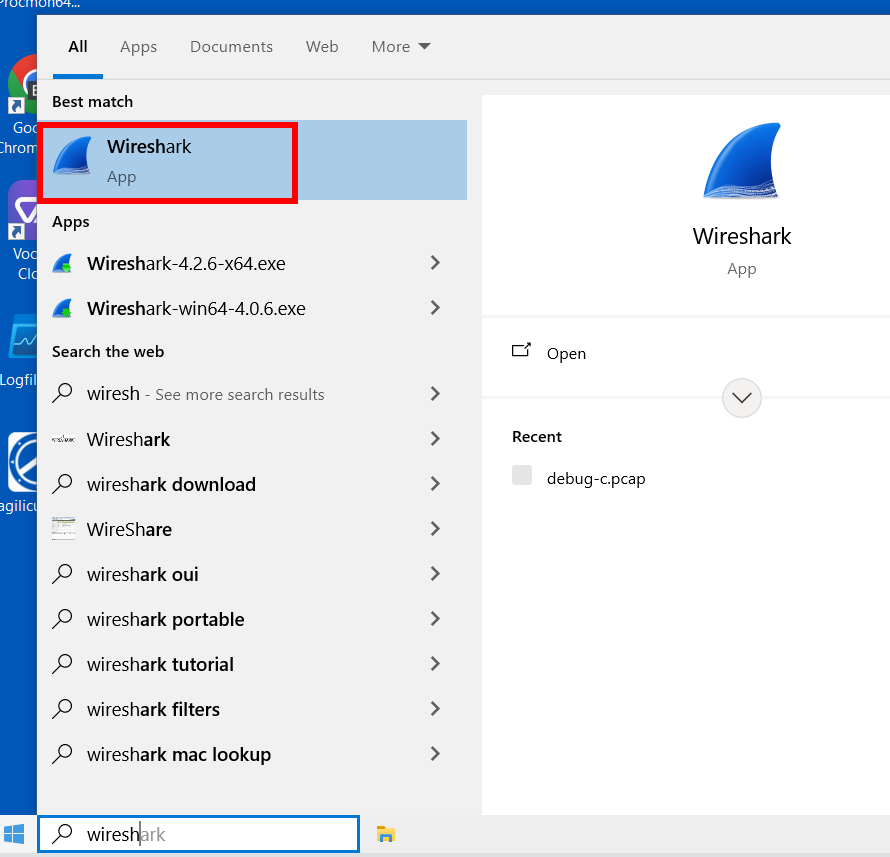
Double-click the primary/default network connection.
Now, reproduce the problem, usually a few times. For example, if you have a NVR which is not working, attempt to use it from the Agilicus profile interface.
Now, stop the capture:
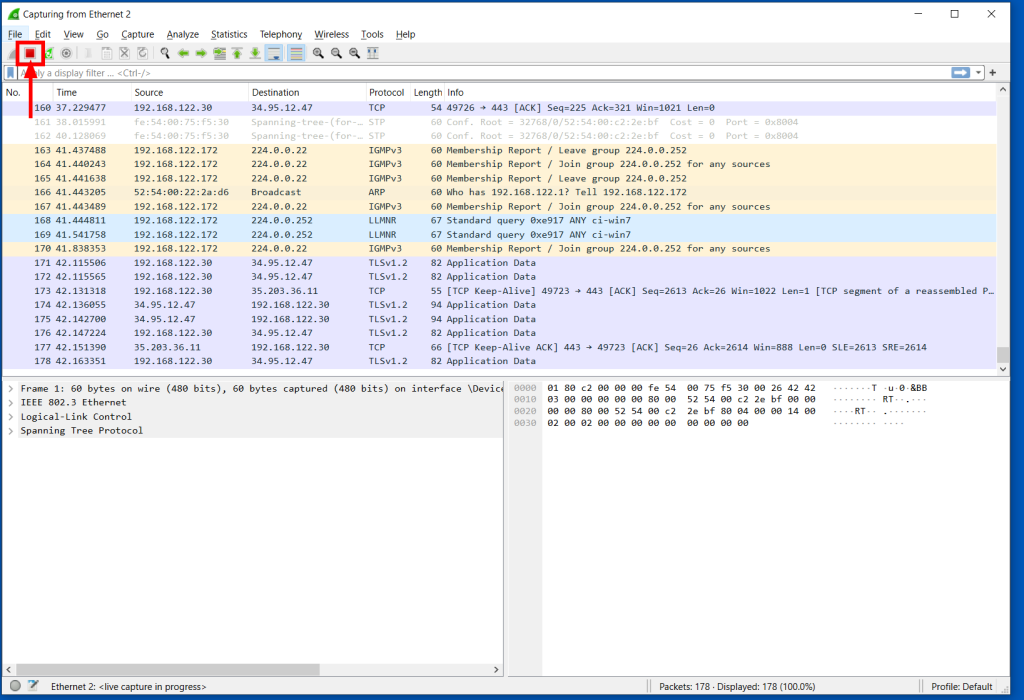
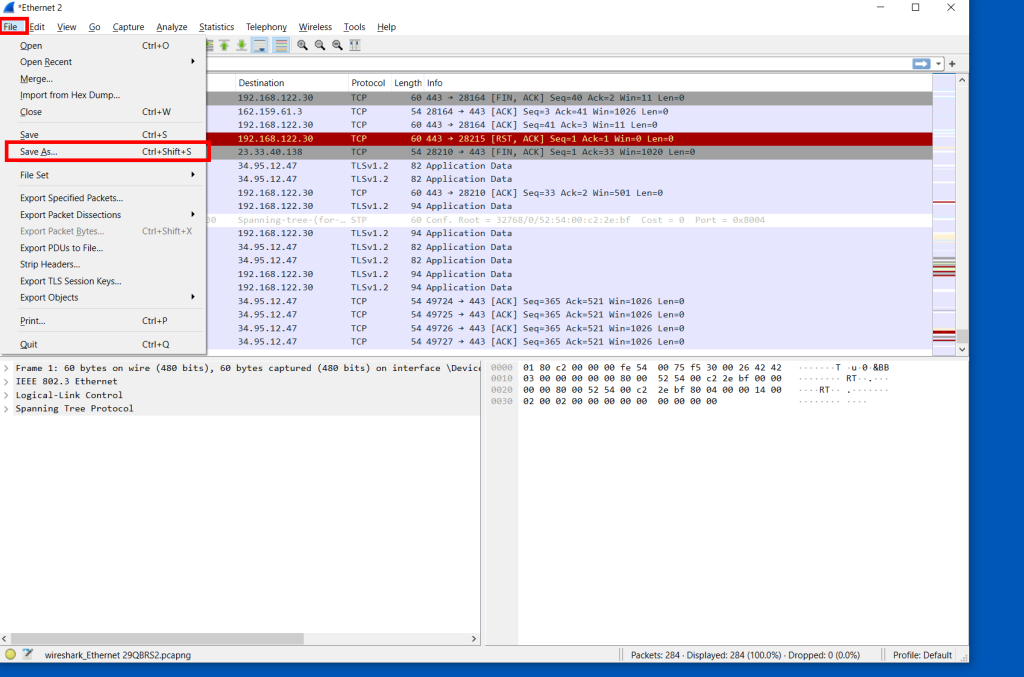
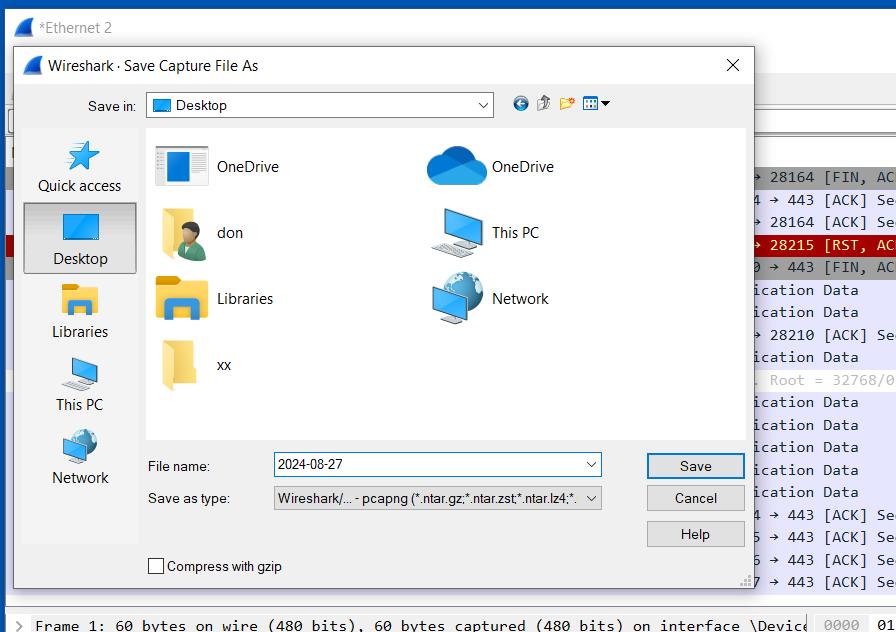
Send the Capture to Agilicus
Depending on how long you have captured, this file can be large. Contact Agilicus via the ‘Chat’ interface in the web interface if you need a location to put the file.
Please describe what you were doing, what you observed, what was incorrect, and information about the network.
The end-user receives this message on sign-in:
Message: upstream connection failed
Action: The upstream host could be down
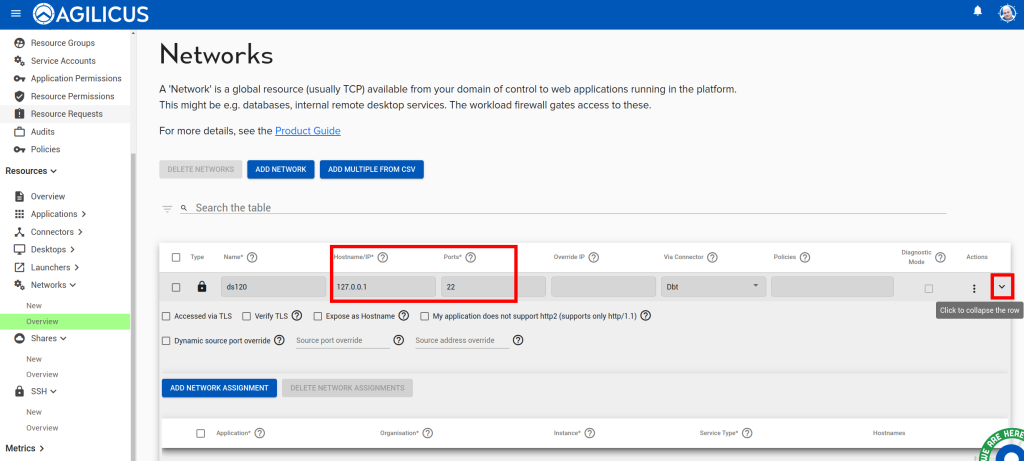
This indicates the Agilicus Connector is up, and the user was able to sign in correctly, however, the customer-supplied application is either down, or unreachable from the Agilicus Connector.
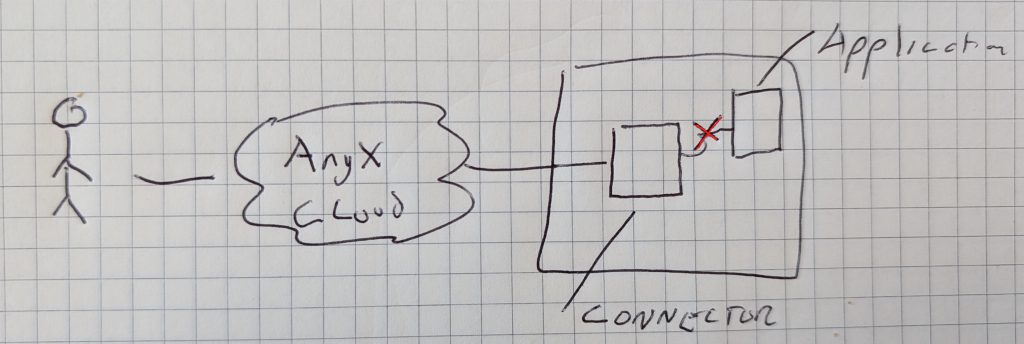
A common issue is a change in IP/port of the application, you may change this as below.
To diagnose the issue, use the detailed stats from the connector overview page:
Resource – Web Applications
In some cases, Agilicus Support might be more effectively able to assist you with a packet capture from the machine running your connector. To do this, we can use Wireshark as below.
Install Wireshark
Open a browser to https://www.wireshark.org/. Select ‘Download’.
Open Wireshark, Start Capture
Double-click the primary/default network connection.
Now, reproduce the problem, usually a few times. For example, if you have a NVR which is not working, attempt to use it from the Agilicus profile interface.
Now, stop the capture:
Send the Capture to Agilicus
Depending on how long you have captured, this file can be large. Contact Agilicus via the ‘Chat’ interface in the web interface if you need a location to put the file.
Please describe what you were doing, what you observed, what was incorrect, and information about the network.