

Agilicus AnyX Frequently Asked Questions
Resource – Shares
In some cases you will wish to mount a share from a machine without a human user. An example would be mounting from many local systems into your backup server.
To do this, perform these steps:
- Create a service account under “Access/Service Accounts”
- Download the Authentication Document (Actions menu on the line for the Service Account)
- Use ‘Copy Service Account Email” from the (Actions menu on the line for the Service Account)
- Using the CLI, lookup the user-id for the ‘Service Account Email’ via ‘show user’
- Using the CLI, call ‘add-api-key’
agilicus-cli --issuer https://auth.__MYDOMAIN__ show-user MYSERVICEACCOUNT@serviceaccounts.agilicus.com
agilicus-cli --authentication-document /tmp/authdoc.json add-api-key --duration-seconds 0 --scope "urn:agilicus:fileshare:*:viewer" --user-id USER-GUID --name "Backup read-only mount"The Agilicus Share feature makes use of the Microsoft WebClient. This is an optional component which may not have been enabled at installation time on your Windows Server. Microsoft has a knowledge base entry discussing the WebDav redirector.
Installing WebDAV support on Windows Server 2012 R2
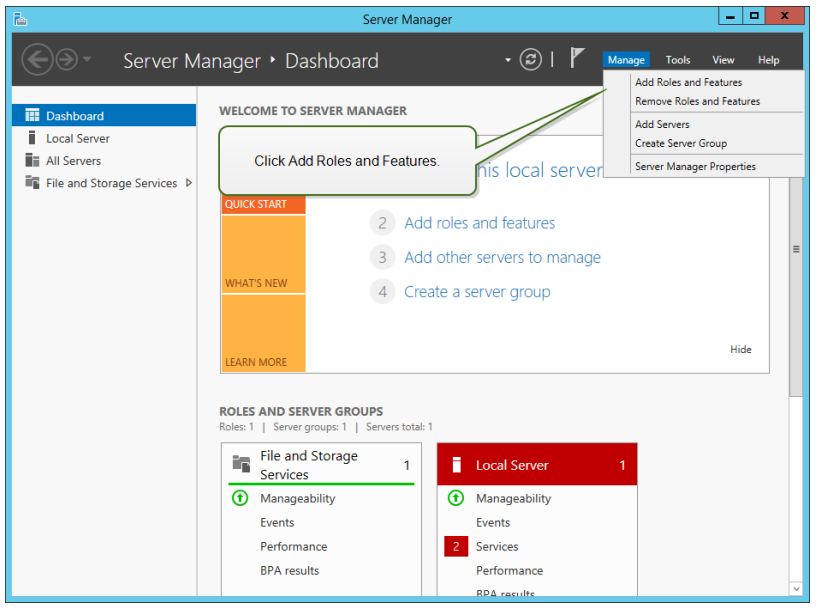
- Start Server Manager from the Start screen.
- Click Manage, then click Add Roles and Features.
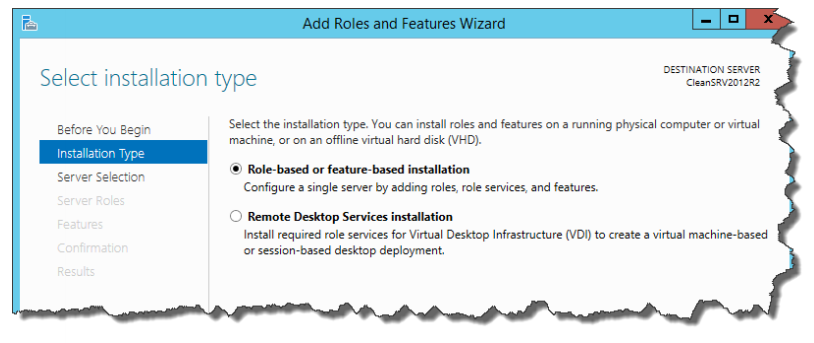
- Select Role-based or feature-based installation. Click Next.
- Select a local server from the server pool. Click Next.
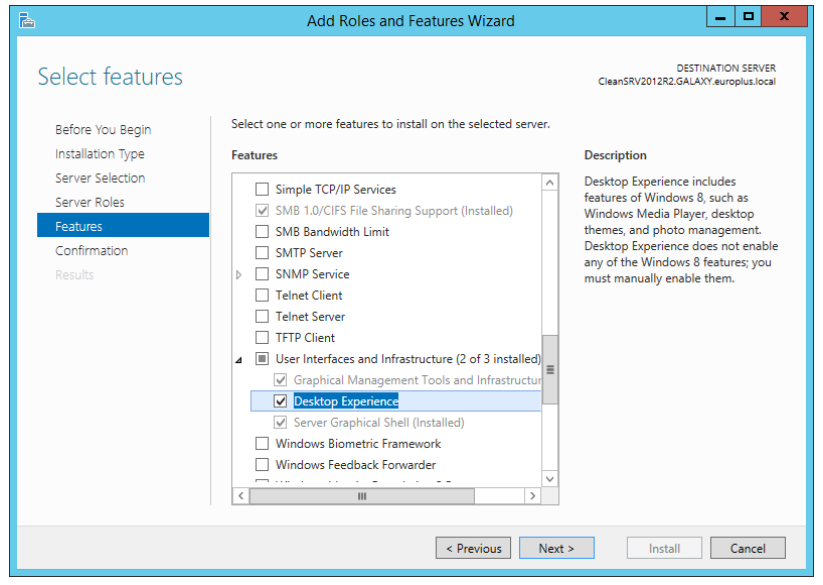
- The Desktop Experience feature is not a Server Role, so skip the Server Roles page by clicking Next.
- In the Select Features section, expand User Interfaces and Infrastructure and check the Desktop Experience check box. Probably it will now ask you whether you also want to install the features required by Desktop Experience. Click the Add Features button to proceed. Now, click the Next button to proceed.
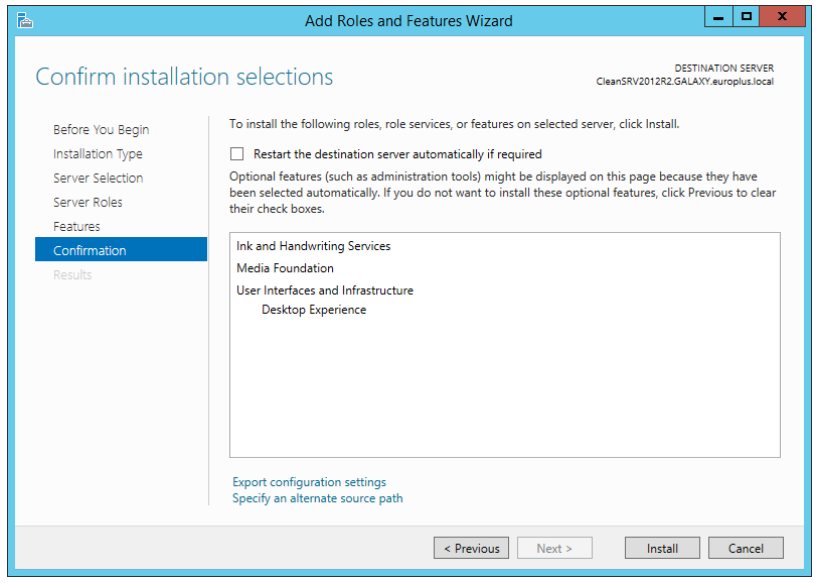
- In the Confirmation section, optionally check the Restart the destination server automatically if required check box as the Desktop Experience feature will need a restart to complete. You can also manually restart the server after the wizard steps are complete.
- Wait while the features are being installed. You can also close the Add Roles and Features Wizard window – it will continue to run in the background.
Installing WebDAV support on Windows Server 2016, Windows Server 2019, and Windows Server 2022
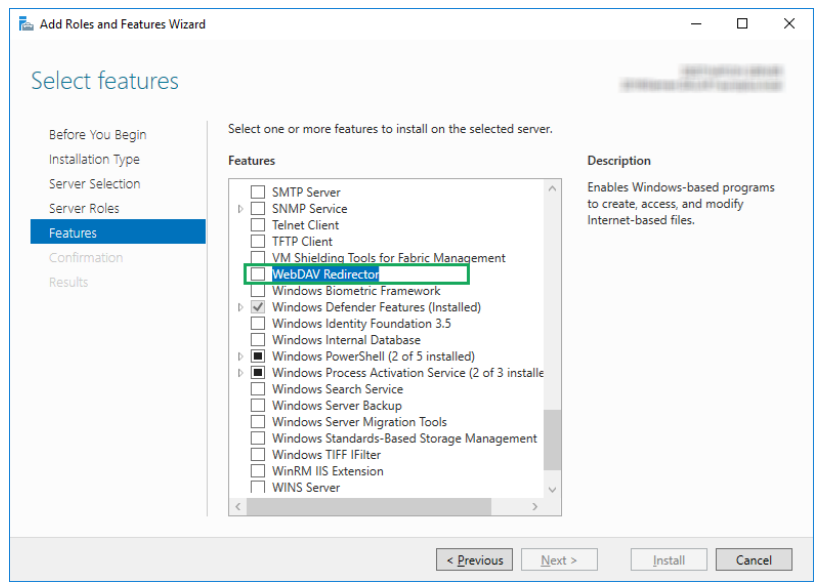
While installing Windows Server 2016, Windows Server 2019, or Windows Server 2022 operating systems, you probably enabled Desktop Experience. So after you install your Server OS, you have to enable WebDAV Redirector.
- Start Server Manager from the Start screen.
- Open Manage menu and click Add Roles and Features.
- Click Features tab.
- Select WebDAV Redirector feature.
- Click Next to proceed to the Confirm installation selections window.
- Click Install. You can close the window while the feature is being installed.
- Close Add Roles and Features window.
Enabling WebClient Services
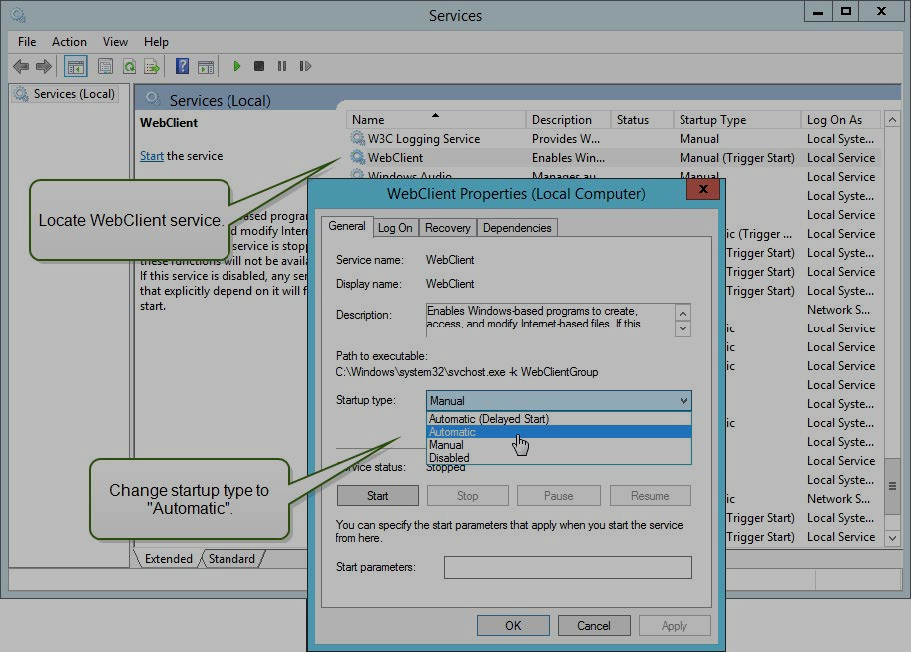
On some machines, you also have to enable the WebClient Service to Automatic” Startup Type.
Do the following:
- Press Windows key (or <Ctrl> + <Esc>) to open the search.
- Type in “Services” and run the Services window.
- Locate the service WebClient.
- Double click WebClient to open its properties.
- In the Startup type combo box select Automatic.
- If the service is not running yet, click Start button.
- Click OK.
- Close Services window.
Enabling Portable Device Enumerator Service
On some machines, you also have to enable the Portable Device Enumerator Service to Automatic Startup Type, when you want to use Microsoft Access or Microsoft Excel data files from the Document Storage.
I am seeing file is locked for editing by another user. How can I see who has this file locked?
Microsoft Office (Word, Excel etc) create lock files with a ~ in the name (e.g. ~Workbook.xlsx). This will be owned by the user who has locked the file.
If you have file-level permissions enabled, this will be the person.
In your explorer, right click on the column bar and add a column ‘Owner’. This will now show you who has the file locked.
Admin can enable user requests in the admin portal. This eases the process of giving or denying access of a user, but a user will see all the available resources
From the admin portal, Organisation > Overview (check the Disable User Requests checkbox)
All admin will receive notifications upon a resource request from users
You may refer here for more information on permissions
If you see a List error and the folder exists, often that means that the account the connector runs on cannot see the folder being shared. This may mean that the connector needs to run as a different account, or you need to follow the above steps for Sharing network mapped drives. See product-guide/product-guide-shares for more information.
If you see a List error and the folder exists, often that means that the account the Agilicus Connector runs on cannot see the folder being shared.
This may mean that the connector needs to run as a different account, or you need to follow the above steps for Sharing network mapped drives. See Shares for more information.
No, we do not store anything from your share. All data always lives on your file server. You have the sole data at rest on your system, and, data in motion is encrypted end to end.
You may see a ‘List Error’ in your share. This can mean a few things, the next step to diagnose it to look at your connector logs (see Windows, Linux). You should also look at your connector overview in https://admin.__MYDOMAIN__/ under resources/connectors/overview.
Different reasons:
- The connector may be missing OS-level permission to read the underlying files
- The share directory may be missing.
- You may have fine-grained permissions enabled and the user does not have permission (e.g. is not on your domain, or, NTFS permissions restrict).
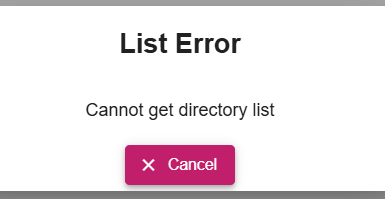
An end user might see a ‘List Error’ on a share in Profile. This usually implies that the associated connector cannot read the underlying directly. In turn, this normally is a permissions problem. A common cause is a Windows system where the connector runs as LocalSystem, and, the LocalSystem account does not have permission to the shared file (or it in turn is another inbound Share).
To make a network drive mount available to the LocalSystem account on Windows, you need to modify the share permissions on the network folder to explicitly grant the “LocalSystem” group full control access, allowing the system account to access the mounted drive.
Steps:
- Access the Shared Folder Properties:
- Navigate to the shared folder on the network drive using File Explorer.
- Right-click on the folder and select “Properties”.
- Open Sharing Tab:
- In the Properties window, go to the “Sharing” tab.
- Manage Permissions:
- Click “Advanced Sharing”.
- Click “Permissions”.
- Add LocalSystem Group:
- Click “Add”.
- In the “Enter the object names to select” field, type “LocalSystem” and click “Check Names” to verify.
- Click “OK”.
- Grant Full Control:
- Select the “LocalSystem” group from the list.
- Under “Allow” column, check the box next to “Full Control”.
Important Considerations:
- Security Implications:Granting full control to the LocalSystem account can be a security concern, so only do this if absolutely necessary and ensure the network share is properly secured otherwise.
- Alternative Methods:Depending on your specific situation, you might be able to achieve the desired access by using a different system account with appropriate permissions instead of directly using “LocalSystem.”
In some cases you will have the connector running on an embedded device, and, have files on a remote machine that you wish to export as an Agilicus Share.
One approach is to install a second connector on the remote machine.
Another approach is to use the native SMB of the machine the connector is running on. Have it mount the remote machine. Then, create an Agilicus Share to re-export that directory.
When creating a new Agilicus share the Agilicus connector cannot see network mapped drives because it runs as the local system user, and not a logged in user. This means that it cannot see shares which are only typically mapped for logged in users. When this happens, if you browse to the share in profile, you will get a ‘list directory error’ as the connector cannot see the directory. In order to correct this, create a link to the network drive on a local drive eg mklink /D C:\myLink \\127.0.0.1\c$. Then use the link as the path for the Agilicus share, in the example C:\myLink. You may also need to change the user which the connector runs as is in order to access the drive.
Generally, the agent will automatically add a share to the trusted sites list in order to enable windows features to work with shared drives. Logging in and out will fix this problem.
If you have configured a group policy that defines the Site to Zone Assignment List, than you will need to add the share to that list. In order to do this, find the group policy configuring the setting, and add file://(your share domain)@ssl, and set the value to 1. You can find this by opening profile, and clicking manual mount. You will see the URL for the share on top.
Doing this will prevent windows from treating the share as an unknown external resource.