Agilicus AnyX Frequently Asked Questions
Connector Diagnostics
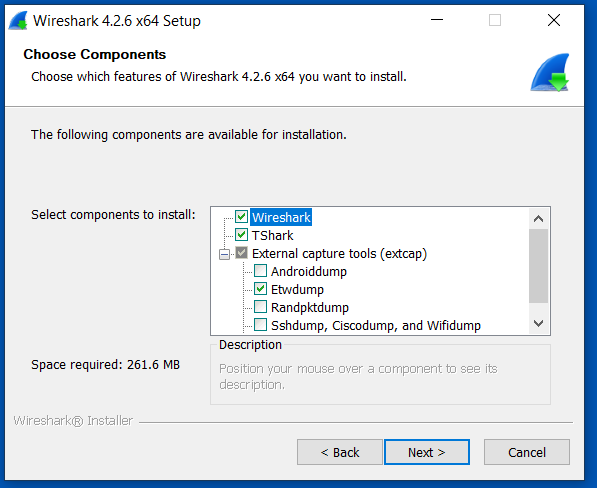
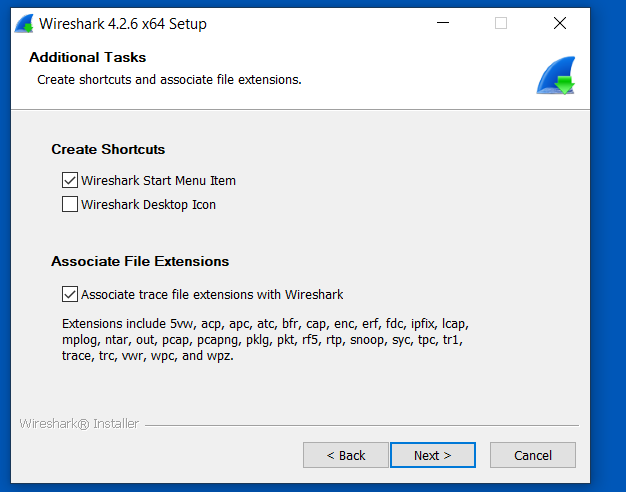
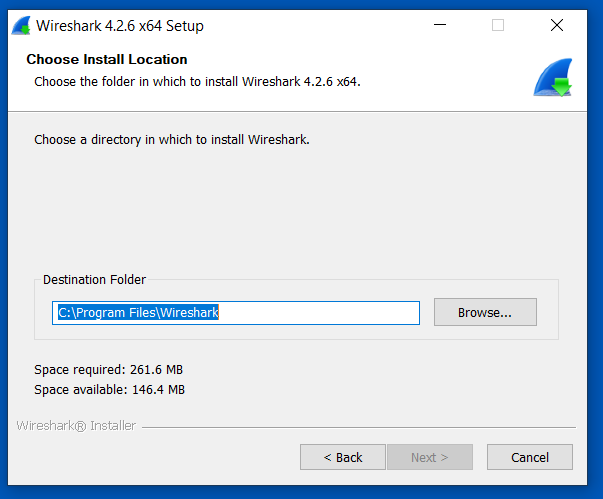
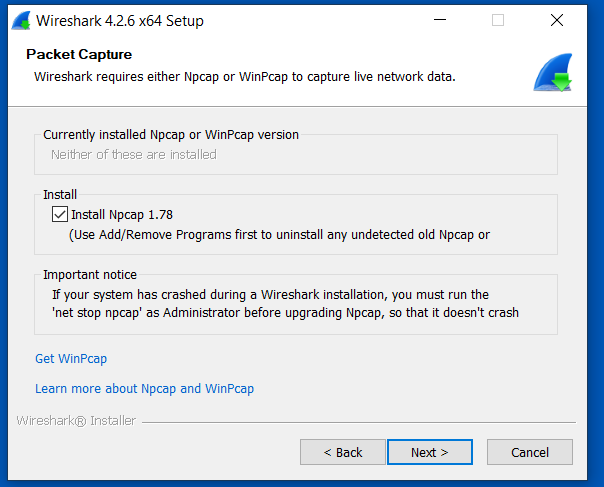
In some cases, Agilicus Support might be more effectively able to assist you with a packet capture from the machine running your connector. To do this, we can use Wireshark as below.
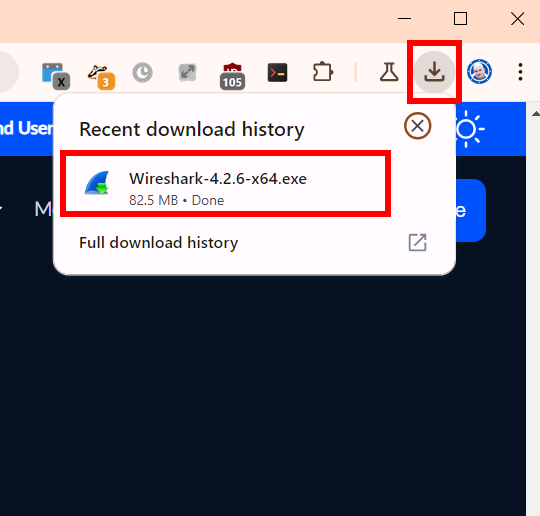
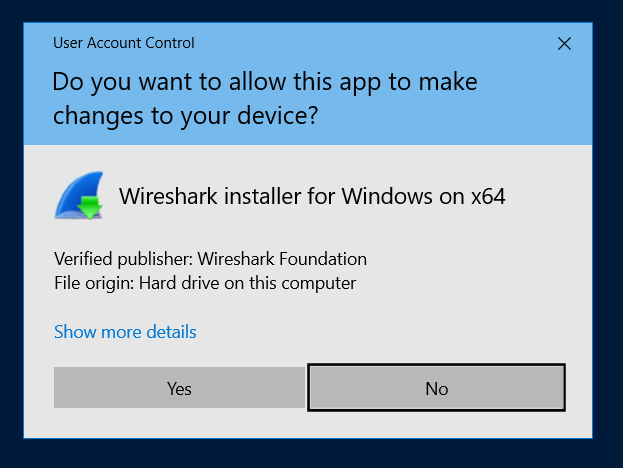
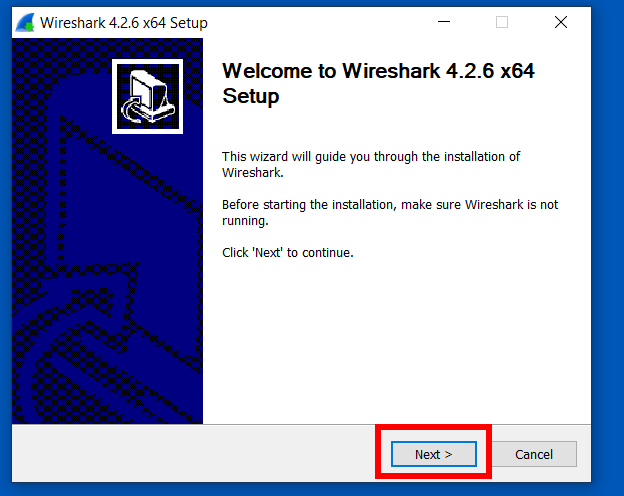
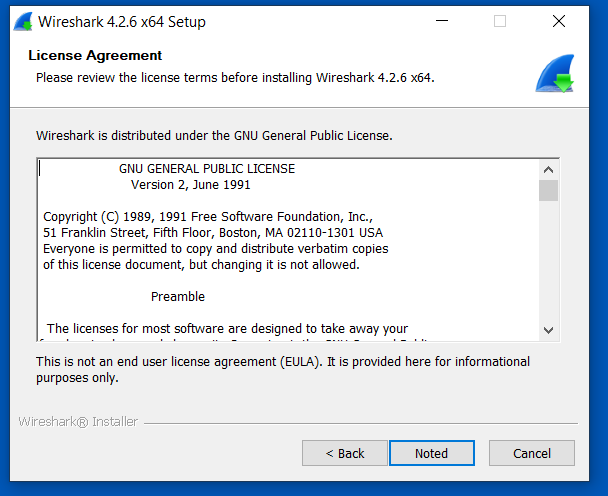
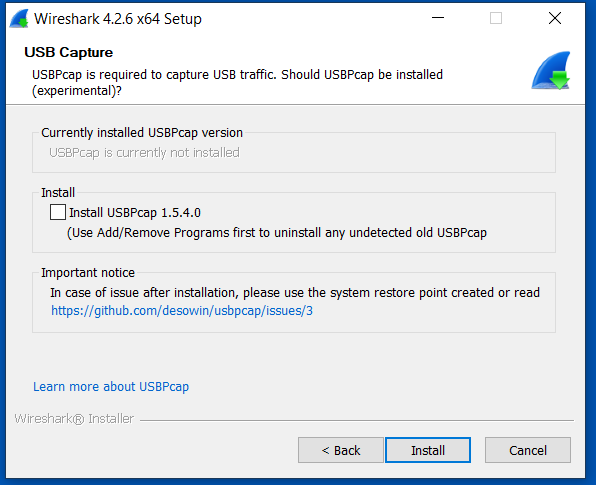
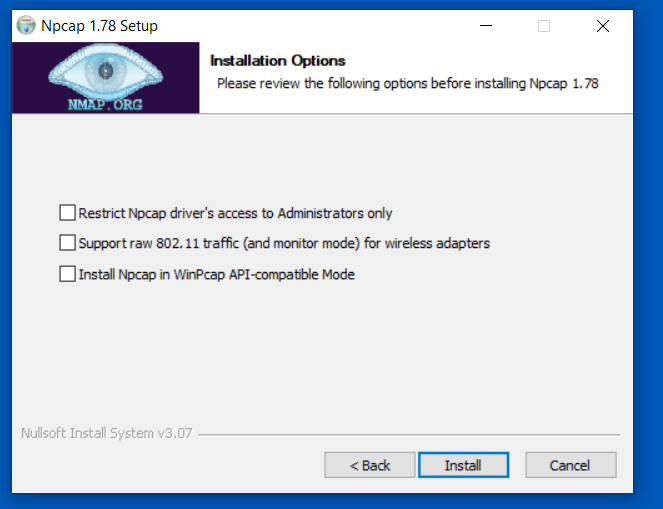
Install Wireshark
Open a browser to https://www.wireshark.org/. Select ‘Download’.
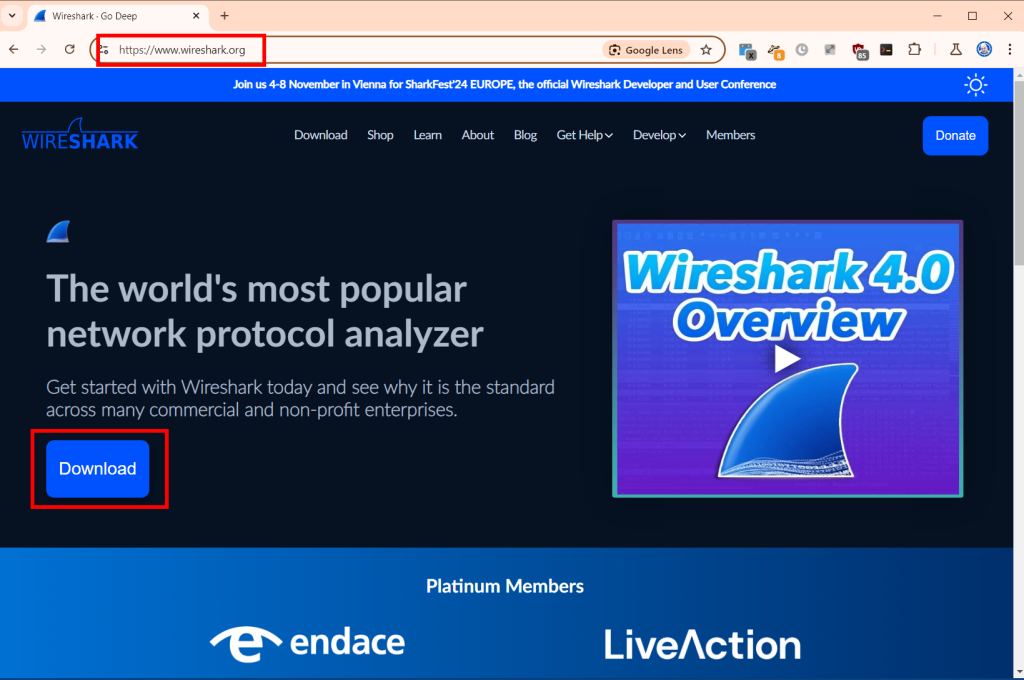
![Wireshark Packet Capture For Diagnostics [Windows] 1 Wireshark packet capture on Windows: This screenshot shows the Wireshark interface displaying captured network packets. Use Wireshark for network diagnostics on Windows. Learn how to capture and analyze network traffic with Wireshark.](https://www.agilicus.com/www/00759ec5-image-1024x680.png)
![Wireshark Packet Capture For Diagnostics [Windows] 2 Wireshark Packet Capture in Windows: Diagnose network issues with Wireshark. The screenshot shows the Wireshark interface on Windows, highlighting packet details and filtering options for effective network analysis and troubleshooting. Learn how to use Wireshark for packet capture and analysis on Windows.](https://www.agilicus.com/www/3a2cacd5-image-1024x742.png)
![Wireshark Packet Capture For Diagnostics [Windows] 3 Wireshark packet capture configuration on Windows for network diagnostics. The screenshot shows the Wireshark interface with the capture options menu open, highlighting the selection of the correct network interface and enabling promiscuous mode for comprehensive packet analysis. This setup is essential for troubleshooting network issues and analyzing traffic in detail.](https://www.agilicus.com/www/7ad67511-image.png)
![Wireshark Packet Capture For Diagnostics [Windows] 4 Wireshark Packet Capture on Windows: A step-by-step guide to using Wireshark for network diagnostics on Windows, including selecting the right interface, applying capture filters, and analyzing captured packets to troubleshoot network issues. The screenshot shows the Wireshark interface selection screen, highlighting available network adapters.](https://www.agilicus.com/www/7e574480-image.png)
![Wireshark Packet Capture For Diagnostics [Windows] 5 Wireshark Packet Capture Configuration on Windows: The Wireshark interface is displayed, showing the capture options window. Several network interfaces are listed, and the user has selected the appropriate interface for capturing network traffic. This setup is crucial for diagnosing network issues and analyzing packet data using Wireshark on a Windows system. Learn how to configure Wireshark for effective packet capture on Windows at Agilicus.com.](https://www.agilicus.com/www/fac741ef-image.png)
![Wireshark Packet Capture For Diagnostics [Windows] 6 Wireshark Packet Capture Configuration on Windows: This screenshot guides users on how to set up Wireshark for network diagnostics on Windows, highlighting the interface selection and capture filter settings to effectively analyze network traffic.](https://www.agilicus.com/www/7e209a7a-image.png)
![Wireshark Packet Capture For Diagnostics [Windows] 7 Wireshark Packet Capture Configuration on Windows: A step-by-step guide showing the Wireshark interface with capture filters and settings highlighted for effective network diagnostics. Optimize your network troubleshooting with Wireshark on Windows.](https://www.agilicus.com/www/8f7c540e-image.png)
![Wireshark Packet Capture For Diagnostics [Windows] 8 Wireshark Packet Capture in Windows: Troubleshooting network issues with Wireshark by capturing and analyzing network packets on a Windows machine. Learn how to diagnose and resolve network problems effectively using Wireshark's packet analysis capabilities. The image shows the Wireshark interface on a Windows PC.](https://www.agilicus.com/www/17877f55-image.png)
![Wireshark Packet Capture For Diagnostics [Windows] 9 Wireshark Packet Capture Configuration on Windows: Shows the Wireshark interface with the capture filter set to 'host x.x.x.x' to capture network traffic for diagnostics, focusing on filtering by IP address for efficient troubleshooting.](https://www.agilicus.com/www/64ab64bc-image.png)
![Wireshark Packet Capture For Diagnostics [Windows] 10 Wireshark Packet Capture on Windows: Troubleshooting network issues using Wireshark. The image shows the Wireshark interface with captured packets, highlighting packet details, source/destination IPs, and protocol information. Useful for diagnosing network connectivity and performance problems on Windows systems.](https://www.agilicus.com/www/632180fa-image.png)
![Wireshark Packet Capture For Diagnostics [Windows] 11 Wireshark Packet Capture on Windows: Troubleshooting network issues with Wireshark. Learn how to capture and analyze network packets on Windows for effective diagnostics. This screenshot shows the Wireshark interface with captured packet data, including source and destination IP addresses, protocols, and packet details. Ideal for network administrators and IT professionals seeking to diagnose network performance problems.](https://www.agilicus.com/www/d44a85b5-image.png)
![Wireshark Packet Capture For Diagnostics [Windows] 12 Wireshark packet capture setup on Windows: Shows the Wireshark interface with filters applied, displaying captured network traffic for diagnostic analysis. Focus on capturing specific packets for troubleshooting network issues on Windows systems using Wireshark.](https://www.agilicus.com/www/91bd42f8-image.png)
Open Wireshark, Start Capture
![Wireshark Packet Capture For Diagnostics [Windows] 13 Wireshark Packet Capture Configuration on Windows: Display filter configuration showing how to filter for specific IP addresses and ports for network diagnostics and troubleshooting with Wireshark. This includes configurations for filtering ICMP, TCP, and UDP traffic to capture specific network packets.](https://www.agilicus.com/www/4f1ed4c3-image.png)
Double-click the primary/default network connection.
![Wireshark Packet Capture For Diagnostics [Windows] 14 Wireshark Packet Capture for Diagnostics on Windows: Analyzing network traffic in Wireshark to diagnose network issues. The screenshot shows the Wireshark interface with captured packets, providing a detailed view of network communication for troubleshooting.](https://www.agilicus.com/www/b34b7472-image-1024x545.png)
Now, reproduce the problem, usually a few times. For example, if you have a NVR which is not working, attempt to use it from the Agilicus profile interface.
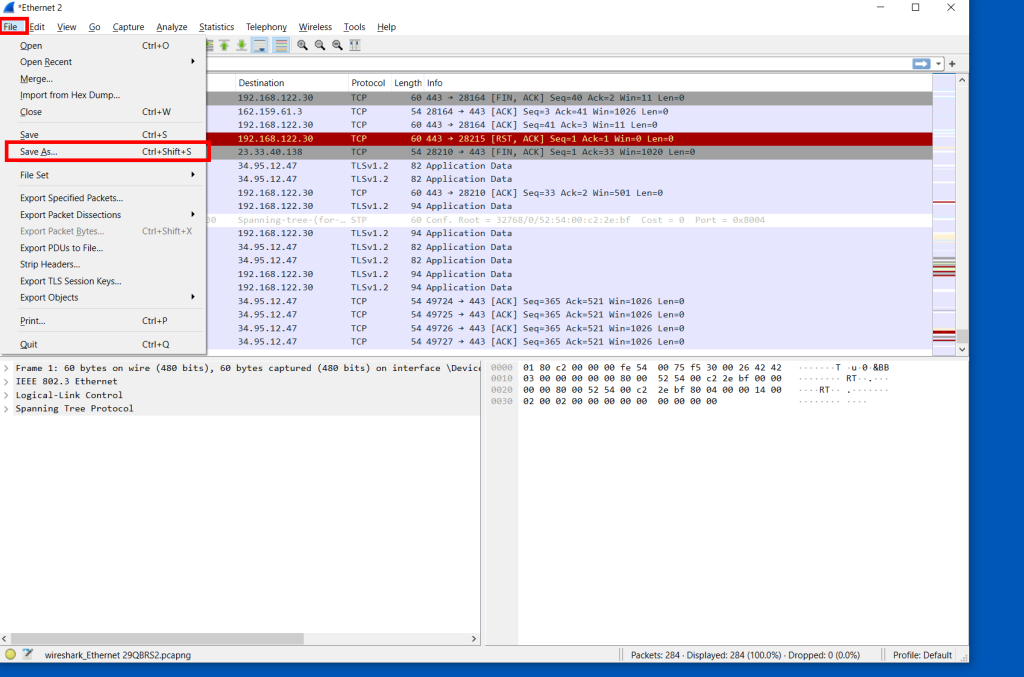
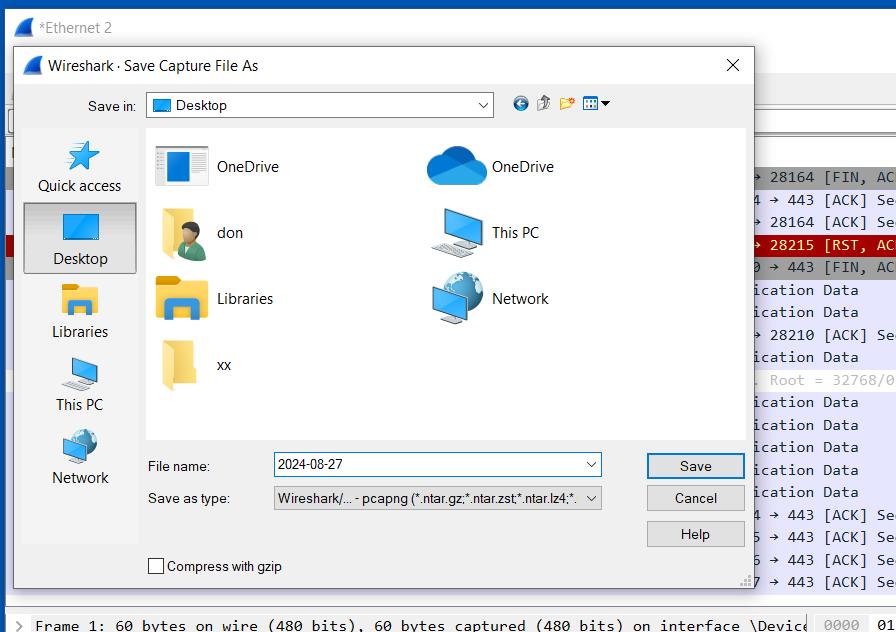
Now, stop the capture:
![Wireshark Packet Capture For Diagnostics [Windows] 15 Wireshark packet capture on Windows showing captured network traffic for diagnostics and troubleshooting. The Wireshark interface displays packet details, protocols, source and destination IPs, and other network communication data. Used for analyzing network issues with Agilicus.](https://www.agilicus.com/www/ecd05774-image-1024x700.png)
![Wireshark Packet Capture For Diagnostics [Windows] 16 Wireshark Packet Capture on Windows: Diagnosing Network Issues - A screenshot showing the Wireshark interface with captured network packets, used for analyzing and troubleshooting network communication problems in Windows environments. Learn how to use Wireshark for effective network diagnostics.](https://www.agilicus.com/www/089d8762-image-1024x677.png)
![Wireshark Packet Capture For Diagnostics [Windows] 17 Wireshark Packet Capture on Windows: Diagnosing Network Issues with Wireshark - A step-by-step guide to capturing and analyzing network traffic on Windows using Wireshark for effective network diagnostics. Learn how to use Wireshark filters and analyze packet data.](https://www.agilicus.com/www/05122eca-image.png)
Send the Capture to Agilicus
Depending on how long you have captured, this file can be large. Contact Agilicus via the ‘Chat’ interface in the web interface if you need a location to put the file.
Please describe what you were doing, what you observed, what was incorrect, and information about the network.
General Diagnostics
In some circumstances it is more efficient to diagnose a web application issue by generating a HAR file and sharing with Agilicus Support.
Google Chrome (And Derived Browsers Like Microsoft Edge)
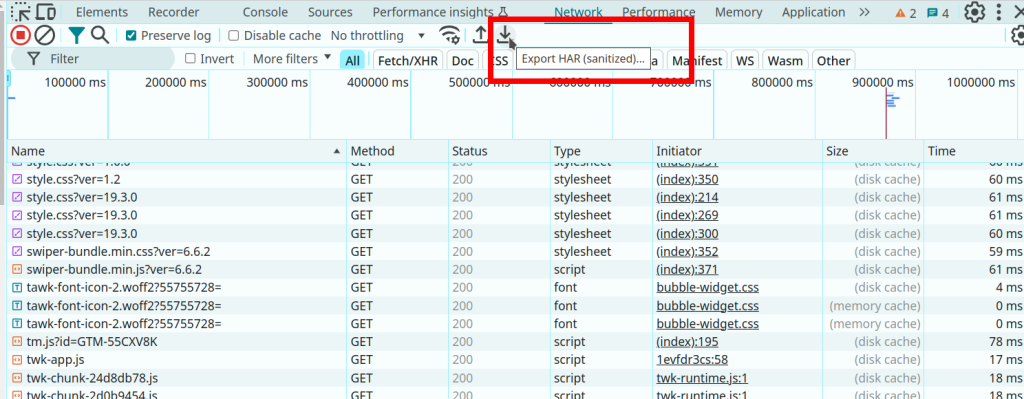
In Google Chrome (and other Chrome-derived browsers such as Microsoft Edge), you can enter the developer mode (ctrl-shift-I or F12), and then select the ‘Export HAR (sanitized)…)’ button.
- Open a new incognito window.
- Click the more actions menu (…) to the right of the toolbar and select More tools – Developer Tools (or press F12 or CTRL-SHIFT-I)
- Select the Network tab.
- Ensure that Google Chrome is recording. A red button indicates that a recording is already in progress. Otherwise, click Record network log.
- Select Preserve Log.
- Clear any existing logs by clicking Clear network log (
). - Go to the page where the issue occurred and reproduce the issue.
- Click Export HAR (the down arrow icon) to export the file as HAR.
- Save the HAR file.

Firefox
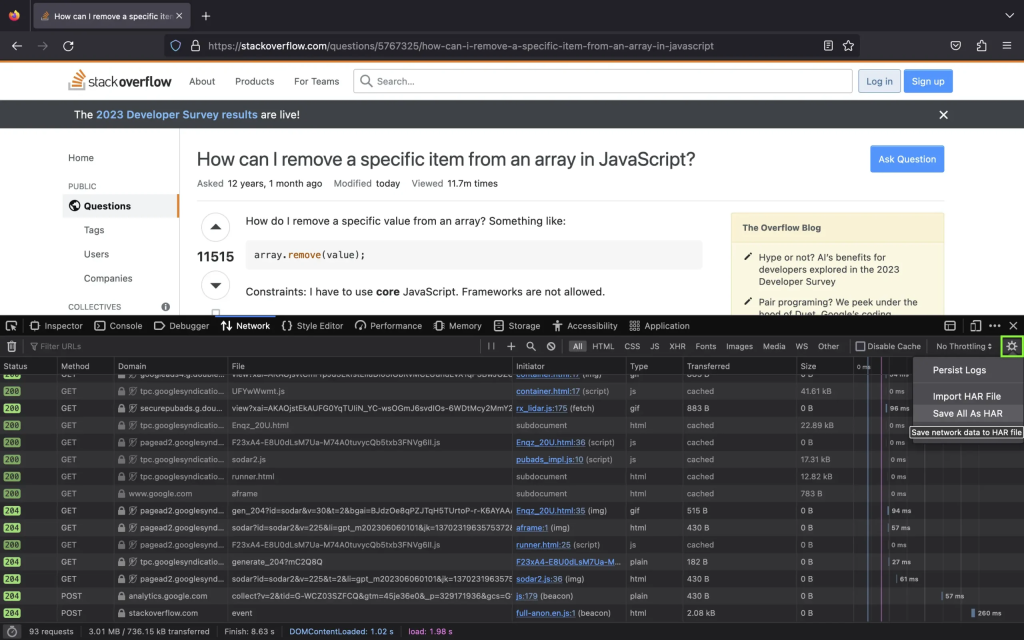
- To open the developer console in Firefox, click on the Firefox Menu in the upper-right-hand corner of the browser and select More Tools > Browser Console. You can also use Option + ⌘ + E (on macOS) or Shift + CTRL + C (on Windows/Linux).
- Refresh the page.
- Go to the Network tab and, click the settings icon (upper right side of the panel), choose Save All As Har.

Apple Safari
Ensure the ”Show Develop menu” in the menu bar is checked under Safari > Settings > Advanced tab.
- Visit the web page from where you want to export the traffic.
- Click Develop on the Menubar, then select Show Web Inspector. Refresh the page.
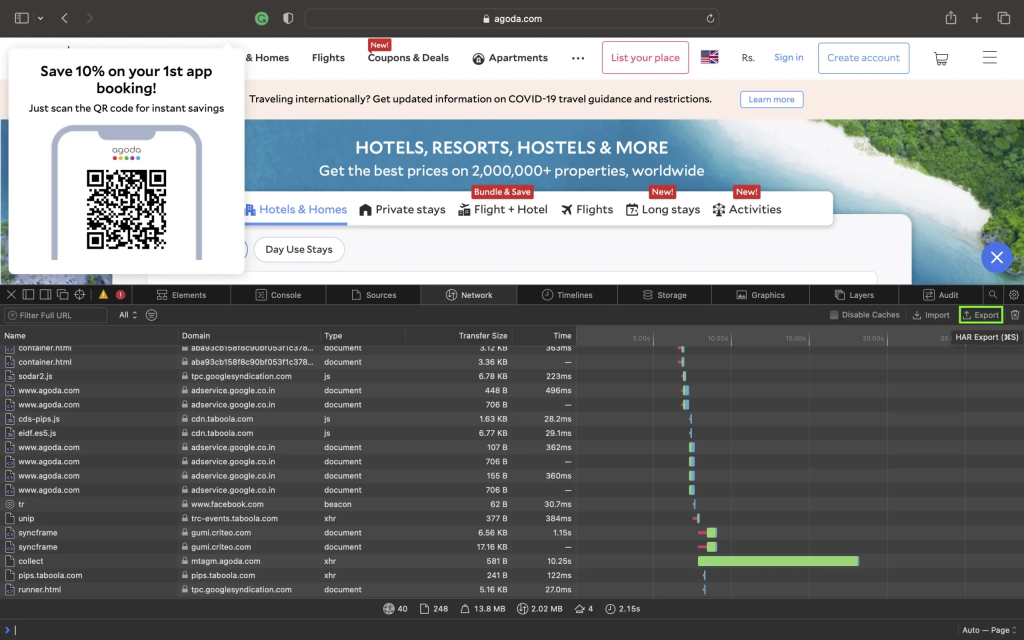
- Go to the Network tab and click Export on the upper right side of the pane.

Note: if he web application is an embedded browser such as Microsoft Webview, set this environment variable prior to launch.
WEBVIEW2_ADDITIONAL_BROWSER_ARGUMENTS="--auto-open-devtools-for-tabs"
Resource – Networks
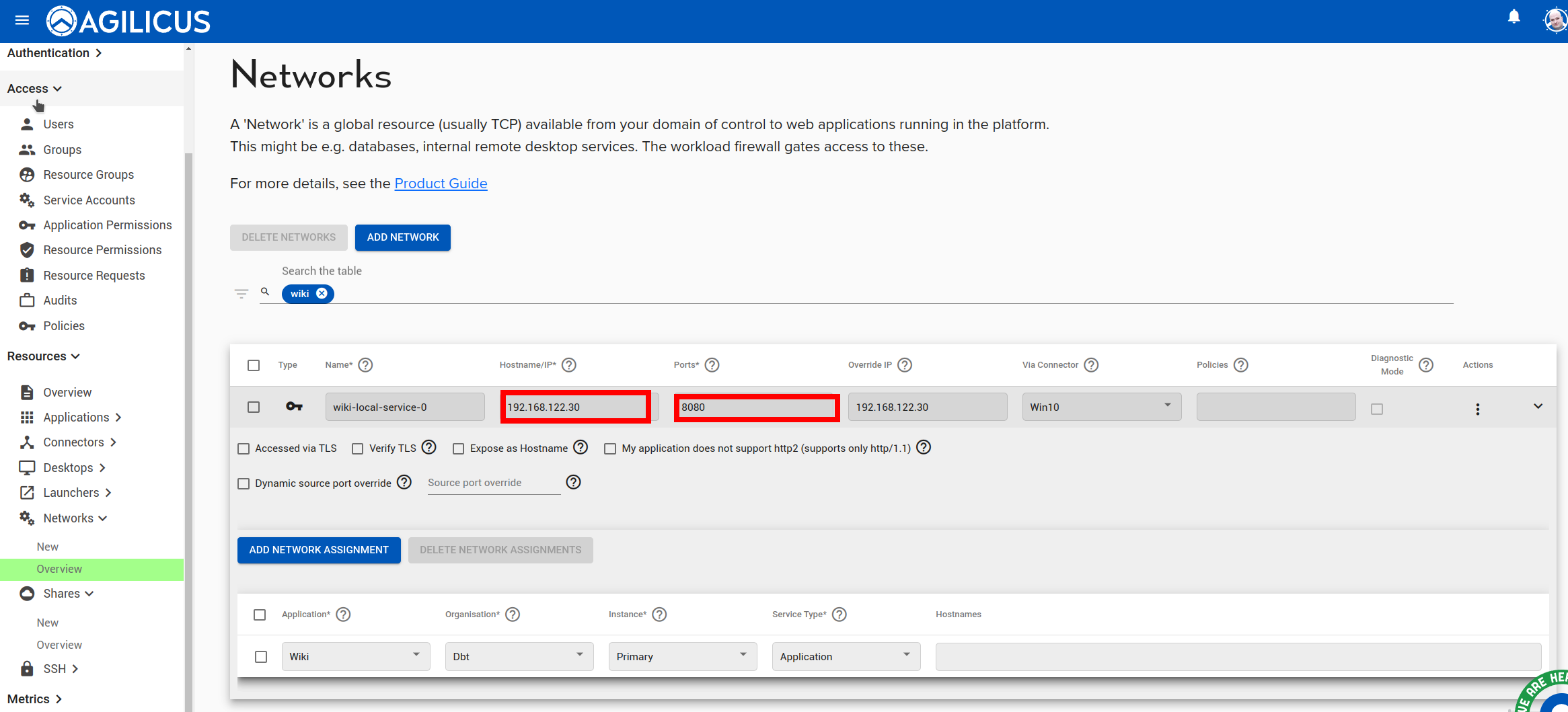
Navigate to Resources/networks. There you will find the ‘network’ (the upstream connection to your application).
Expand the details, from here you can change the TLS settings.
You might see these symptoms, a message:
“Bad Request. Your browser sent a request that this server could not understand. Reason: You’re speaking plain HTTP to an SSL-enabled server port. Instead use the HTTPS scheme to access this URI.”
Resource – Web Applications
If you have an application hosted on a Subfolder/path in your Web Server
You may have an application hosted under a subfolder/path on your web server, possibly because it is better than having another server for it. For example: localhost:port/subpath, localhost:port/support etc.
To enable the subpath hosting for your application,
1. Go to Resources > Applications > Define and select the application from the drop down at the top of the page
2. Then in Security (tab) > Firewall Rules > HTTP Rules, change the / entry under path to your custom subpath (For example, /subpath)
3. Under Proxy (tab) > HTTP Rewrites, inside the Common Path Prefix field, enter your custom subpath again (For example, /subpath)
In some circumstances it is more efficient to diagnose a web application issue by generating a HAR file and sharing with Agilicus Support.
Google Chrome (And Derived Browsers Like Microsoft Edge)
In Google Chrome (and other Chrome-derived browsers such as Microsoft Edge), you can enter the developer mode (ctrl-shift-I or F12), and then select the ‘Export HAR (sanitized)…)’ button.
- Open a new incognito window.
- Click the more actions menu (…) to the right of the toolbar and select More tools – Developer Tools (or press F12 or CTRL-SHIFT-I)
- Select the Network tab.
- Ensure that Google Chrome is recording. A red button indicates that a recording is already in progress. Otherwise, click Record network log.
- Select Preserve Log.
- Clear any existing logs by clicking Clear network log (
). - Go to the page where the issue occurred and reproduce the issue.
- Click Export HAR (the down arrow icon) to export the file as HAR.
- Save the HAR file.

Firefox
- To open the developer console in Firefox, click on the Firefox Menu in the upper-right-hand corner of the browser and select More Tools > Browser Console. You can also use Option + ⌘ + E (on macOS) or Shift + CTRL + C (on Windows/Linux).
- Refresh the page.
- Go to the Network tab and, click the settings icon (upper right side of the panel), choose Save All As Har.

Apple Safari
Ensure the ”Show Develop menu” in the menu bar is checked under Safari > Settings > Advanced tab.
- Visit the web page from where you want to export the traffic.
- Click Develop on the Menubar, then select Show Web Inspector. Refresh the page.
- Go to the Network tab and click Export on the upper right side of the pane.

Note: if he web application is an embedded browser such as Microsoft Webview, set this environment variable prior to launch.
WEBVIEW2_ADDITIONAL_BROWSER_ARGUMENTS="--auto-open-devtools-for-tabs"
Web Applications use network resources. You can change where the network resource is accessed (either the connector it is bound to, or the hostname/IP/port that it is internally known as) by navigating to Networks/Overview.
The specific resource(s) will be named similarly to the web application, with -local-service appended.

Navigate to Resources/networks. There you will find the ‘network’ (the upstream connection to your application).
Expand the details, from here you can change the TLS settings.
You might see these symptoms, a message:
“Bad Request. Your browser sent a request that this server could not understand. Reason: You’re speaking plain HTTP to an SSL-enabled server port. Instead use the HTTPS scheme to access this URI.”
When using SolarWinds web application through Agilicus AnyX you may find there is information missing in the output screen.
By default, SolarWindows uses a JavaScript file with the IP address embedded in it. You can enable ‘text/javascript’ “rewrite”Rewrite Media Types” in the Agilicus admin interface to resolve this issue.
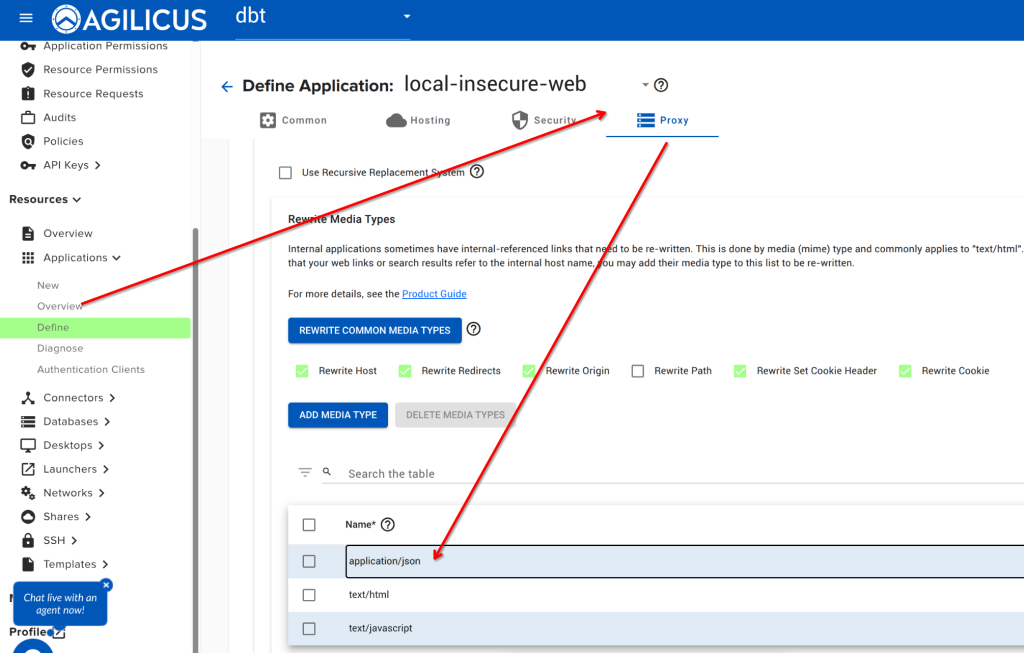
Navigate to Resources/Applications/Overview. Select your web application. Click on the ‘proxy’ tab, from here select ‘Rewrite Media Types’, add ‘text/javascript’ as below.
Now do a hard reload of your browser on your SolarWinds URL, and it should properly populate.

If you are using a custom authentication client id in your web application, or your web application participates in the sign in, you may find you see a message “Message: Unregistered redirect_uri”.
You may find that either:
a) you have selected “my application participates in authentication” and you did not mean this
b) your application does participate, but, you have not added the proper redirect_uri to Resources/Applications/Authentication Clients in admin.
In some cases, Agilicus Support might be more effectively able to assist you with a packet capture from the machine running your connector. To do this, we can use Wireshark as below.
Install Wireshark
Open a browser to https://www.wireshark.org/. Select ‘Download’.
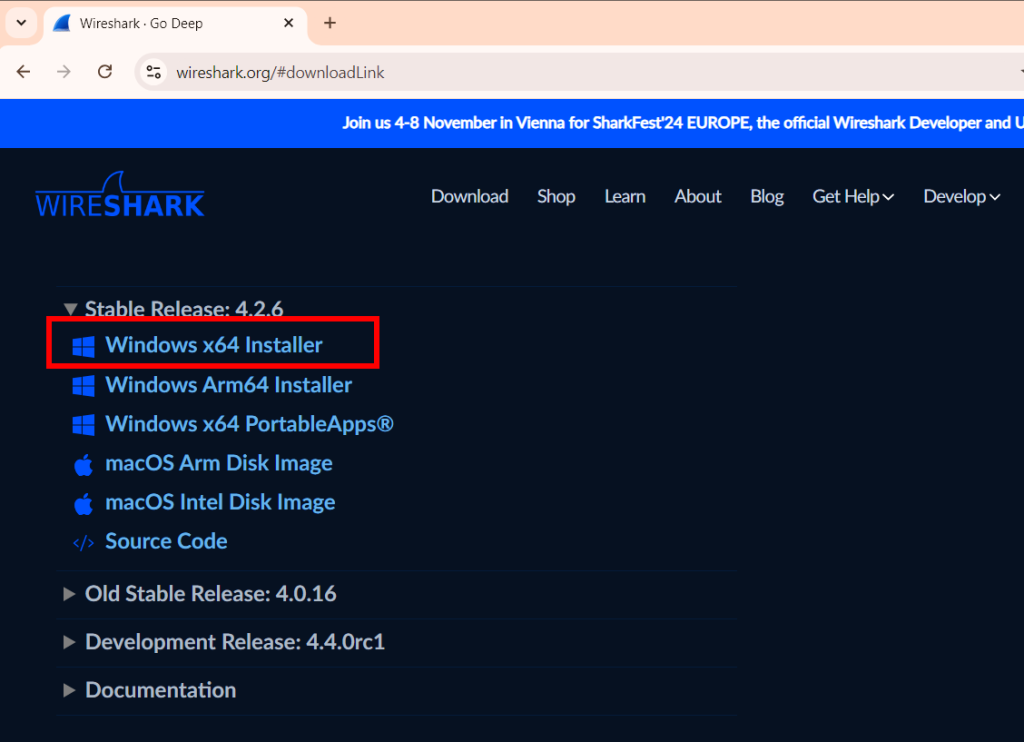
![Wireshark Packet Capture For Diagnostics [Windows] 28 Wireshark packet capture on Windows: This screenshot shows the Wireshark interface displaying captured network packets. Use Wireshark for network diagnostics on Windows. Learn how to capture and analyze network traffic with Wireshark.](https://www.agilicus.com/www/00759ec5-image-1024x680.png)
![Wireshark Packet Capture For Diagnostics [Windows] 29 Wireshark Packet Capture in Windows: Diagnose network issues with Wireshark. The screenshot shows the Wireshark interface on Windows, highlighting packet details and filtering options for effective network analysis and troubleshooting. Learn how to use Wireshark for packet capture and analysis on Windows.](https://www.agilicus.com/www/3a2cacd5-image-1024x742.png)
![Wireshark Packet Capture For Diagnostics [Windows] 30 Wireshark packet capture configuration on Windows for network diagnostics. The screenshot shows the Wireshark interface with the capture options menu open, highlighting the selection of the correct network interface and enabling promiscuous mode for comprehensive packet analysis. This setup is essential for troubleshooting network issues and analyzing traffic in detail.](https://www.agilicus.com/www/7ad67511-image.png)
![Wireshark Packet Capture For Diagnostics [Windows] 31 Wireshark Packet Capture on Windows: A step-by-step guide to using Wireshark for network diagnostics on Windows, including selecting the right interface, applying capture filters, and analyzing captured packets to troubleshoot network issues. The screenshot shows the Wireshark interface selection screen, highlighting available network adapters.](https://www.agilicus.com/www/7e574480-image.png)
![Wireshark Packet Capture For Diagnostics [Windows] 32 Wireshark Packet Capture Configuration on Windows: The Wireshark interface is displayed, showing the capture options window. Several network interfaces are listed, and the user has selected the appropriate interface for capturing network traffic. This setup is crucial for diagnosing network issues and analyzing packet data using Wireshark on a Windows system. Learn how to configure Wireshark for effective packet capture on Windows at Agilicus.com.](https://www.agilicus.com/www/fac741ef-image.png)
![Wireshark Packet Capture For Diagnostics [Windows] 33 Wireshark Packet Capture Configuration on Windows: This screenshot guides users on how to set up Wireshark for network diagnostics on Windows, highlighting the interface selection and capture filter settings to effectively analyze network traffic.](https://www.agilicus.com/www/7e209a7a-image.png)
![Wireshark Packet Capture For Diagnostics [Windows] 34 Wireshark Packet Capture Configuration on Windows: A step-by-step guide showing the Wireshark interface with capture filters and settings highlighted for effective network diagnostics. Optimize your network troubleshooting with Wireshark on Windows.](https://www.agilicus.com/www/8f7c540e-image.png)
![Wireshark Packet Capture For Diagnostics [Windows] 35 Wireshark Packet Capture in Windows: Troubleshooting network issues with Wireshark by capturing and analyzing network packets on a Windows machine. Learn how to diagnose and resolve network problems effectively using Wireshark's packet analysis capabilities. The image shows the Wireshark interface on a Windows PC.](https://www.agilicus.com/www/17877f55-image.png)
![Wireshark Packet Capture For Diagnostics [Windows] 36 Wireshark Packet Capture Configuration on Windows: Shows the Wireshark interface with the capture filter set to 'host x.x.x.x' to capture network traffic for diagnostics, focusing on filtering by IP address for efficient troubleshooting.](https://www.agilicus.com/www/64ab64bc-image.png)
![Wireshark Packet Capture For Diagnostics [Windows] 37 Wireshark Packet Capture on Windows: Troubleshooting network issues using Wireshark. The image shows the Wireshark interface with captured packets, highlighting packet details, source/destination IPs, and protocol information. Useful for diagnosing network connectivity and performance problems on Windows systems.](https://www.agilicus.com/www/632180fa-image.png)
![Wireshark Packet Capture For Diagnostics [Windows] 38 Wireshark Packet Capture on Windows: Troubleshooting network issues with Wireshark. Learn how to capture and analyze network packets on Windows for effective diagnostics. This screenshot shows the Wireshark interface with captured packet data, including source and destination IP addresses, protocols, and packet details. Ideal for network administrators and IT professionals seeking to diagnose network performance problems.](https://www.agilicus.com/www/d44a85b5-image.png)
![Wireshark Packet Capture For Diagnostics [Windows] 39 Wireshark packet capture setup on Windows: Shows the Wireshark interface with filters applied, displaying captured network traffic for diagnostic analysis. Focus on capturing specific packets for troubleshooting network issues on Windows systems using Wireshark.](https://www.agilicus.com/www/91bd42f8-image.png)
Open Wireshark, Start Capture
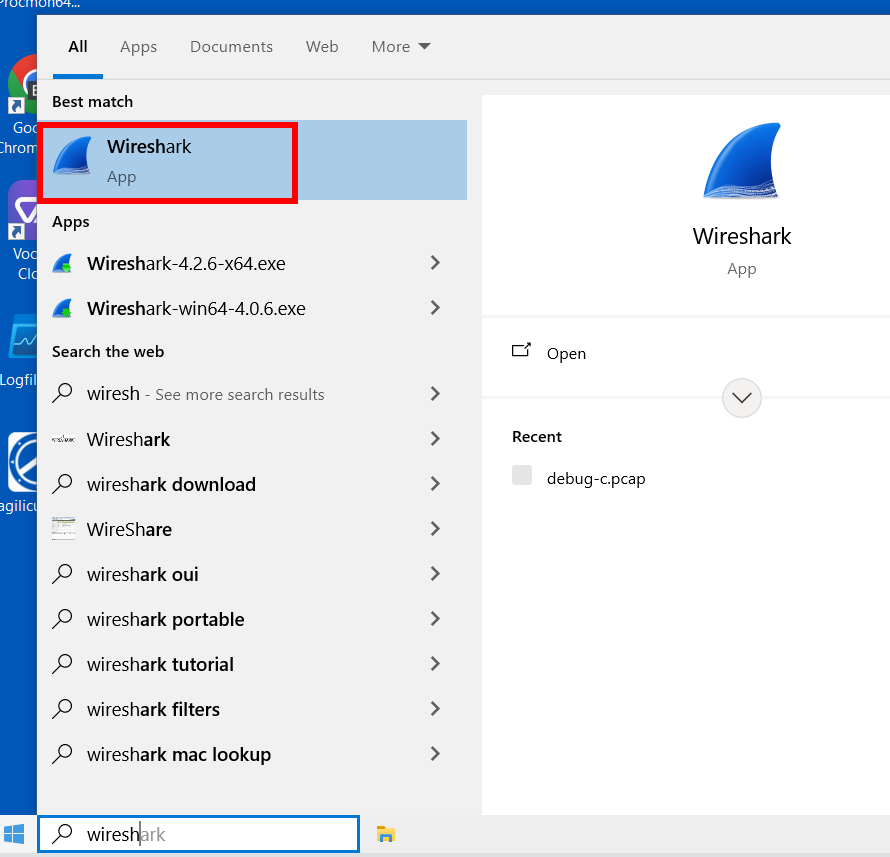
![Wireshark Packet Capture For Diagnostics [Windows] 40 Wireshark Packet Capture Configuration on Windows: Display filter configuration showing how to filter for specific IP addresses and ports for network diagnostics and troubleshooting with Wireshark. This includes configurations for filtering ICMP, TCP, and UDP traffic to capture specific network packets.](https://www.agilicus.com/www/4f1ed4c3-image.png)
Double-click the primary/default network connection.
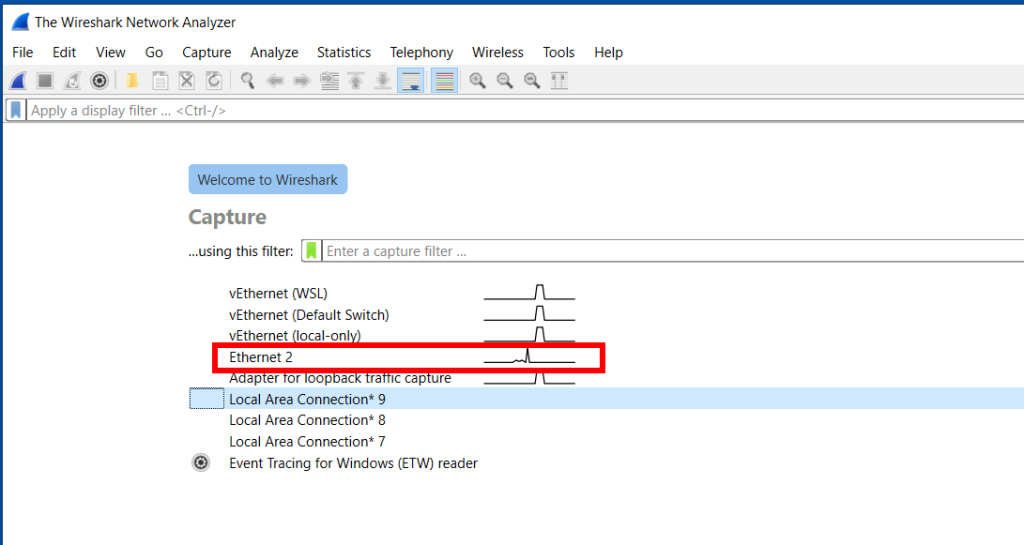
![Wireshark Packet Capture For Diagnostics [Windows] 41 Wireshark Packet Capture for Diagnostics on Windows: Analyzing network traffic in Wireshark to diagnose network issues. The screenshot shows the Wireshark interface with captured packets, providing a detailed view of network communication for troubleshooting.](https://www.agilicus.com/www/b34b7472-image-1024x545.png)
Now, reproduce the problem, usually a few times. For example, if you have a NVR which is not working, attempt to use it from the Agilicus profile interface.
Now, stop the capture:
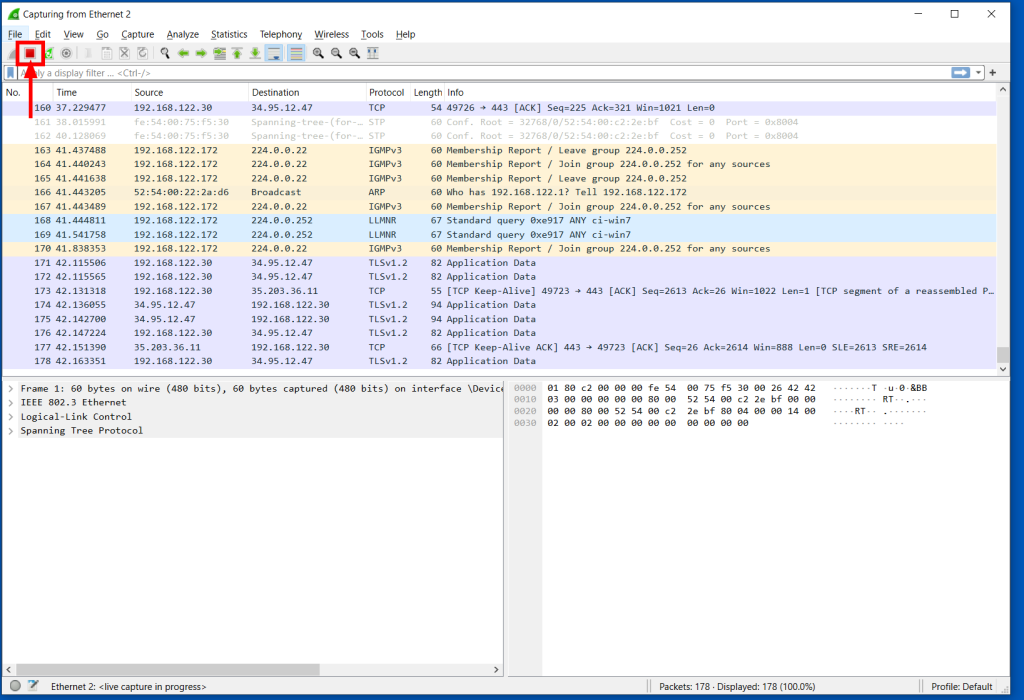
![Wireshark Packet Capture For Diagnostics [Windows] 42 Wireshark packet capture on Windows showing captured network traffic for diagnostics and troubleshooting. The Wireshark interface displays packet details, protocols, source and destination IPs, and other network communication data. Used for analyzing network issues with Agilicus.](https://www.agilicus.com/www/ecd05774-image-1024x700.png)
![Wireshark Packet Capture For Diagnostics [Windows] 43 Wireshark Packet Capture on Windows: Diagnosing Network Issues - A screenshot showing the Wireshark interface with captured network packets, used for analyzing and troubleshooting network communication problems in Windows environments. Learn how to use Wireshark for effective network diagnostics.](https://www.agilicus.com/www/089d8762-image-1024x677.png)
![Wireshark Packet Capture For Diagnostics [Windows] 44 Wireshark Packet Capture on Windows: Diagnosing Network Issues with Wireshark - A step-by-step guide to capturing and analyzing network traffic on Windows using Wireshark for effective network diagnostics. Learn how to use Wireshark filters and analyze packet data.](https://www.agilicus.com/www/05122eca-image.png)
Send the Capture to Agilicus
Depending on how long you have captured, this file can be large. Contact Agilicus via the ‘Chat’ interface in the web interface if you need a location to put the file.
Please describe what you were doing, what you observed, what was incorrect, and information about the network.