

Agilicus AnyX Frequently Asked Questions
AnyX – Initial Setup
Agilicus AnyX requires modern cryptography with a strong chain of trust. This is achieved using Let’s Encrypt.
Some older Microsoft Windows systems are not updated to have the proper cryptographic trust information installed. You should upgrade your Windows installation, but, if this is not possible, you can manually install the certificates.
First, download the .der file from https://letsencrypt.org/certificates for each of ‘X1 & X2‘.
For the X1 der and X2 der, open these on your desktop. You will be prompted to open the certificate manager. From here, Install, and pick the “Trusted Root Certification Authorities”.
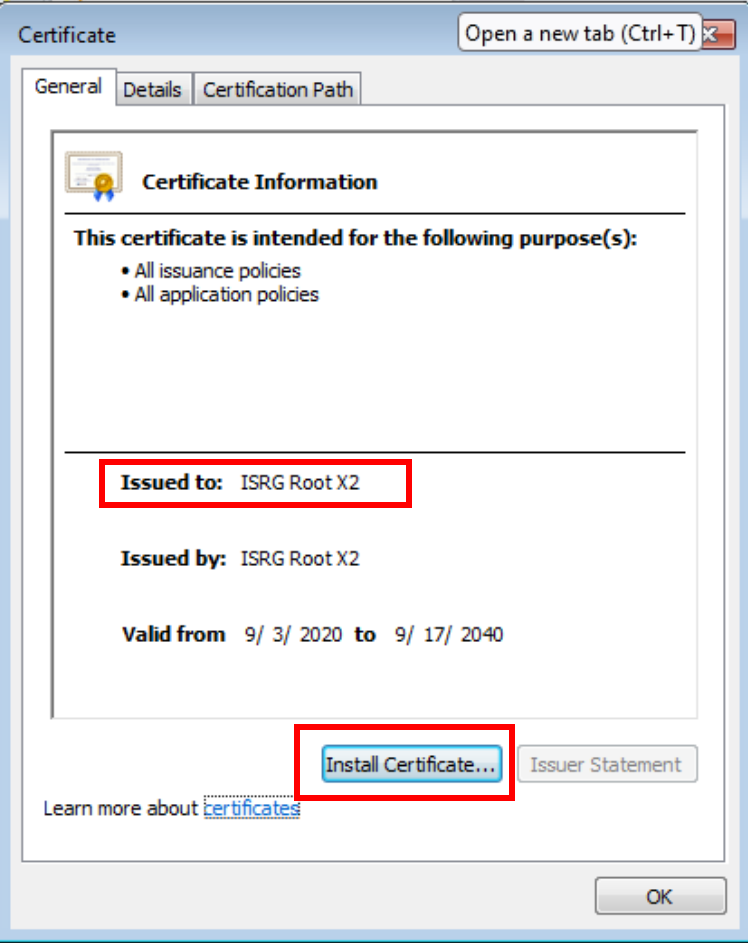
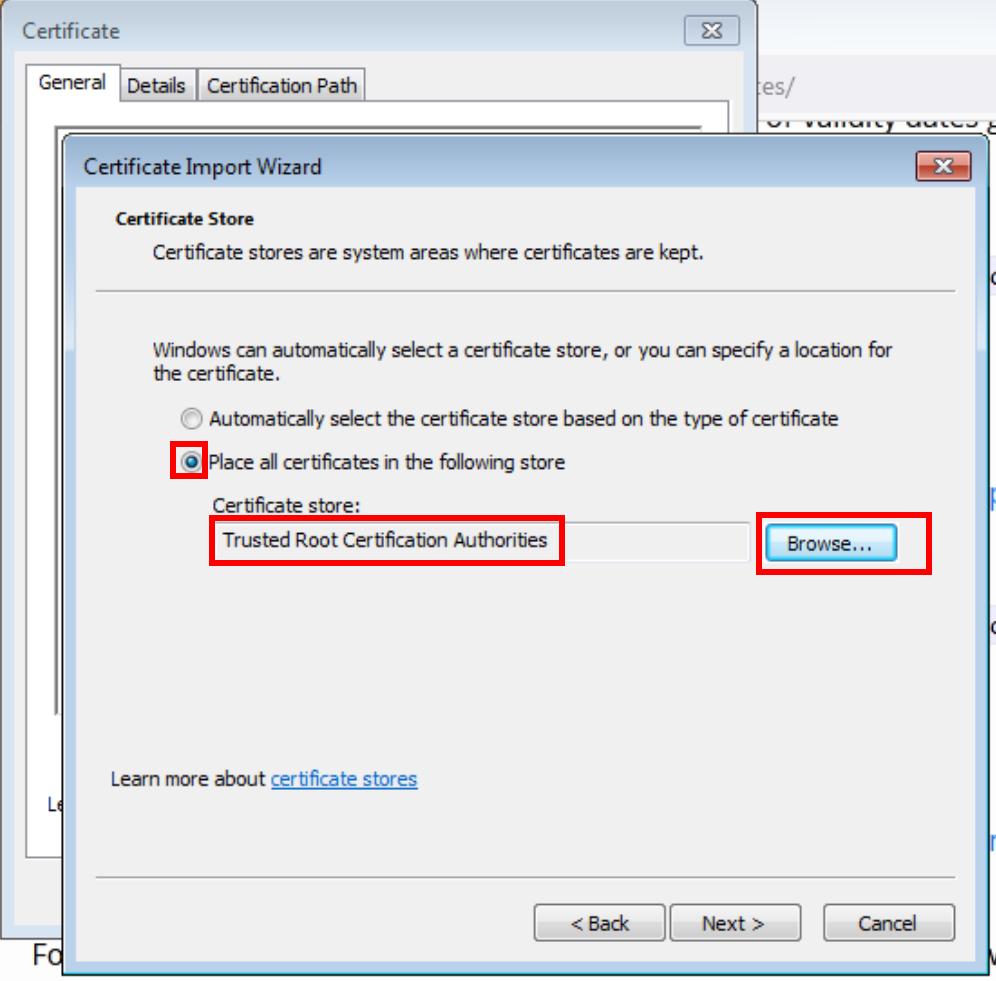
Now we must import these to the Machine trust as well (above we did your user). To do so, open ‘mmc’
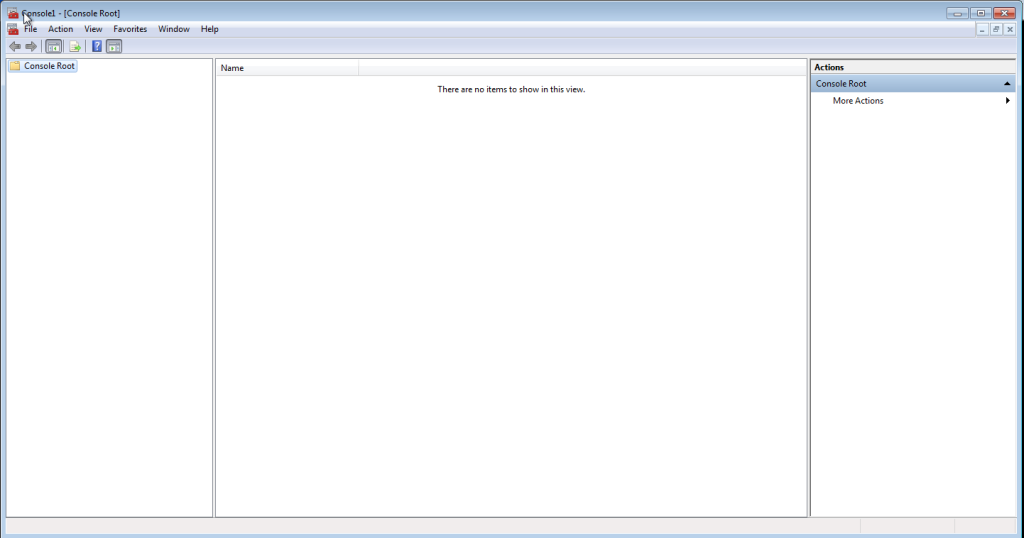
Now press ‘Control-M’.
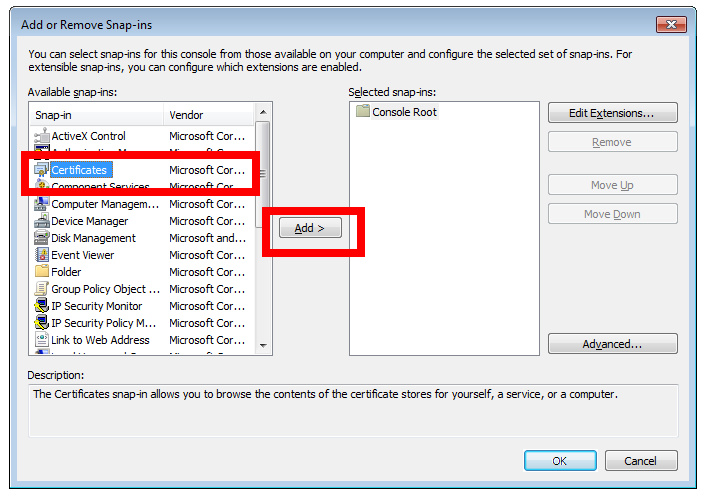
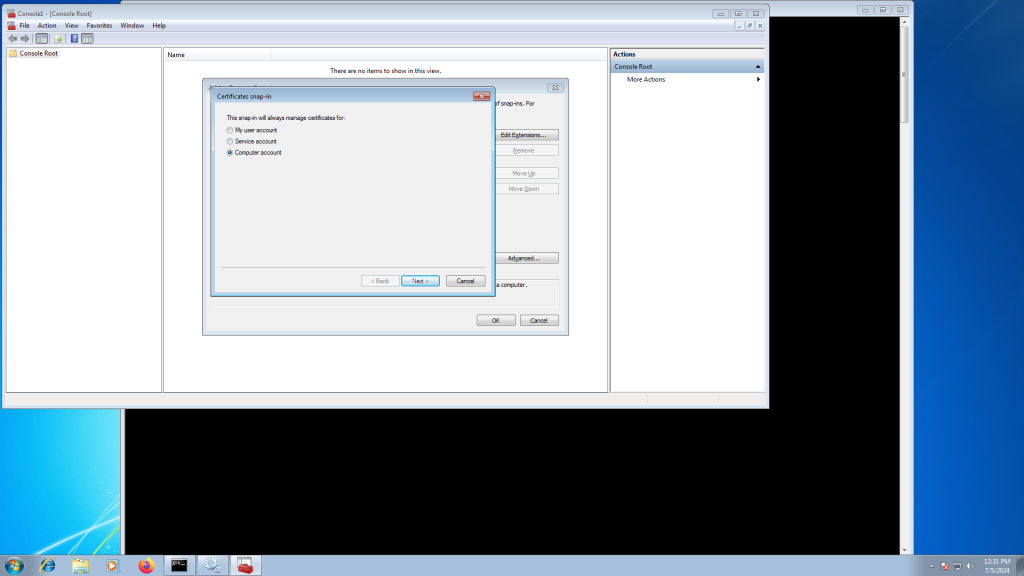
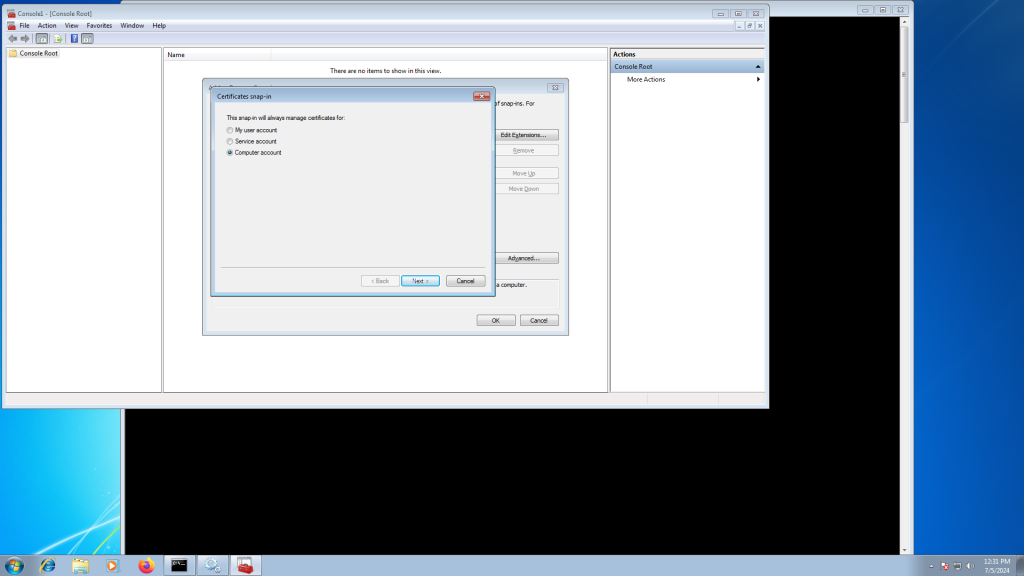
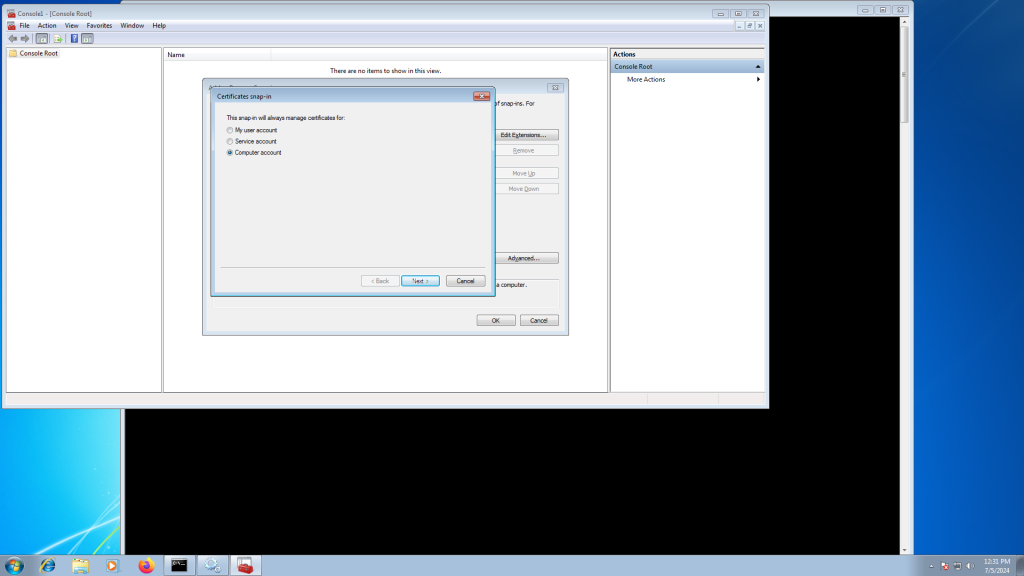
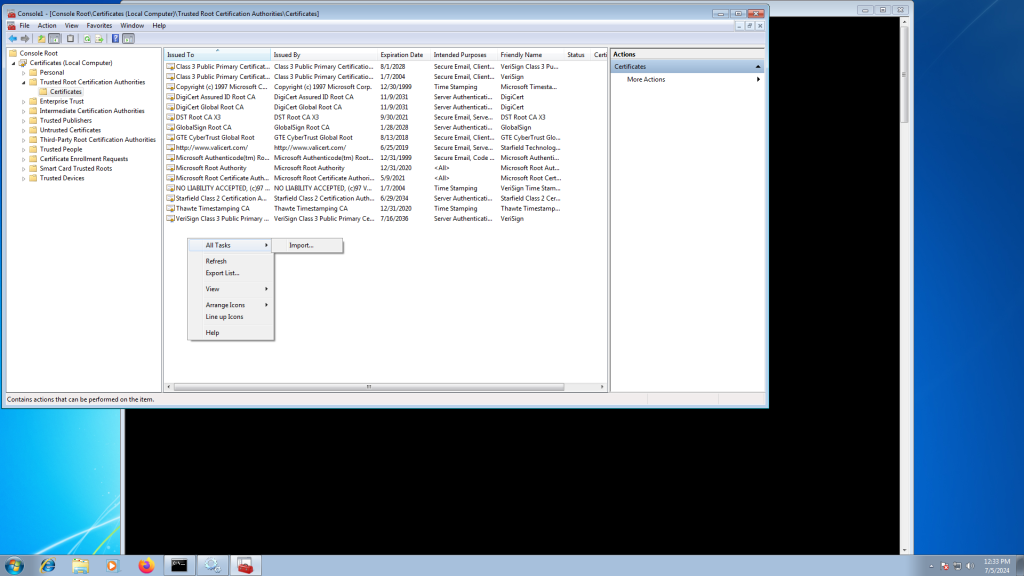
Select the X1 (and repeat for X2) certificate from earlier.
At this stage you should be able to install the Agilicus Connector.
Connector Installation
Microsoft has discontinued support for Windows 7 and Windows 2012. The Agilicus connector continues to run on these machines, however, it is important to have KB2533623 installed.
If the Windows 7 machine is missing KB2533623, the connector may fail to start. The update can be manually installed from:
https://web.archive.org/web/20200412130407/https://www.microsoft.com/en-us/download/details.aspx?id=26764
Note: it is possible a superceding KB might be installed, e.g. KB3063858 or KB4457144 or KB3063858.
In some cases your air gapped environment does not allow Certificate Revocation List checking. This can occur if you have a server which has never been able to fetch the CRL. This can cause an issue installing, but not running, the Agilicus Connector.
If you see an error like “The revocation function was unable to check revocation for the certificate” when you paste the installation command for the Agilicus Connector, add the parameter “–ssl-no-revoke” to the curl component. This will vary a little bit depending on your platform, but below is an example for a Windows platform:
curl --ssl-no-revoke -sSL -o "%TEMP%\aa.exe" https://www.agilicus.com/www/releases/secure-agent/stable/agilicus-agent.exe && "%TEMP%\aa.exe" client --install --challenge-id XXXX --challenge-code XXXX && del "%TEMP%\aa.exe"Once installed, this will not be a problem again.
If you wish to verify the Agilicus Connector executable, it is digitally signed.
We discuss this problem a bit more, and a generic solution for other components in “Locked-Down Networks Certificate Revocation“. If you are looking for a general purpose secure firewall solution that can forward Certificate Revocation, and only Certificate Revocation (including OCSP) without fixed IP address lists, please contact us, we have a full solution in this area.
Agilicus AnyX requires modern cryptography with a strong chain of trust. This is achieved using Let’s Encrypt.
Some older Microsoft Windows systems are not updated to have the proper cryptographic trust information installed. You should upgrade your Windows installation, but, if this is not possible, you can manually install the certificates.
First, download the .der file from https://letsencrypt.org/certificates for each of ‘X1 & X2‘.
For the X1 der and X2 der, open these on your desktop. You will be prompted to open the certificate manager. From here, Install, and pick the “Trusted Root Certification Authorities”.
Now we must import these to the Machine trust as well (above we did your user). To do so, open ‘mmc’
Now press ‘Control-M’.
Select the X1 (and repeat for X2) certificate from earlier.
At this stage you should be able to install the Agilicus Connector.
The Agilicus connector automatically upgrades, with all connectors skewed in time. Normally this is completed automated and can be ignored.
In some circumstances you may wish to force it to re-evaluate if there is a new version. To achieve this, remove the ‘agilicusLastUpdateCheck’ file, and restart the service.
On windows:
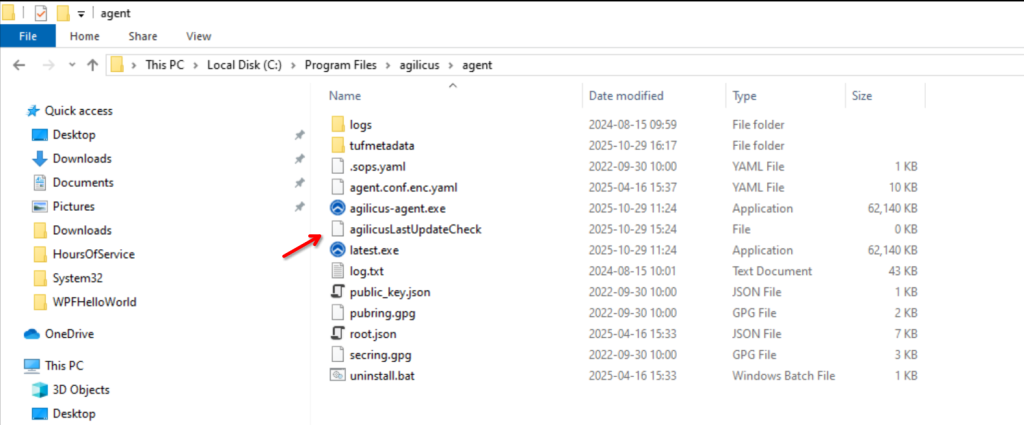
on Linux: rm /opt/agilicus/agent/agilicusLastUpdateCheck
On windows you may restart the service from the windows service manager. On Linux you may use ‘systemctl restart agilicus-agent’.
The connector status can be found by checking the systemctl service status:
$ sudo systemctl status agilicus-agent
The Agilicus Connector runs as a Windows Service. Open the Windows ‘Services’ app and look for ‘Agilicus Connector’. The ‘Service Status’ will show the current status.
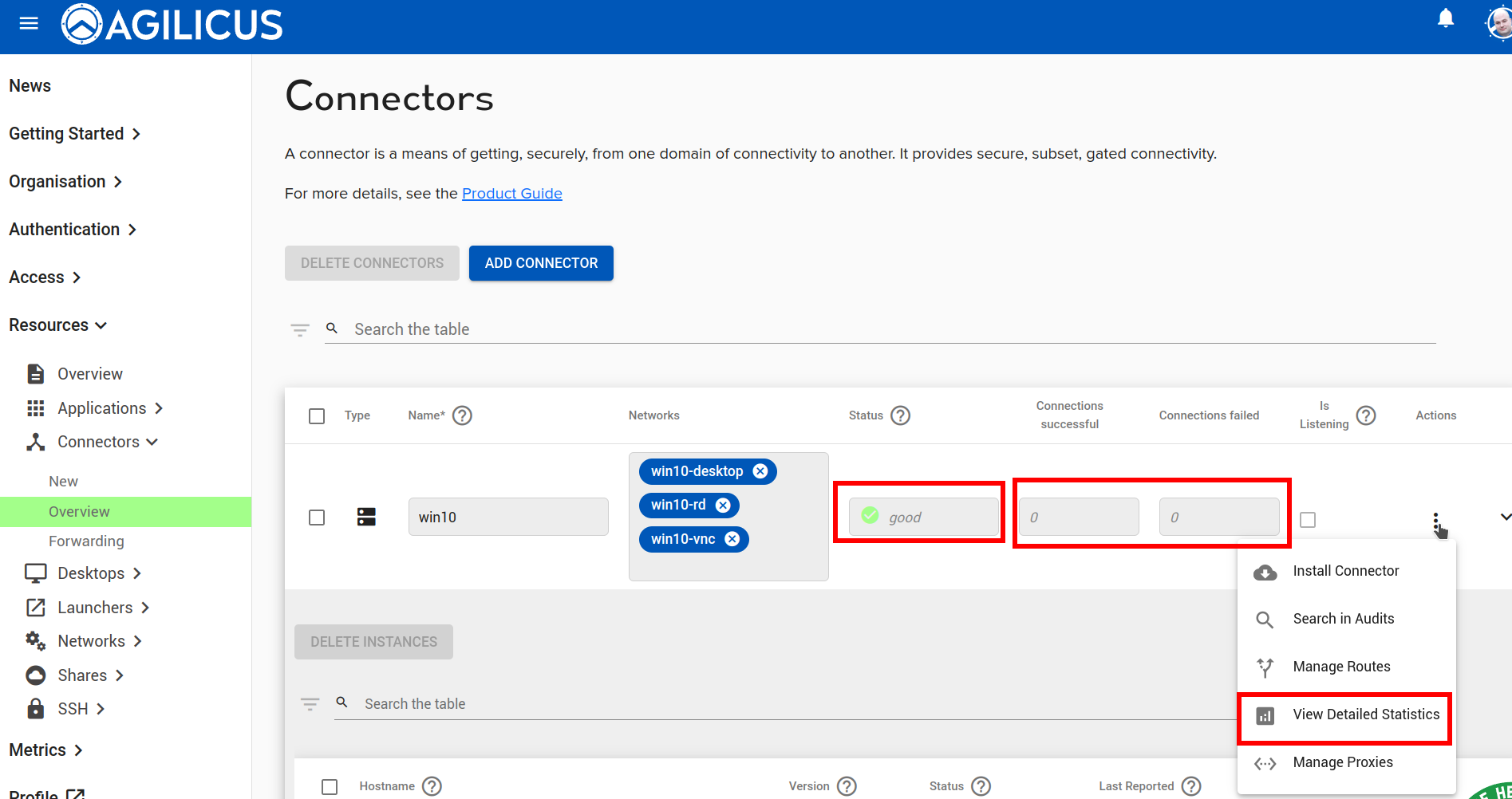
Navigate to your organization’s Agilicus Admin console. Under Resources -> Connectors -> Overview, the column named ‘Status’ reflects the real-time status of the connector.
The overall status is shown as ‘GOOD’, ‘DEGRADE’, ‘DOWN’.
Accurate globally synced time is critical to the proper operation of many modern cryptographic tools. It affects certificte allocation/revocation, sign-in audit logs, etc. See https://www.agilicus.com/anyx-guide/time-synchronisation/ for further details to ensure the local machine time synchronization is setup.
Connector logs on Windows can be found in the Windows Event Viewer. Inside Event Viewer (Local) -> Windows Logs -> Application, See “Agilicus Connector – Microsoft Windows“.
The Agilicus Connector needs to be able to reach any service it is used to expose. For a share, this means running on a machine with access to the files. For a Desktop, it means being able to reach via TCP (port 3389 or port 5900 for RDP or VNC typically) the destination system. This might mean running on the same system, this might mean running on a device on the same network segment or inside the same firewall.
When installing the Agilicus Connector you may see an error “tls: failed to verify certificate: x509: certificate signed by unknown authority”. This indicates that your site has a SSL-inspecting firewall present (e.g. Palo Alto, Fortinet, Sophos, etc).
This firewall may be redirecting DNS, or, using some other network-based technique to intercept traffic.
See “Site Firewall Configuration” for hints on how to resolve.
General Diagnostics
When installing the Agilicus Connector you may see an error “tls: failed to verify certificate: x509: certificate signed by unknown authority”. This indicates that your site has a SSL-inspecting firewall present (e.g. Palo Alto, Fortinet, Sophos, etc).
This firewall may be redirecting DNS, or, using some other network-based technique to intercept traffic.
See “Site Firewall Configuration” for hints on how to resolve.