

Agilicus AnyX Frequently Asked Questions
Authentication, User Permissions
The most common error is that a user is trying to log in with the wrong account. Make sure that they are using the correct login and domain. You can use the Authentication Audit page under Organization to review authentication attempts. See diagnosing user issues with audits for more information.
You have a new team member, or a new vendor supporting you. You wish to add them so they have specific permissions.
- Navigate to your admin interface (https://admin.__MYDOMAIN__)
- Under Access/Users, type in their email. Optional: add one or more group assignments for permission
- Optional: Navigate to Access/Groups and add them to one or more group assignments for permissions
- Optional: Navigate to Access/Resource Permissions, and directly assign permissions if not done through a group above.
If you use Microsoft/Azure Entra/Active Directory you can automatically create your users, and automatically assign their groups based on those in Entra. You can in turn assign permissions to those groups. This can fully automate end-user management.
To do this, you will create a Microsoft Application Registration, configure Agilicus AnyX to use it, and then enable the group claim.
See more information on Entra group integration.
See more information on Groups.
Using this technique you can have a 0-configuration, ongoing up-to-date system, where your users are entirely managed by Azure Entra and synced into Agilicus AnyX without ongoing maintenance.
Depending on your settings in Active Directory, you may either have:
- no application consent dialog
- an application consent dialog one time
- an application consent dialog one time per user
In some circumstances it might be one time per user per login. We encourage you to resolve this with your settings in Microsoft Entra, but as a workaround you can try disabling Offline Consent (as below). This will disable the use of Refresh Tokens, which in turn means the user might have to sign in more frequently.

You enable a different policy for sub-organisations by choosing “Enable Unique Issuer” in the actions menu of the “Organiastions/Sub-Organisations Overview” page of your administrative portal. See https://www.agilicus.com/anyx-guide/organisation/ for details. Note that this will change how users of this sub-organisation log in to their profile and admin portal.
Yes. The default policies contain an entry controlling for how long a user’s session is valid. Once this time has elapsed, the user will be asked to re-authenticate. See https://www.agilicus.com/anyx-guide/authentication-rules/#session-duration for details.
Yes. This setting is configured in the “Authentication/Authentication Policy” screen. See https://www.agilicus.com/anyx-guide/multi-factor-authentication-cfg/#multi-factor-frequency for details
You can write policy requiring that users in one of a list of groups have a second factor registered and enabled. See https://www.agilicus.com/anyx-guide/multi-factor-authentication-cfg/#require-multi-factor for more details.
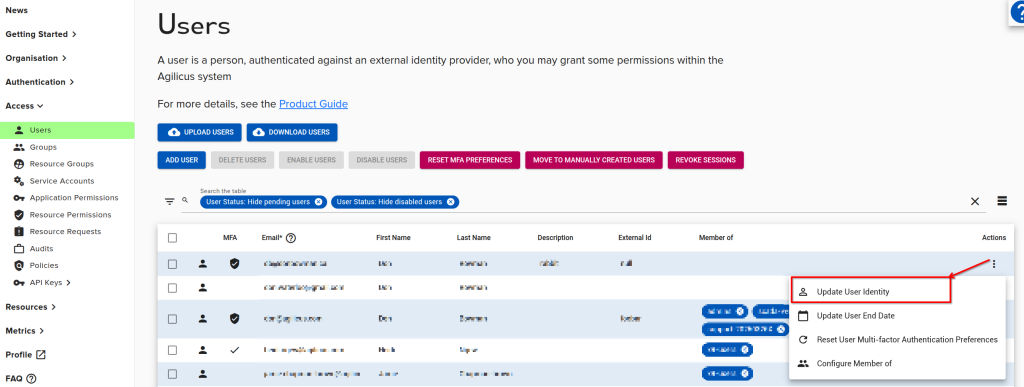
If you have a user who has signed in with one identity provider (e.g. Google) and you wish to change them to another (e.g. Microsoft Azure), or, the user’s email has been changed, use the ‘Update User Identity’ feature. This will disconnect the user from their existing identity provider, and, on their first new sign in, they will be adopted by the new one. Once you have selected thhis option you may change the user’s Email or switch them to a different identity provider.
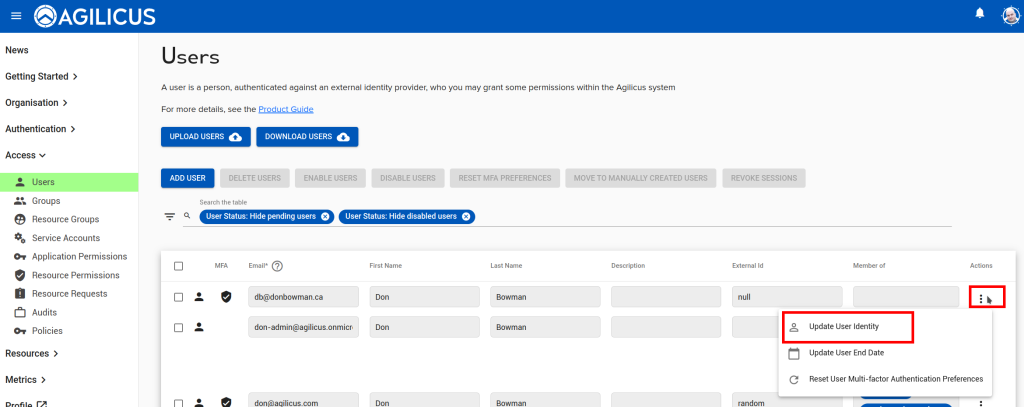
On the “Access/Resource Permissions” menu in your administrative web interface you can control which users or groups have which permissions on a resource. See “Permissions” for more information.
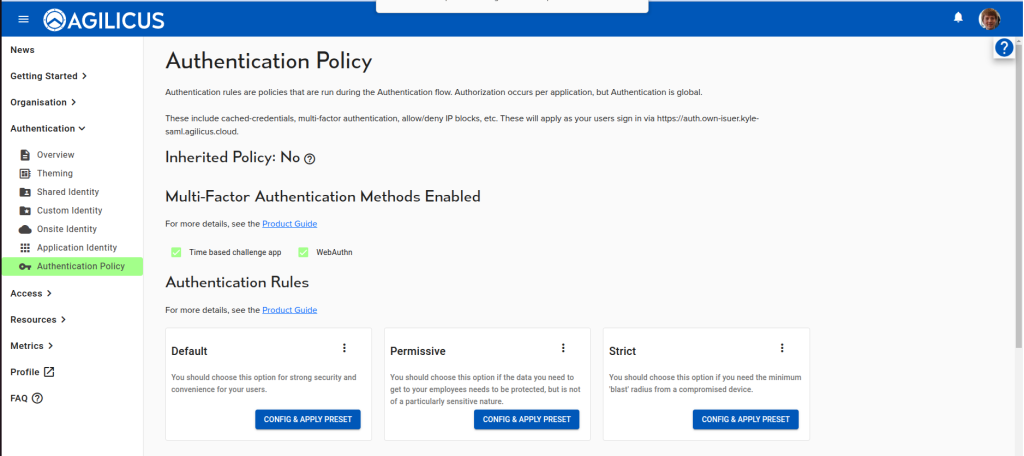
On the “Authentication/Policy” in your administrative web interface you can control which multi-factor methods your issuer allows. In the “Multi-Factor Authentication Methods Enabled” section, toggle the desired check-boxes to configure which methods your users can choose when enrolling a method, or authenticating.
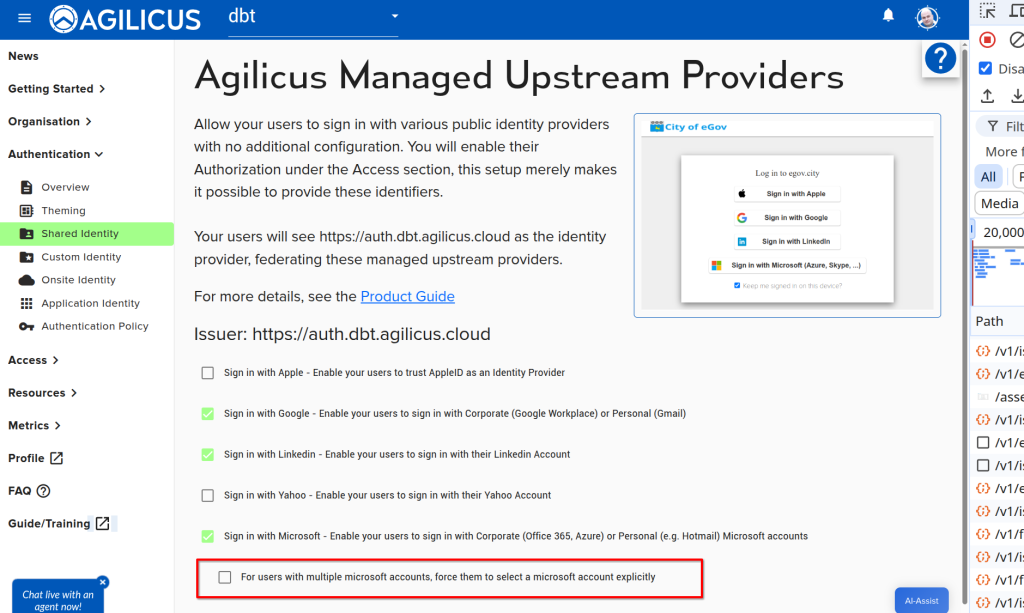
In some circumstances you may have users with more than one account who are struggling to remember to use the correct one. Individually on each sign in they can use the account selector, but, you as the administrator may wish to force this for all users all the time. You may do this as below.
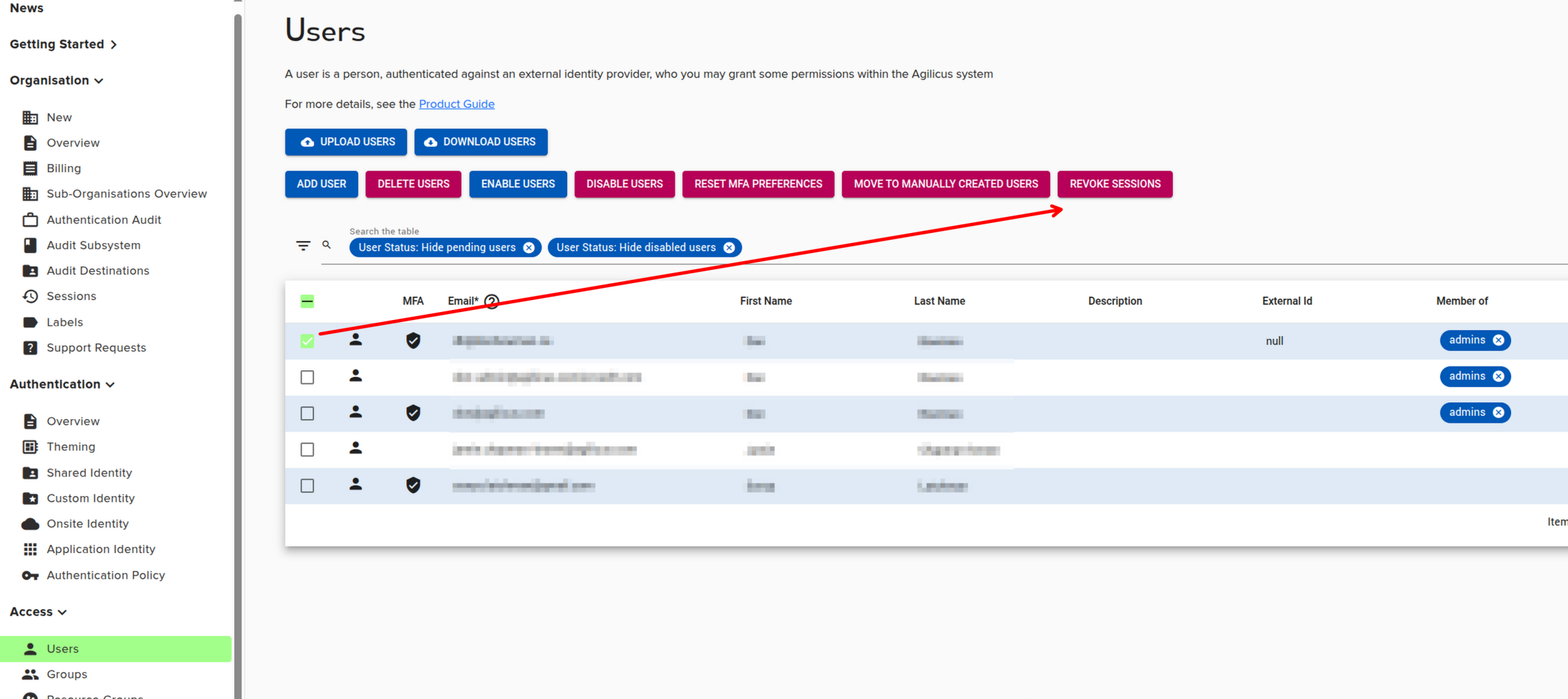
In your admin portal, navigate to Access/Users. select the specific user, and select REVOKE SESSIONS. Their sessions will sign out immediately (in some cases tokens may take 10 minutes to timeout if there is a cache).
The first time a user authenticates against Microsoft Entra, it may ask for permission to do so. There is no information exchanged, no permission granted to access your Microsoft account, merely permission to authentication. You can configure who this happens for or if it happens at all in the azure console. See Azure Application Consent for more information.
I have a user who has lost their device, how may I reset their multi-factor?
Navigate to access/audits, type in the user email, then search. there is a ‘Reset’ button which will cause the user to require to enter new multi-factor credentials (which they can do at https://profile.__MYDOMAIN__)
A user can only be tied to one Identity provider. In some cases (for example, switching from the Microsoft Shared Identity to a Custom Application Registration) you may wish to reset this association.
This need can also arise if you switch from on-premise Microsoft Active Directory to Microsoft Entra without migrating the users.
To do this, on the users screen, use the action-menu (the 3-dots button on the right), and select ‘Update User Identity’. This will unset the association, which will be recreated on the next sign in.
By default you will have a ‘Shared’ Microsoft Identity Provider enabled. This allows anyone to sign in with any Microsoft account: Azure, Office 365, Outlook.com, etc. This is useful for 3rd parties, vendors, etc.
If you wish to force your users to sign in with your own Azure tenant (e.g. to enable auto-create), you may create a ‘Custom Authentication Issuer’.
You may use Time-Based One-Time Codes (TOTP) (e.g. Google Authenticator, Microsoft Authenticator, Authy, etc), or, any of the standards from the WebAuthn standard set (e.g. USB-based like YubiKey, Passkeys, TPM-based, biometric, etc).
Agilicus AnyX joins together (federates) a set of Identity Providers (IdP). As an end user, you will see this as e.g. ‘Sign In With Google’ or ‘Sign In With Microsoft’. The AnyX platform in turn presents these federated IdP as a new IdP. The Upstream Identity Provider is it original one that the user interacts with (e.g. Microsoft, Google, Active Directory Federation Services, etc).
You should create a bespoke issuer if you want to use your own dedicated source of identity. If you manage users in a google workspace, azure Active Directory or any other Identity provider which supports OpenID Connect (oidc) this is a reasonable choice. If you need access to settings from your own Identity provider. For example, if you want all users on this identity provider to be provisioned automatically, or if you want to use multi-factor authentication from your identity provider itself.
See https://www.agilicus.com/anyx-guide/authentication-issuer/ for more information.
When there are many people that you would like to assign the same resources, use groups in order to put them together
Use a resource group when there’s many different resources that you would like to assign to users together, using a resource group allows you to assign access to several shares, desktops, etc all at once
If your users primarily log on with local Active Directory, this allows users to log in with their normal credentials. See Onsite Identity for more information on onsite identity providers.
The builtin user is very simple to set up than a custom identity provider, so if you want to add users manually, and allow them to log in, this is a great option. It’s especially useful if you have users that aren’t attached to an identity provider you own, for example temporary contractors.
Key Concepts
You have a new team member, or a new vendor supporting you. You wish to add them so they have specific permissions.
- Navigate to your admin interface (https://admin.__MYDOMAIN__)
- Under Access/Users, type in their email. Optional: add one or more group assignments for permission
- Optional: Navigate to Access/Groups and add them to one or more group assignments for permissions
- Optional: Navigate to Access/Resource Permissions, and directly assign permissions if not done through a group above.