
SaaS, Cloud Usage Of Internal API
Internal API. External Software. Secure it. Simplify it. Use it.
Internal API, External User, Service Account
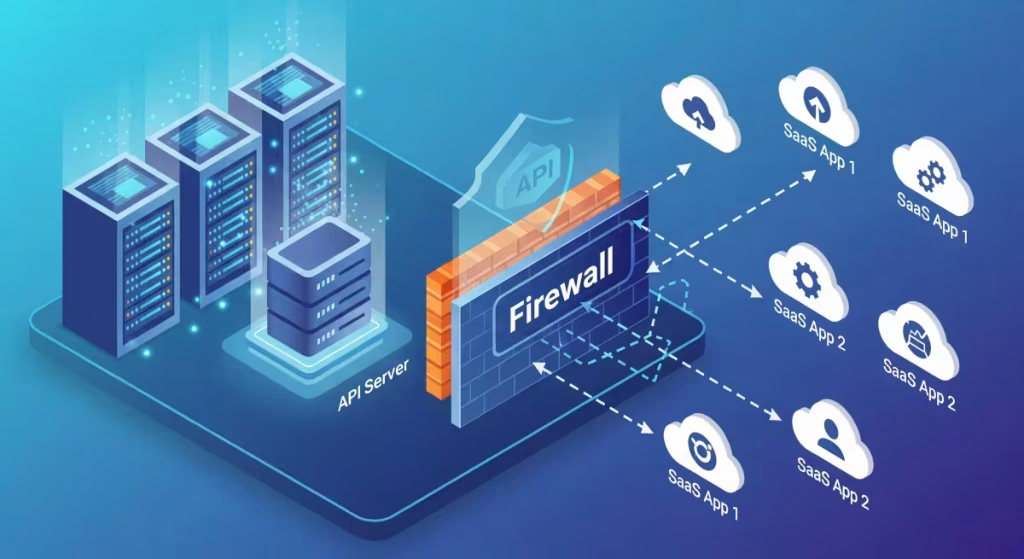
In this example we are going to demonstrate a setup whereby an external SaaS product (e.g. Microsoft PowerBI) can use an internal API. To do so, we will be doing 3 main activities:
- Creating a (web) application to model the internal API. This will create a public certificate and availability through an identity-aware firewall
- Create a service account for use with the SaaS application
- Create an API key to give permission
Once complete, the external SaaS application can safely and securely use the internal API, and no one else can.
As a follow on I discuss how to make the API more finely permissioned, e.g. read-only, only some of the API’s, etc.
I assume you already have setup Agilicus AnyX and have a connector already running with layer 3 access to your API.
Demo Environment
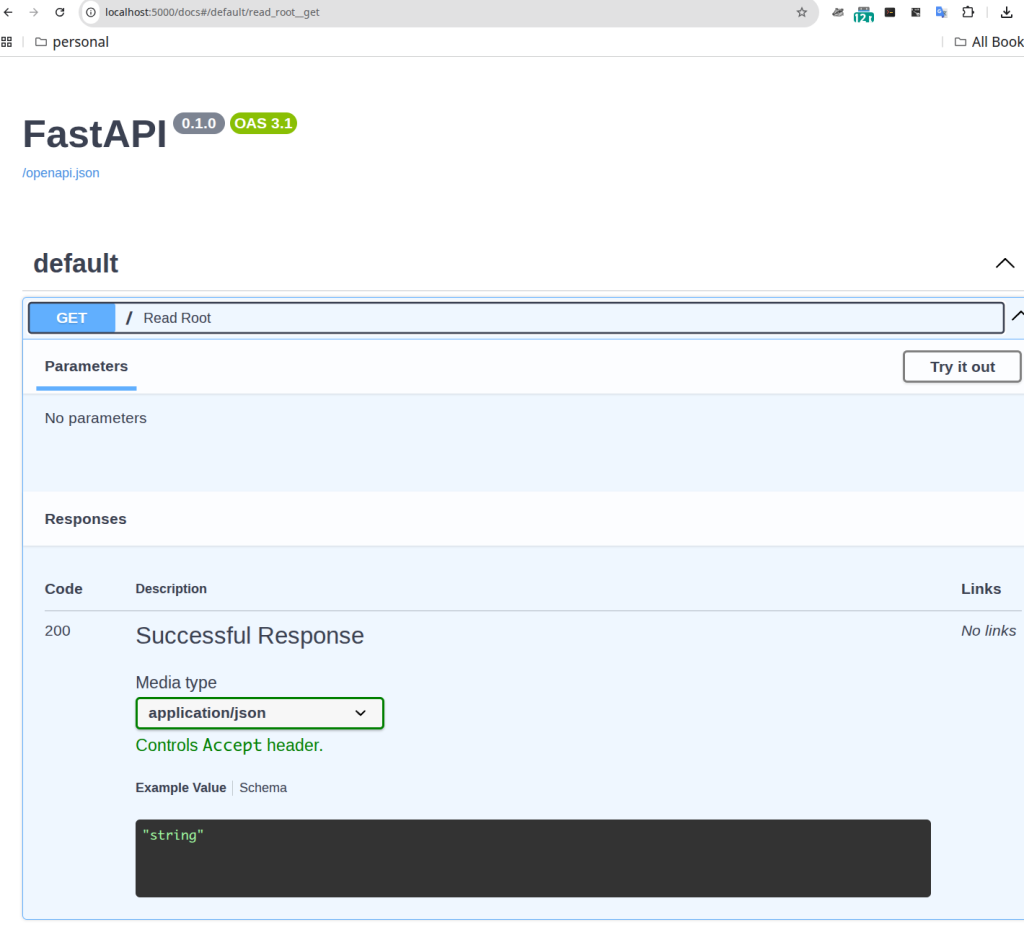
For a simple demo environment, I will run a FastAPI server using:
docker run --rm -it -p 5000:80 tiangolo/uvicorn-gunicorn-fastapiYou will have some other API running, you will know its hostname/IP and port (e.g. http://api.internal:8016).
Now that I have done that, I will check that it works locally. In my browser, I open http://localhost:5000/docs. This should look as below:
Setup
Create Web Application
Using Resources/Applications/New, create a web application. Give it a hostname, this will become part of the URL you use later (so e.g. choose ‘api’). Select the connector which has connectivity to the internal API.
In this example we used a single-role (meaning the api is monolithic for permissions, we can change this later).
We then apply permission to ourself to test it, and, open profile, hit refresh, and try it. The API should do something in the browser even if it is not a web page.
Note: the SSL certificate generation can take up to 90 seconds, so if you see an error, refresh the web page.
Create Service Account
We will now create a technical user (a service account) to which to assign permission that the SaaS application will use.
Create API Key
Create the API key. It is of type ‘Resource’, assigned to our specific application.
Assign Permission
Now we must allow this API key to use our newly created web app.
We are now complete! Let us test it.
Testing
First we will test it from curl. Above we tested as ourself, now we will test with the service account. Above where we copied the username and password, we will add these as:
--user USERNAME:PASSWORDSo, in my example:
curl --user api-service-account-6csvoavxf6sjyy2wdj466c@serviceaccounts.agilicus.com:XXXXX https://api.__MYDOMAIN__/(replace the user, password, url with your specifics). You should see it output e.g.:
{"message":"Hello world! From FastAPI running on Uvicorn with Gunicorn. Using Python 3.11"}don@office[noc]:wordpress$Use in SaaS application
Most SaaS Applications will either specifically call out ‘Basic Authentication’, ‘Bearer Authentication’, or some other, where they will accept the username/password as above. If not, it is typical to put them in the URL in the format:
https://USERNAME:PASSWORD@HOSTNote that for this, you would need to change the ‘@’ sign to ‘%40’ to url-encode it.