

Onsite Identity
Authentication Issuer
Authenticate users in the cloud, using the on-premise identity providers. Make legacy Active Directory serve as modern OpenID Connect.
Authentication Issuer – Onsite Identity
In some circumstances, a local, on-premise identity provider is the best source available. The Agilicus Connector facilities, providing a bridge between a local machine acting as an authentication proxy, and a proper OpenID Connect web public interface. The user credentials are encrypted end-to-end, from the user’s browser to the backend.
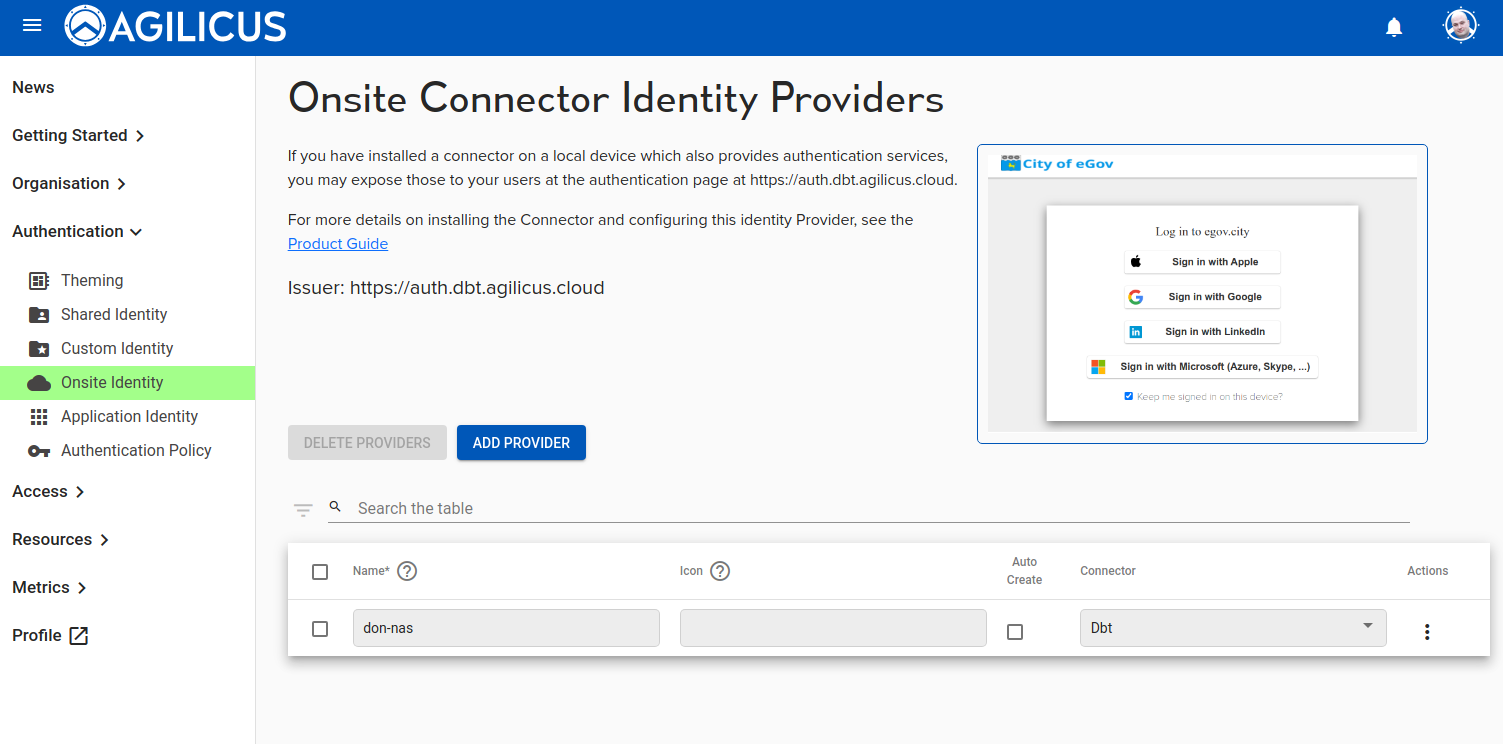
Care must be taken when using Onsite Identity. If the connector facilitating is removed, any user with this as a sole identity source will be unable to sign in.
Once you have setup the onsite identity, you can consider mapping your onsite groups (e.g. active directory groups) into Agilicus AnyX, facilitating automating permission settings.
Note: Windows “Log On Locally” permission is required
In order for the Agilicus Connector to map that a ‘local’ user is allowed, the user must have the “Allow log on locally” user right. This right is managed through Group Policy and can be configured for individual users or groups. By default, the built-in Administrator account and users in the local Administrators group typically have this right.
Here’s how to manage this right:
1. Using Group Policy Editor:
- Open Group Policy Editor: Run
gpedit.msc. - Navigate: Go to
Computer Configuration > Windows Settings > Security Settings > Local Policies > User Rights Assignment. - Locate: Find the “Allow log on locally” policy.
- Modify: Add or remove users or groups as needed.
- Apply: Changes are applied when the user logs on.
2. Using the Command Line:
- Open Command Prompt as Administrator: .
- Use
ntrights: Use thentrightstool (from the Windows Server 2003 Resource Kit Tools) with the following commands:ntrights +r SeInteractiveLogonRight -u "User or Group"to add the right.ntrights -r SeInteractiveLogonRight -u "User or Group"to remove the right.