
We can install VaultWarden such that it uses Agilicus with Single-Sign-On, directly. This avoids a dual-sign-in. It also allows it to work reliably with the desktop app and the extension.
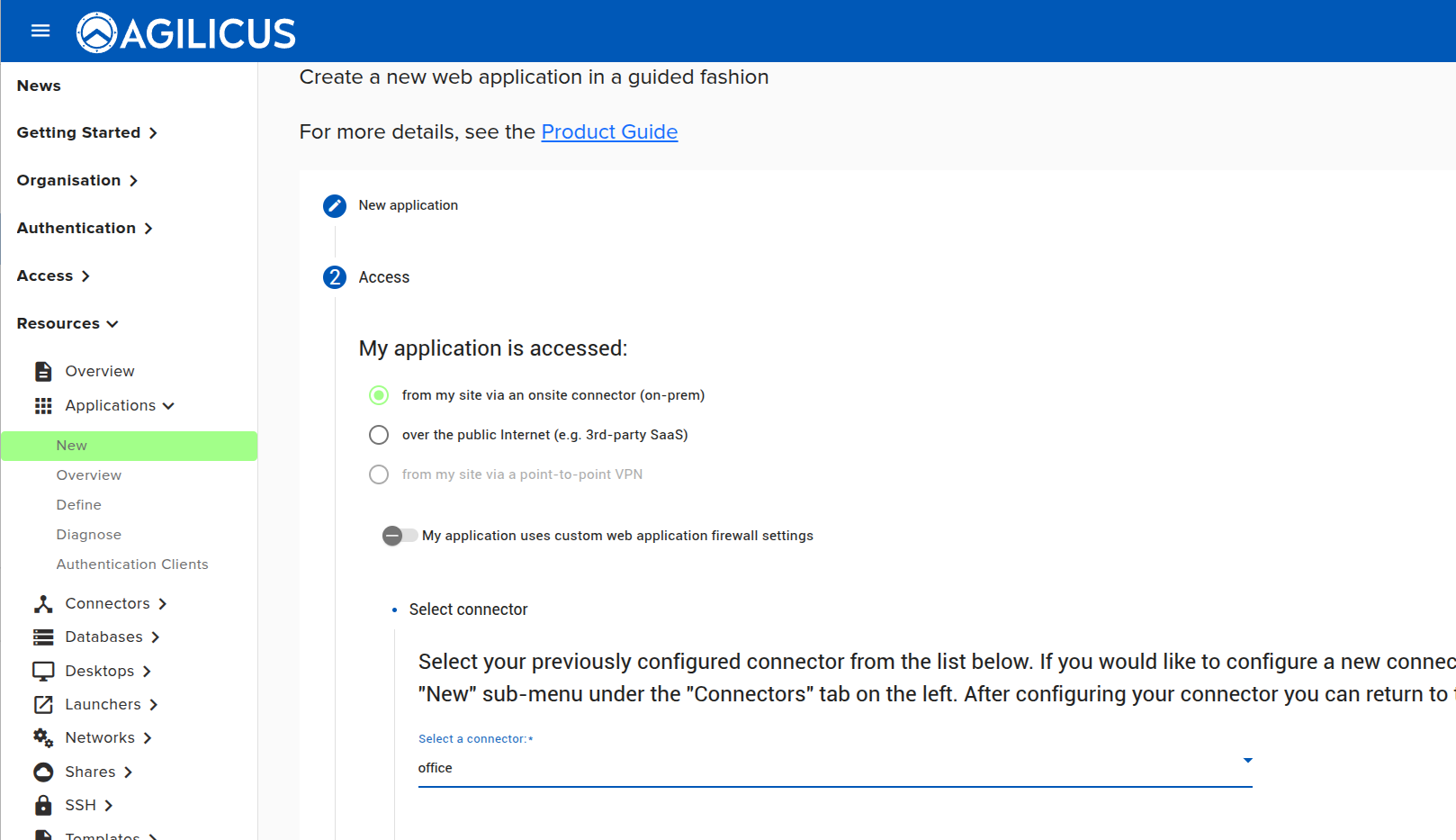
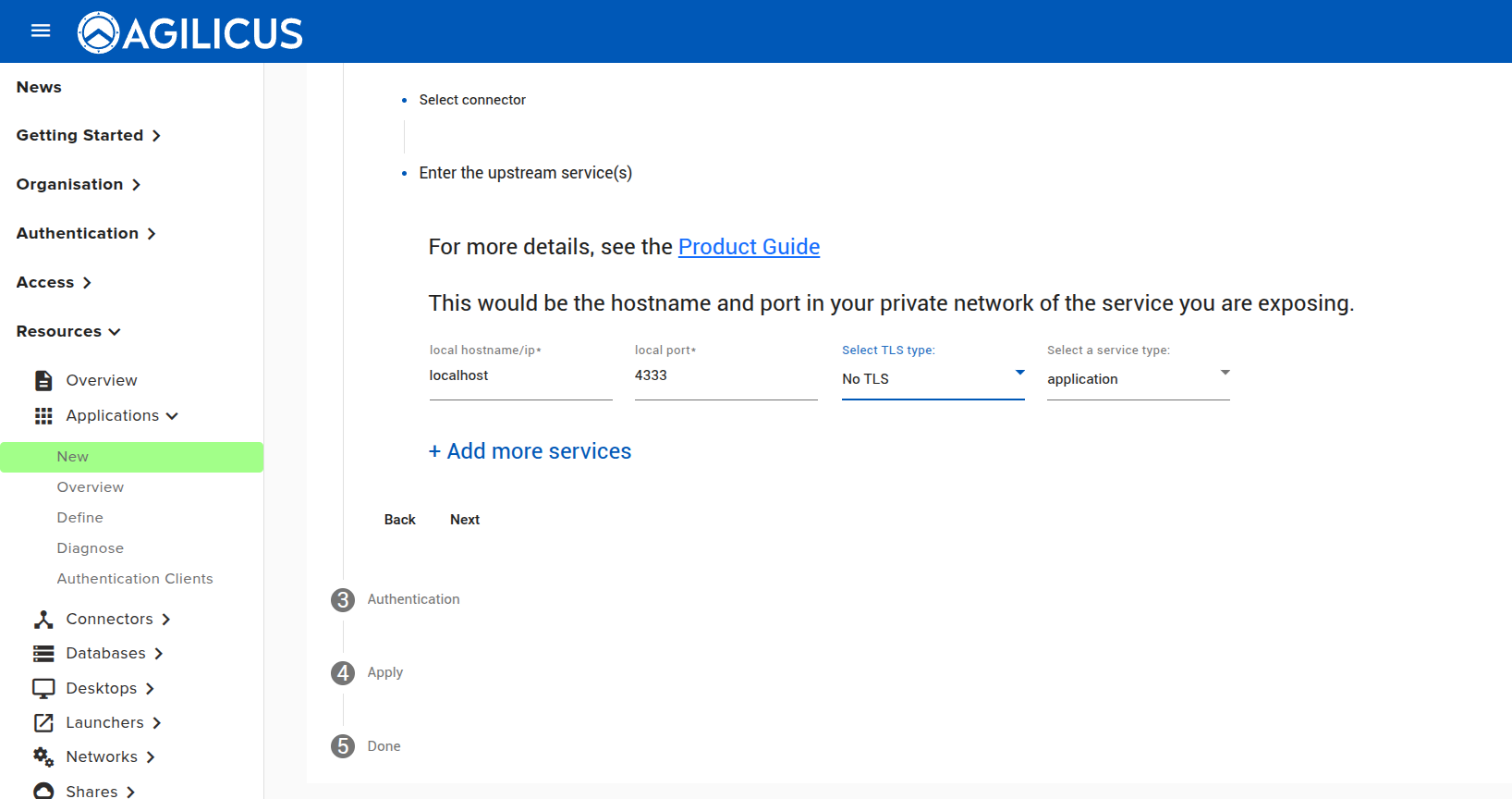
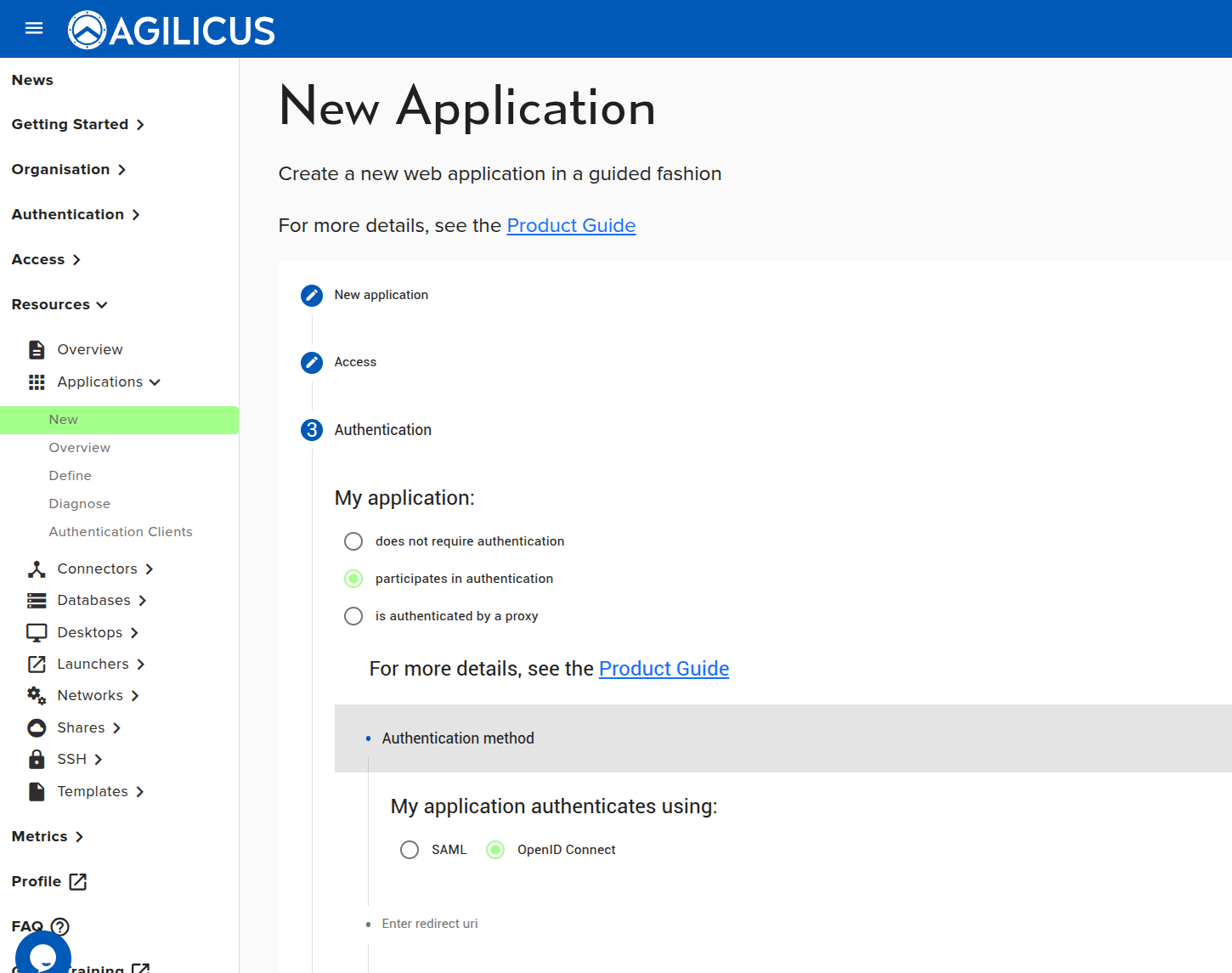
First we create an application. Here I have chosen to run it on the same machine as the connector on port 4333. I have selected ‘my application participates in authentication’.
I have entirely disabled the Agilicus firewall, meaning that all traffic is allowed. In practice you might choose to e.g. block /admin to non-signed in users or some other restriction.
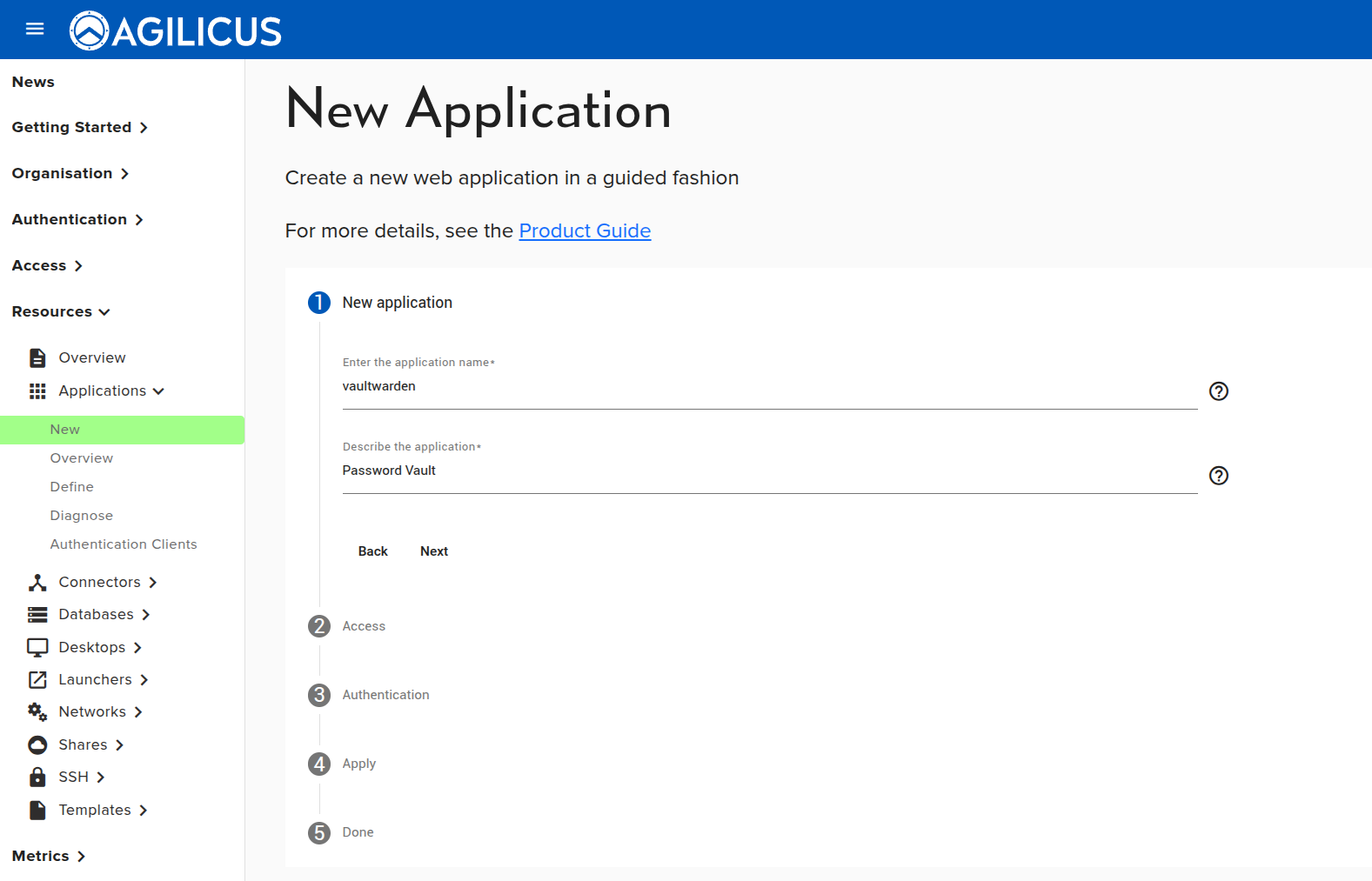
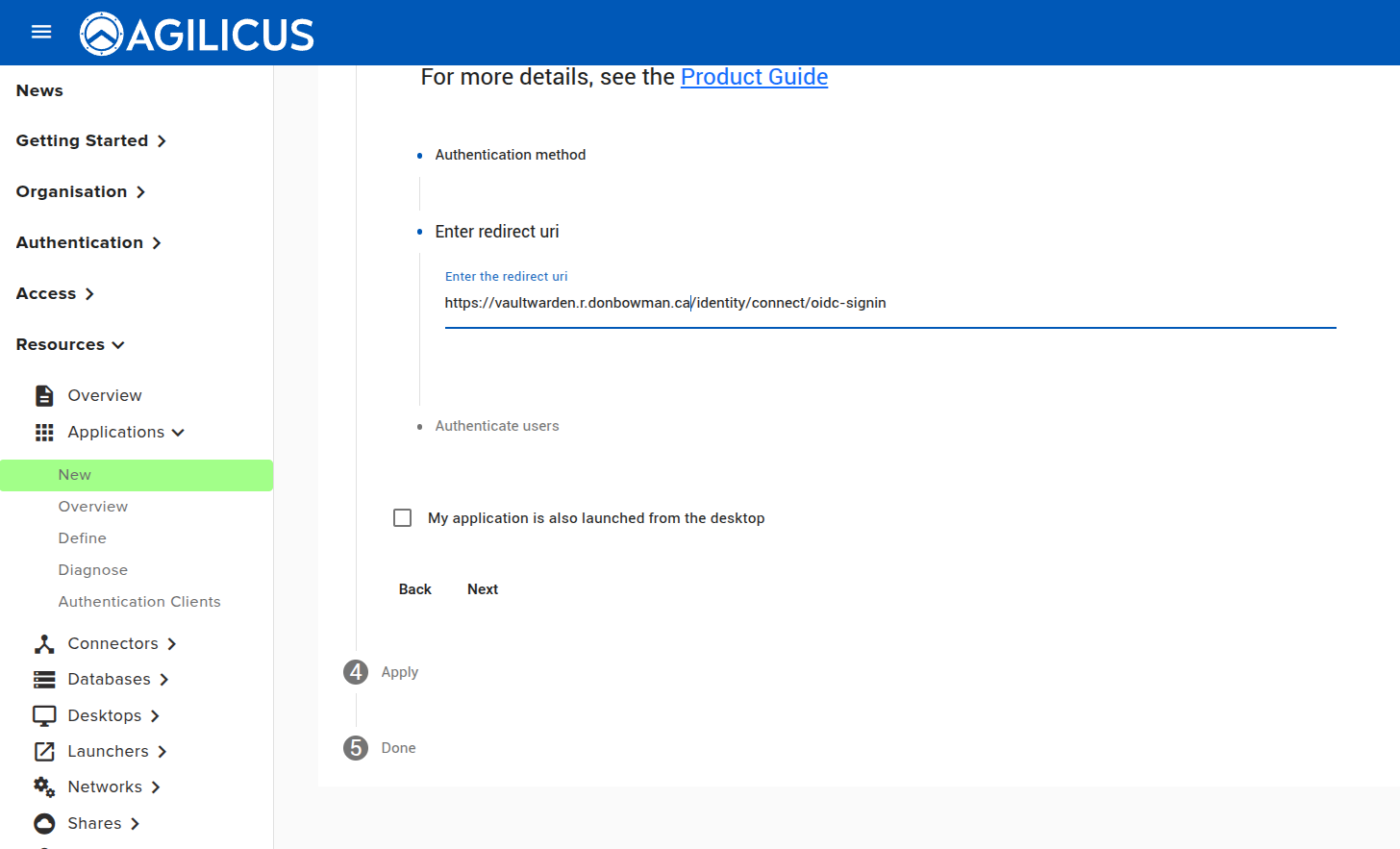
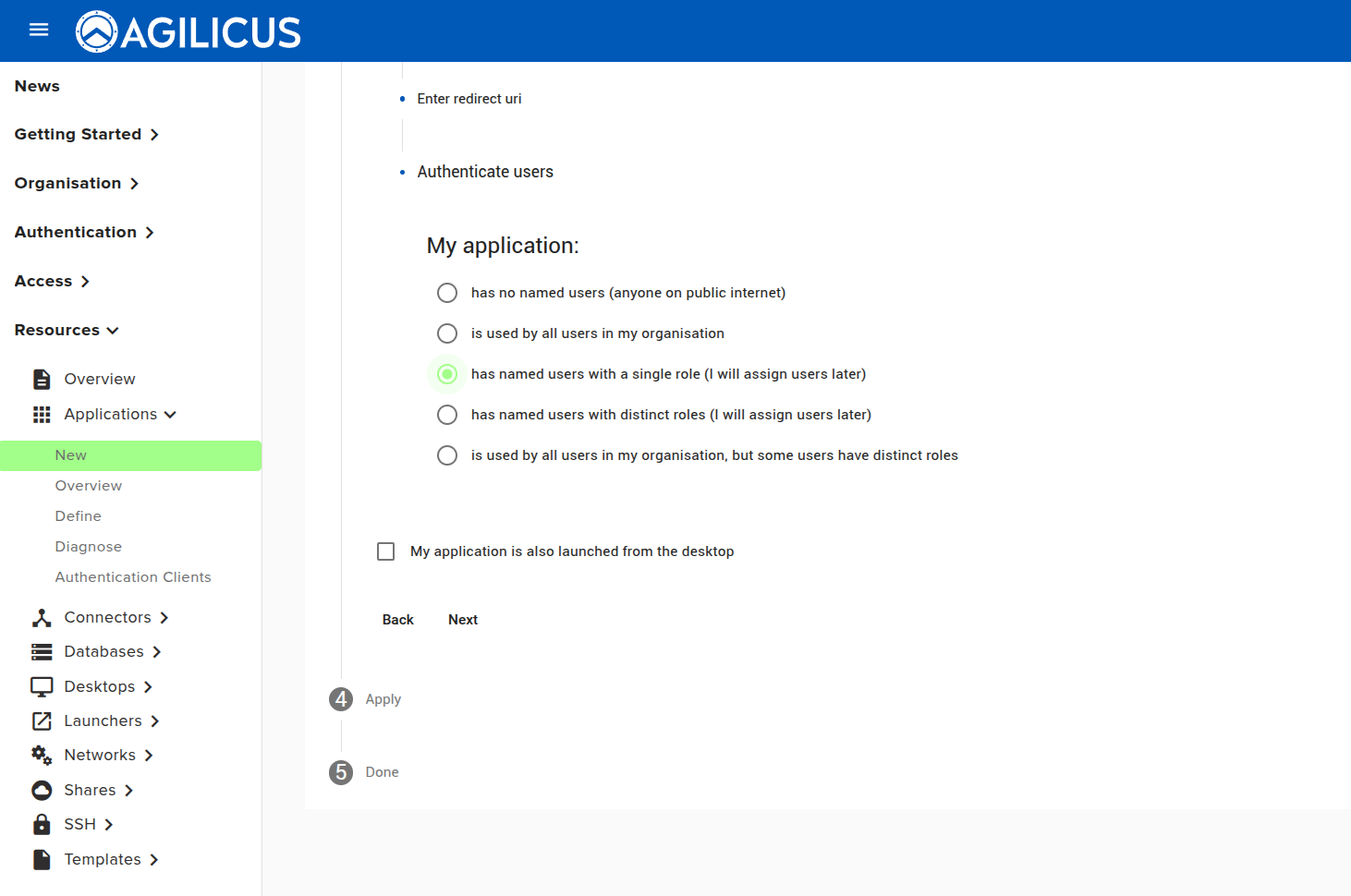
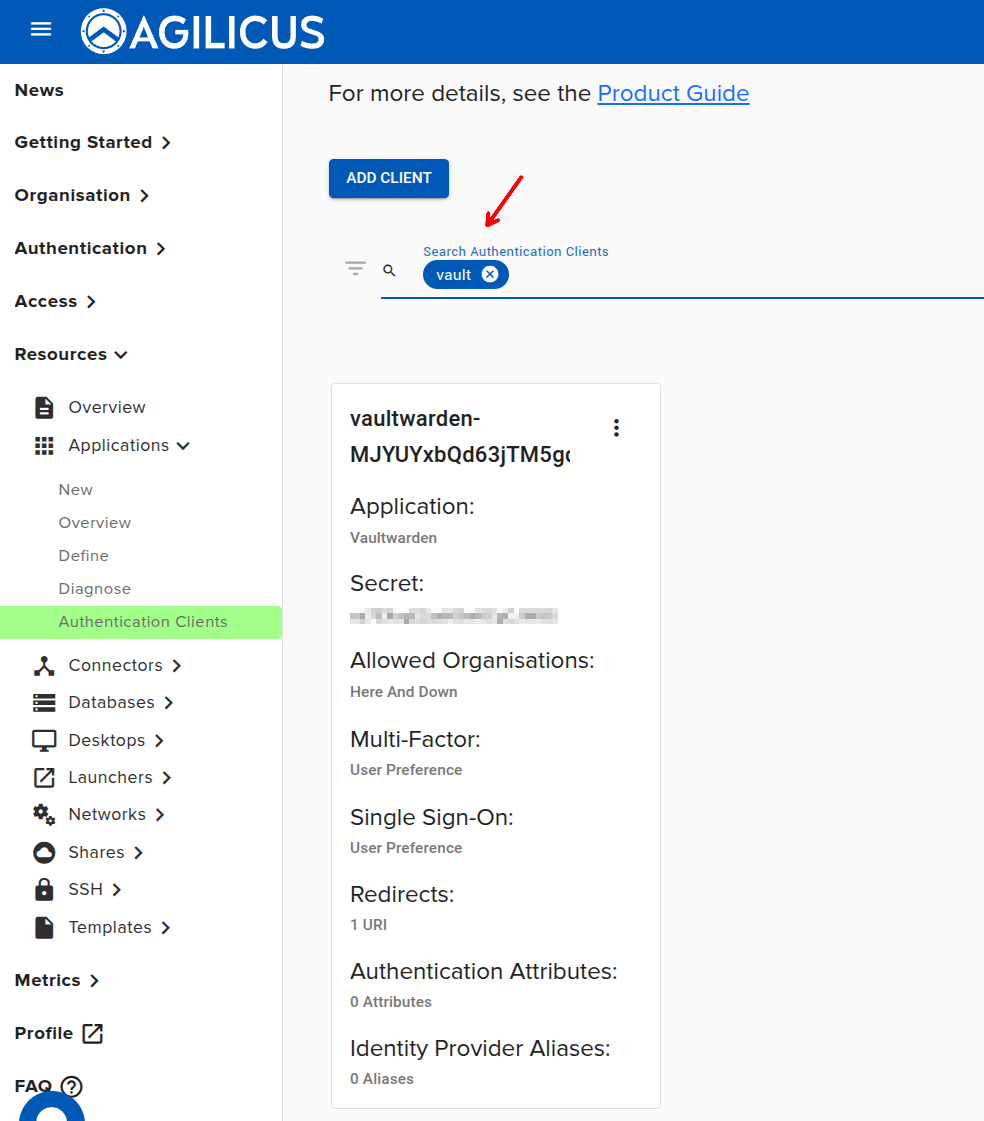
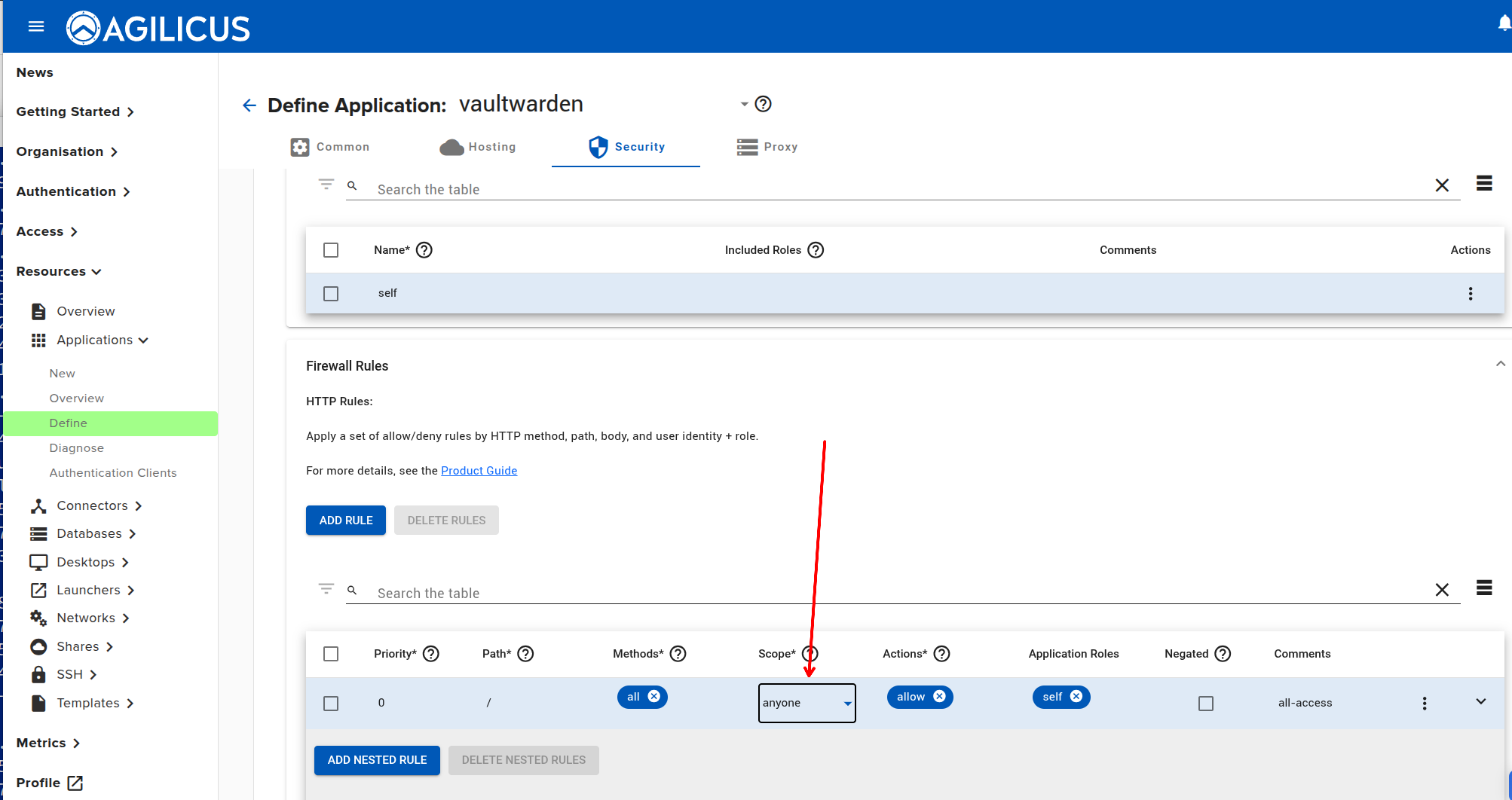
Ensure you assign permissions to yourself to test.
We can then run vaultwarden (in this case on the same machine as the connector) as:
docker run --rm -it \
 -e ADMIN_TOKEN=admin \
 -e DOMAIN=https://vaultwarden.r.XXXX.ca \
 -e SSO_ENABLED=1 \
 -e SSO_ONLY=1 \
 -e SSO_ALLOW_UNKNOWN_EMAIL_VERIFICATION=true \
 -e SSO_SIGNUPS_MATCH_EMAIL=true \
 -e SSO_AUTHORITY=https://auth.r.donbowman.ca \
 -e SSO_CLIENT_ID=vaultwarden-MJYUXXXXX \
 -e SSO_CLIENT_SECRET=ea7EXsgE2zeNXXXXXXXX \
 -e SSO_ALLOW_UNKNOWN_EMAIL_VERIFICATION=true \
 -e SSO_DEBUG_TOKENS=true \
 -v /vw-data:/data/ \
 -p 4333:80 \
 vaultwarden/server:latest
At this stage if the user navigates to https://vaultwarden.__MYDOMAIN__ they will see its interface and be able to sign in with their Agilicus user.
Note: you will need to set the SSO_ environment variables to match your needs, see https://github.com/dani-garcia/vaultwarden/wiki/Enabling-SSO-support-using-OpenId-Connect.