

Setup your own Microsoft Entra application registration, user auto provisioning with group mapping.
This allows zero-touch provisioning of users.
Table of Contents
This is a worked through, opinionated setup, of Microsoft Entra with Agilicus AnyX to have custom user and group syncing. It allows a zero-touch ongoing user management.
For more information on the specific features, see the following product-guide pages:
- Azure Active Directory
- Sign in With Microsoft
- Azure Application Consent
- Sign-In Theming
- Groups
- Reset User Upstream Identity
- Administrative Users
How To Steps
The high level steps we will perform:
- Create new Agilicus AnyX Custom Identity Provider (Identity Issuer)
- Create new Microsoft Application Registration
- Link the Microsoft Application Registration to the Agilicus AnyX Identity Issuer
- Enable Auto-Create
- Enable Group Mapping
- Add icon to theme
- Sign in as test user to profile.__MYDOMAIN__
- Assign administrative rights (system groups) to test user
- Sign in as test user to observe administrative permission
- Reset previous user
Step 1/2/3: Application Registration Creation
In the below video we create a custom Entra application registration and configure it as an Identity provider in Agilicus AnyX. This will allow your users to sign in.
A Custom Entra Application Registration (versus the pre-configured Agilicus Multi-Tenant Application Registration allows:
- Custom Icon on sign-in screen
- Custom label on sign-in screen
- Azure Entra Group Mapping
It is #3, the Group Mapping, that is the primary reason for taking this extra step.
At this stage, enable the optional claims as per “Azure Claims” (optional), and enable Azure Groups
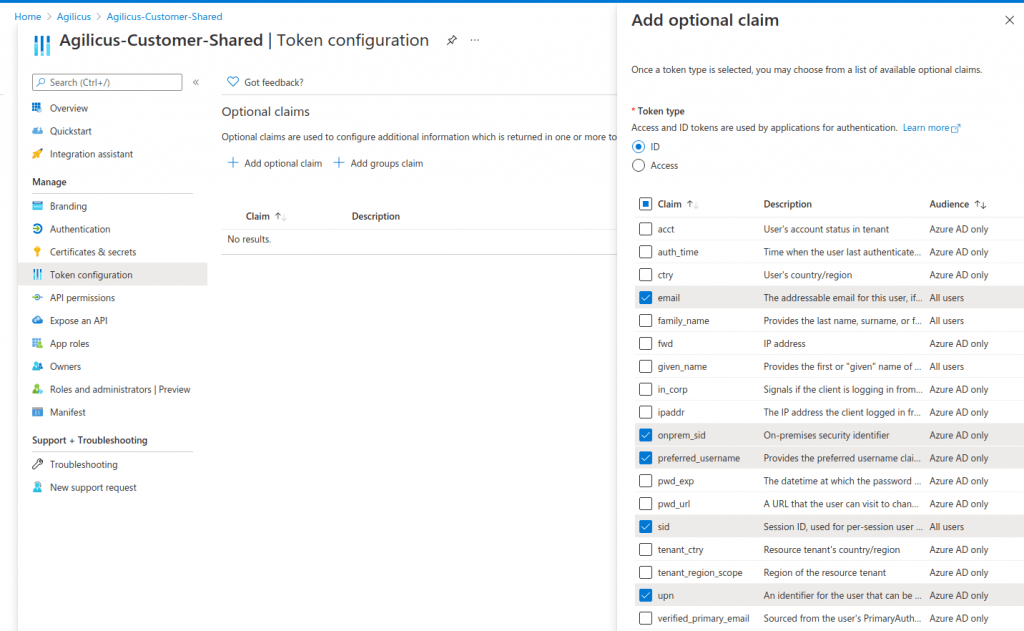
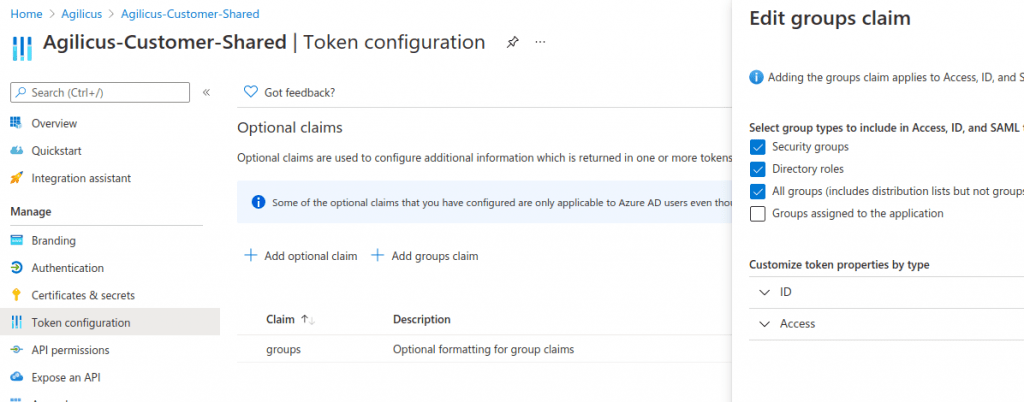
NOTE: A user can only be associated with one Identity provider. If you have signed in using the shared Microsoft provider, you cannot use this user to test with. We recommend using a different user to test with, then make that user an administrator, then log in with that new user, reset your existing user. See “Reset User Upstream Identity“. We cover this later in this Example.
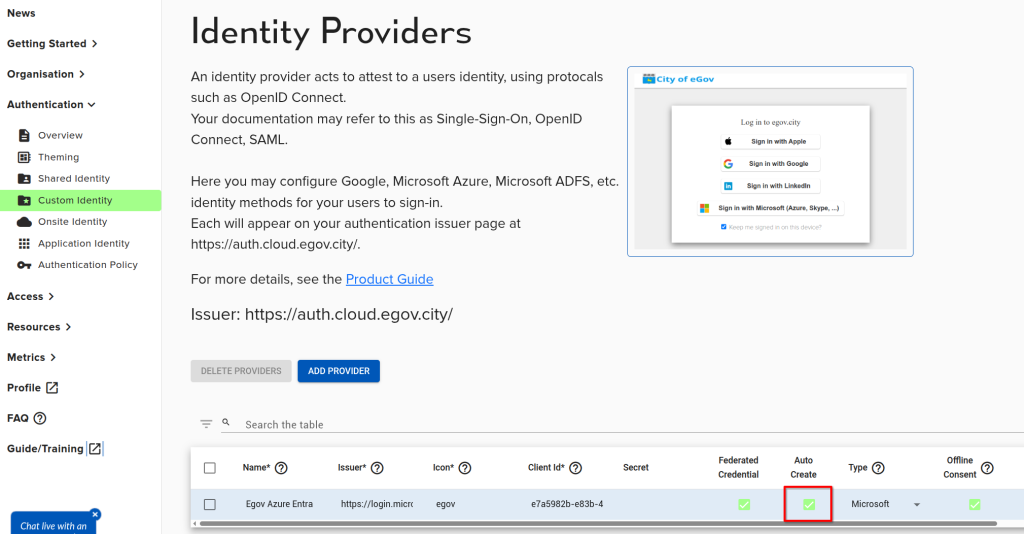
Step 4: Enable Auto-Create
Since we will be entirely managing users in the Microsoft platform, we desire to create them automatically in Agilicus AnyX.
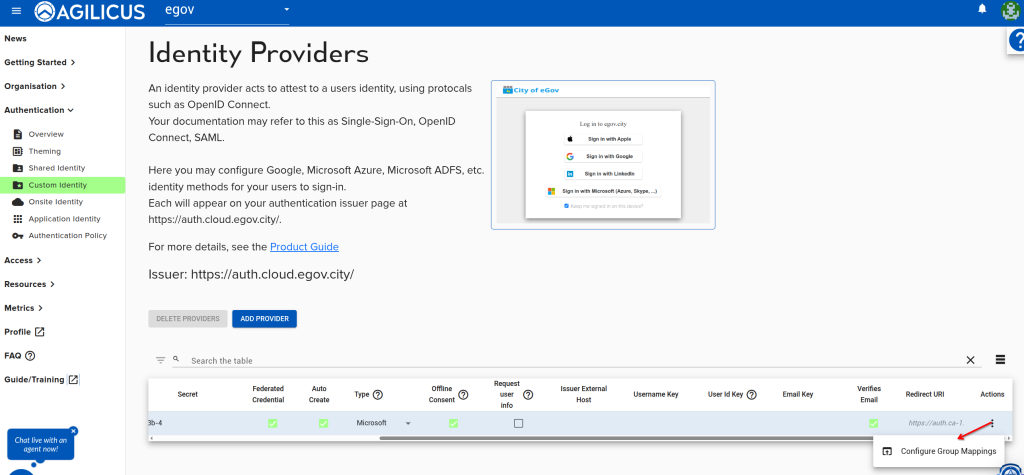
Step 5: Enable Group Mapping
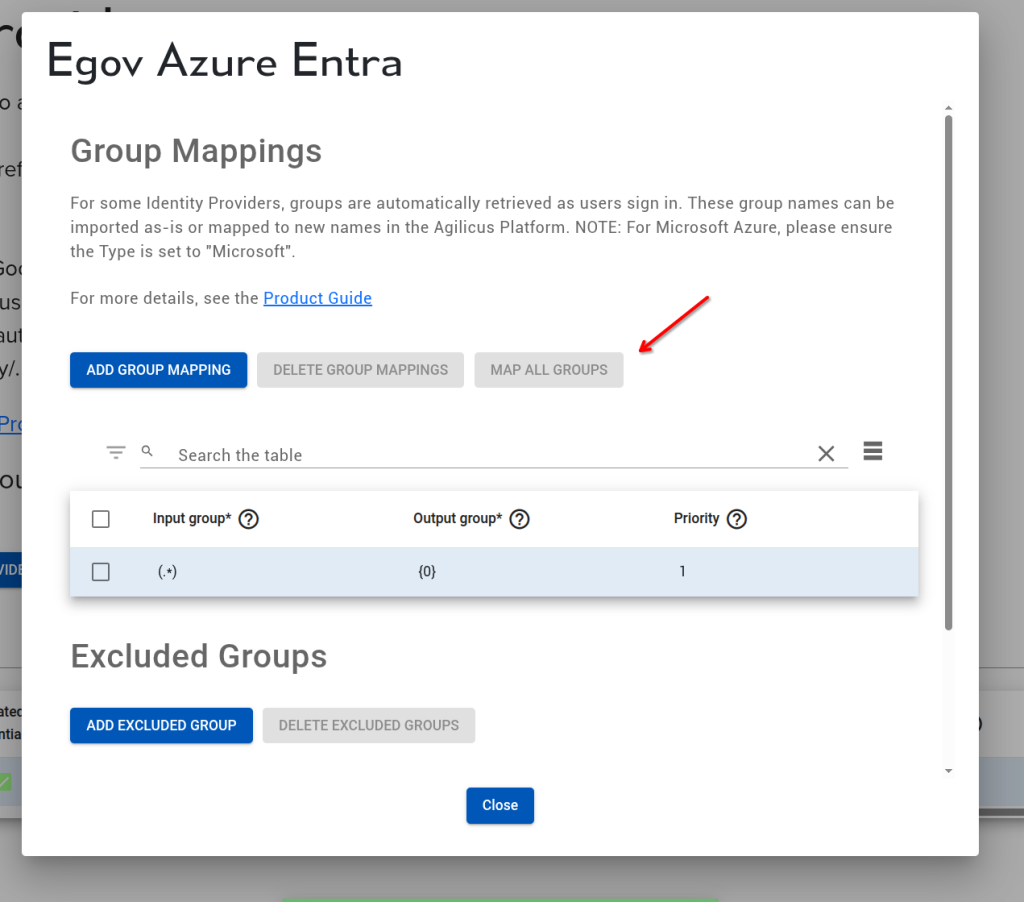
In your Microsoft Entra system, you have a set of groups (e.g. ‘All Users’, ‘HMI Admins’, etc). These can be auto-provisioned into Agilicus AnyX by configuring the Group Mappings. For this example we will do a 1:1 map, select the action button, configure group mappings, and then the “MAP ALL GROUPS” button.
Step 6: Add Icon to theme
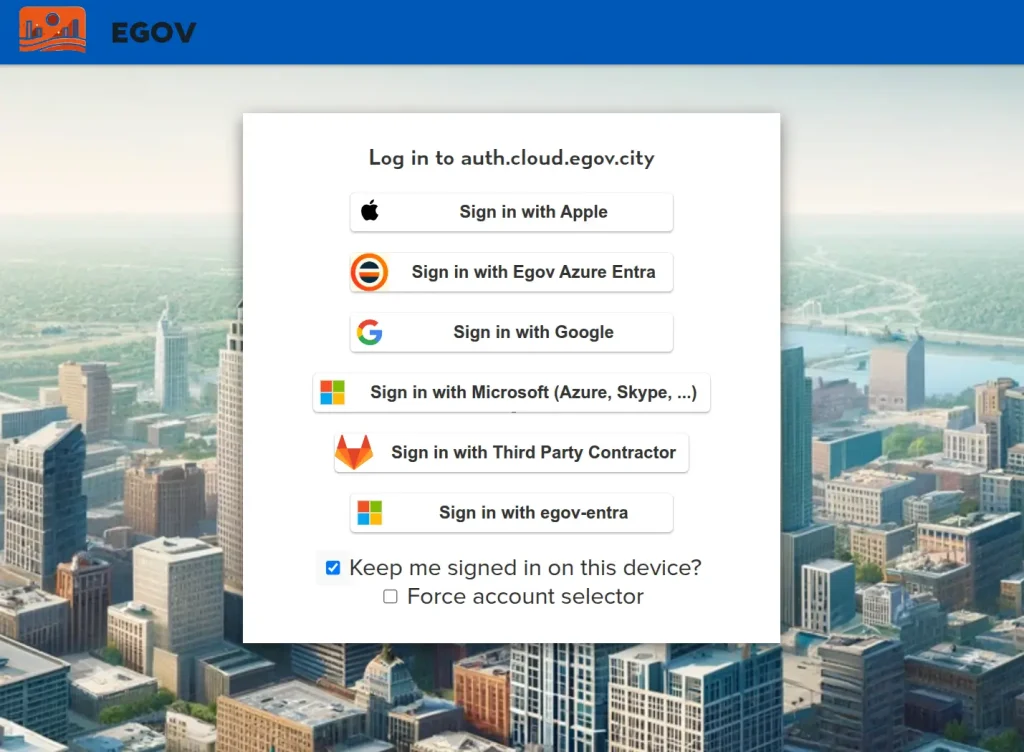
On the sign-in screen, the label will be “Sign in with” and the name you give this in the Agilicus Admin.
Follow the instructions at Theming. Create an svg or png file that is square (e.g. 64×64, 256×256), place it in the theme directory.
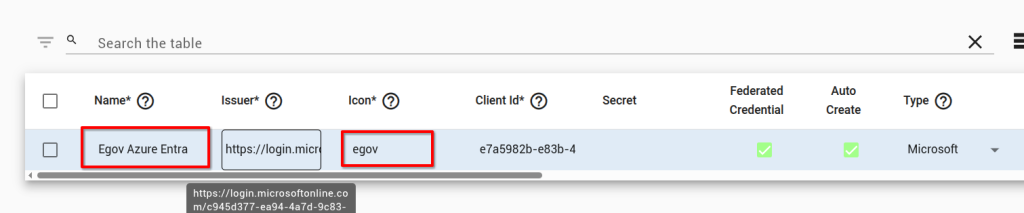
Add an entry to the styles.css in the theme directory as below, where the name (in this example –egov) is replaced with the name you gave on the config screen in the icon column (e.g. –my-icon). Make the ‘url’ field be the name of the icon file you placed in that directory.
.dex-btn-icon--egov {
  background-image: url(egov.png);
  background-size: contain;
}
The result will be somewhat like below.
Step 7: Sign-in as Test User
You should now be able to sign in as a test user you have available to you in that Microsoft Entra directory. Do not use the same one you are already signed in via the existing multi-tenant application registration (we will resolve that below).
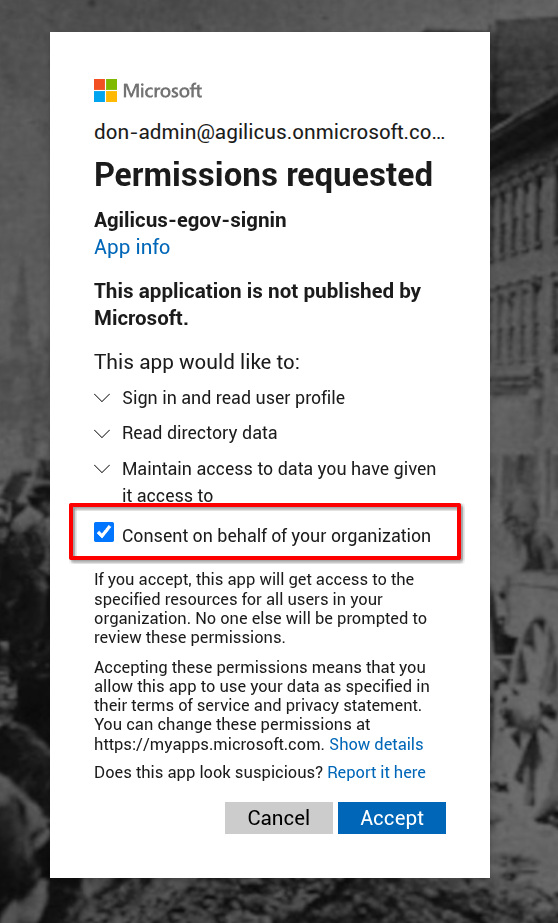
On the first sign in, you may, depending on your directory setup, see a consent form as below. Grant consent on behalf of your organisation. You can see the permissions granted (this is explained in more detail in Azure Application Consent). This does not grant Agilicus AnyX any permission other than the read the user name and groups.
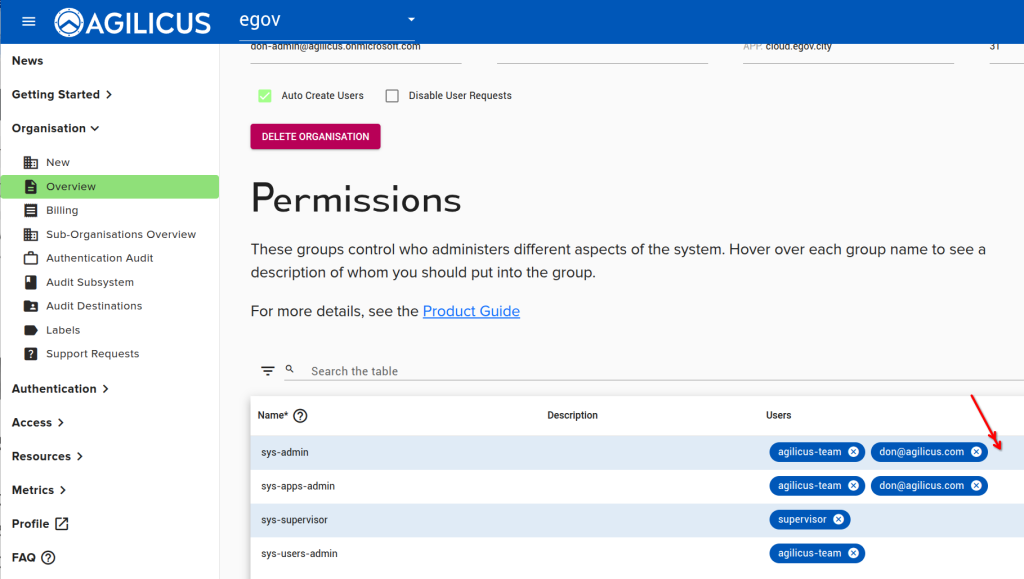
Step 8: Assign Administrative Rights
At this stage, the test user can sign in, let us now assign administrative permissions to the test user so we can reset the original.
Step 9: Re-Sign-in as Test User
Sign in again as the test user. Observe that they can now see ungrey menu in admin.
Observe the Access/Groups menu has the names of your Microsoft Entra groups. You may later assign permissions to these.
Step 10: Reset Previous User
While signed in as the test user, after granting admin, we will now reset the original user. See “Reset User Upstream Identity“.
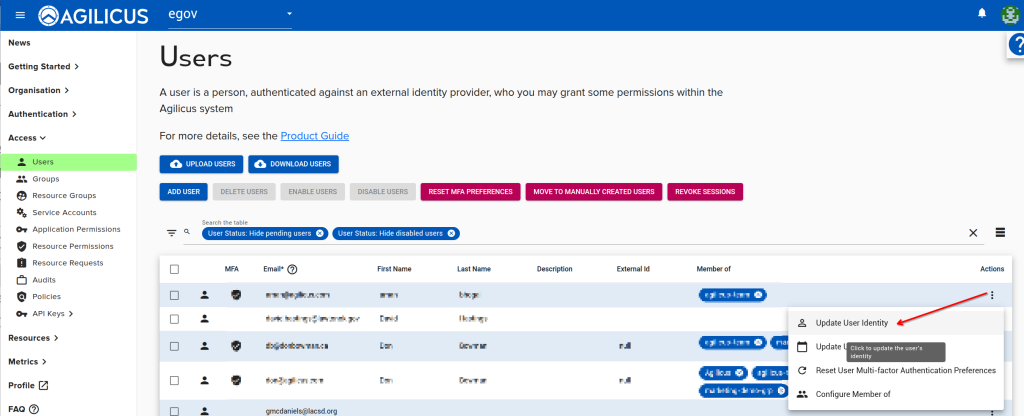
At this stage you are complete. Feel free to try logging in as the original user.
From here, you will assign permissions based on your Microsoft Entra groups, and, there will be 0 ongoing management required for users or permission assignments.