
Connector Install: GL-RM1 KVM
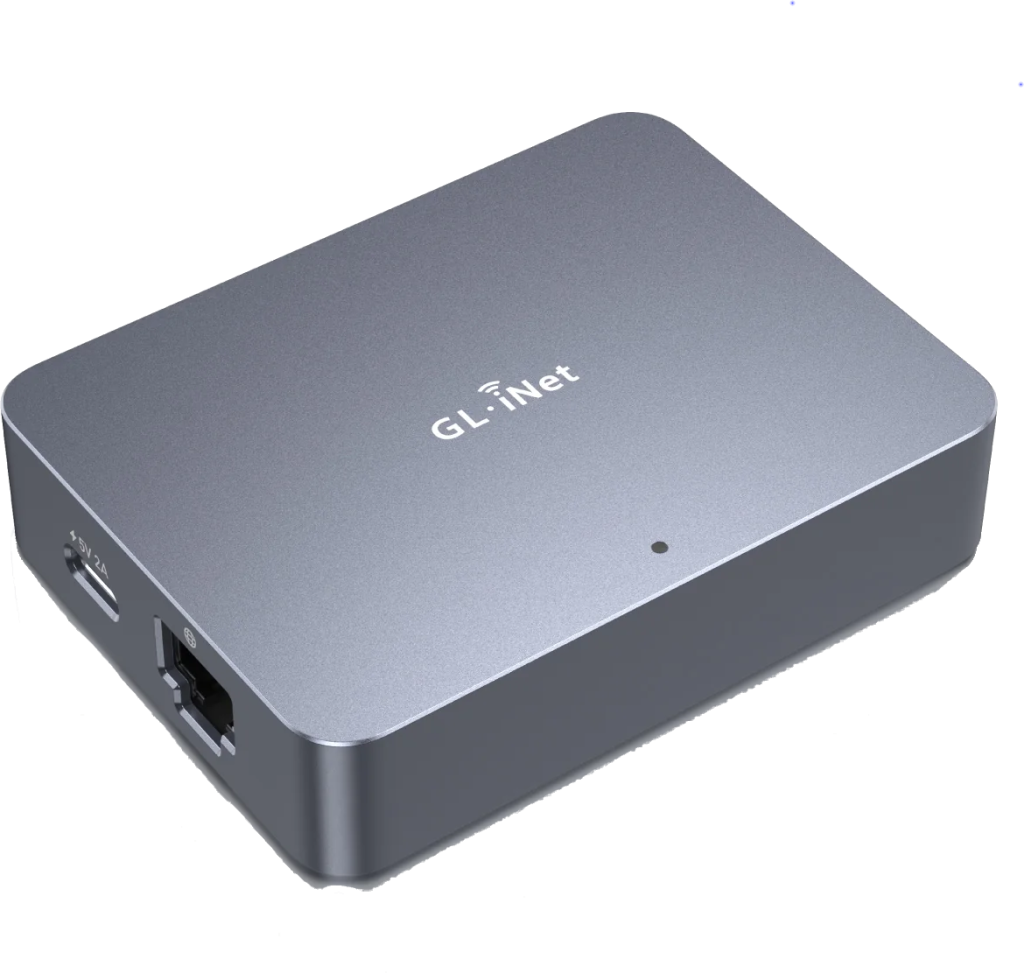
The GL.iNet GL-RM1 is a small KVM supporting HDMI in.
With the Agilicus Connector installed you may use it from anywhere with just a browser, safely, securely, with single-sign-on.
Overview
The GL.iNet GL-RM1 is a simple, economical, remote Keyboard/Video/Mouse (KVM) device. It offers an excellent platform to install the Agilicus Connector, giving yourself remote access to a server from anywhere.
Installation is as on any linux device. Once installed, we will configure the three services (SSH and Web, Share). Most users will just use the web interface, but the Share exists to put files onto the device for onwards sharing to the managed host, and SSH to manage the device itself.
- ssh root@IP (ssh is enabled by default)
- Install by pasting command line from Agilicus Admin
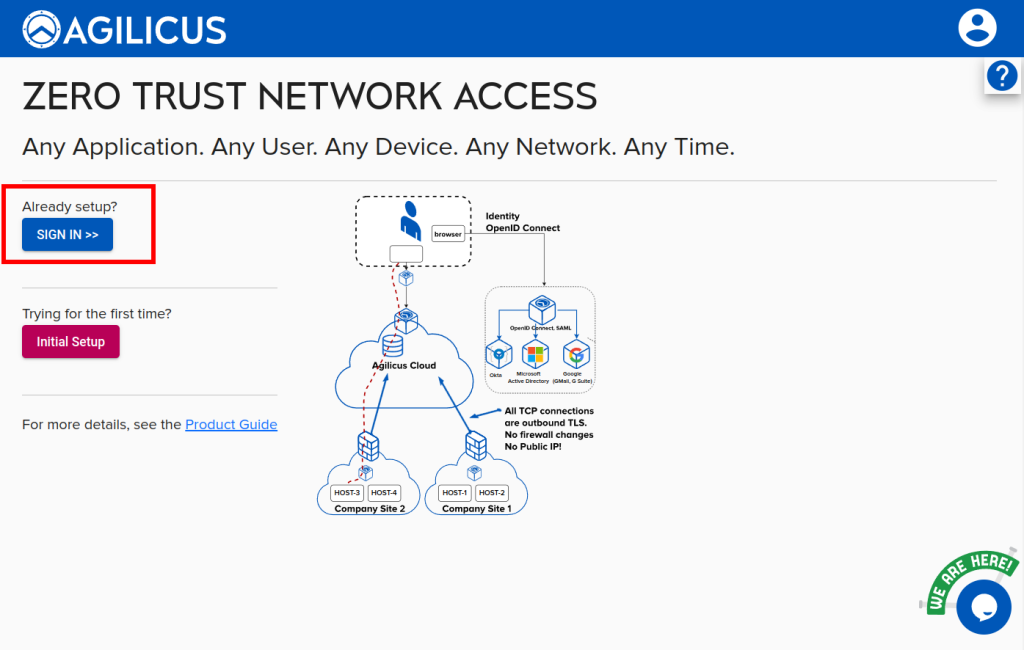
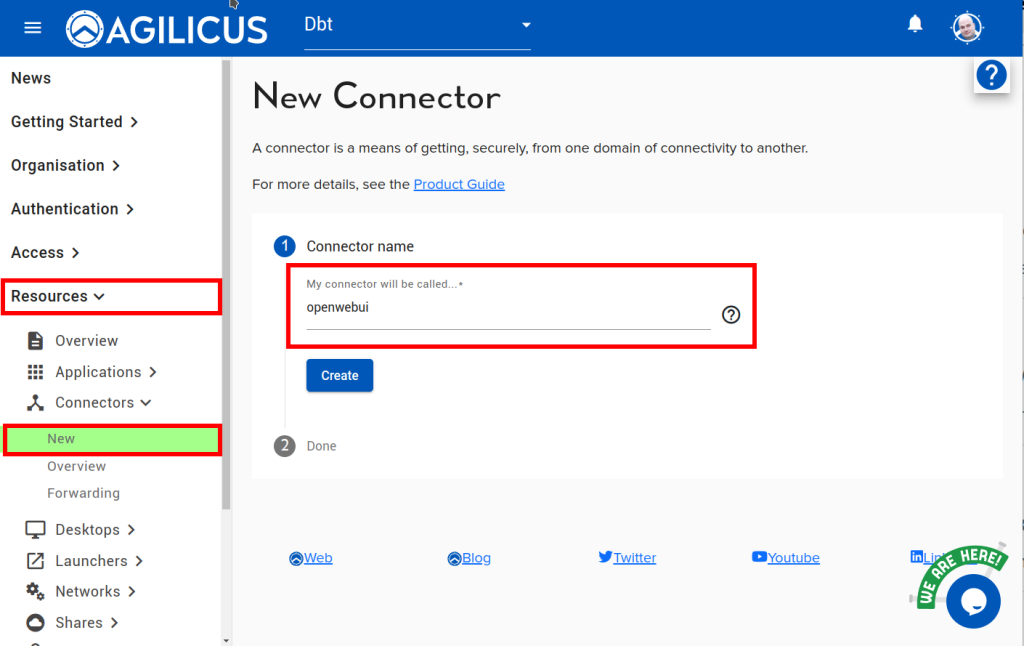
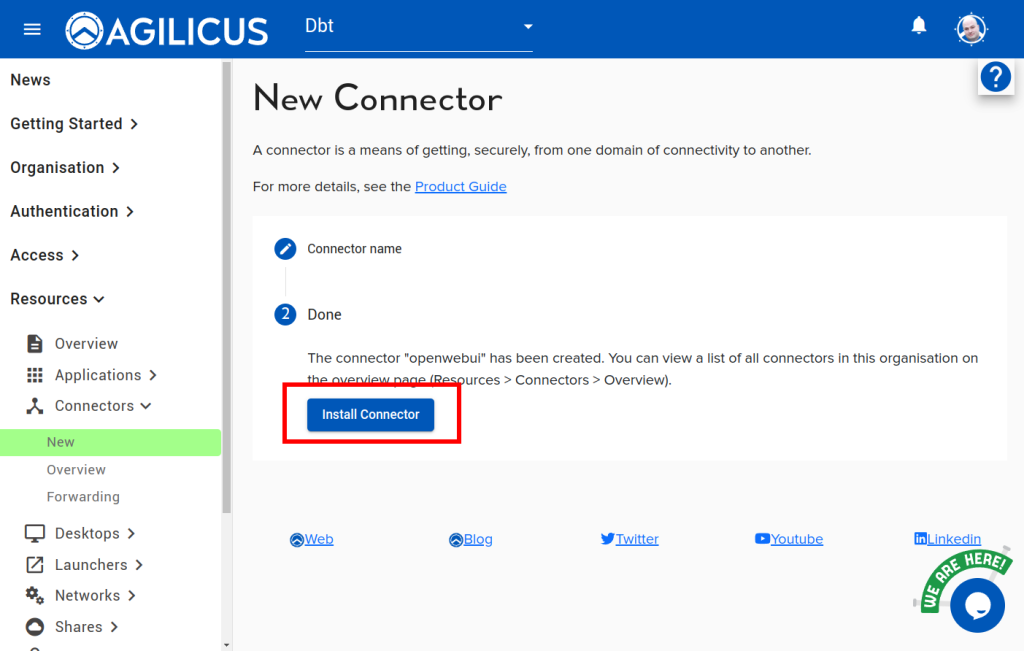
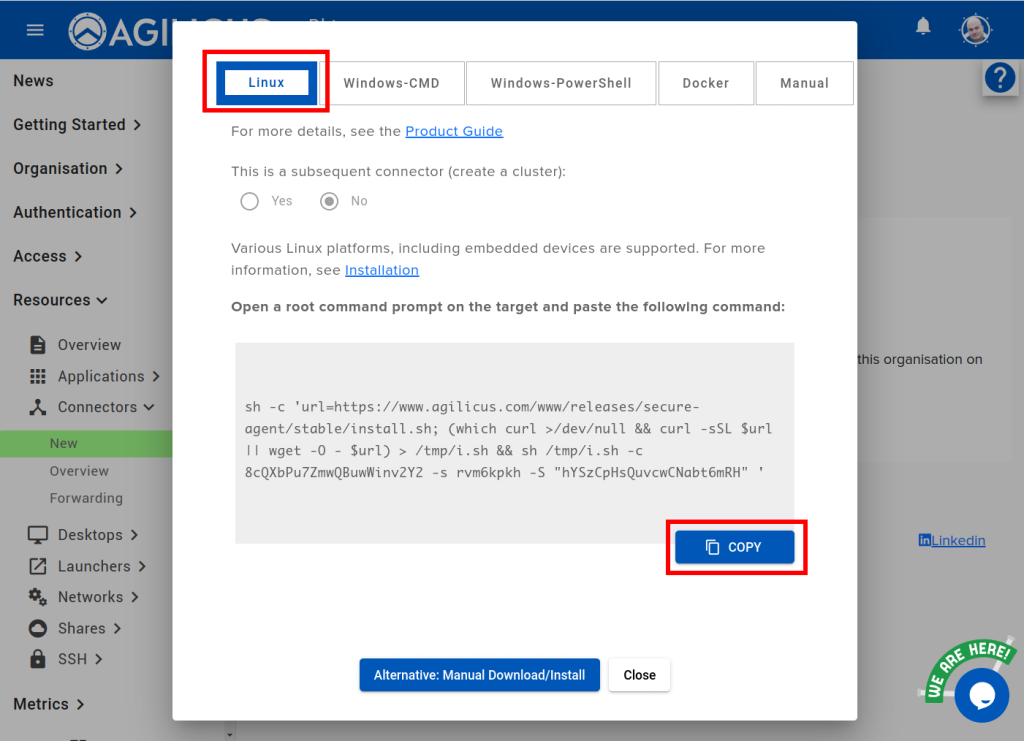
Navigate to the admin console (https://admin.__MYDOMAIN__). Sign in with the credentials you used during sign up. Select resoures/connectors/new, and give the new connector a name (here we are using ‘openwebui’). Select ‘Install Connector’.
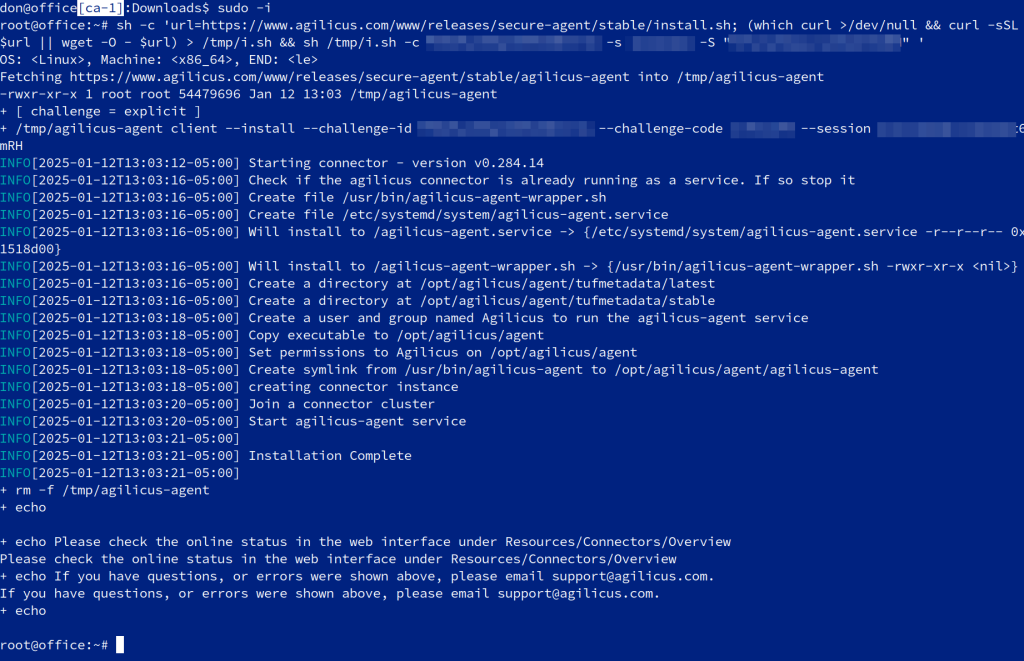
In the dialog that comes up, select Linux at the top, and then copy the command line. Paste this into a root shell.
Depending on your Linux distribution, this will install a service with systemd, upstart, init.d, etc. These instructions should also work on embedded devices (e.g. Raspberry pi).
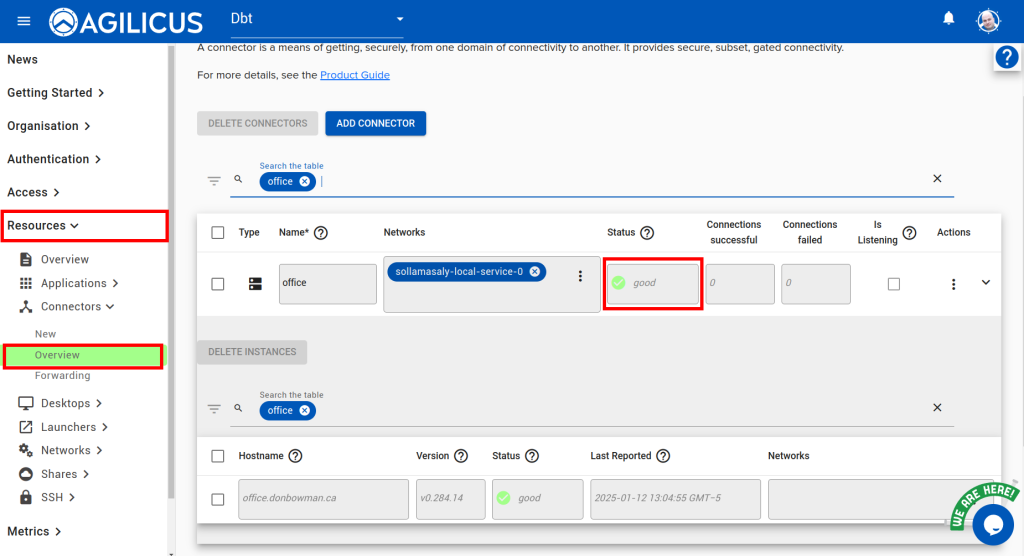
When complete, the dialog should dismiss itself. We can now check the connector status in Resources/Connectors/Overview, and see it will go ‘good’.
If the connector doesn’t come online, check that the service is running and check for any errors in its log. Common errors include:
- NTP / timesync is not setup
- Outbound firewall prevents connections to port 443 (the Connector can support MITM proxies in corporate environments if needed)
Resources
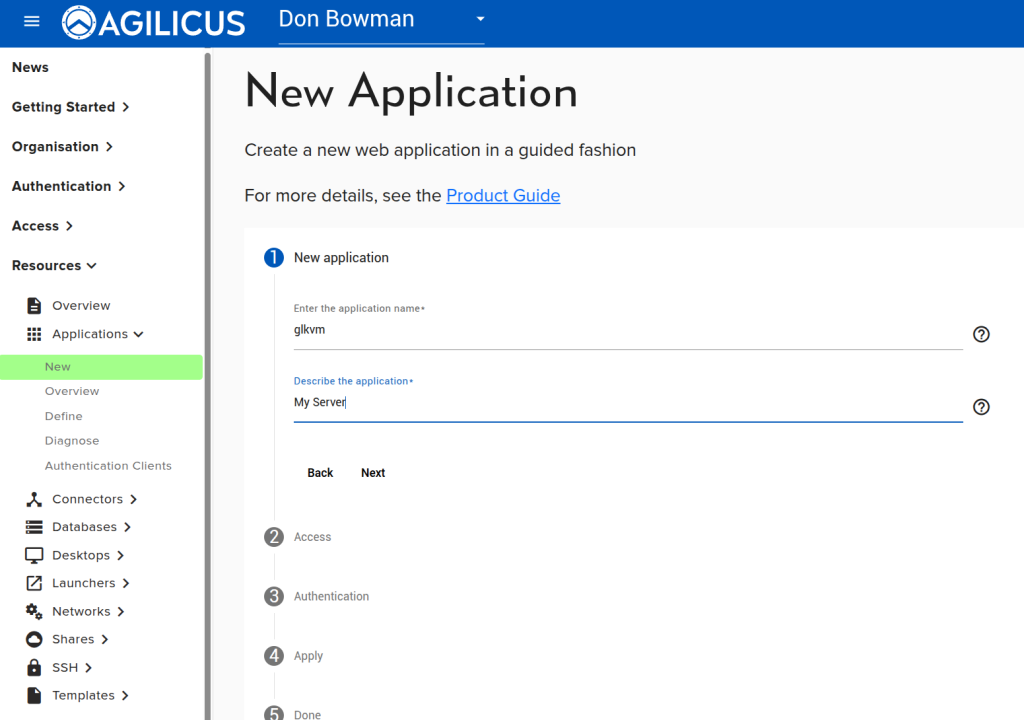
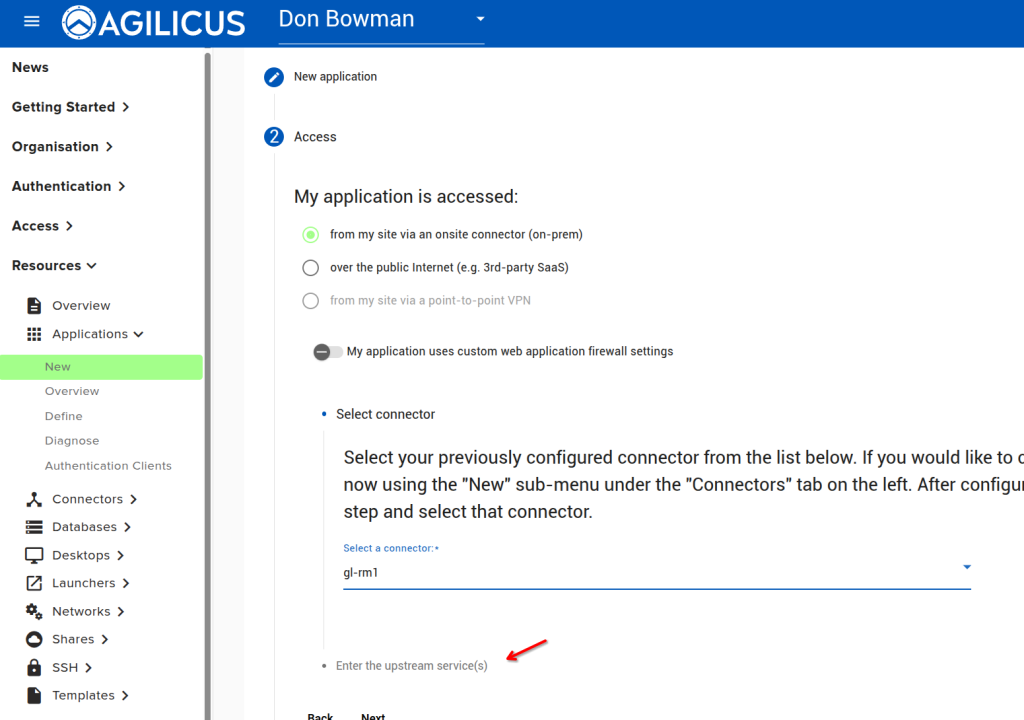
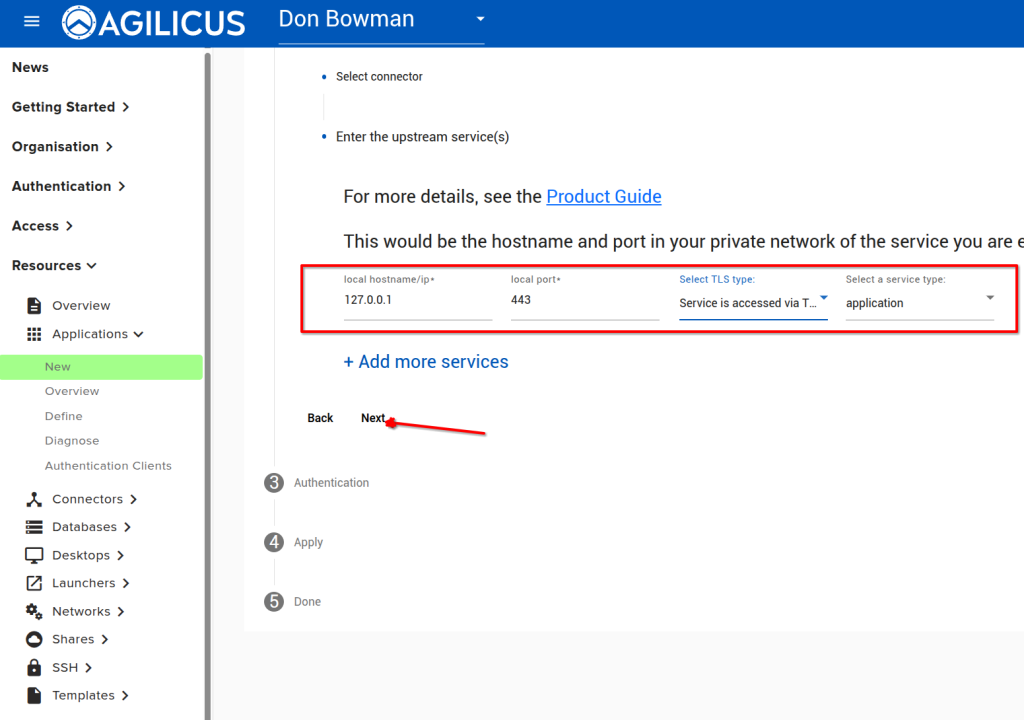
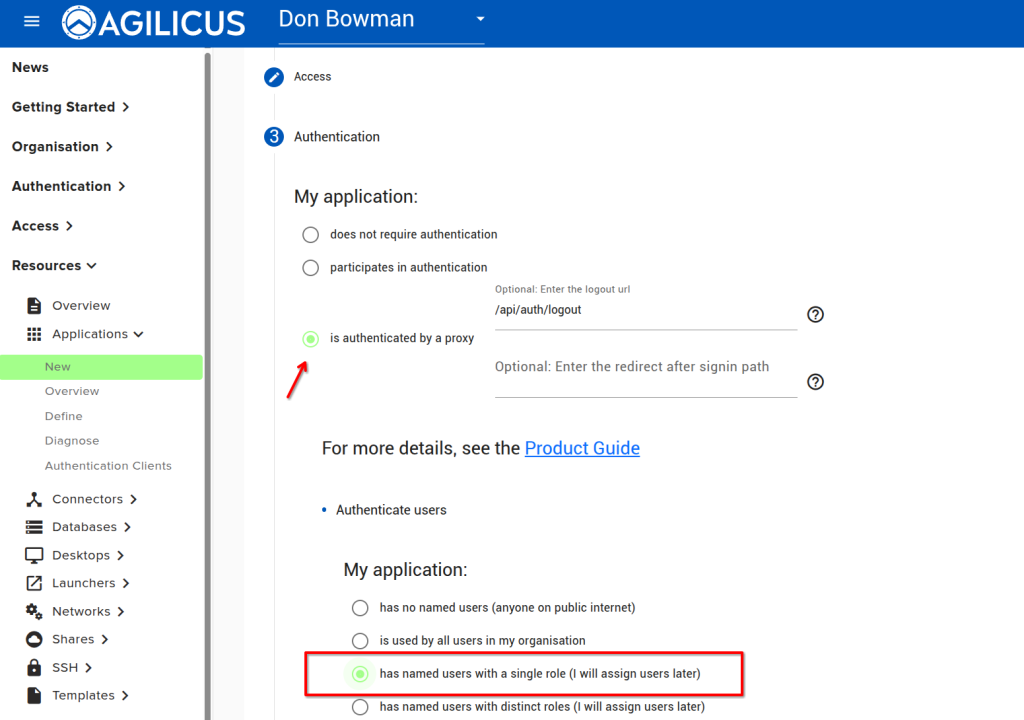
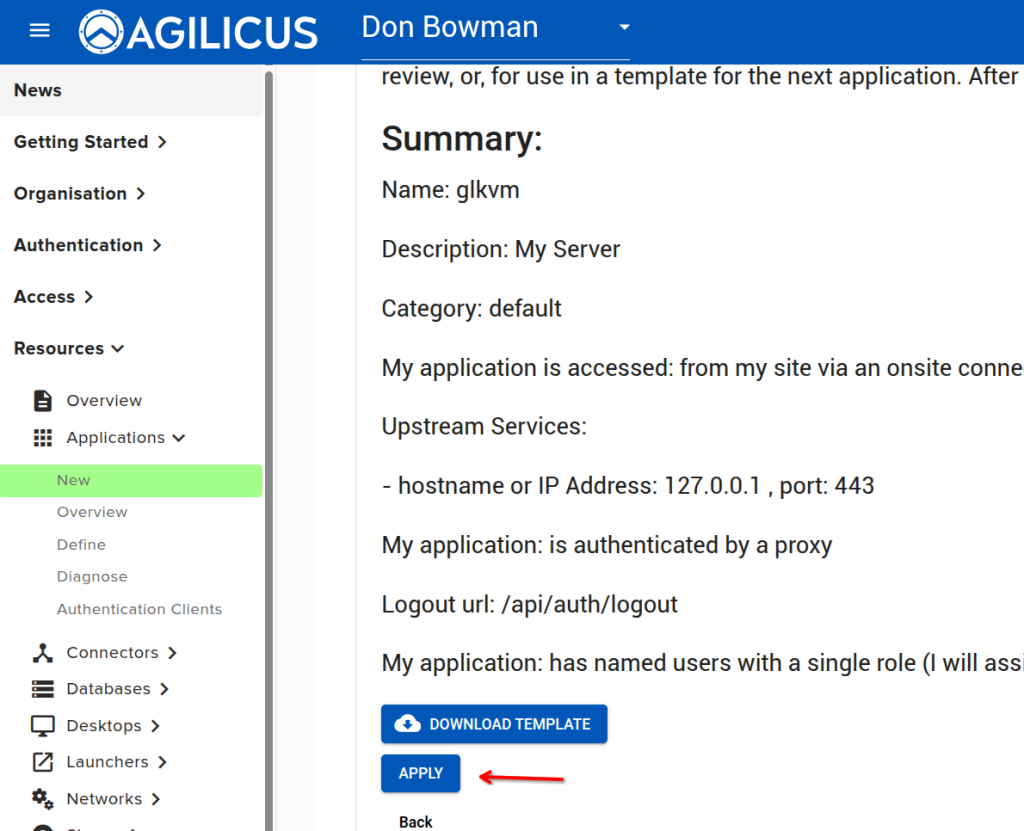
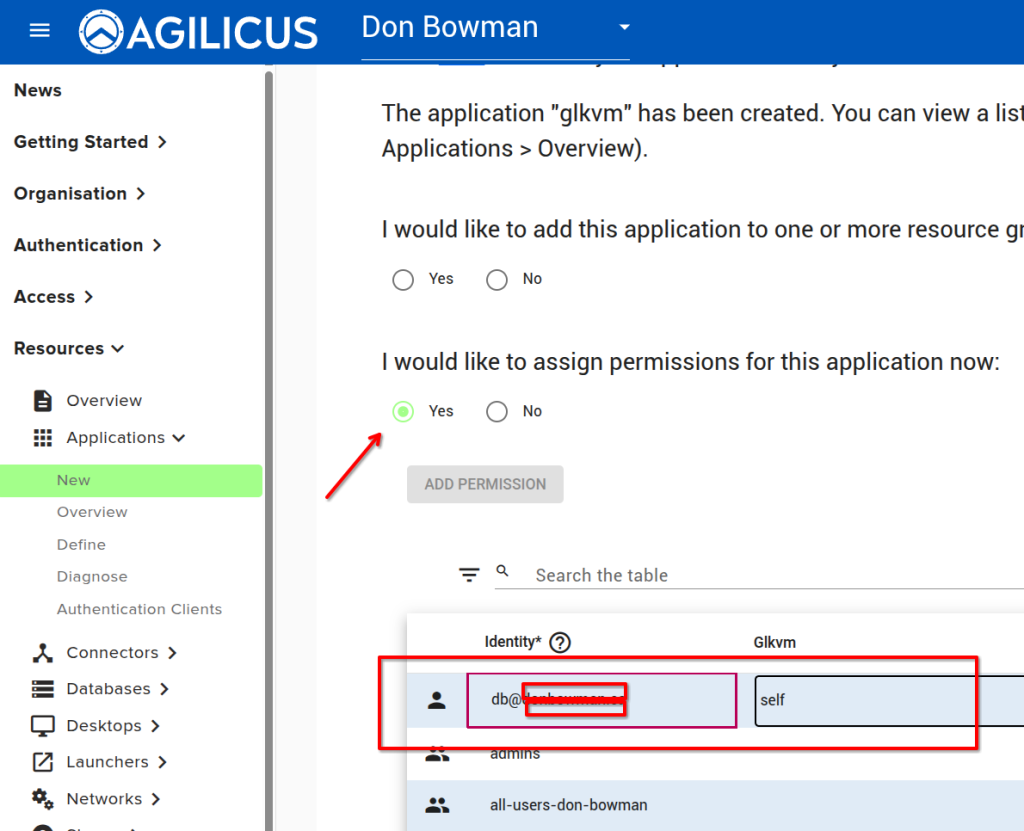
You will want to create 3 resources on your GL-RM1. First, we will create a web application. This will be your primary application, allowing you from any device, anywhere in the world, to open your browser to ‘https://glkvm.__MYDOMAIN__’ and thus see your server.
Second we will create a Share, this will allow us to drop files into the shared folder that the GL-RM1 will share via USB to the target.
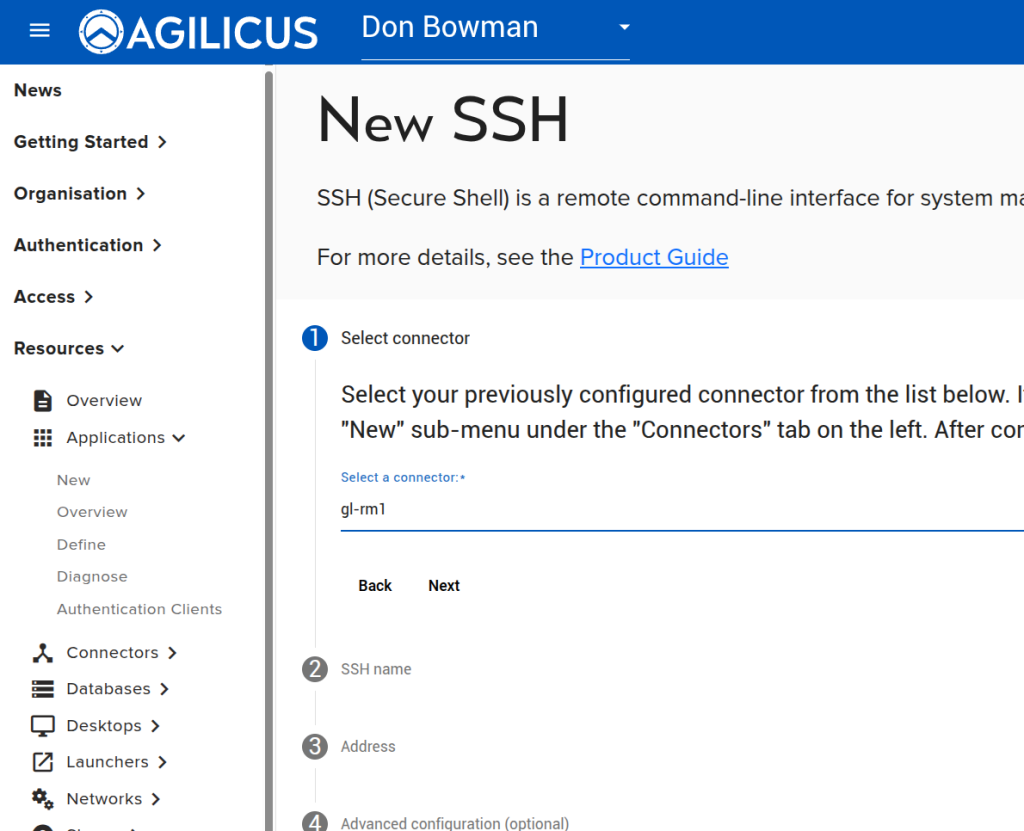
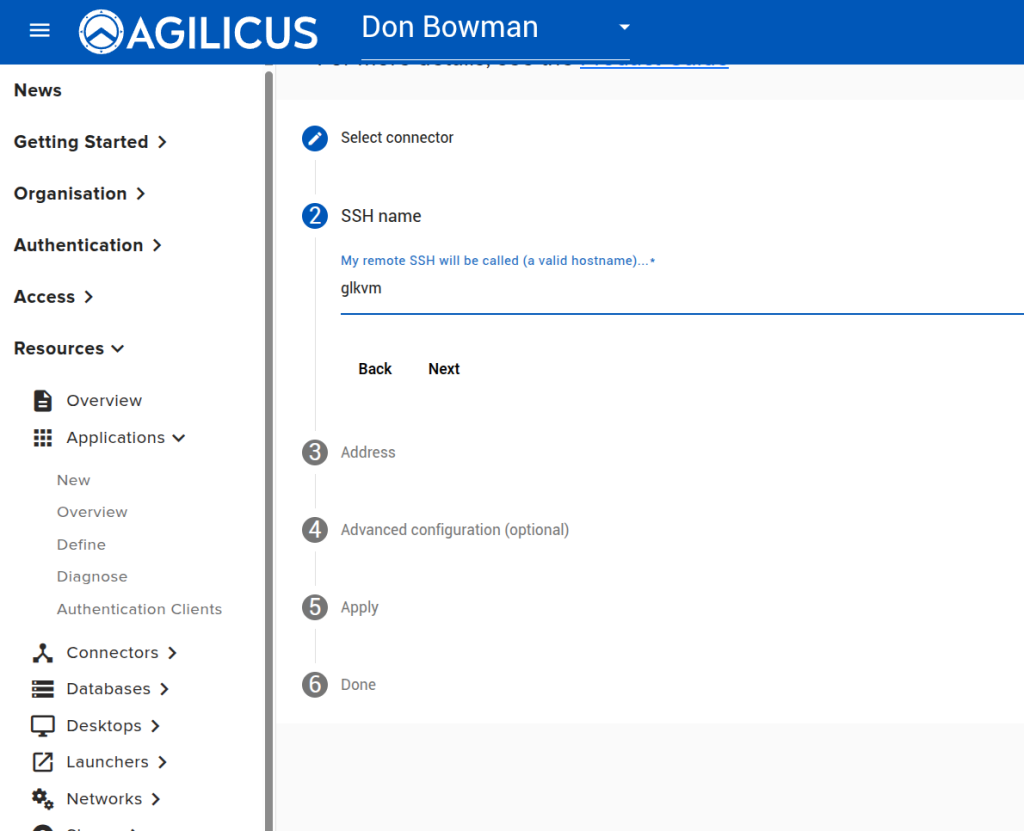
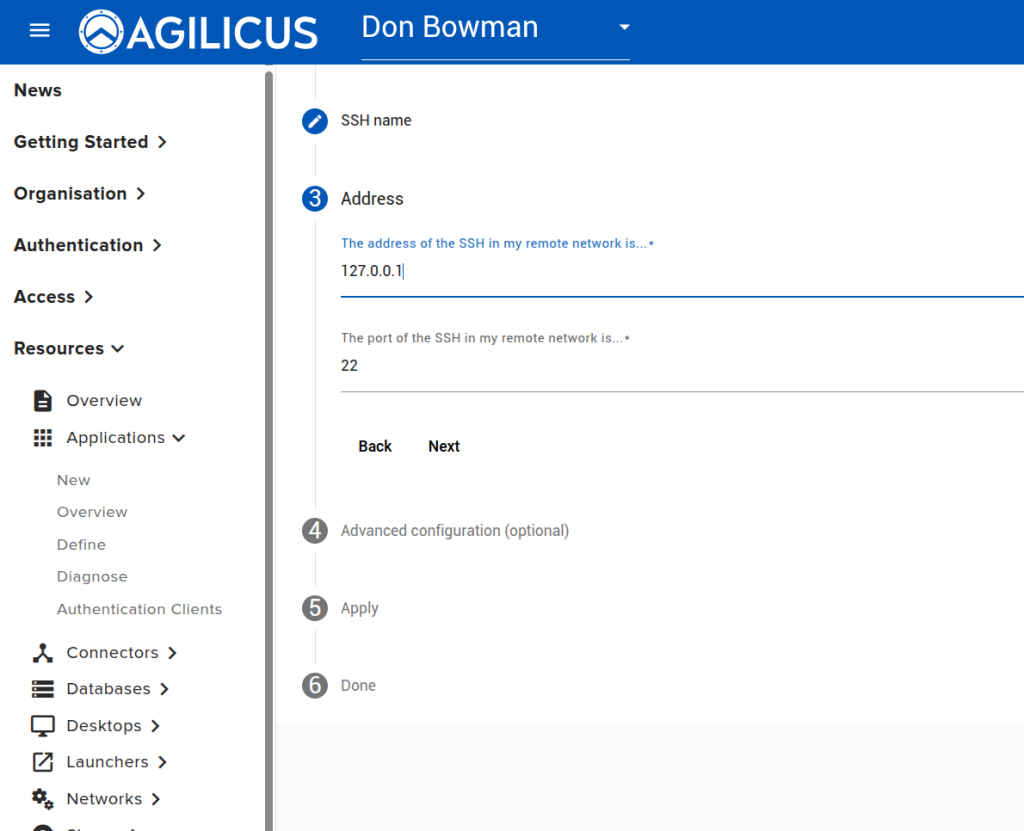
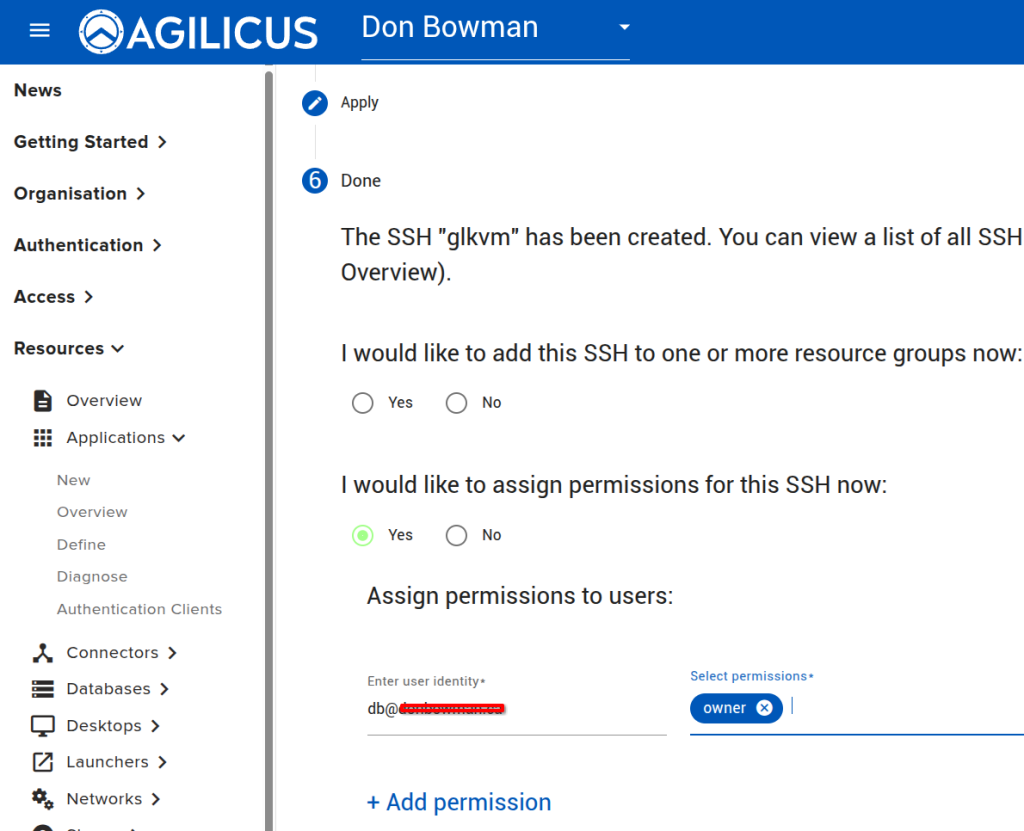
Third we will create an SSH, this will allow us to reach the GL-RM1 for admin of it.
Web Application
Share
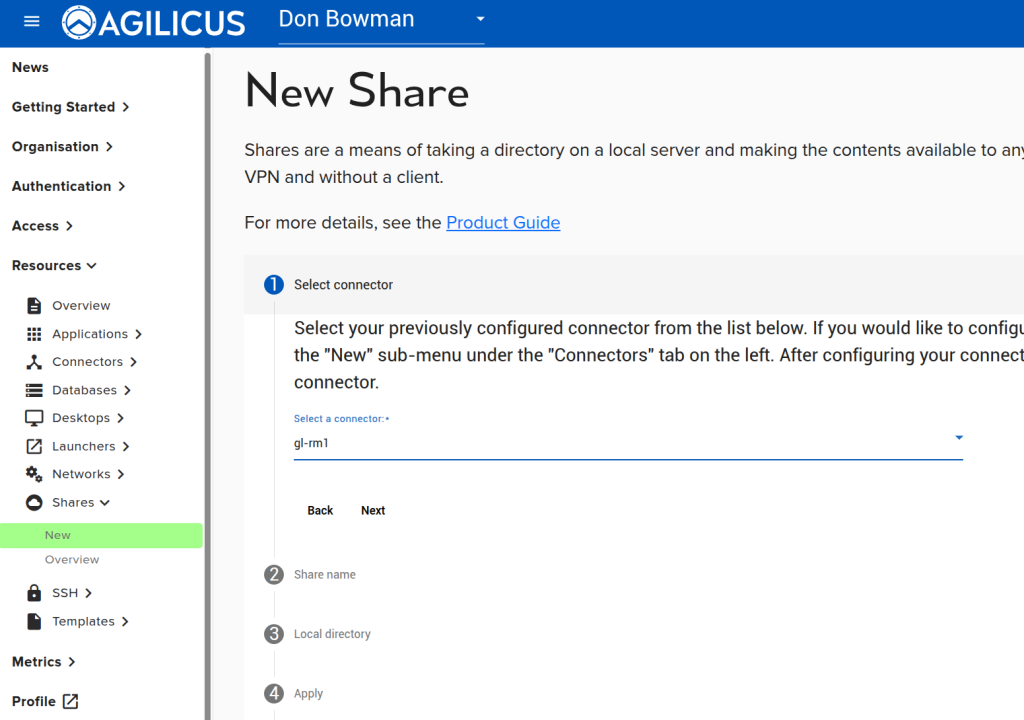
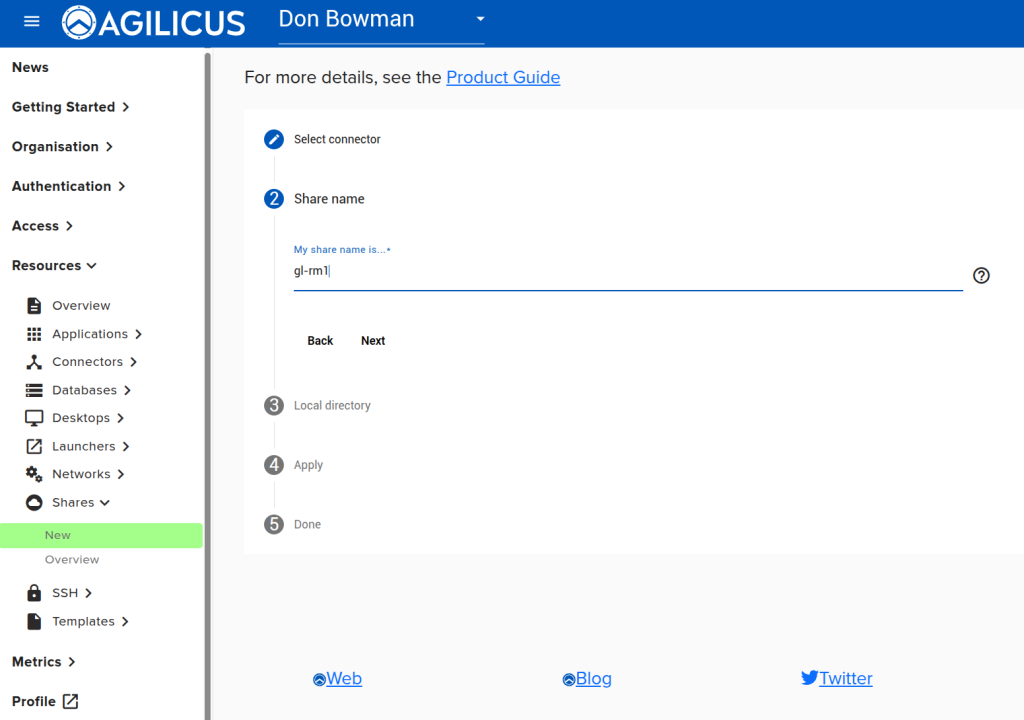
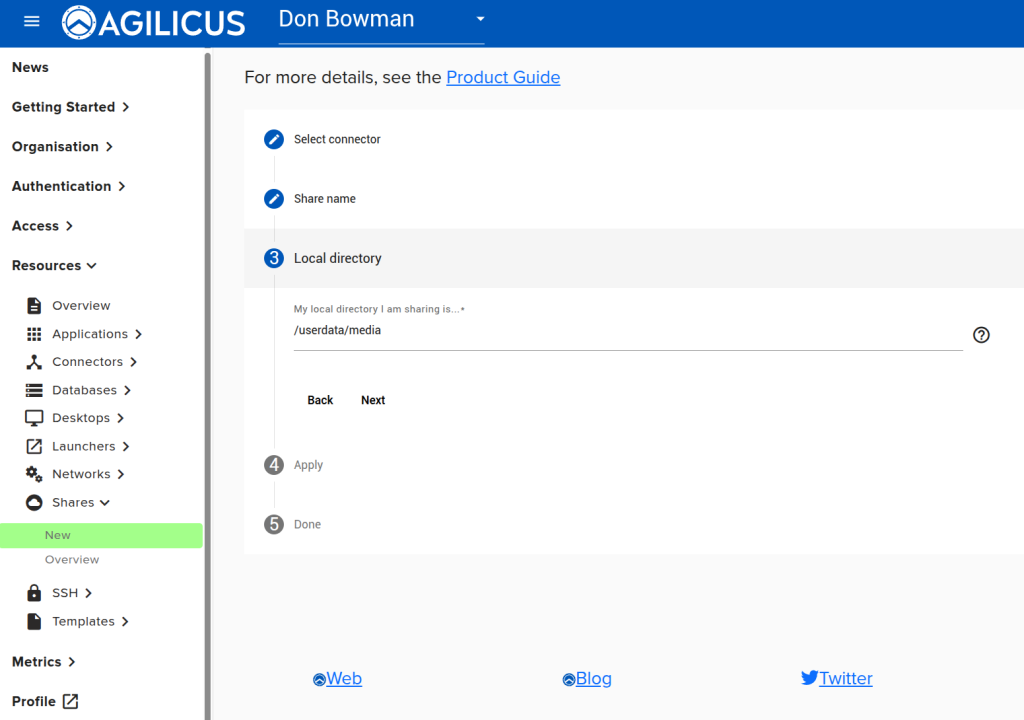
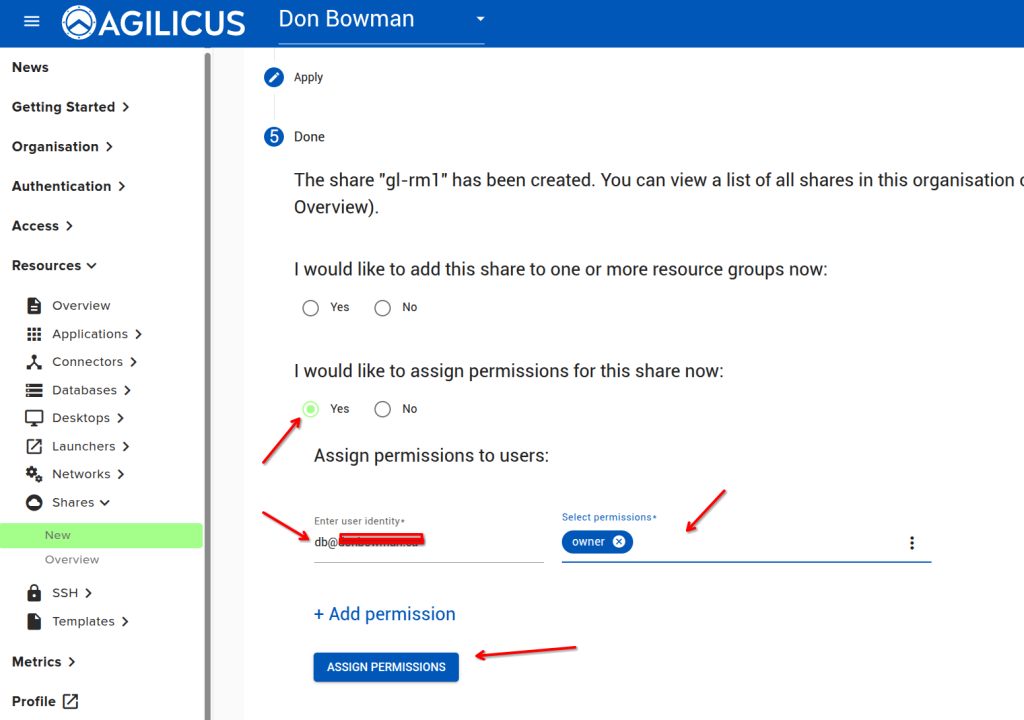
The GL-RM1 has a directory for sharing files (via USB mount) to the managed device. You can use this directory directly from Agilicus in profile (https://profile.__MYDOMAIN__). Create the share as below, using the local directory /userdata/media, and assign yourself permissions.
SSH
Usage
Open Agilicus profile (https://profile.__MYDOMAIN__) and you will see 3 icons, one for each resource. Click them.