
Authenticated Remote MCP Server
An example showing how to securely expose an STDIO Model Control Protocol (MCP) server so that it may be accessed remotely, with authentication, without reconfiguring your firewall.
Authenticated Remote MCP Server
Model Control Protocol (MCP) allows applications to provide context to Large Language Models (LLM). For example, your favourite agentic tool such as the Roo Code can interface with a database using MCP, allowing you to conversationally run queries, insert data, and modify schemas.
One of the core components in this protocol is the Server: it defines a mapping of concepts such as tools (e.g. execute this query) on to actual interactions with the application. The Client, running inside the Host application (e.g. Roo Code), discovers these tools, making them available to the Host and its LLM for invocation. This allows you to ask a question like: “How many books are stored in my library” without needing to understand how to actually query the database.
MCP servers are easy to create with an SDK. However, creating one which properly supports authentication is a bit harder. The SDK does a fair amount to support that, but it requires knowledge and configuration that increases the complexity. Consequently, many of the MCP servers either do not support authentication, or only support the STDIO transport, which only allows access on the machine running the application.
MCP is a quickly developing domain: issues in MCP servers are only just starting to come to light as researchers start to focus on it. For example, a well-known MCP Server for interacting with PostgreSQL purported to have mode only allowing read-only access, but that restriction could be bypassed by a well-crafted command to the server. See https://securitylabs.datadoghq.com/articles/mcp-vulnerability-case-study-SQL-injection-in-the-postgresql-mcp-server/ for details. Locking down access to your MCP Server so that only trusted users can interact with it adds a layer of defence, helping to prevent attackers from exploiting vulnerabilities.
Agilicus provides a bridge via the Agilicus Launcher which achieves this lockdown. You can use your agentic tool of choice to interact with your MCP Server while restricting access to only those users who you have given access. This guide walks you through an example scenario where you want to interact with your self-hosted PostgreSQL instance using an agentic tool.
Overview
The example will walk you through five steps to configure your desktop:
- Running a throwaway instance of PostgreSQL locally
- Running an PostgreSQL MCP Server locally
- Creating an Application in Agilicus to proxy to your MCP Server
- Configuring Roo Code to invoke the Agilicus Launcher
- Running some test prompts to show everything working together
This guide assumes that you have a connector running on a machine with Docker installed. It also assumes you have Roo Code installed in your editor, and the Agilicus Launcher installed on your desktop.
Configuring PostgreSQL
You can point the example at your own instance of PostgreSQL, but for convenience we will set up a temporary instance on the machine where you’re running the connector. The following script will start PostgreSQL via Docker.
docker run --name mcp-example-pgsql -e POSTGRES_USER=pguser -e POSTGRES_PASSWORD=mysecretpassword -p 8765:5432 --rm postgres:17Setting up the Postgres MCP Server
This example uses Postgres MCP Pro as the MCP Server to interact with PostgreSQL. We run it in a Docker container on the machine where you started the PostgresSQL container.
docker run -ti --net=host --rm -p 8000:8000 \
  -e DATABASE_URI=postgresql://pguser:mysecretpassword@localhost:8765/pguser \
  crystaldba/postgres-mcp --access-mode=unrestricted --transport=sse
You can customise the previous command to listen on a different port, or so that the MCP server communicates with your preexisting instance of PostgreSQL.
Once you have the proxy running, you can move on to configuring an application.
Creating an Application in Agilicus
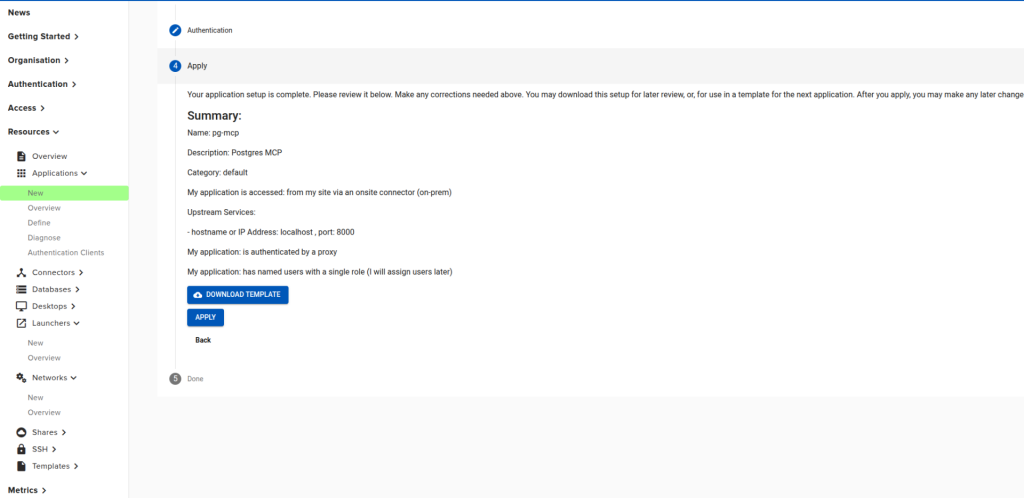
To provide authentication and remote access to the MCP Proxy, you need to configure an Application. In https://admin.__MY_DOMAIN__ navigate to Resources -> Application -> New to configure a new Application. Name it “pg-mcp” and describe it as “Postgresql MCP Server”.
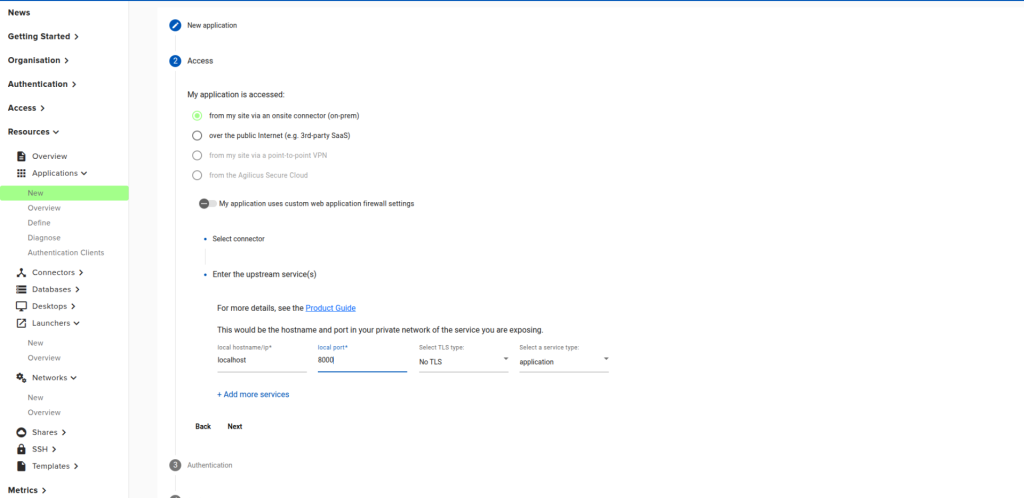
Next, in Step 2 Access, choose “from my site via an onsite connector (on-prem)”, and select your connector. Enter “localhost” for the local hostname/ip, and “8000” for the local port. If you used different values for the MCP Server, enter them here instead.
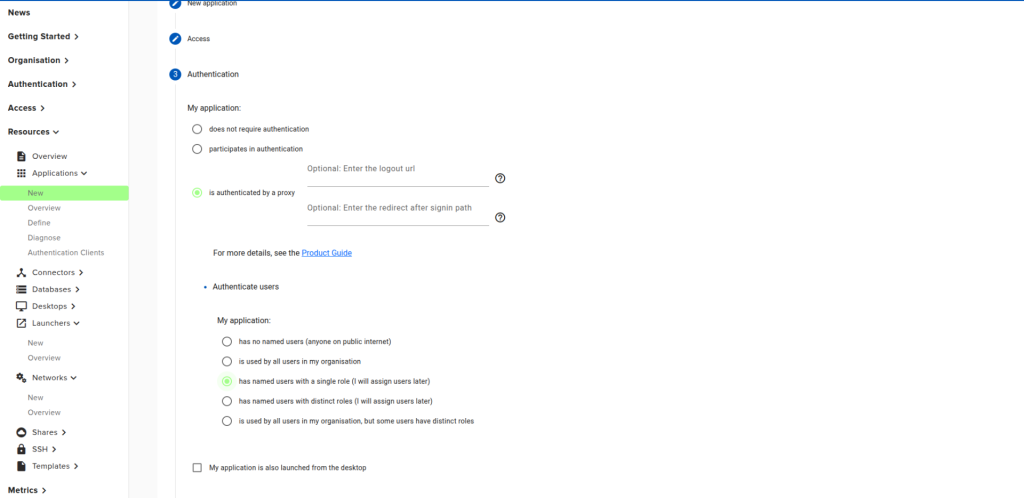
In Step 3 Authentication, choose “is authenticated by proxy, leaving the optional fields blank. Select “has named users with a single role” for Authenticate Users.
Click “APPLY” in the “Apply’ step.
Once this has completed, assign yourself permission:
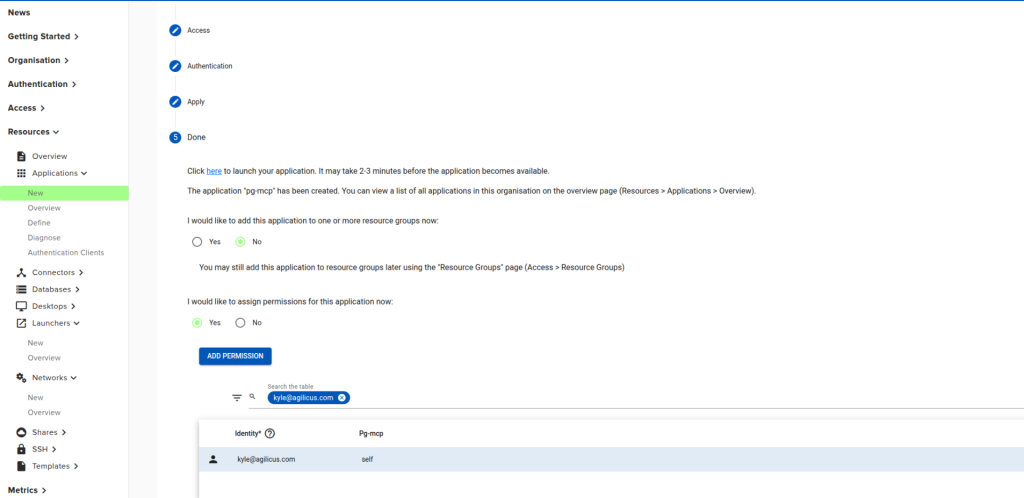
Your MCP Server is now exposed to the internet, secured with Agilicus. Only you have access to it, but you can always give access to other people.
Configuring Roo Code
Open up the “MCP Servers” tab in the Roo Code …. menu. Click “Edit Global MCP”.
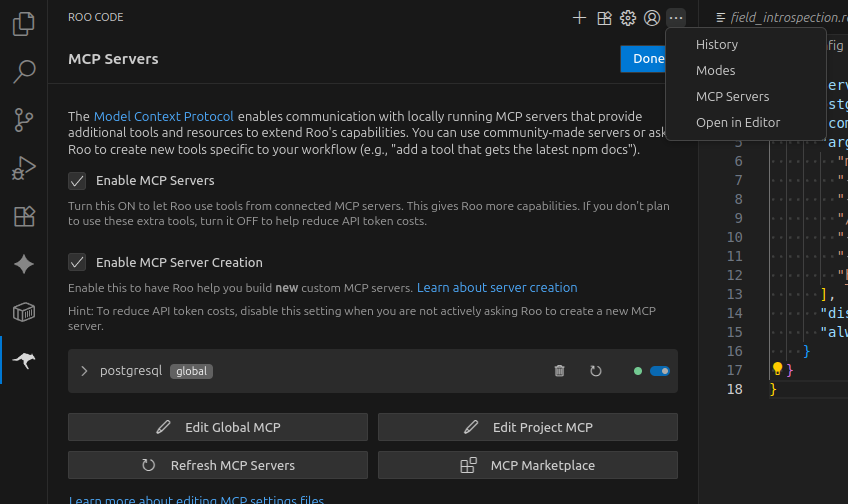
This will open up a JSON editor, allowing you to add your MCP Server configuration. We will call ours “postgresql”. Modify the following code to fill in <LAUNCHER_INSTALL_DIR>. This is usually in your homedir. E.g. /home/kyle/.local/share/agilicus-agent. Then, paste it into the JSON editor. If you already have values underneath “mcpServers”, you’ll want to add the “postgresql” field below them.
{
  "mcpServers": {
    "postgresql": {
      "command": "<LAUNCHER_INSTALL_DIR>/agilicus-agent",
      "args": [
        "mcp-bridge",
        "--sse",
        "--cfg-file",
        "<LAUNCHER_INSTALL_DIR>/agent.conf.enc.yaml",
        "--url",
        "https://pg-mcp.__YOUR_DOMAIN__/sse"
      ],
      "disabled": false,
      "alwaysAllow": []
    }
  }
Save the settings file, then click “Refresh MCP Servers”. You should see postgresql appear with a green status. Expand it to see the tools it provides.
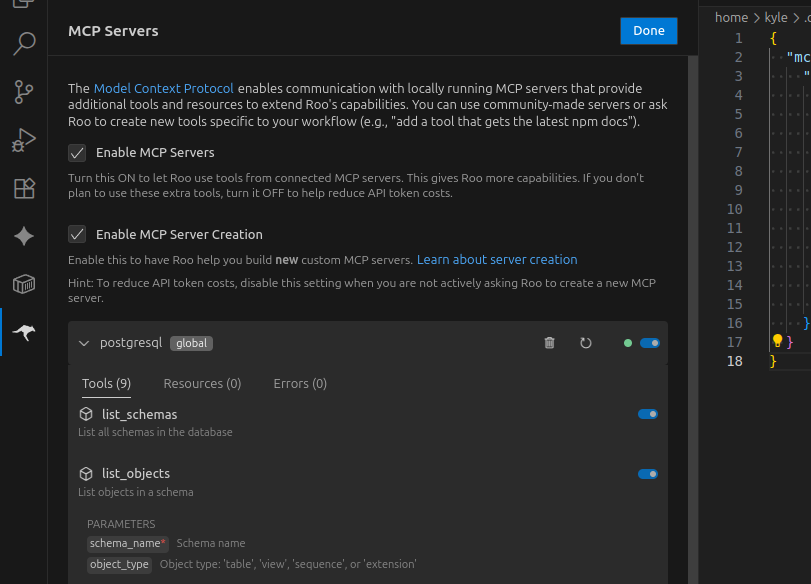
Now that you’re connected to the postgresql MCP Server from anywhere in the world, you’re ready to write some prompts!
Interacting with PostgreSQL Using Prompts
In this example we started with an empty database. So, we need to set something up to actually achieve anything meaningful. If you already have data in your database, you can start asking questions of it right away. We’re going to set up a schema representing a library, insert some data, then ask a question about it, all with natural language prompts.
To create the database, ask Roo Code the following, and then follow through its TODO list.
I want to create a database for tracking books in a library
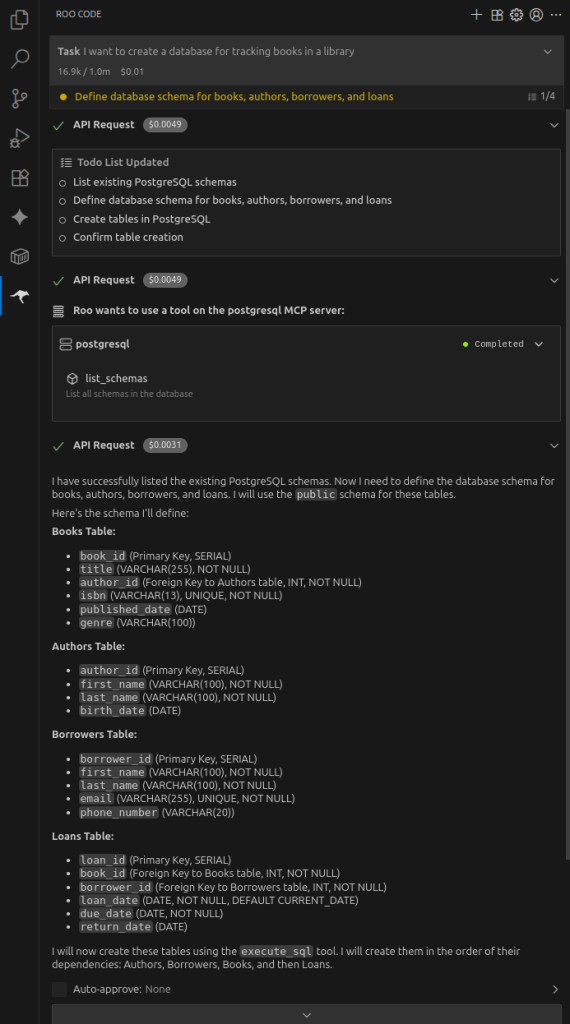
Next, add some data by saying
Populate the books table with Tolkien's works. Don't insert more than 100 books.
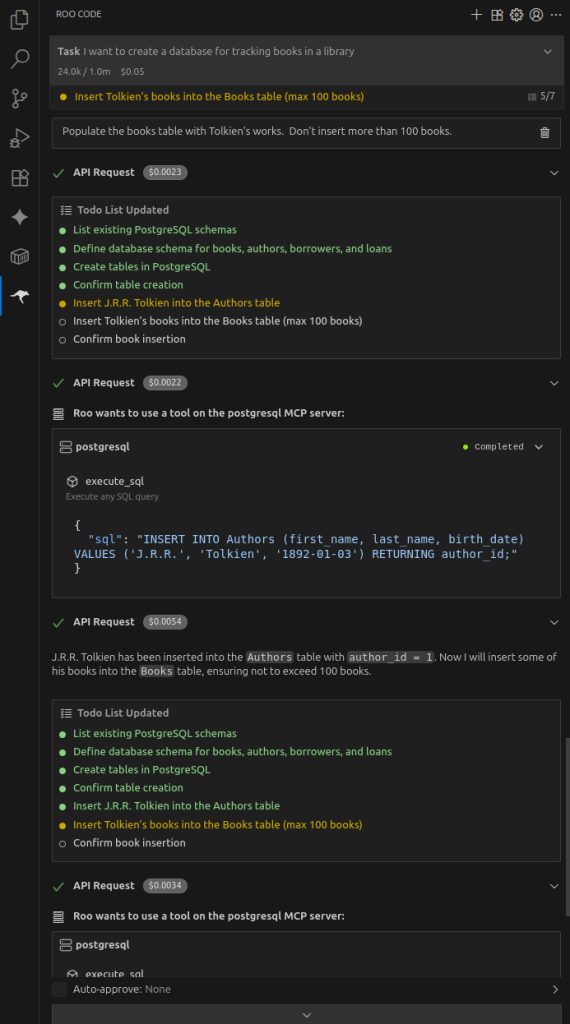
Finally, ask it a question:
Find the most recently published work by tolkien in the books database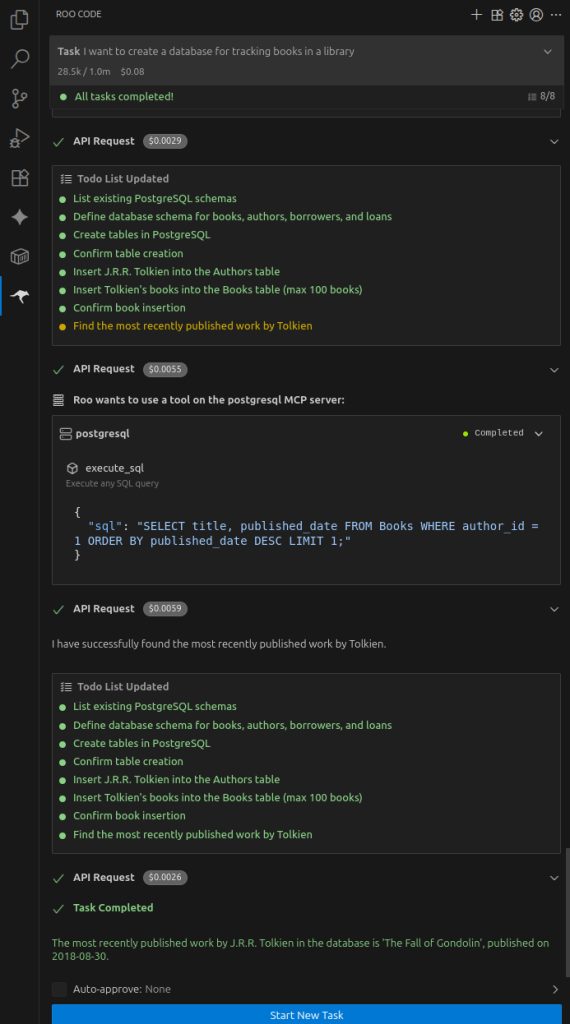
Summary
In this example we demonstrated using the Agilicus Launcher and Agilicus Connector to allow you to securely interact with a remote database using an agentic tool. This technique works for any MCP server. If it only supports STDIO, you can a tool like the mcp-proxy to convert it to HTTP so that the connector can connect to it. If it supports one of the HTTP transports (SSE or Streamable-HTTP) you can skip that step, like we have done in the example.