

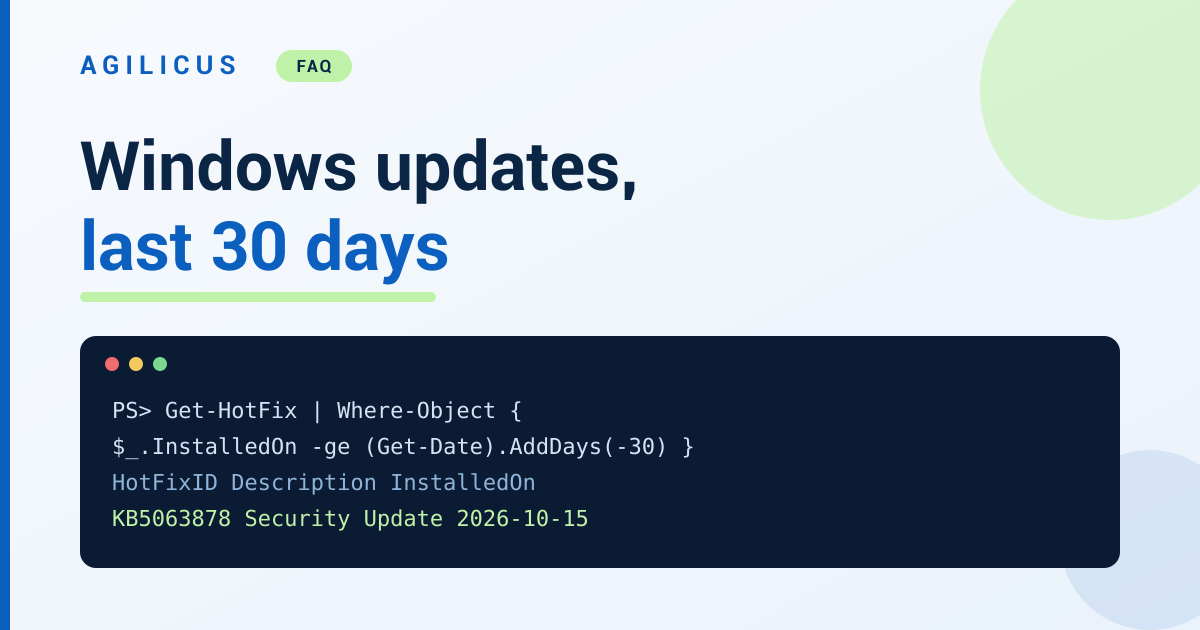
Windows keeps several records of patching, and they do not always agree. Settings shows the friendly history, Get-HotFix shows what the servicing stack installed, and the Windows Update Client event log shows what actually happened, including the install that failed and the restart that never came. When a launcher breaks after a patch, collect the history and the event log.
Check the update history in Windows
The quickest check is the Settings app.
- Windows 11: Start > Settings > Windows Update > Update history.
- Windows 10: Start > Settings > Update & Security > Windows Update > View update history.
Each entry shows the date it was installed. Expand an entry to read the KB number. Windows 11 groups driver updates and Defender platform updates separately, so check those groups as well as quality updates.
For a sortable list, open Control Panel > Programs and Features > View installed updates. Run appwiz.cpl if the Control Panel entry is hidden, then sort on the Installed On column. This view lists classic Windows updates and omits driver and Defender updates.
List the last 30 days in PowerShell
Open Windows PowerShell as the signed-in user. If a command returns an access error, open it as administrator. Record the build first, because the build number identifies which cumulative update should be present:
Get-CimInstance Win32_OperatingSystem |
  Select-Object Caption, Version, LastBootUpTime |
  Format-List
The fast check: Get-HotFix
Get-HotFix |
  Where-Object { $_.InstalledOn -ge (Get-Date).AddDays(-30) } |
  Sort-Object InstalledOn -Descending |
  Format-Table HotFixID, Description, InstalledOn -AutoSize
Get-HotFix is the fastest answer and also the most misleading. It reads the Quick Fix Engineering class, which returns only updates installed by Component Based Servicing. A device that took a cumulative update yesterday shows it. A device that took a driver, a Defender platform update or a store app update does not. An empty result is not proof that nothing was installed.
The complete check: update session history
This reads the same history as the Settings page, through the Windows Update COM interface:
$session  = New-Object -ComObject Microsoft.Update.Session
$searcher = $session.CreateUpdateSearcher()
$history  = $searcher.QueryHistory(0, $searcher.GetTotalHistoryCount())

$history |
  Where-Object { $_.Date -ge (Get-Date).AddDays(-30) } |
  Select-Object Date, Title, @{n='Result'; e={
    $code = $_.ResultCode
    switch ($code) {
      2 { 'Succeeded' }
      3 { 'Succeeded with errors' }
      4 { 'Failed' }
      5 { 'Aborted' }
      default { $code }
    }
  }} |
  Sort-Object Date -Descending |
  Format-Table -AutoSize -Wrap
A failed or aborted entry in the trailing 30 days is the usual explanation for a launcher that worked last week, particularly when the title names a .NET update, a servicing stack update or a driver.
The evidence: Windows Update Client events
The history says what was attempted. The event log says whether it finished and whether the device restarted:
Get-WinEvent -FilterHashtable @{
  LogName      = 'System'
  ProviderName = 'Microsoft-Windows-WindowsUpdateClient'
  Id           = 19, 20, 43
  StartTime    = (Get-Date).AddDays(-30)
} |
  Select-Object TimeCreated, Id, @{n='Event'; e={
    switch ($_.Id) {
      43 { 'Installation started' }
      19 { 'Installation succeeded' }
      20 { 'Installation failed' }
    }
  }}, Message |
  Format-Table -Wrap
Event 43 records the start, 19 the success and 20 the failure. Change the Id list to add 21 for restart-required events, or 31 for scan failures. An update that reports success, is followed by 21, and has no later boot is installed but not active. Confirm with (Get-CimInstance Win32_OperatingSystem).LastBootUpTime: if it predates the update, the update has not completed.
What the answer means for a launcher
The launcher runs on the endpoint, proxies local traffic and reconciles resources on each refresh. That makes it sensitive to the updates that change network, TLS and runtime behaviour: cumulative updates, .NET updates, servicing stack updates and network driver updates.
- If an update landed within a day or two of the first failure, treat it as the prime suspect. Capture the launcher output before changing anything. See Diagnose Launcher and Debug desktop launcher (Windows).
- If a restart is pending, finish it. A half-applied cumulative update is a common cause of a launcher that starts and exits, or fails to bind a local port.
- If the device has no update in 30 days, patch compliance is the finding, not the launcher. Report it to whoever owns patching and keep the launcher evidence separate.
Do not uninstall a security update as a first step. Capture the debug output, finish the pending restart, and test again.
If the history is empty
An empty list is not proof that the device is unpatched. Windows Update history only records updates applied since the current installation, and several cases leave it short or empty:
- The image was built with updates included. Slipstreamed updates never appear in the history.
- The device is managed by Windows Server Update Services, Intune or another patch service. The console holds the compliance record, and the local history shows only what the management tool applied.
- The history was cleared, the SoftwareDistribution folder was reset during an earlier repair, or the event channel wrapped at its default 20 MB.
- The update came from a vendor’s own updater rather than Windows Update.
In those cases, use the Windows Update Client event log, then confirm the build against the update catalog. For fleet questions, use the management console rather than a per-device check.
If the update session command fails with 0x8024002E, Windows Update is disabled on the device, usually by policy. Use the event log and the management console instead.
For how the launcher is deployed and refreshed, see Agilicus Launcher (Desktop).