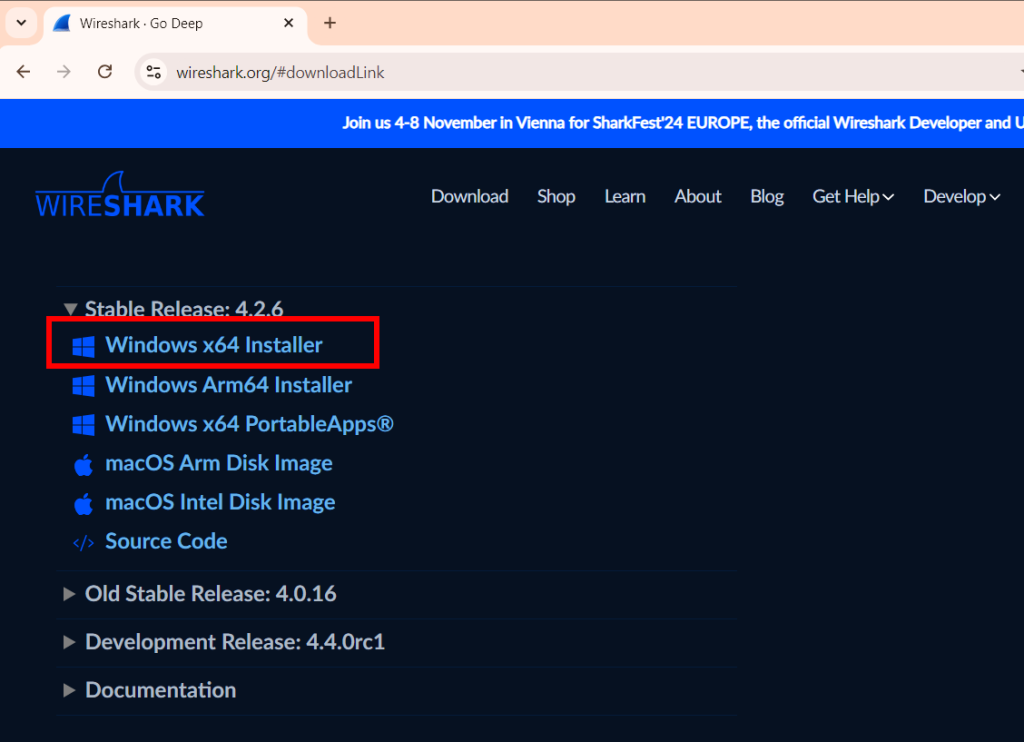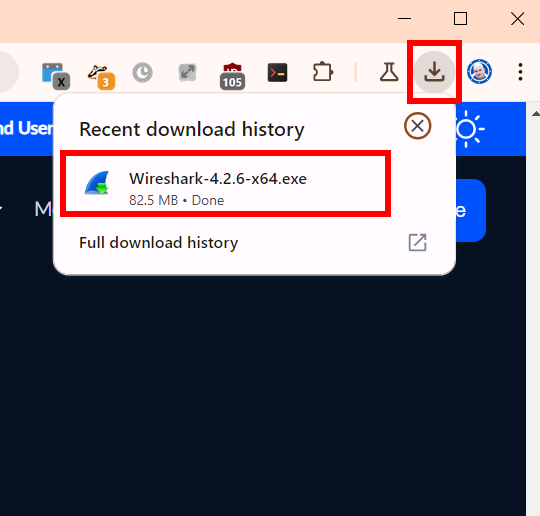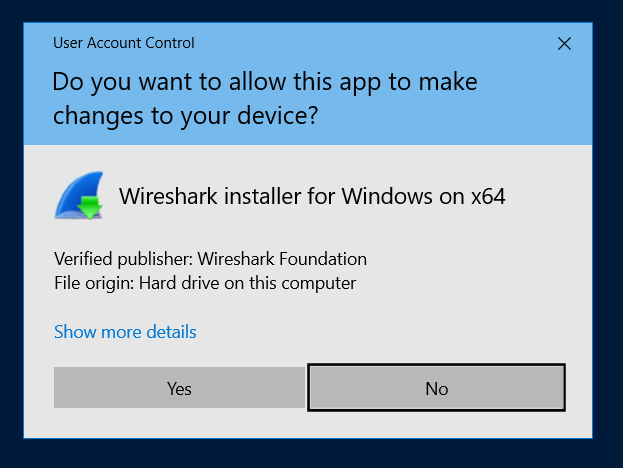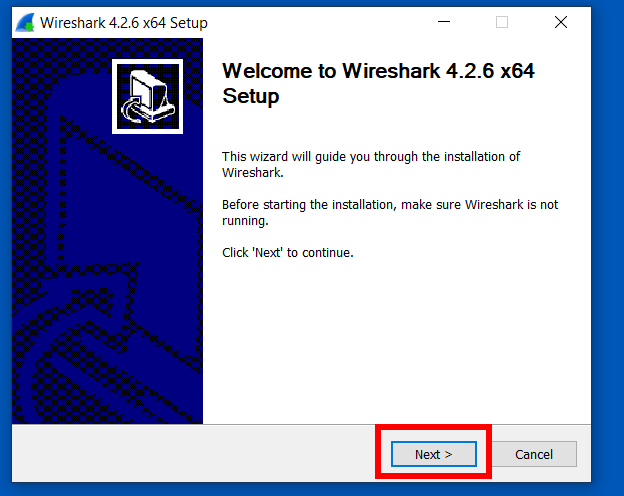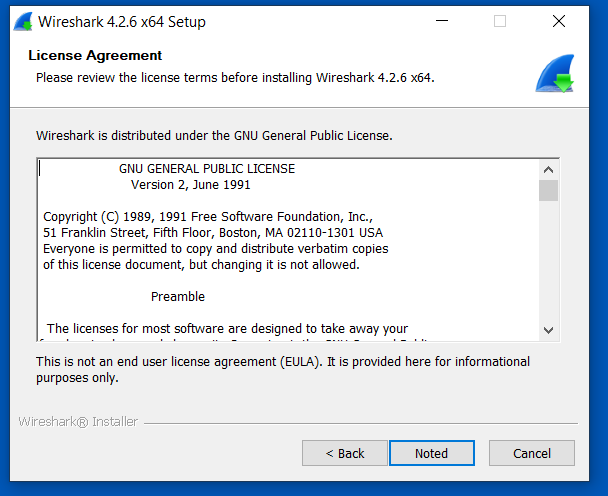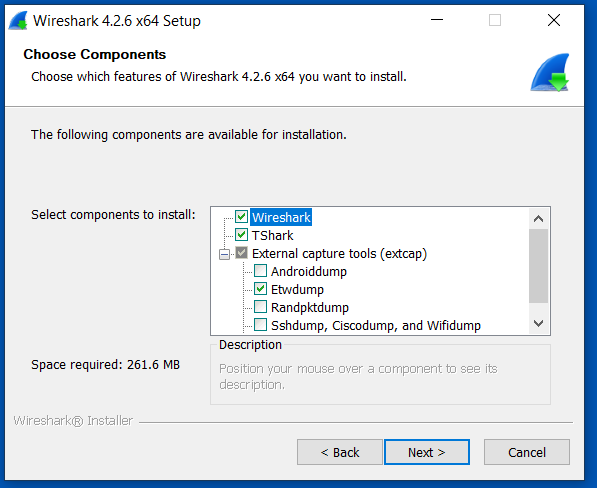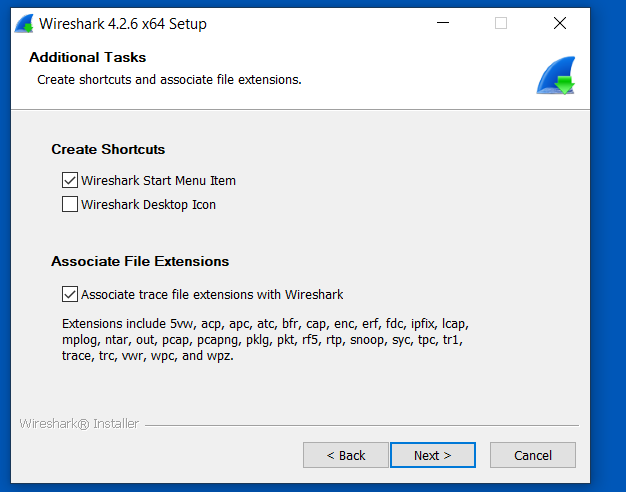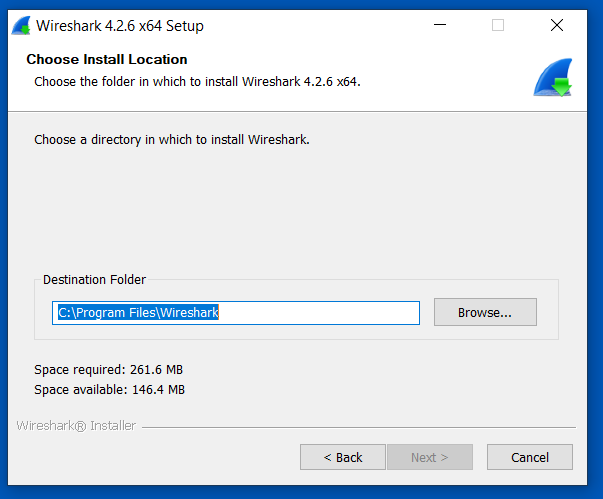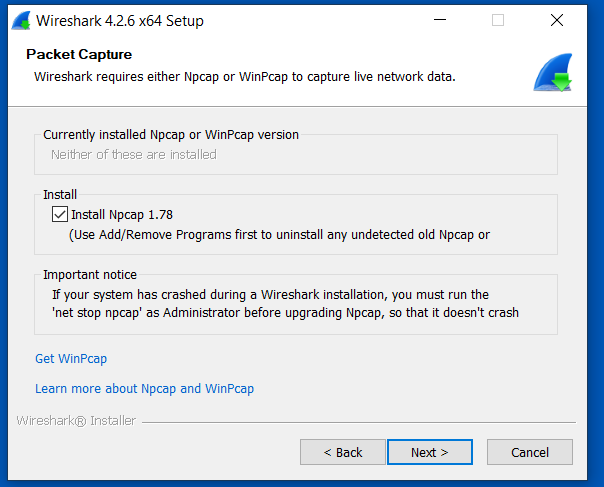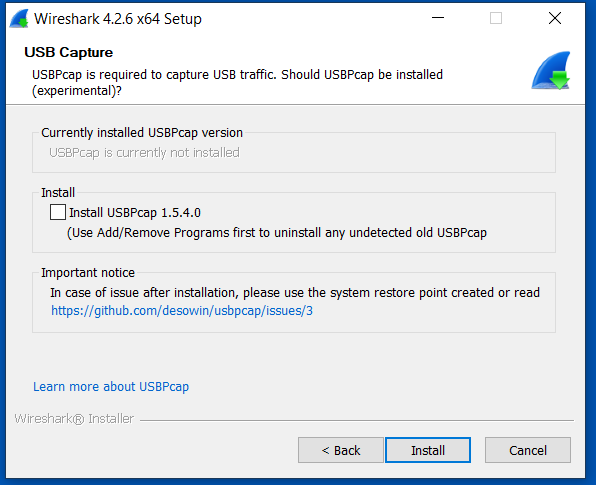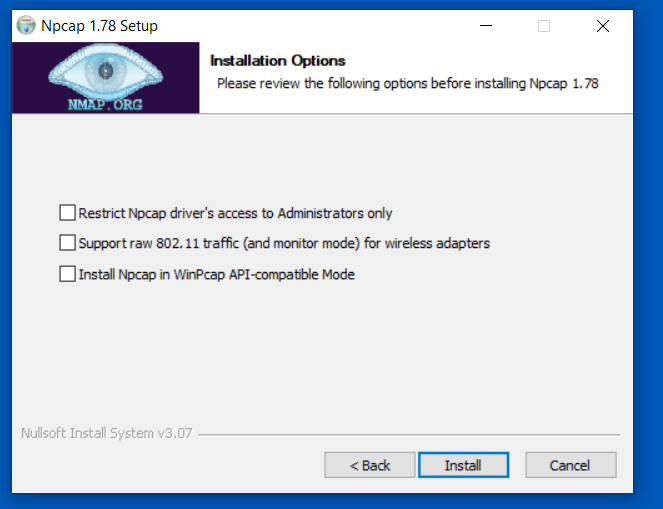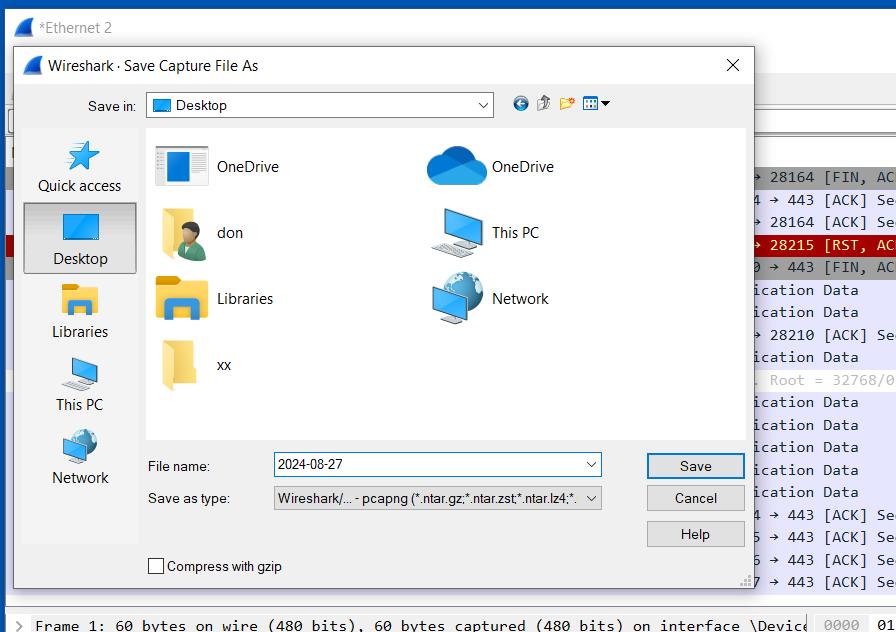
In some cases, Agilicus Support might be more effectively able to assist you with a packet capture from the machine running your connector. To do this, we can use Wireshark as below.
Install Wireshark
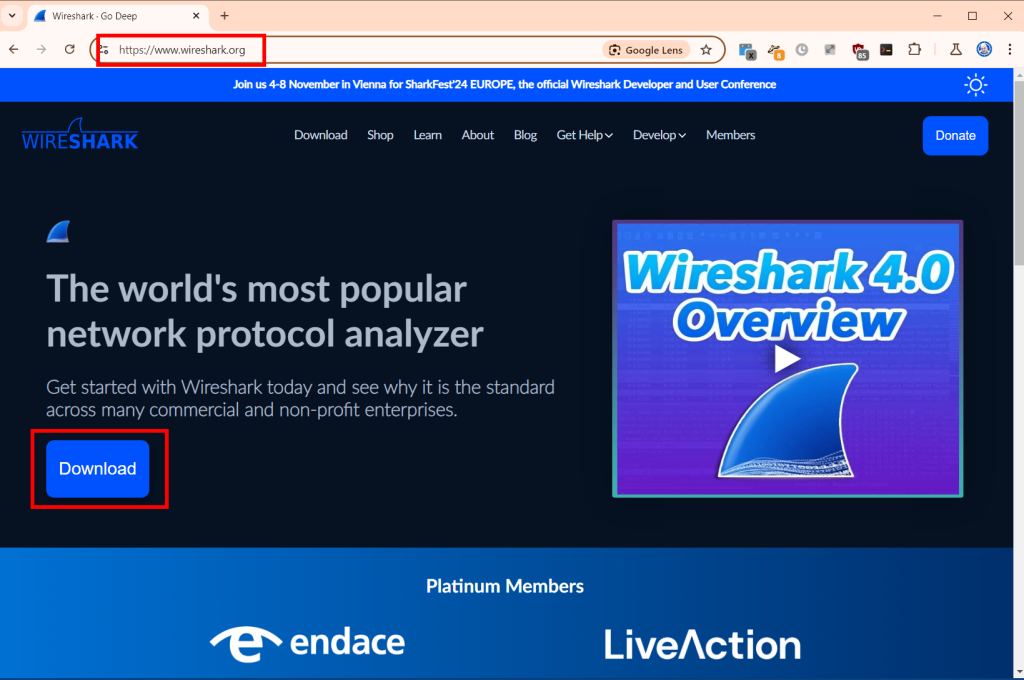
Open a browser to https://www.wireshark.org/. Select ‘Download’.
![Wireshark Packet Capture For Diagnostics [Windows] 1 Wireshark packet capture on Windows: This screenshot shows the Wireshark interface displaying captured network packets. Use Wireshark for network diagnostics on Windows. Learn how to capture and analyze network traffic with Wireshark.](https://www.agilicus.com/www/00759ec5-image-1024x680.png)
![Wireshark Packet Capture For Diagnostics [Windows] 2 Wireshark Packet Capture in Windows: Diagnose network issues with Wireshark. The screenshot shows the Wireshark interface on Windows, highlighting packet details and filtering options for effective network analysis and troubleshooting. Learn how to use Wireshark for packet capture and analysis on Windows.](https://www.agilicus.com/www/3a2cacd5-image-1024x742.png)
![Wireshark Packet Capture For Diagnostics [Windows] 3 Wireshark packet capture configuration on Windows for network diagnostics. The screenshot shows the Wireshark interface with the capture options menu open, highlighting the selection of the correct network interface and enabling promiscuous mode for comprehensive packet analysis. This setup is essential for troubleshooting network issues and analyzing traffic in detail.](https://www.agilicus.com/www/7ad67511-image.png)
![Wireshark Packet Capture For Diagnostics [Windows] 4 Wireshark Packet Capture on Windows: A step-by-step guide to using Wireshark for network diagnostics on Windows, including selecting the right interface, applying capture filters, and analyzing captured packets to troubleshoot network issues. The screenshot shows the Wireshark interface selection screen, highlighting available network adapters.](https://www.agilicus.com/www/7e574480-image.png)
![Wireshark Packet Capture For Diagnostics [Windows] 5 Wireshark Packet Capture Configuration on Windows: The Wireshark interface is displayed, showing the capture options window. Several network interfaces are listed, and the user has selected the appropriate interface for capturing network traffic. This setup is crucial for diagnosing network issues and analyzing packet data using Wireshark on a Windows system. Learn how to configure Wireshark for effective packet capture on Windows at Agilicus.com.](https://www.agilicus.com/www/fac741ef-image.png)
![Wireshark Packet Capture For Diagnostics [Windows] 6 Wireshark Packet Capture Configuration on Windows: This screenshot guides users on how to set up Wireshark for network diagnostics on Windows, highlighting the interface selection and capture filter settings to effectively analyze network traffic.](https://www.agilicus.com/www/7e209a7a-image.png)
![Wireshark Packet Capture For Diagnostics [Windows] 7 Wireshark Packet Capture Configuration on Windows: A step-by-step guide showing the Wireshark interface with capture filters and settings highlighted for effective network diagnostics. Optimize your network troubleshooting with Wireshark on Windows.](https://www.agilicus.com/www/8f7c540e-image.png)
![Wireshark Packet Capture For Diagnostics [Windows] 8 Wireshark Packet Capture in Windows: Troubleshooting network issues with Wireshark by capturing and analyzing network packets on a Windows machine. Learn how to diagnose and resolve network problems effectively using Wireshark's packet analysis capabilities. The image shows the Wireshark interface on a Windows PC.](https://www.agilicus.com/www/17877f55-image.png)
![Wireshark Packet Capture For Diagnostics [Windows] 9 Wireshark Packet Capture Configuration on Windows: Shows the Wireshark interface with the capture filter set to 'host x.x.x.x' to capture network traffic for diagnostics, focusing on filtering by IP address for efficient troubleshooting.](https://www.agilicus.com/www/64ab64bc-image.png)
![Wireshark Packet Capture For Diagnostics [Windows] 10 Wireshark Packet Capture on Windows: Troubleshooting network issues using Wireshark. The image shows the Wireshark interface with captured packets, highlighting packet details, source/destination IPs, and protocol information. Useful for diagnosing network connectivity and performance problems on Windows systems.](https://www.agilicus.com/www/632180fa-image.png)
![Wireshark Packet Capture For Diagnostics [Windows] 11 Wireshark Packet Capture on Windows: Troubleshooting network issues with Wireshark. Learn how to capture and analyze network packets on Windows for effective diagnostics. This screenshot shows the Wireshark interface with captured packet data, including source and destination IP addresses, protocols, and packet details. Ideal for network administrators and IT professionals seeking to diagnose network performance problems.](https://www.agilicus.com/www/d44a85b5-image.png)
![Wireshark Packet Capture For Diagnostics [Windows] 12 Wireshark packet capture setup on Windows: Shows the Wireshark interface with filters applied, displaying captured network traffic for diagnostic analysis. Focus on capturing specific packets for troubleshooting network issues on Windows systems using Wireshark.](https://www.agilicus.com/www/91bd42f8-image.png)
Open Wireshark, Start Capture
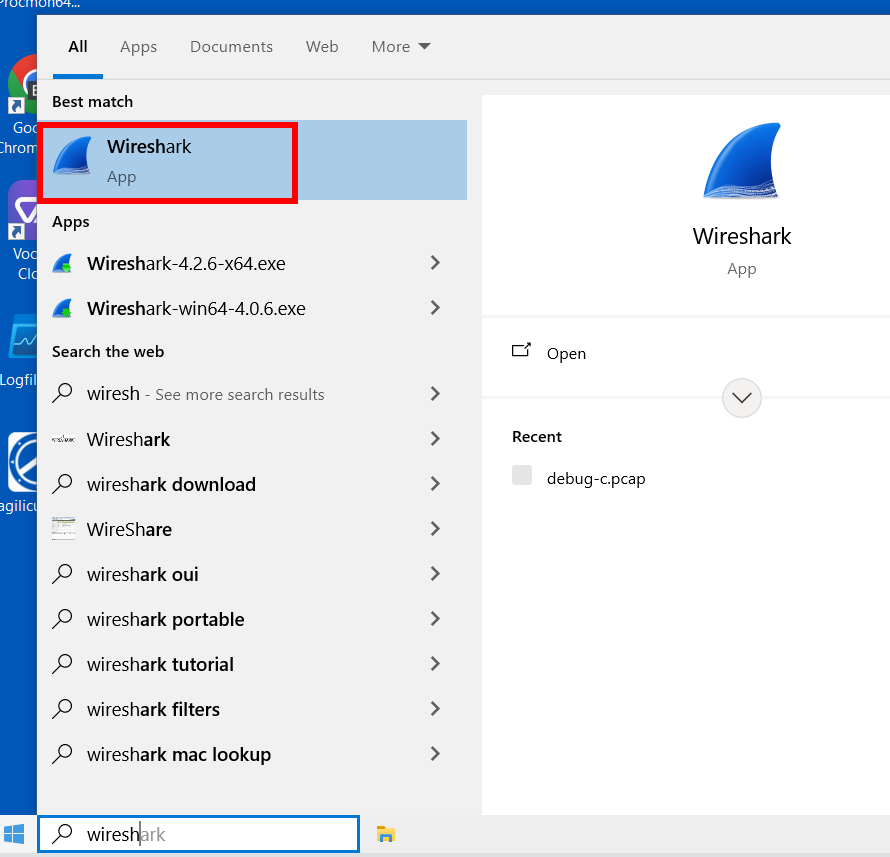
![Wireshark Packet Capture For Diagnostics [Windows] 13 Wireshark Packet Capture Configuration on Windows: Display filter configuration showing how to filter for specific IP addresses and ports for network diagnostics and troubleshooting with Wireshark. This includes configurations for filtering ICMP, TCP, and UDP traffic to capture specific network packets.](https://www.agilicus.com/www/4f1ed4c3-image.png)
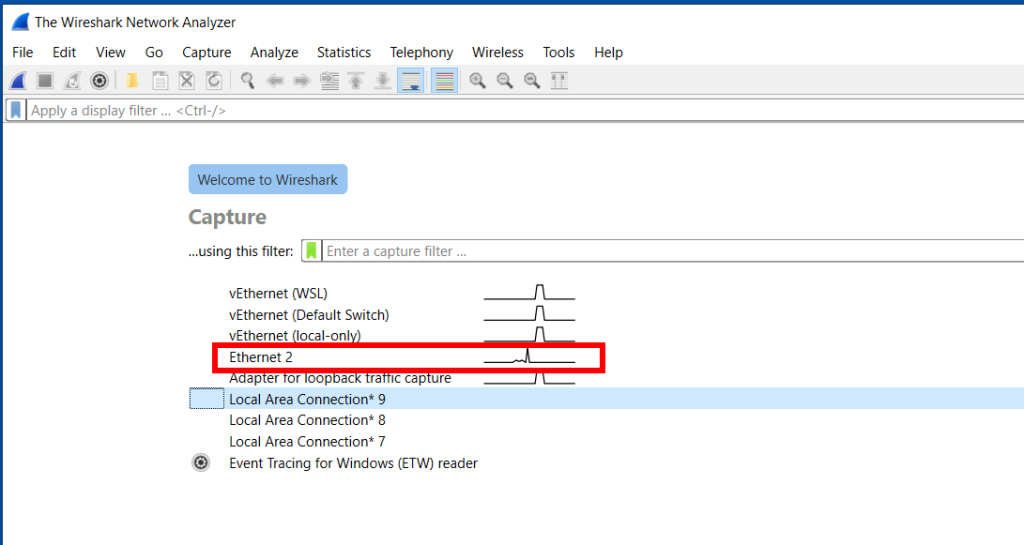
Double-click the primary/default network connection.
![Wireshark Packet Capture For Diagnostics [Windows] 14 Wireshark Packet Capture for Diagnostics on Windows: Analyzing network traffic in Wireshark to diagnose network issues. The screenshot shows the Wireshark interface with captured packets, providing a detailed view of network communication for troubleshooting.](https://www.agilicus.com/www/b34b7472-image-1024x545.png)
Now, reproduce the problem, usually a few times. For example, if you have a NVR which is not working, attempt to use it from the Agilicus profile interface.
Now, stop the capture:
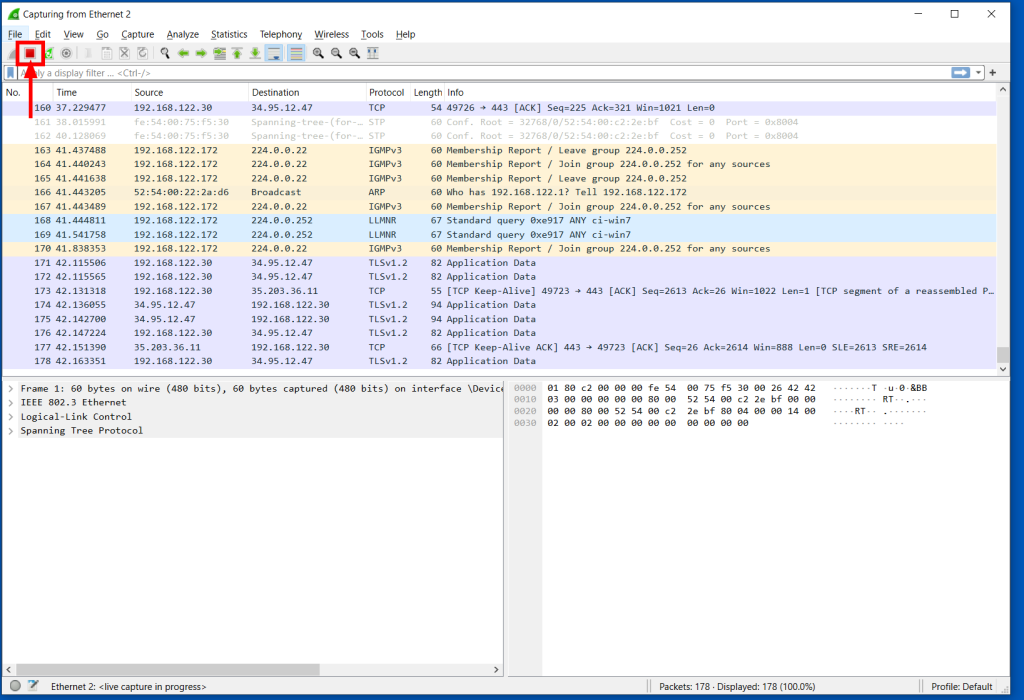
![Wireshark Packet Capture For Diagnostics [Windows] 15 Wireshark packet capture on Windows showing captured network traffic for diagnostics and troubleshooting. The Wireshark interface displays packet details, protocols, source and destination IPs, and other network communication data. Used for analyzing network issues with Agilicus.](https://www.agilicus.com/www/ecd05774-image-1024x700.png)
![Wireshark Packet Capture For Diagnostics [Windows] 16 Wireshark Packet Capture on Windows: Diagnosing Network Issues - A screenshot showing the Wireshark interface with captured network packets, used for analyzing and troubleshooting network communication problems in Windows environments. Learn how to use Wireshark for effective network diagnostics.](https://www.agilicus.com/www/089d8762-image-1024x677.png)
![Wireshark Packet Capture For Diagnostics [Windows] 17 Wireshark Packet Capture on Windows: Diagnosing Network Issues with Wireshark - A step-by-step guide to capturing and analyzing network traffic on Windows using Wireshark for effective network diagnostics. Learn how to use Wireshark filters and analyze packet data.](https://www.agilicus.com/www/05122eca-image.png)
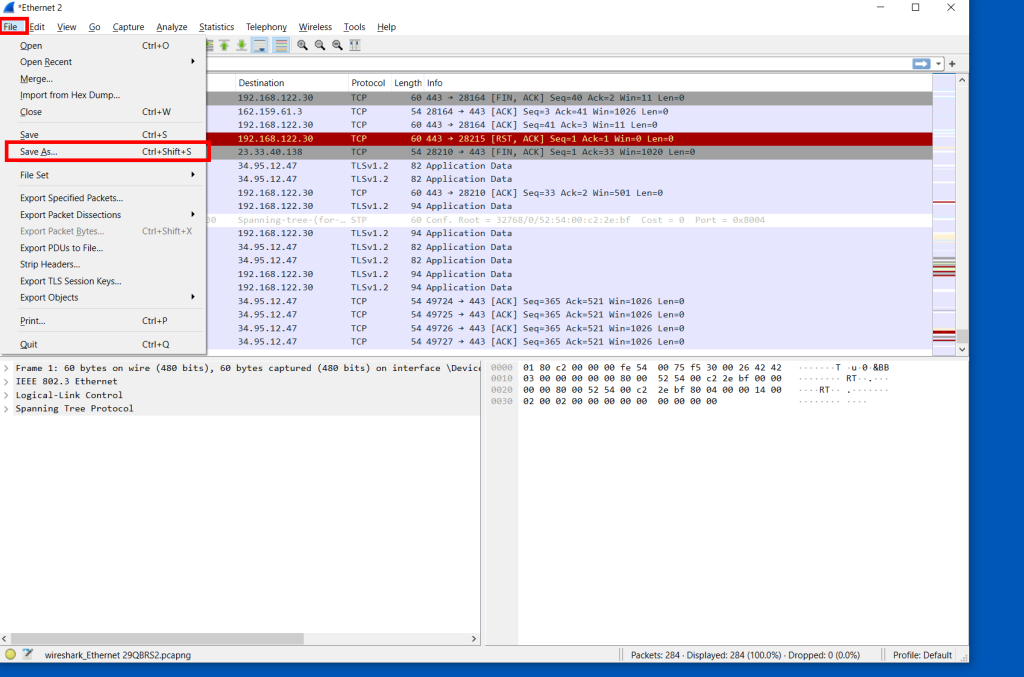
Send the Capture to Agilicus
Depending on how long you have captured, this file can be large. Contact Agilicus via the ‘Chat’ interface in the web interface if you need a location to put the file.
Please describe what you were doing, what you observed, what was incorrect, and information about the network.