
Printers
Publish a network printer to your users through Agilicus AnyX, with identity-based access, automatic client install and no inbound firewall rules.
How Agilicus delivers printing
Agilicus AnyX publishes a network printer as a first-class resource using the Internet Printing Protocol (IPP) and IPP over Transport Layer Security (IPPS). An Agilicus Connector reverse-proxies print jobs from the user device to the printer, so users reach the device without a virtual private network (VPN) and without an inbound firewall rule.
Users sign in with their existing corporate identity, and the Agilicus launcher installs the printer automatically with the driver, location and comment you configured. Where a device does not speak IPP natively, AnyX presents it as a raw JetDirect or AppSocket endpoint and translates incoming IPP requests into the print stream the device expects, so older devices work unchanged.
Because the Connector makes only an outbound connection to the Agilicus cloud, the printer stays exactly where it is. There is no port forwarding, no public address and no exposure of the device to the internet. Access is authorised per resource rather than all-or-nothing, and every print authorisation is recorded in the audit trail.
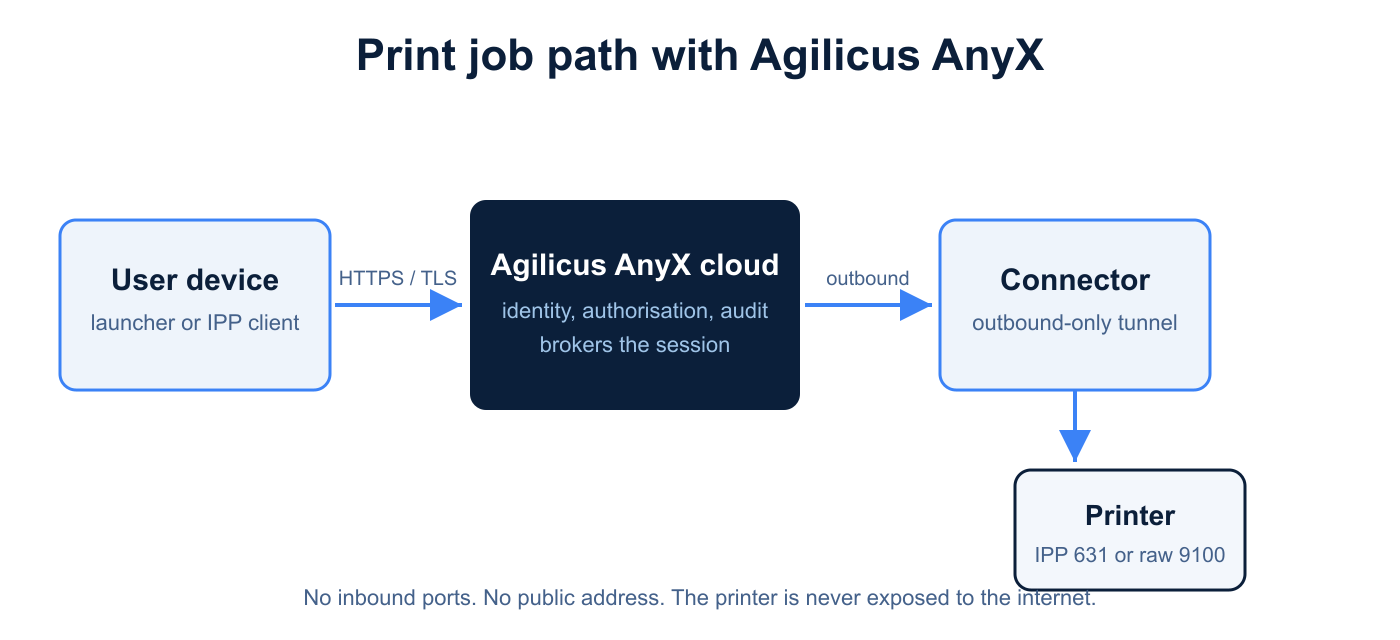
Print job path
- The user device, either the launcher or a native IPP client, connects to the printer URL published by AnyX.
- The Agilicus cloud authenticates the user, checks the per-resource permission and brokers the session.
- The Connector receives the job over its outbound-only tunnel and forwards it to the printer.
- The printer receives either native IPP on TCP port 631 or a raw JetDirect stream on TCP port 9100.
Before you begin
Ensure you have the following in place before you publish a printer.
Agilicus AnyX requirements
- An organisation administrator who can create resources in the admin portal.
- An Agilicus Connector deployed on the network that can reach the printer, with network access to the printer host and port.
- The printer published as a resource under Resources, then Printers.
Printer details
- The printer hostname or IP address on the local network.
- The IPP port, default 631, and the IPP path, default /ipp/print.
- Whether the device supports IPP natively or requires a raw JetDirect or AppSocket stream on the default TCP port 9100.
- Optionally, the Windows driver name, the physical location and a comment.
User devices
- Windows 10 or Windows 11, macOS, or Linux with the Common Unix Printing System (CUPS).
- The Agilicus launcher for automatic install, or the web profile for manual setup with an access token.
Network
- Standard outbound-only connectivity from the Connector. You do not open any inbound port, and the printer is never exposed to the internet.
Publish a printer
Printers are resources. In the admin portal, open Resources, choose Printers, then click the button to add a printer to start the stepper.
Select a connector
Choose the Agilicus Connector that can reach the printer on the local network. The Connector must have network reachability to the printer host and port.
Name the printer
- My printer resource name is: a unique name within your organisation, for example
office-printer. - The printer display name is: the friendly name users see on their device, for example
Office LaserJet Pro.
Configure the printer network and driver
Provide the network details and the optional client-facing driver fields.
| Field | Default | Notes |
|---|---|---|
| Printer hostname or IP address | required | For example 192.168.1.100 or printer.local. |
| IPP port number | 631 | Standard IPP port. Raw JetDirect printers use 9100. |
| IPP path | /ipp/print | The path on the printer that receives IPP jobs. |
| Windows driver name | Microsoft IPP Class Driver | The inbox, driverless Microsoft IPP class driver is preferred. It ships with Windows and needs no third-party driver. |
| Printer location | optional | Advertised to client devices and shown in the print dialog. |
| Printer comment | optional | Advertised to client devices and shown in the print dialog. |
| Set as the default printer on client devices | off | Marks the printer as the default on devices the launcher manages. |
| My upstream printer is raw (JetDirect / AppSocket) | off | Enable when the upstream device does not support IPP. AnyX translates incoming IPP to a raw print stream on port 9100. |
Review and save
Review the summary, then click Save Printer. The printer appears in the Printers overview.
To let people print, open the printer and grant it to a user or group on the resource permissions tab. Access is authorised per resource, so a user only sees the printers you grant.
Install the printer for users
Automatic install with the launcher
When a user launches the Agilicus launcher, it asks AnyX which printers the user may reach and reconciles them on the device. It installs missing printers, applies any changed driver, location, comment or default setting, and removes printers whose access has been revoked. The launcher embeds a short-lived access token, so the operating system print system authenticates without a prompt.
Manual install
A user can also add the printer by hand from the web profile. Open the printer, click GET ACCESS TOKEN, then use your email address as the username and the token as the password.
Windows
- Open Settings, then Bluetooth and devices, then Printers and scanners.
- Click Add device, then select Add manually.
- Choose Select a shared printer by name and enter the printer URL.
- When prompted for credentials, enter your email address as the username and your Access Token as the password.
- Select Microsoft IPP Class Driver as the driver if prompted.
macOS
- Open System Settings, then Printers and Scanners, and click Add Printer.
- Select the IP tab.
- Set the protocol to AirPrint or Internet Printing Protocol (IPP).
- Enter the printer hostname and IPP path.
- When prompted for credentials, enter your email address as the username and your Access Token as the password.
Linux (CUPS)
Run the following command, replacing the printer name with the resource name:
lpadmin -p <printer-name> -E -v <authenticated-printer-url> -m everywhereThe URL embeds your credentials, your email address and your access token, so CUPS can authenticate non-interactively.
Permissions and security
- Per-resource authorisation: a printer is granted to a user or group like any other resource. There is no broad network access and no all-or-nothing entitlement.
- Scoped access tokens: the launcher mints a printer-scoped Application Programming Interface (API) key on each reconcile. The token is embedded in the printer URL for the session and is not stored in plain site configuration.
- Outbound only: the Connector uses an outbound-only connection. No inbound firewall rule is required, and the printer is never exposed to the internet.
- Encryption: client traffic is carried over Transport Layer Security.
- Auditability: every print authorisation is recorded in the Agilicus audit subsystem and can be forwarded to your Security Information and Event Management platform through an audit destination.
- Revocation: revoking a user access removes the printer on the next launcher refresh, and rotating the token reinstalls the printer with fresh credentials.
Troubleshooting
| Symptom | Likely cause | Resolution |
|---|---|---|
| The printer is not listed for a user | The printer is not granted to the user or their group | Open the printer, grant it on the permissions tab, then refresh the launcher |
| The printer disappeared after a launch | Access was revoked or the Connector is offline | Confirm the grant and check the Connector status on the Connectors page |
| Authentication error when printing | The access token expired or was rotated | Refresh the launcher, or get a new token from the profile |
| Print jobs fail on an older device | The upstream device does not support IPP | Enable the raw (JetDirect or AppSocket) option and use port 9100 |
| Windows cannot find a driver | The named driver is not present | Use the default Microsoft IPP Class Driver |
| The printer shows the wrong location or comment | The resource metadata changed | Edit the printer resource and refresh the launcher; changes apply on reconcile |
Frequently asked questions
Can I set a default printer and driver?Yes. The printer resource carries a driver name, location, comment and default flag. The launcher applies them on each reconcile, and the default driver is the inbox Microsoft IPP Class Driver.
Yes. The printer resource carries a driver name, location, comment and default flag. The launcher applies them on each reconcile, and the default driver is the inbox Microsoft IPP Class Driver.
Can I use a printer that does not support IPP?Yes. Enable the raw (JetDirect or AppSocket) option on the printer resource. AnyX translates incoming IPP requests into the raw print stream the device expects.
Yes. Enable the raw (JetDirect or AppSocket) option on the printer resource. AnyX translates incoming IPP requests into the raw print stream the device expects.
Does Agilicus install the printer automatically?Yes. The Agilicus launcher reconciles the printers a user may reach on each launch, installs missing printers and removes those whose access has been revoked.
Yes. The Agilicus launcher reconciles the printers a user may reach on each launch, installs missing printers and removes those whose access has been revoked.
Does AnyX require an inbound firewall rule to print?No. The Agilicus Connector uses an outbound-only connection, and the printer is never exposed to the internet.
No. The Agilicus Connector uses an outbound-only connection, and the printer is never exposed to the internet.
How do users authenticate to a printer?Users sign in with their corporate identity. The launcher embeds a short-lived, printer-scoped access token, and manual setups use the user email address and an access token from the profile.
Users sign in with their corporate identity. The launcher embeds a short-lived, printer-scoped access token, and manual setups use the user email address and an access token from the profile.
What happens when I revoke access or rotate the key?On the next launcher refresh the printer is removed, or reinstalled with fresh credentials if access remains.
On the next launcher refresh the printer is removed, or reinstalled with fresh credentials if access remains.
Which client operating systems are supported?Windows 10 and Windows 11, macOS, and Linux with the Common Unix Printing System (CUPS).
Windows 10 and Windows 11, macOS, and Linux with the Common Unix Printing System (CUPS).
Which printing protocols does AnyX support?Agilicus AnyX publishes printers over the Internet Printing Protocol (IPP) and IPP over Transport Layer Security (IPPS). For devices that do not support IPP, AnyX presents a raw JetDirect or AppSocket endpoint on TCP port 9100.
Agilicus AnyX publishes printers over the Internet Printing Protocol (IPP) and IPP over Transport Layer Security (IPPS). For devices that do not support IPP, AnyX presents a raw JetDirect or AppSocket endpoint on TCP port 9100.