
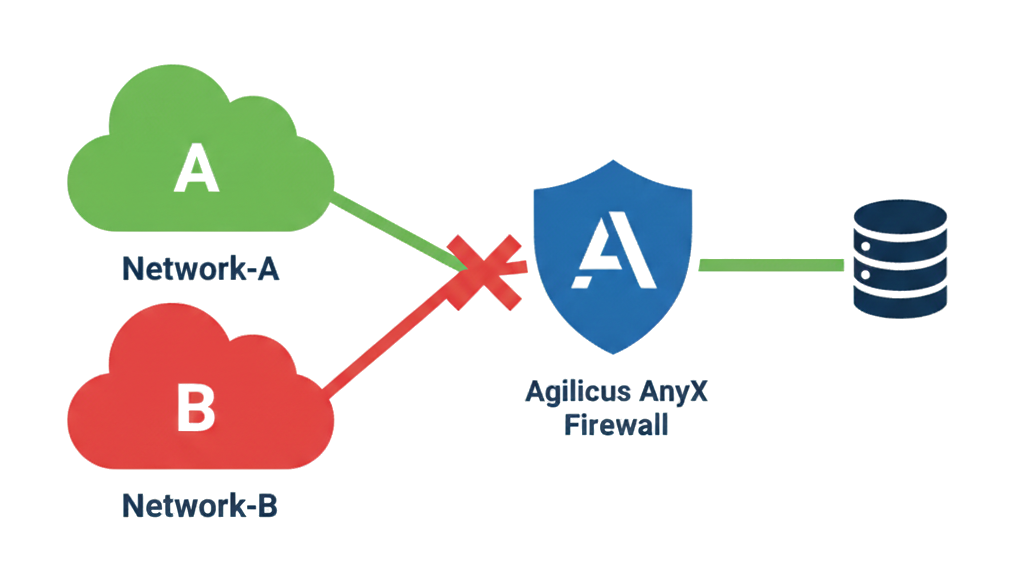
Policy Based Access Control By Subnet
Allow by IP or subnet. Deny by IP or subnet.
Augment user, role, identity based authorisation.
Example: Policy Based Access Control By Subnet
Typically you will use user-based, role-based access control in your applications with Agilicus AnyX. This strong identity-based firewall provides best in class security.
In some circumstances you may wish to augment this with IP based access controls. This might be geoip based (e.g. allow Canada, deny Asia). It may also be more specific, where you specify your own subnets to allow-only, or deny-only.
In this example we will show an example where we have two applications we wish to only be used from our corporate office address IP’s.
To do this, we will use:
Sample Setup
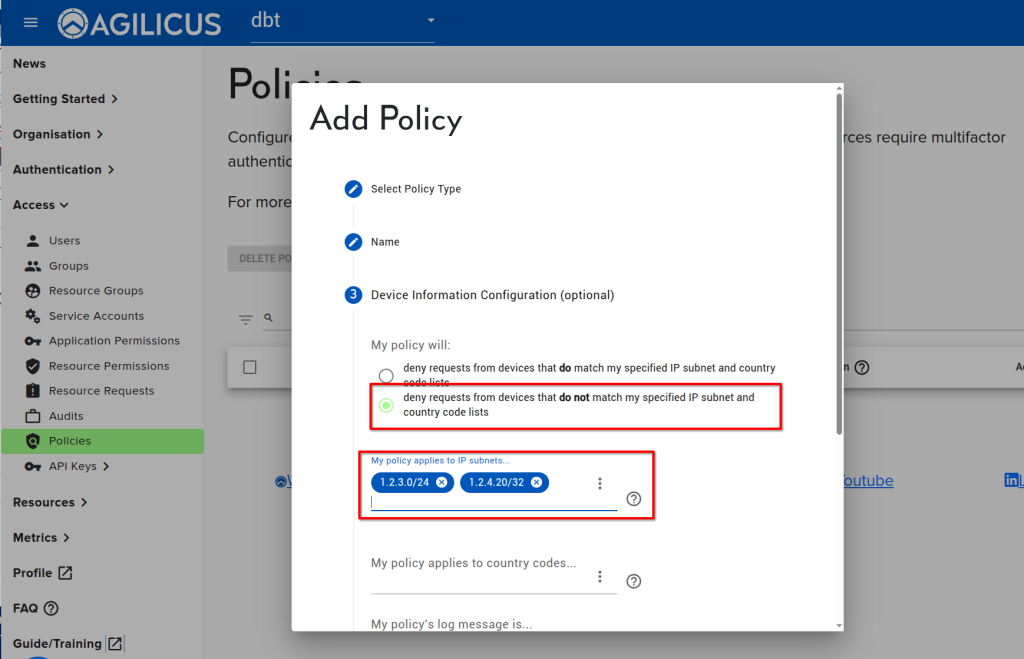
Assume we have two corporate offices. Office-1 has a subnet of 1.2.3.0/24, and Office-2 has a single IP of 1.2.4.20/32.
Assume we have two applications (Payroll and HR) that are considered internal-use only, even for authenticated users. These are hosted in our AWS EC2 cloud. To simplify the setup, and save money, we are using the Agilicus Connector to enable private access into this virtual private cloud. (see “Agilicus Connector in Private VPC In AWS EC2“).
We wish to block all access (even for authenticated users) from any IP not in our two corporate offices.
High Level Steps
In order to ensure access to the Payroll and HR web application only occurs from within the corporate networks, the high level steps are:
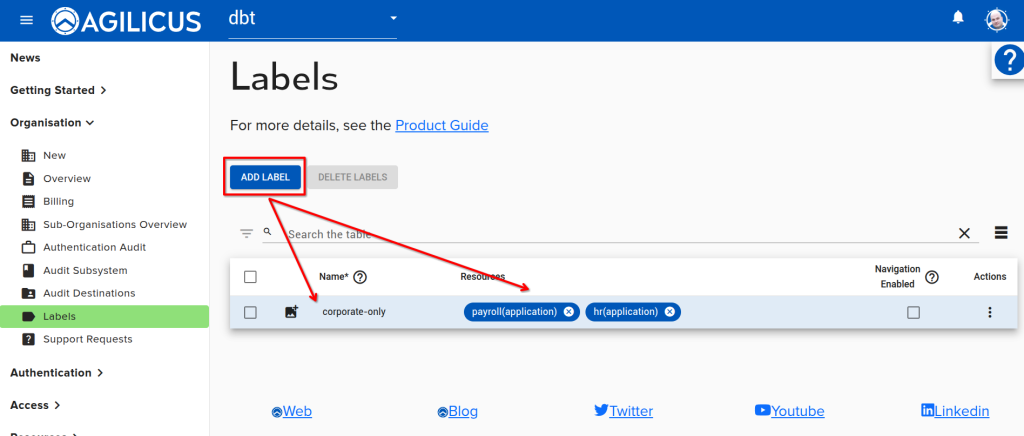
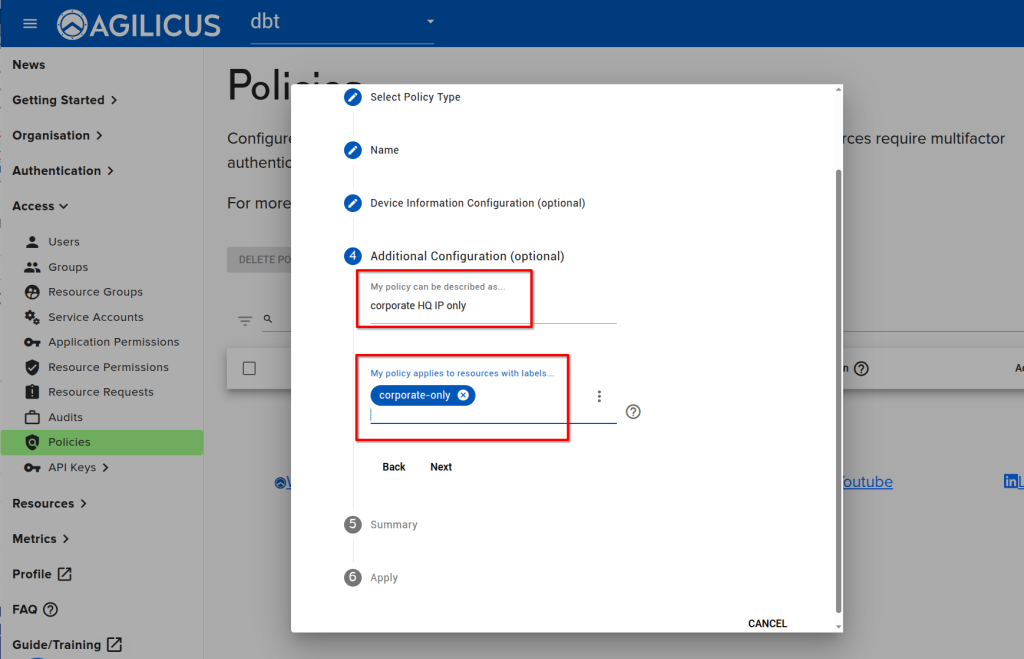
- Create a label ‘corporate-only’
- Assign the label ‘corporate-only’ to the two applications (HR, Payroll)
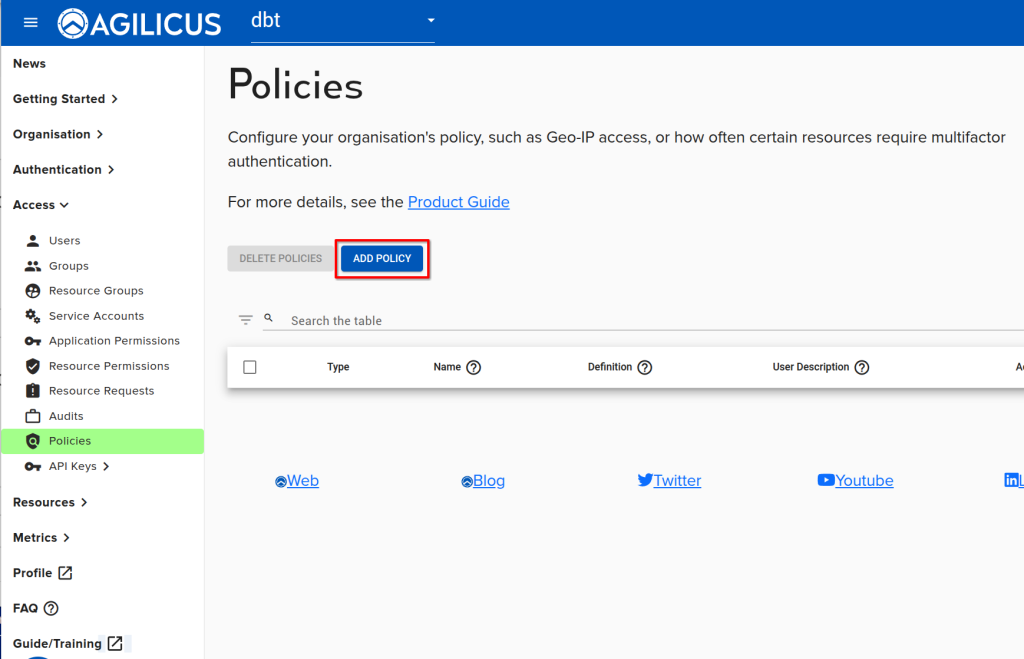
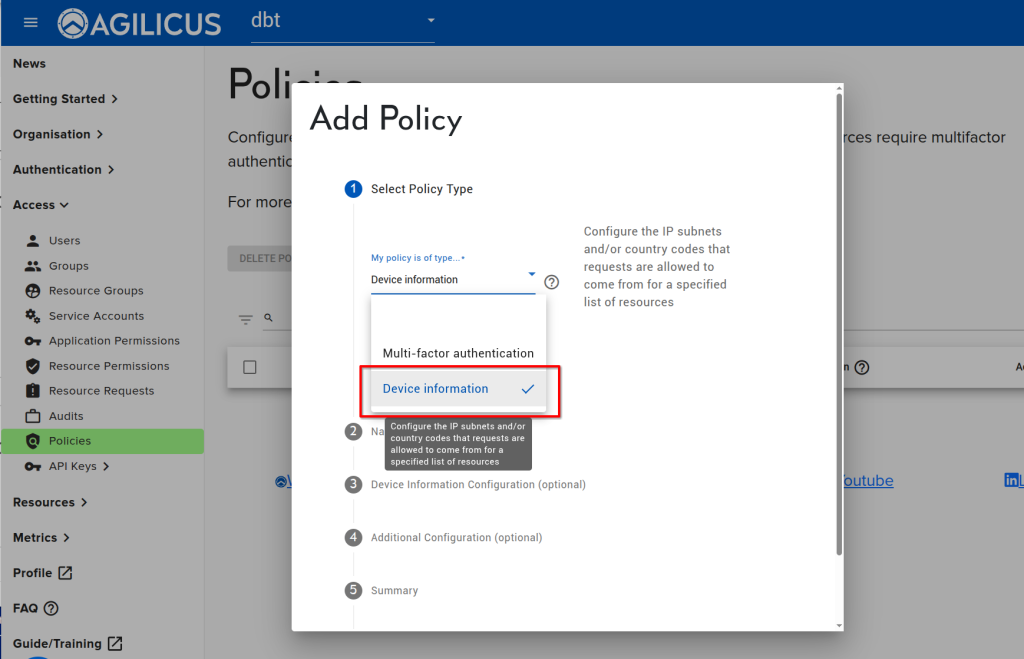
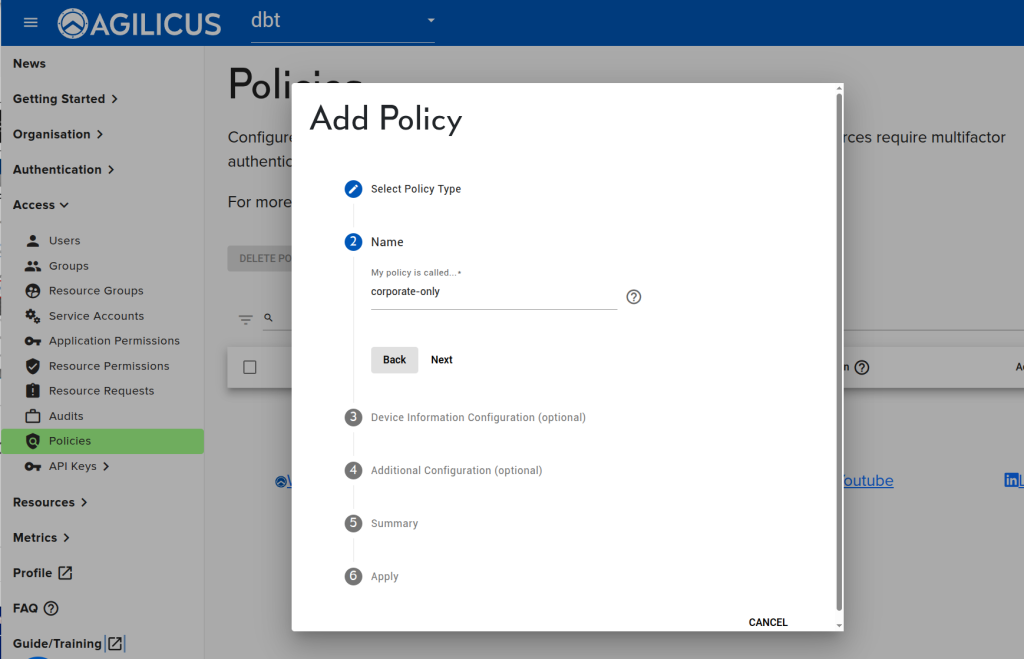
- Create a policy ‘corporate-IP-only’
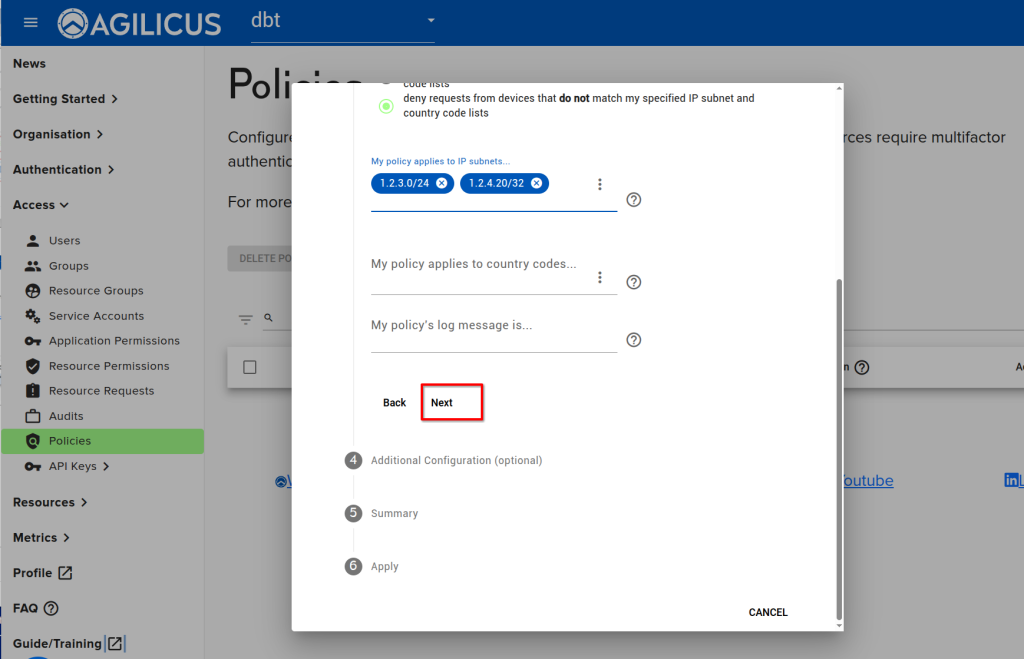
- Add the two subnets to the ‘Only’ list
- Test
Details
Step 1&2: Label Setup
Step 3: Create Policy
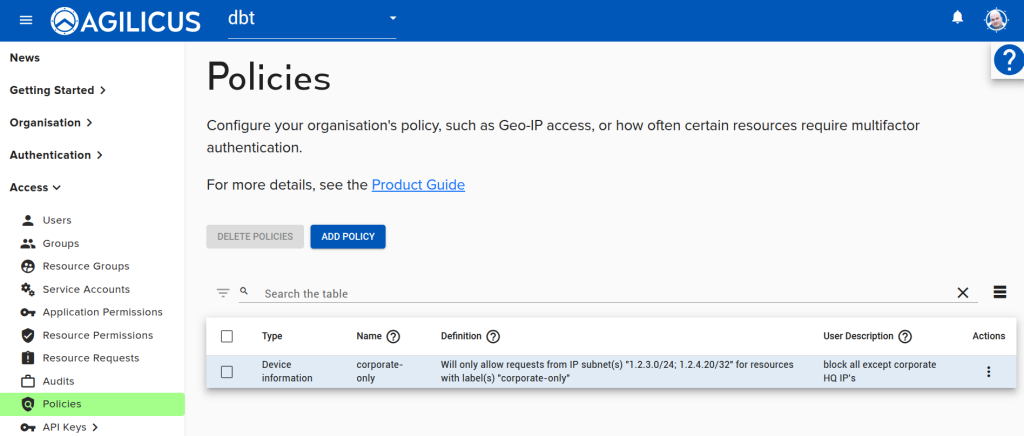
Test
Let’s test this out.
First, with a device in your corporate network, try opening a browser to the payroll or HR application (e.g. navigate to https://profile.__MYDOMAIN__ and click on the icons). Observe that it works.
Now, take your mobile device. Disconnect the WiFi so it is only using 5G. Repeat. Observe that you are blocked.
You should see a message in your connector logs indicating the block.