Print Via Service Launcher
Print from a local application to a remote printer via the Agilicus Launcher.
Print Via Launcher
(For site-to-site printing, see also Print Via Service Forwarder).
In this model, which is more suited if we have multiple users sharing the printer, we use a launcher with a local application. When the local application is running, the printer will be available. It will not be otherwise available.
Step 1. Create Network (same as Step 3 in Print Via Service Forwarder, no change)
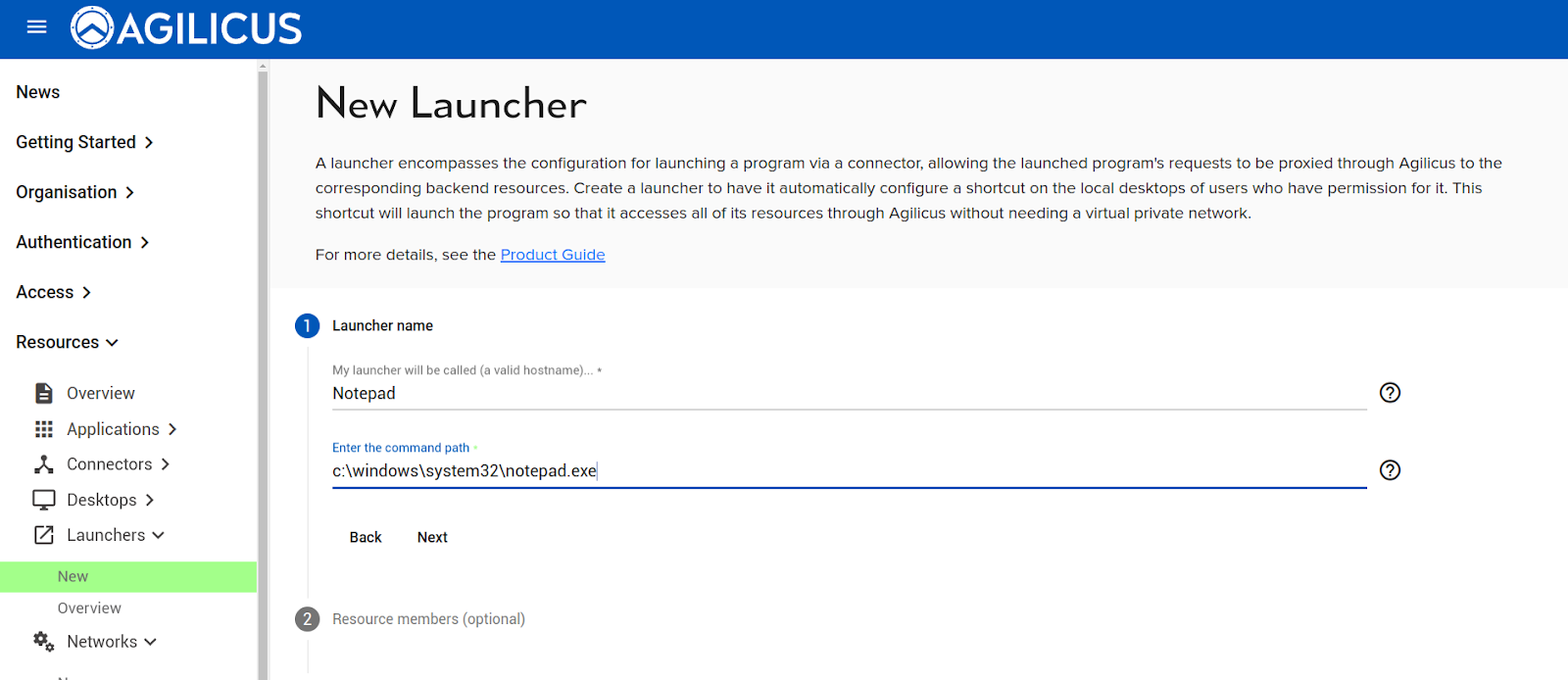
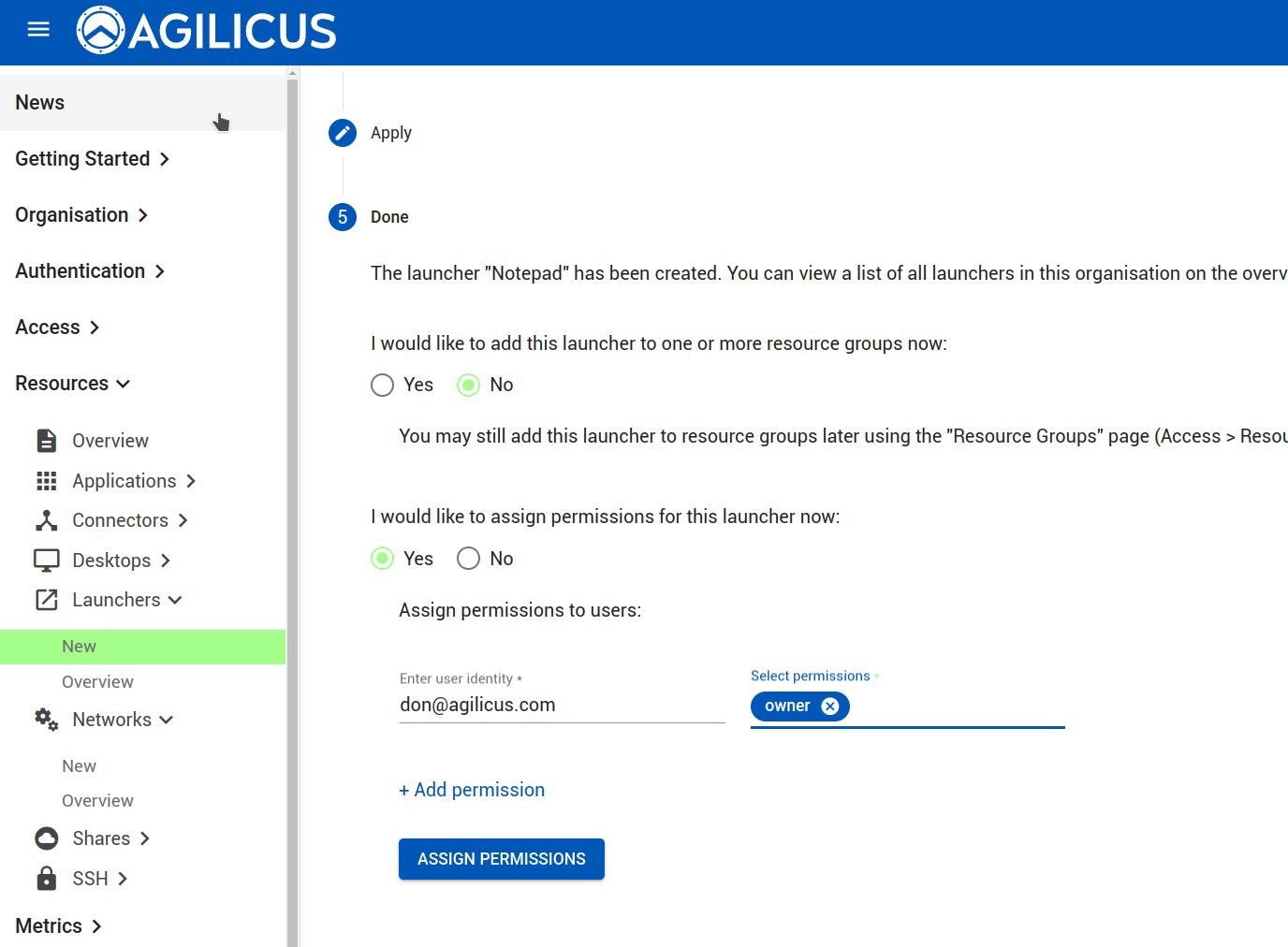
Step 2. Create Launcher
Step 3. Test via profile
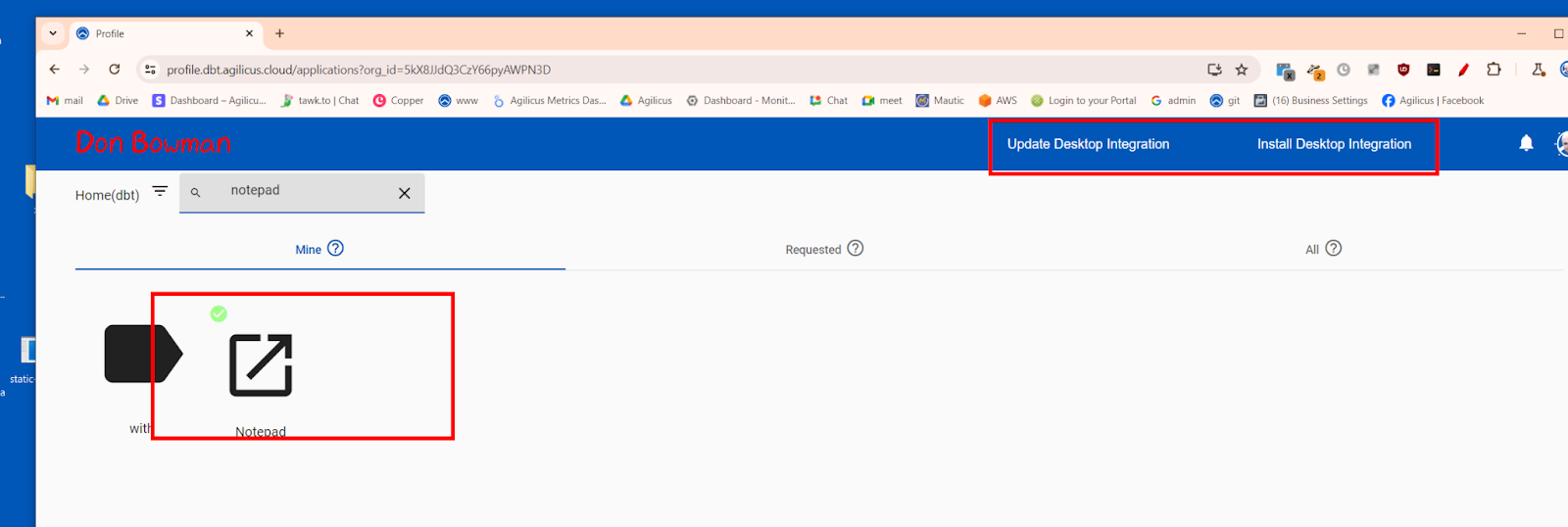
Step 4. Optional, consider enabling desktop integration
Step 2. Create Launcher
At this stage we can test. The user will need to install the Launcher on their desktop, via https://profile.__MYDOMAIN__. If installed, they can either use the desktop integration, or, run refresh and observe the new icon, launch it.
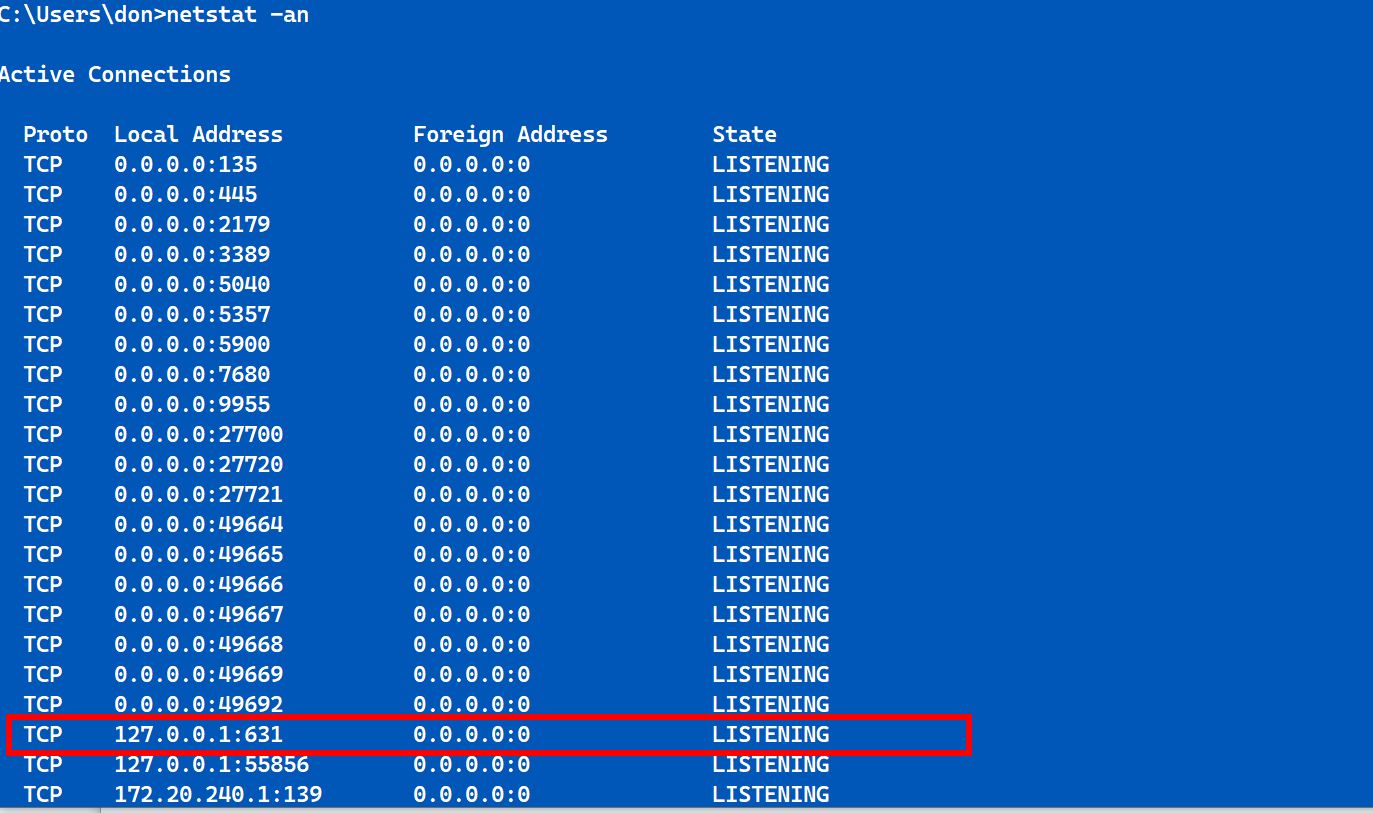
Once the app is up, you can install the printer as in Print Via Service Forwarder (localhost:631, IPP). It will work while the app is running.
We can check with netstat to see it is listening.
NOTE: Multiple Printers
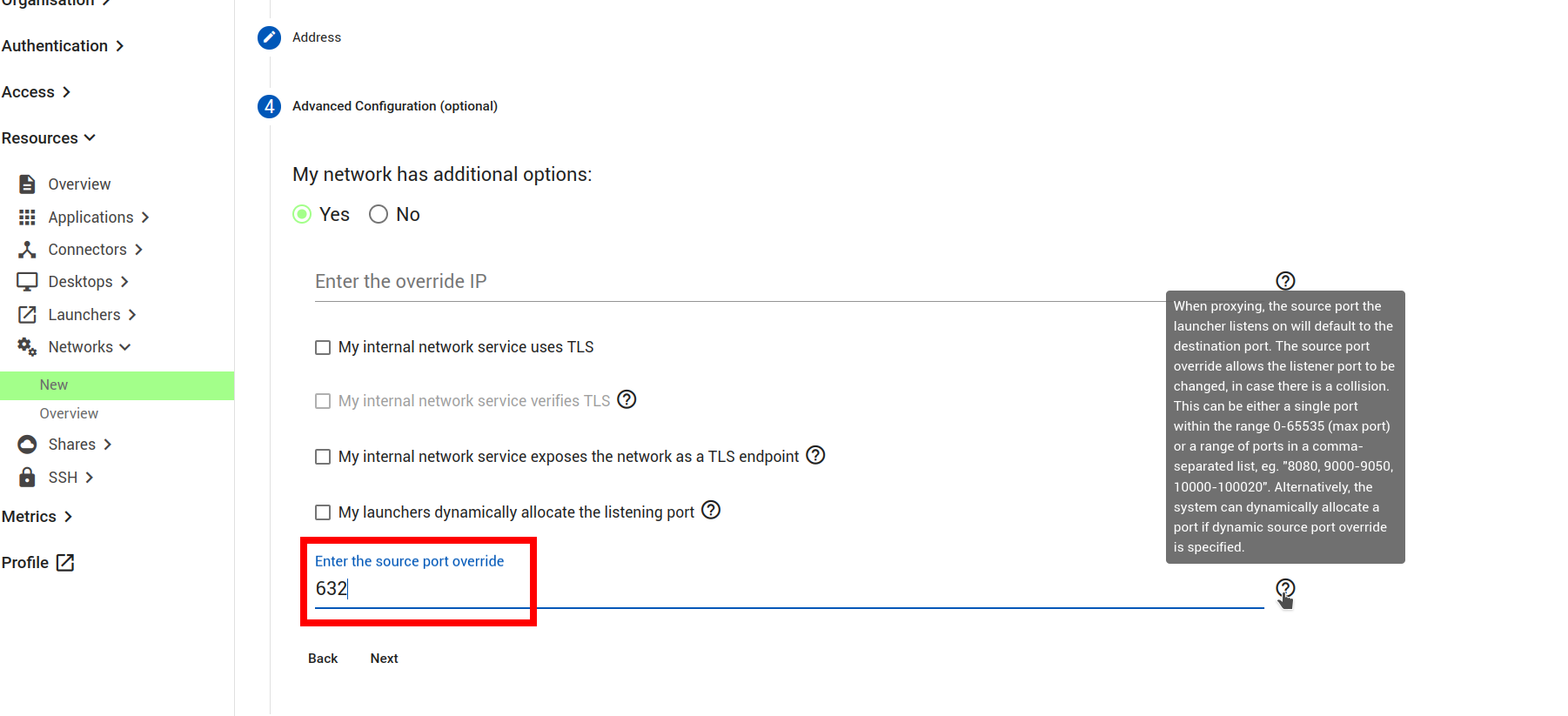
The method we are using above to tunnel the printer works best with a single printer. In order to use multiple printers at the same time, when creating the network, use a source-port override such that each printer is unique.
For example:
printer1 -> port 631
printer2 -> port 632
printer3 -> port 633