
Camera Setup
Panoraxy BF-BK04
Setup camera. Enable ONVIF. Configure NVR. Enable NVR in Agilicus AnyX. Your video from anywhere, on any device.
Setup
NOTE:
❗
We are not affiliated with Panoraxy, nor can we assist in setting it up or obtaining its mobile app. This note shows how to setup this camera to use with an ONVIF-capable NVR, and then with the Agilicus AnyX system. If you are looking for information on the camera, or its app, see https://manuals.plus/shenzhen-bovision-technology/bf-bk04-wifi-camera-manual.
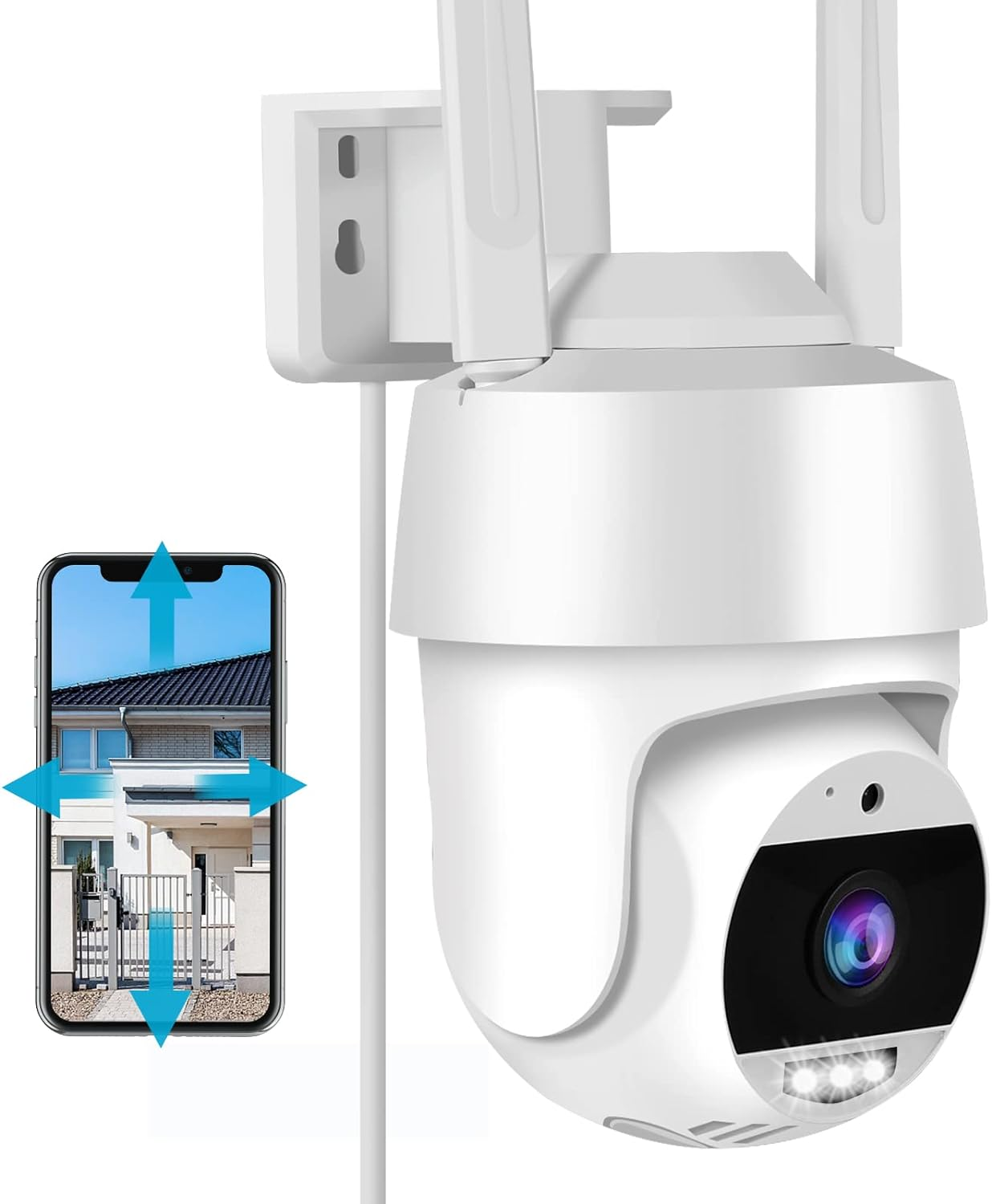
The Panoraxy BF-BK04 is a generic IP/WiFi camera, supporting Pan-Tilt-Zoom. It supports ONVIF, making it possible to use with network video recorders such as Shinobi, Synology, etc. Many similar cameras exist with the same software and features.
The setup is very simple: follow the manufacturer instructions, enable ONVIF, note the IP, configure IP into NVR.
Below we show the screen shots walking through this process. We assume you have placed the camera on your internal WiFi.
Steps
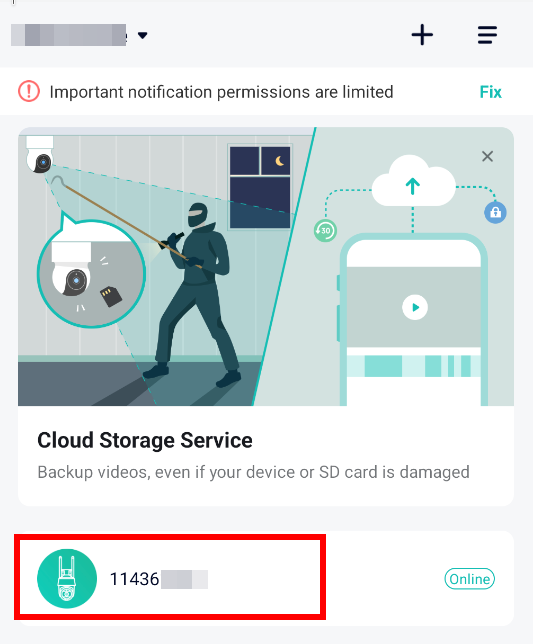
- Setup camera on WiFi (using vendor App and QR Code)
- Open App
- Select device from list
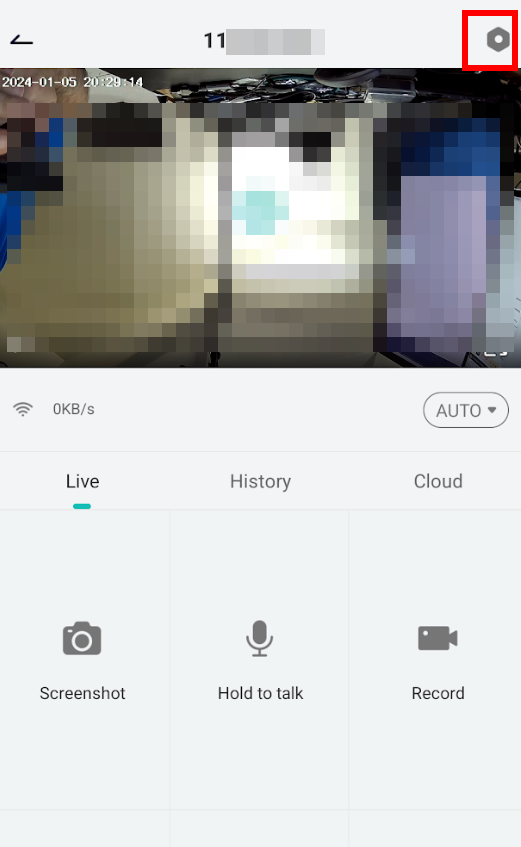
- Select config icon
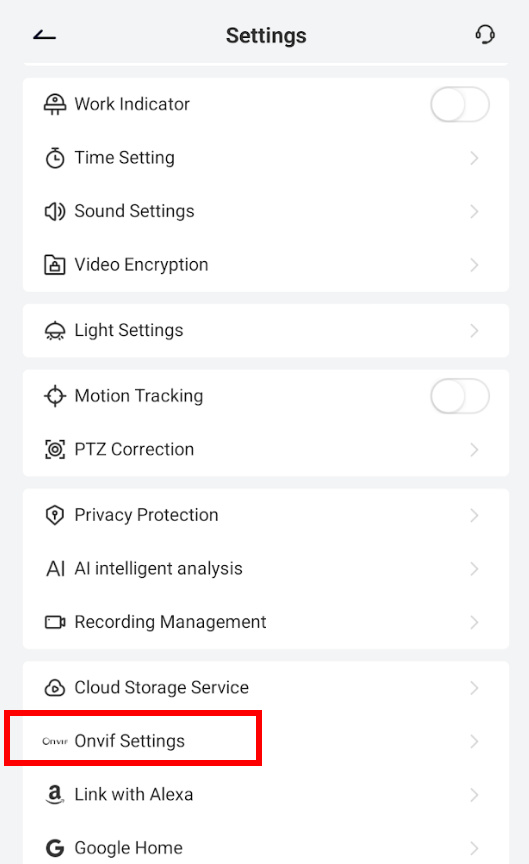
- Select Onvif settings
- Set a password, note IP address
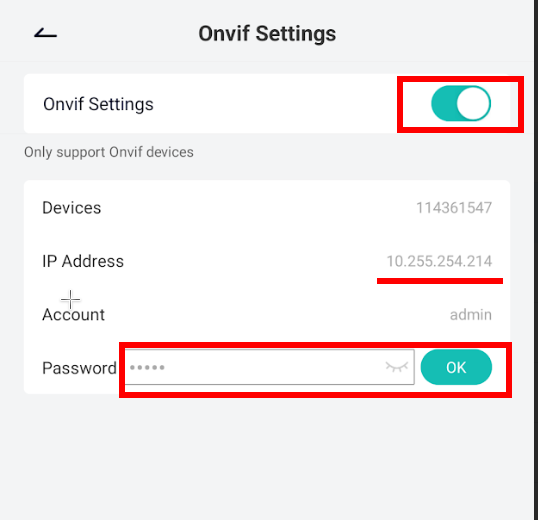
Now that we have the information (IP, password), we will proceed to the Network Video Recorder (NVR) setup (IP as given, port 8000, user/password as given).