

Category:
General Diagnostics
In some cases you will find that a web application misbehaves on an Android device, but not on a desktop. This can make it more difficult to obtain the console logs to point to the issue. Follow the below instructions to obtain these logs.
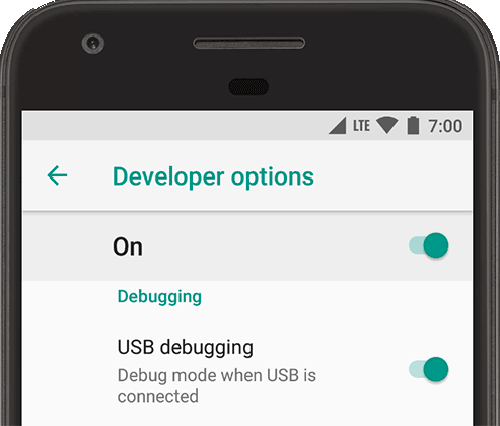
- On the Android device, enable Debugging
- Tap ‘Build Number’ 7 times (Settings > About phone > Software information > Build number)
- Enable “USB” Debugging” under Developer Options
- Plug the Android device into your desktop PC via USB
- If prompted, “Allow USB debugging” when prompted
- On your desktop chrome, open ‘chrome://inspect/#devices’ in the URL bar
- Select ‘Discover USB devices’
- Select your device, click ‘inspect’ (you may need to click the specific URL/tab that is open)
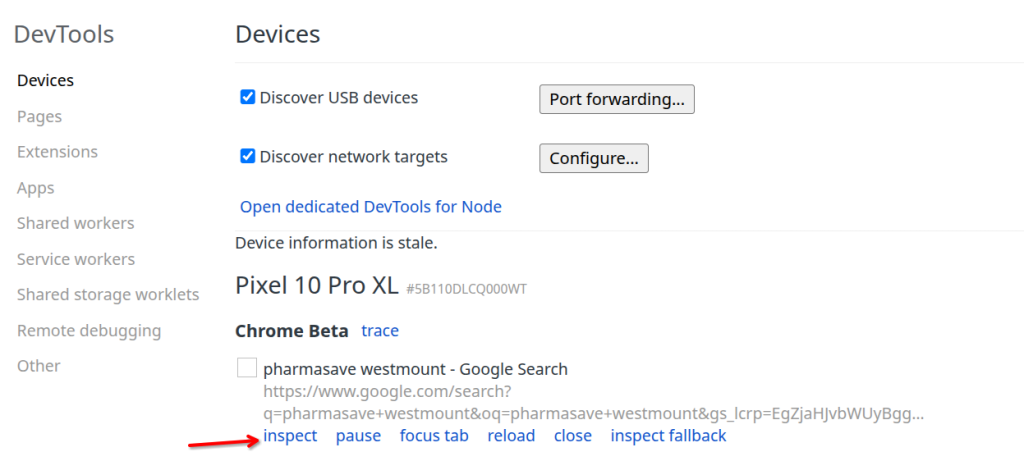
from here you should see the console log and network. You may also wish to save the HAR file for offline diagnostics.