
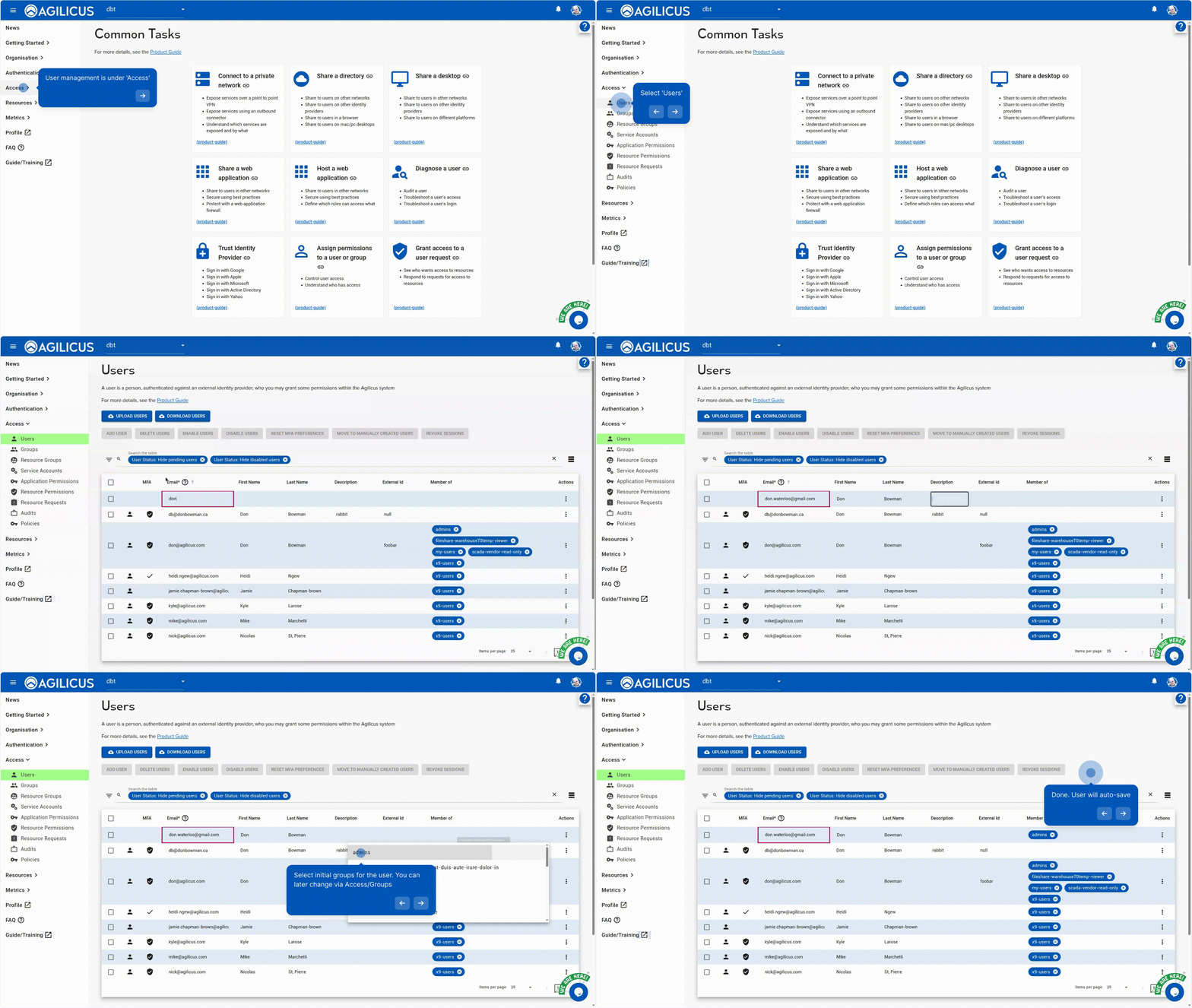
Users are linked to their appropriate Identity Provider via the user name (which is typically the email address).
Adding a user is as simple as selecting ‘ADD USER’.
The high-level options available:
- ADD USERS: create new users
- DELETE USERS: remove users
- DISABLE USERS: keep user provisioned, but prevent them from signing-in
- RESET MULTI-FACTOR PREFERENCES: disable the user’s multi-factor methods and force them to re-set/re-enroll
- MOVE TO MANUALLY CREATED: in the case you use auto-creation of users, ‘accept’ them as if you had manually created them.
- REVOKE SESSIONS: force all login sessions of the user to be logged out.
Filtering
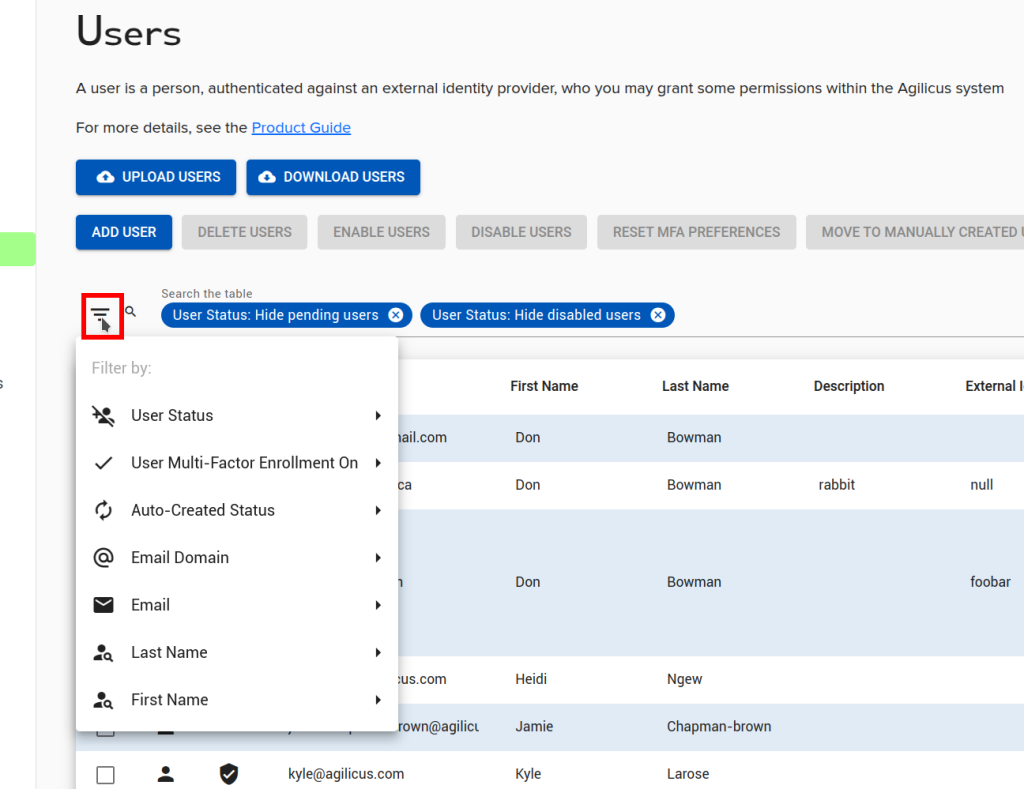
You can filter the users shown in the list with the ‘filter’ icon (which is a triangle-shaped set of lines).
You can also filter by typing a fragment of a user name/email into the search bar.
Individual filter items include:
- User Status: Active/Disabled/Pending
- Multi-Factor: Enrolled/Not-Enrolled
- Auto-Created: Yes/No
- Email Domain
- Last Name
- First Name
Use these to narrow down the list
Actions
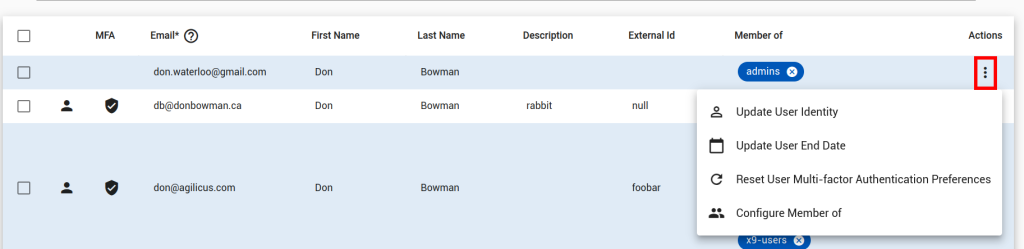
You can perform a set of actions on a user:
- Update User Identity. Use this if you have a changed the identity provider (e.g. moved from on-premise Active Directory to the Shared Microsoft Issuer).
- Update User End Date. This allows you to set an auto-expiry date for a user. E.g. if their last day with the company is April 30th, you can set them to be auto-disabled at this time
- Reset User Multi-factor Authentication. Disable the current methods and force the user to re-enroll
- Configure Member of: a dialog allowing editing group membership